
Google Chrome Not Saving Password? 8 Ways to Fix it
Chrome’s password manager is enabled by default, but if you’re unable to use it, you possibly have made some changes that are preventing the feature from functioning properly. If Chrome doesn’t offer to save your password or if it’s not saving the passwords, here’s what you should do.
1. Make sure the Password Saving is enabled
The password-saving feature is enabled by default, but sometimes extensions or incorrect settings can disable it without your knowledge. Before diving into advanced methods, check whether Password Saving is enabled.
1. Launch the Google Chrome browser.
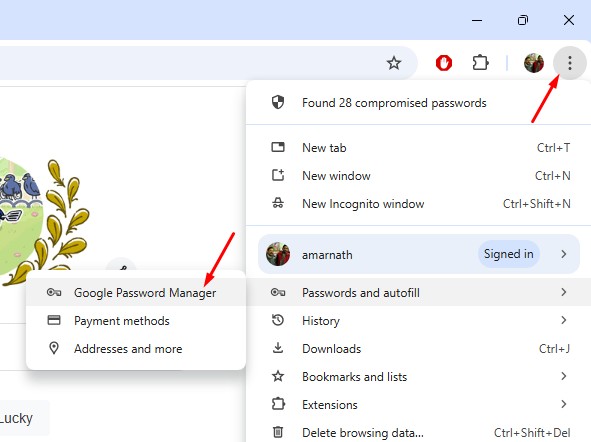
2. Click the three dots at the top right and select Passwords and Autofill > Google Password Manager.
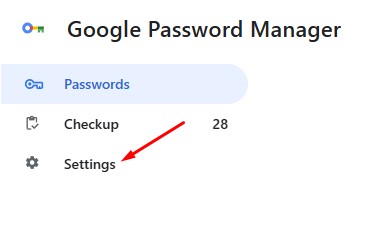
3. Switch to the Settings tab.
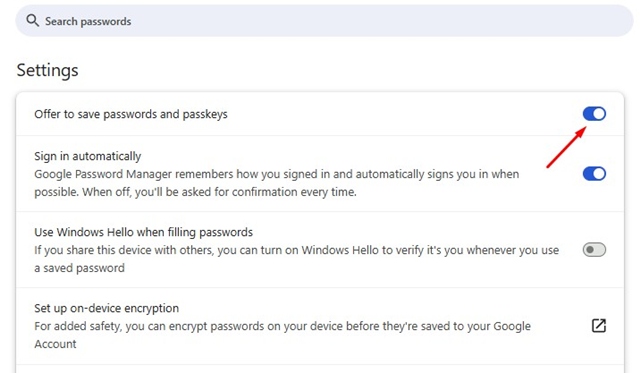
4. Make sure the toggle beside Offer to save passwords is enabled. If it’s already enabled, disable it and enable it again.
2. Check the app in the Declined Apps and Sites
You may have added the problem site to the Declined Apps and Sites list on the Google Password Manager. If this happens, the Google Password Manager won’t save the password of that site. So, check if there’s an app in the declined apps & sites list.
1. Launch the Google Chrome browser.
2. Click the three dots at the top right and select Passwords and autofill > Google Password Manager.
3. Switch to the Settings.
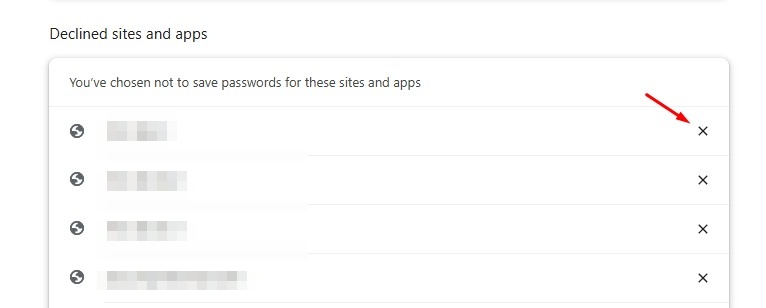
4. Scroll down to the Declined Sites and Apps section and look for the site.
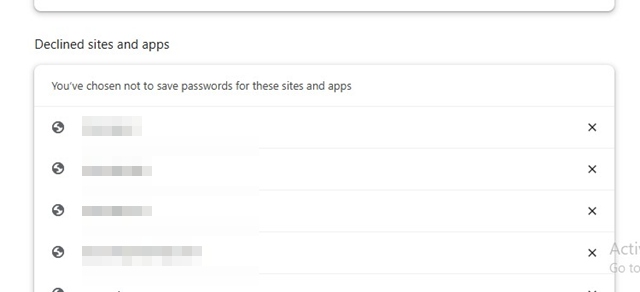
5. If the site is on the list, click the ‘X’ icon next to the site URL.
3. Disable the Recently Added Extensions
Extensions can sometimes prevent the web browser from saving passwords. This problem happens mostly when you install a security-related extension on your Chrome browser.
You should review the extensions installed on your web browser. To disable an extension: click the three dots > Extensions > Manage Extensions.
On the Extensions page, disable all Chrome Extensions, then check if Chrome is saving the passwords. If Chrome still doesn’t save the password, you can enable the extensions.
4. Update the Google Chrome Browser
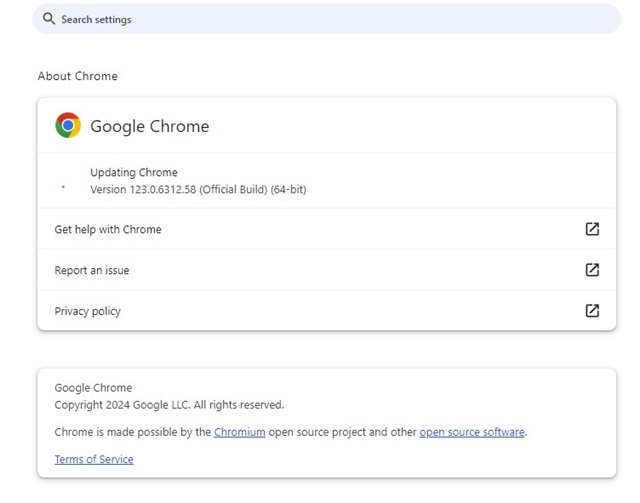
Before you make other changes to the Google Chrome browser, it’s important to update the browser to see if that fixes the problem.
Google often releases Chrome updates to deal with these kinds of bugs & glitches. To update Google Chrome, click on the three dots and select Settings. On the Settings, switch to the About Chrome section.
5. Clear the Chrome Browser Cache
An outdated or Corrupted Cache is often the prominent reason for the browser not functioning properly. You can resolve issues related to it by clearing the existing cache files.
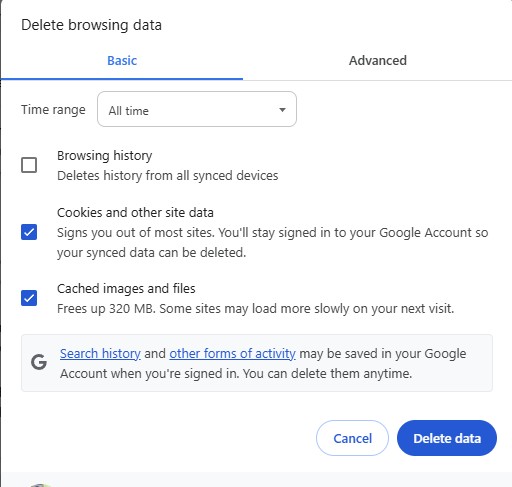
- Click on the three dots in the top right corner.
- On the menu that appears, select Delete Browsing Data.
- Select All Time on the Time Range. Check the Cookies and other site data, Cached images and files, and click Clear Data.
6. Delete the Corrupted Chrome Profile
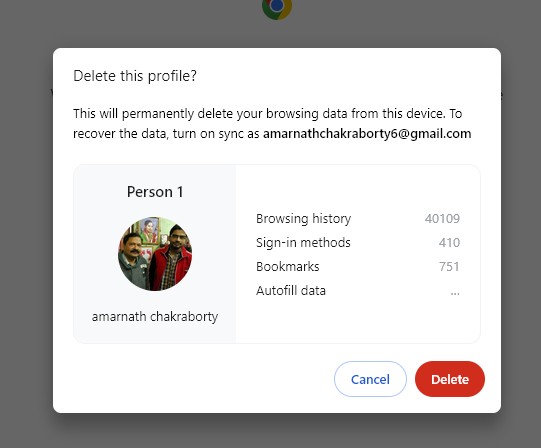
Do remember that deleting a Chrome profile will also delete your sign-in methods, bookmarks, browsing history, and the auto-fill data.
1. Launch the Chrome browser and click on your profile picture in the top right corner.
2. Select Manage Profiles.
3. Click on the Settings gear icon beside other profiles.
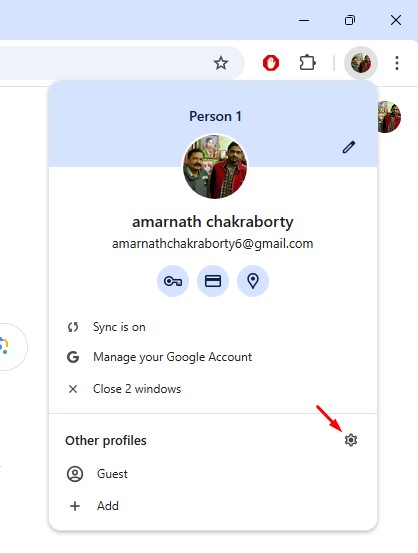
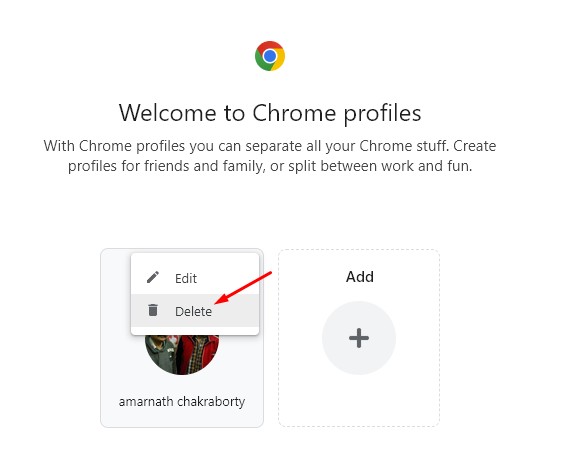
4. Click the three dots on the Chrome profile and select Delete.
5. Click Delete.
6. To add the profile, click the Add on the Startup screen and sign in to your Google Account again.
7. Reset the Chrome Browser
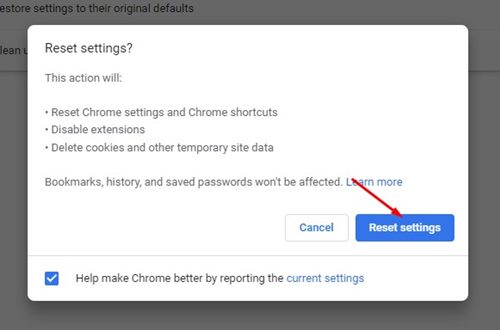
Resetting the Chrome browser will remove all user-made settings, preferences, customizations, and user profiles.
1. Move to the Chrome Settings page.
2. Click on Reset Settings.
3. Click on Restore Settings to their original defaults.
4. On the Confirmation prompt, click on Reset Settings again.
8. Add the Password Manually
If you don’t want to reset the Chrome browser, you can try adding the password manually to the Google Password Manager. To do that, follow these steps.
1. Click on the three dots and then navigate to the Passwords and Autofill > Google Password Manager.
2. Click on Add.
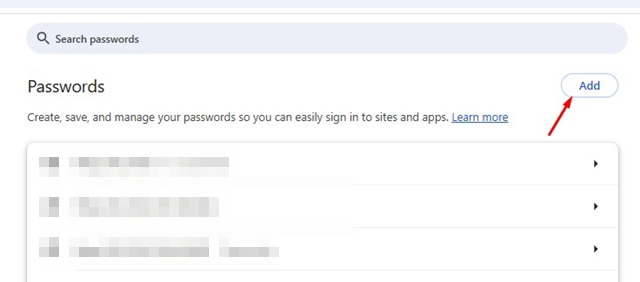
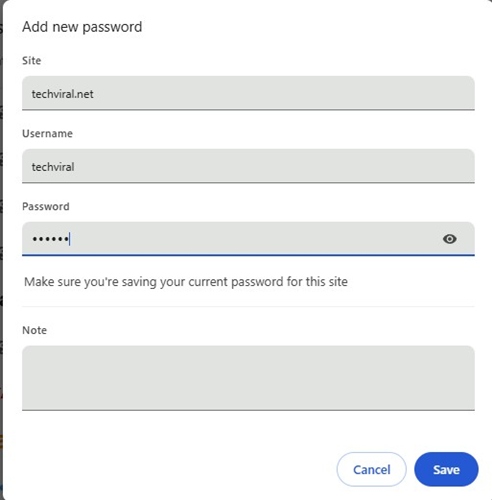
3. Enter the site URL, username, and the Password you want to save. Once done, click Save.
I am pretty sure that these workarounds will surely fix the Google Chrome not saving passwords issue you’re facing. If you need more help on this topic, let us know in the comments.
The post Google Chrome Not Saving Password? 8 Ways to Fix it appeared first on TechViral.
ethical hacking,hacking,bangla ethical hacking,bangla hacking tutorial,bangla tutorial,bangla hacking book,ethical hacking bangla,bangla,hacking apps,ethical hacking bangla tutorial,bangla hacking,bangla hacking pdf,bangla hacking video,bangla android hacking,bangla hacking tutorials,bangla fb hacking tutorial,bangla hacking book download,learn ethical hacking,hacking ebook,hacking tools,bangla ethical hacking course, tricks,hacking,ludo king tricks,whatsapp hacking trick 2019 tricks,wifi hacking tricks,hacking tricks: secret google tricks,simple hacking tricks,whatsapp hacking tricks,tips and tricks,wifi tricks,tech tricks,redmi tricks,hacking trick paytm cash,hacking trick helo app,hacking trick of helo app,paytm cash hacking trick,wifi password hacking,paytm cash hacking trick malayalam,hacker tricks, tips and tricks,pubg mobile tips and tricks,tricks,tips,tips and tricks for pubg mobile,100 tips and tricks,pubg tips and tricks,excel tips and tricks,google tips and tricks,kitchen tips and tricks,season 2 tips and tricks,android tips and tricks,fortnite tips and tricks,godnixon tips and tricks,free fire tips and tricks,advanced tips and tricks,whatsapp tips and tricks, facebook tricks,facebook,facebook hidden tricks,facebook tips and tricks,facebook latest tricks,facebook tips,facebook new tricks,facebook messenger tricks,facebook android app tricks,fb tricks,facebook app tricks,facebook tricks and tips,facebook tricks in hindi,tricks,facebook tutorial,new facebook tricks,cool facebook tricks,facebook tricks 2016,facebook tricks 2017,facebook secret tricks,facebook new tricks 2020,blogger blogspot seo tips and tricks,blogger tricks,blogger,blogger seo tips,blogger seo tips and tricks,seo for blogger,blogger seo in hindi,blogger seo best tips for increasing visitors,blogging tips and tricks,blogger blog seo,blogger seo in urdu,adsense approval trick,blogging tips and tricks for beginners,blogging tricks,blogger tutorial,blogger tricks 2016,blogger tricks 2017 bangla,tricks,bangla tutorial,bangla magic,bangla motivational video,bangla tricks,bangla tips,all bangla tips,magic tricks,akash bangla tricks,top 10 bangla tricks,tips and tricks,all bangla trick,bangla computer tricks,computer bangla tricks,bangla magic card tricks,ms word bangla tips and tricks,bangla computer tips,trick,psychology tricks,youtube bangla,magic tricks bangla,si trick Credit techviral


