
How to Fix Mouse Lagging Problem in Windows 11
Users who have just installed the latest Windows 11 update were facing problems with the mouse. According to the users, the mouse stutters and lags for no reason. What’s worse is that it’s not an app-specific problem; Windows 11 users have been experiencing mouse lagging problems everywhere. If you’re also facing the same problem, here’s what you should do.
1. Restart your Windows 11

If you’ve just updated your Windows 11 version and are experiencing mouse lag, it’s time to restart your computer. Restarting may terminate all conflicting apps and services. It will also remove the bugs and glitches that may be triggering the mouse problem.
Click the Windows 11 Start button and select the Power Menu. On the Power Menu, select Restart.
2. Reconnect the Mouse
If restarting Windows 11 didn’t help, you need to reconnect the mouse. This is a basic fix, but it’s very effective.
To turn off the Bluetooth mouse, you need to turn off the Bluetooth connectivity on your device. If you have a wired mouse, unplug it from the USB port and reconnect it.
3. Check the Mouse Speed & Sensitivity
The latest update likely reset your old mouse speed and sensitivity settings, causing the problem. Mouse speed and sensitivity are very important factors as they determine how the cursor moves across the screen with respect to the movement of the mouse.
1. Launch the Settings app.
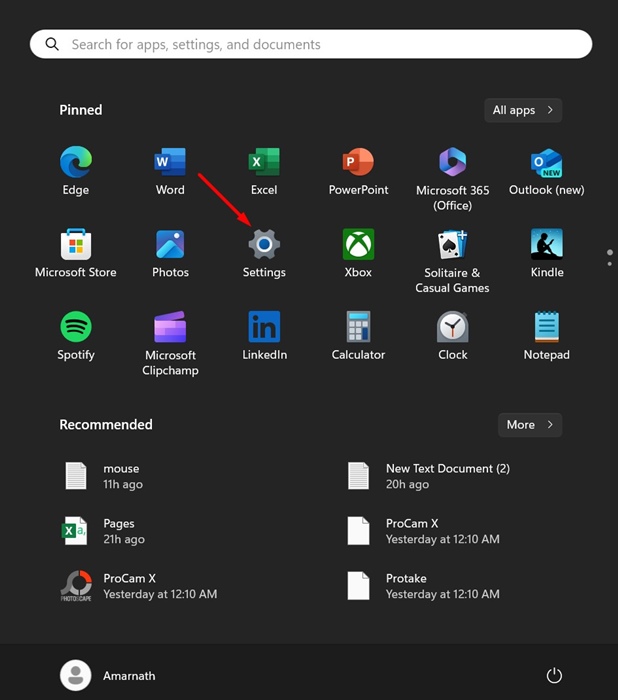
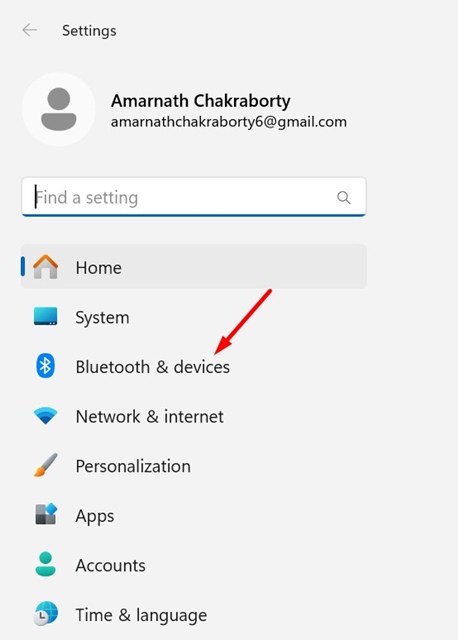
2. Click on Bluetooth & devices.
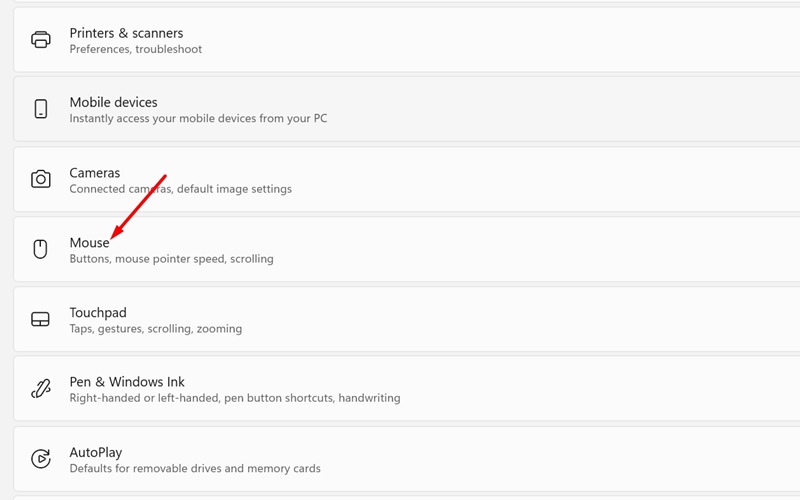
3. Click on Mouse.
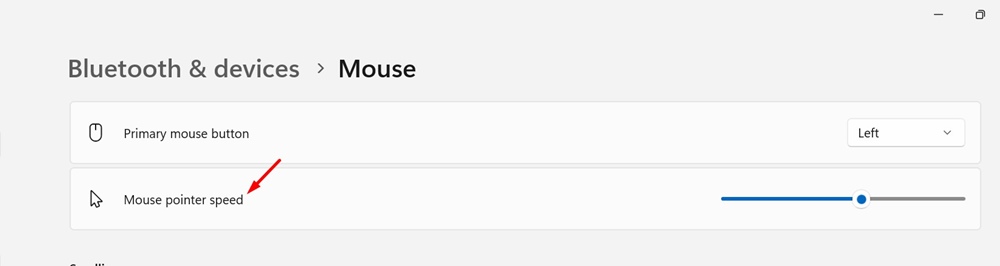
4. Use the slider beside the Mouse Pointer speed to adjust the speed of the pointer.
5. You must also do the same for Line to scroll at a time.
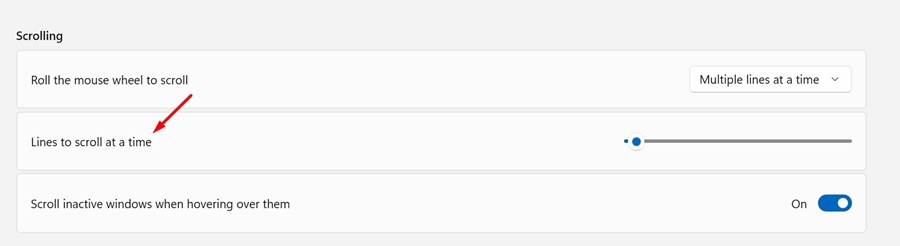
4. Disable the Mouse Acceleration
Mouse Acceleration, also known as Enhanced Pointer Precision, is a feature that monitors how fast you move your mouse and adjusts everything automatically. This feature can sometimes trigger mouse lag or stutter issues.
1. Launch the Settings app.
2. Switch to Bluetooth & devices.
3. Click the Mouse.
4. Click on Additional Mouse Settings.

5. Uncheck the Enhance pointer precision.

5. Turn off the Scroll Active Window
Scroll Active Window is another Windows 11 feature known for triggering mouse lag. Here’s how to turn it off.
1. Launch the Settings app on your PC.
2. Switch to the Bluetooth & devices.
3. Click on Mouse.
4. Move to the Scrolling section and turn off the toggle beside ‘Scroll inactive windows when hovering over them’.
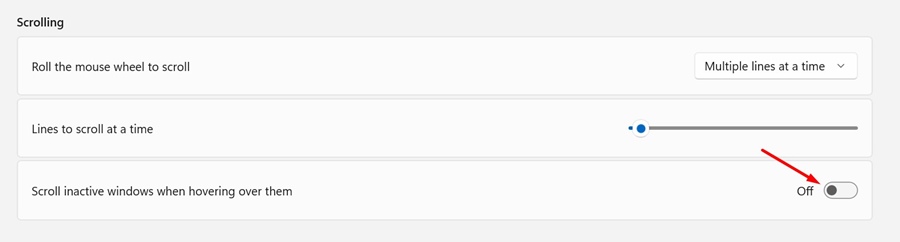
6. Turn off Mouse Trails
Like the Scroll active window and Mouse acceleration, turning off the Mouse trails can also help. Here’s what you need to do.
1. Launch the Settings app on your PC.
2. Switch to the Bluetooth & devices.
3. Click on Mouse.
4. Click on Additional Mouse Settings.
5. Uncheck the Display Pointer trails.

6. Click on Apply, then OK.

7. Disable the Power Saver Mode
Windows 11 automatically enables the Power Saver mode when your laptop’s battery reaches a certain level. When the Power Saver Mode is enabled, you may experience mouse lag. So, you can try turning it off and see if it helps.
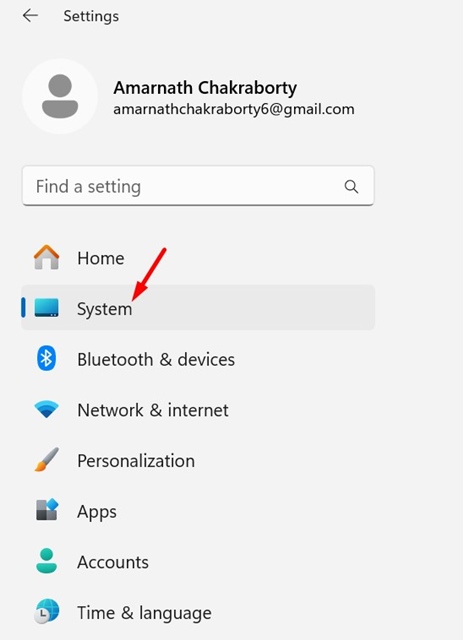
1. Launch the Settings app on Windows 11 and switch to System.
2. Click on Power & Battery.
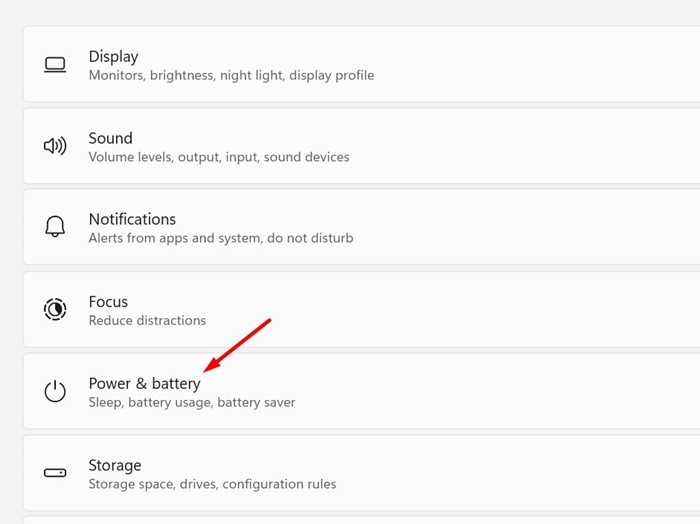
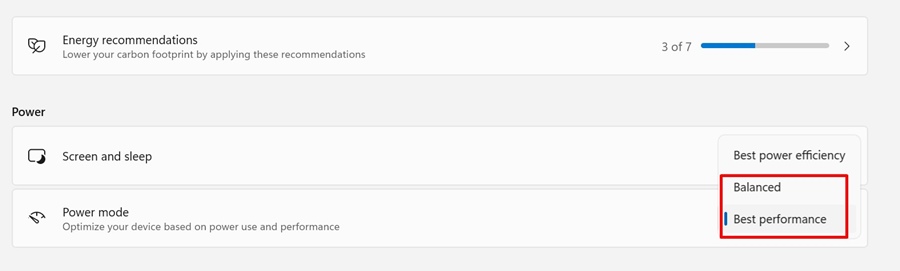
3. Click on the drop-down next to Power mode and select Balanced or Best Performance.
8. Update the Mouse Drivers
Outdated mouse drivers are often the prominent reason for Mouse lagging or stuttering. You can fix this by updating the Mouse drivers to the latest version. Here’s what you need to do.
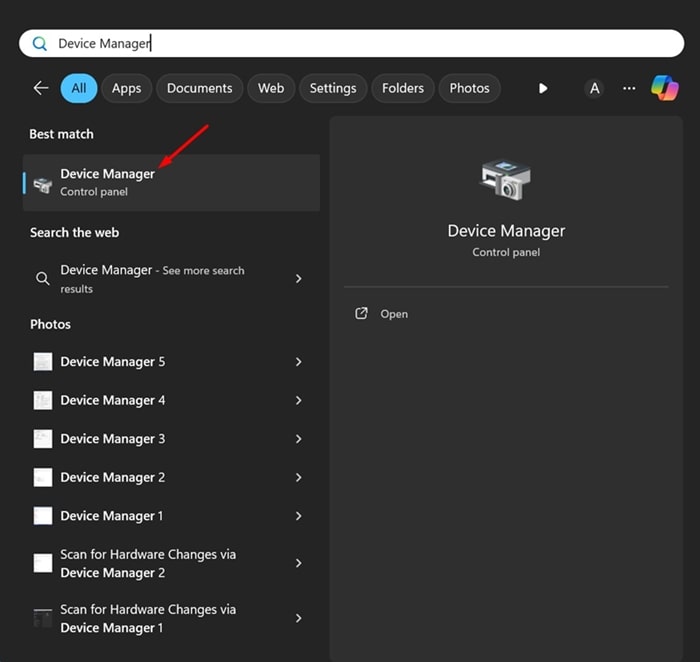
1. Open Device Manager from the Windows Search.
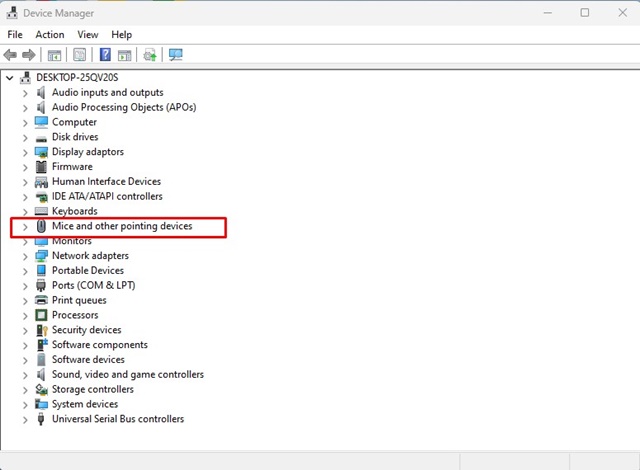
2. Expand the Mice and other pointing devices tree.
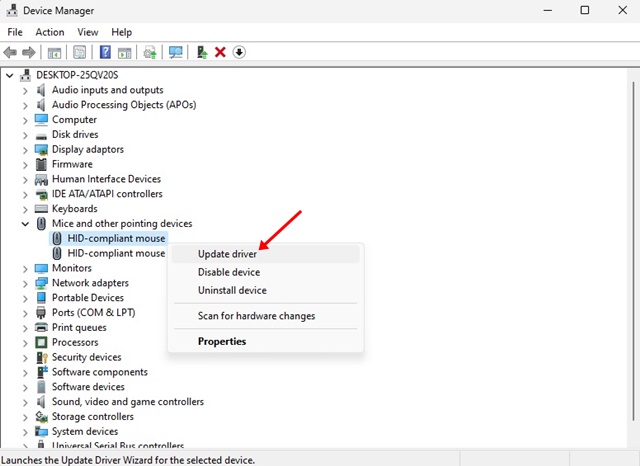
3. Right-click on the Mouse driver and select Update driver.
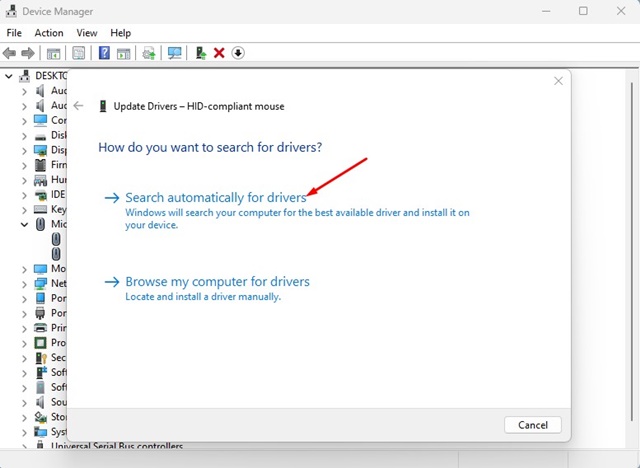
4. Select Search automatically for drivers.
9. Reinstall the Mouse
If updating the mouse drivers fails to fix the problem, you can try reinstalling the Mouse.
1. Launch Device Manager and expand the Mice and other pointing devices tree.
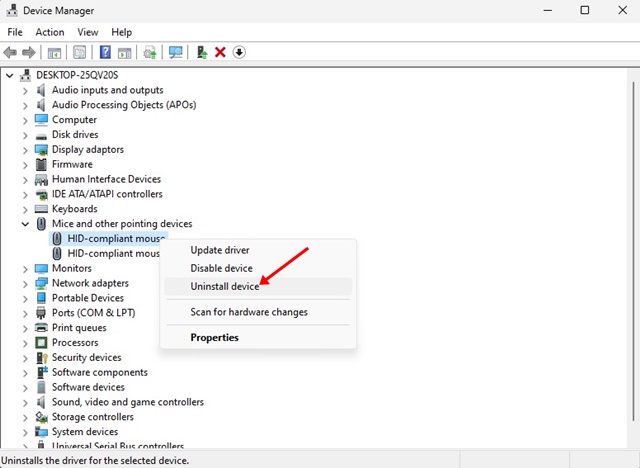
2. Right-click on the connected mouse and select Uninstall device.
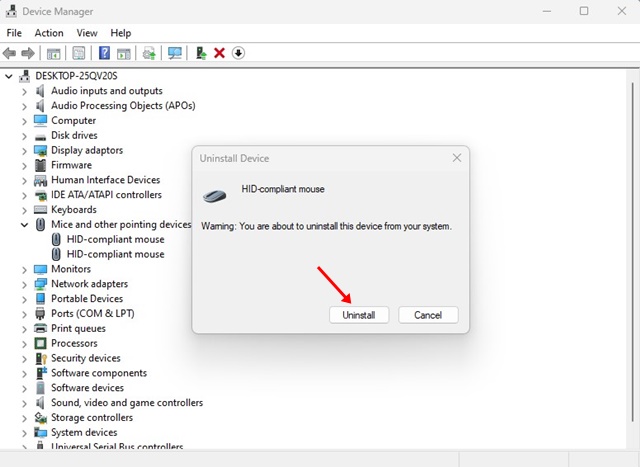
3. On the Uninstall device prompt, select Uninstall.
These are a few simple methods to fix the Mouse lagging issue on Windows 11. We are sure that these methods would have fixed the problem you’re facing. However, if you need more help, let us know in the comments.
The post How to Fix Mouse Lagging Problem in Windows 11 appeared first on TechViral.
ethical hacking,hacking,bangla ethical hacking,bangla hacking tutorial,bangla tutorial,bangla hacking book,ethical hacking bangla,bangla,hacking apps,ethical hacking bangla tutorial,bangla hacking,bangla hacking pdf,bangla hacking video,bangla android hacking,bangla hacking tutorials,bangla fb hacking tutorial,bangla hacking book download,learn ethical hacking,hacking ebook,hacking tools,bangla ethical hacking course, tricks,hacking,ludo king tricks,whatsapp hacking trick 2019 tricks,wifi hacking tricks,hacking tricks: secret google tricks,simple hacking tricks,whatsapp hacking tricks,tips and tricks,wifi tricks,tech tricks,redmi tricks,hacking trick paytm cash,hacking trick helo app,hacking trick of helo app,paytm cash hacking trick,wifi password hacking,paytm cash hacking trick malayalam,hacker tricks, tips and tricks,pubg mobile tips and tricks,tricks,tips,tips and tricks for pubg mobile,100 tips and tricks,pubg tips and tricks,excel tips and tricks,google tips and tricks,kitchen tips and tricks,season 2 tips and tricks,android tips and tricks,fortnite tips and tricks,godnixon tips and tricks,free fire tips and tricks,advanced tips and tricks,whatsapp tips and tricks, facebook tricks,facebook,facebook hidden tricks,facebook tips and tricks,facebook latest tricks,facebook tips,facebook new tricks,facebook messenger tricks,facebook android app tricks,fb tricks,facebook app tricks,facebook tricks and tips,facebook tricks in hindi,tricks,facebook tutorial,new facebook tricks,cool facebook tricks,facebook tricks 2016,facebook tricks 2017,facebook secret tricks,facebook new tricks 2020,blogger blogspot seo tips and tricks,blogger tricks,blogger,blogger seo tips,blogger seo tips and tricks,seo for blogger,blogger seo in hindi,blogger seo best tips for increasing visitors,blogging tips and tricks,blogger blog seo,blogger seo in urdu,adsense approval trick,blogging tips and tricks for beginners,blogging tricks,blogger tutorial,blogger tricks 2016,blogger tricks 2017 bangla,tricks,bangla tutorial,bangla magic,bangla motivational video,bangla tricks,bangla tips,all bangla tips,magic tricks,akash bangla tricks,top 10 bangla tricks,tips and tricks,all bangla trick,bangla computer tricks,computer bangla tricks,bangla magic card tricks,ms word bangla tips and tricks,bangla computer tips,trick,psychology tricks,youtube bangla,magic tricks bangla,si trick Credit techviral


