
WhatsApp Backup Stuck in Progress? 9 Ways to Fix It
WhatsApp Backup may be stuck in progress or take too long for various reasons, like internet issues, corrupted app cache files, etc. It’s also possible that the Google Drive account where the backup was uploaded has insufficient storage space.
Since the actual reason is unknown, you will have to perform a series of troubleshooting steps to fix it. Here’s what you should do if WhatsApp Back Stuck in progress.
1. Make Sure You Have a Stable Internet Connection
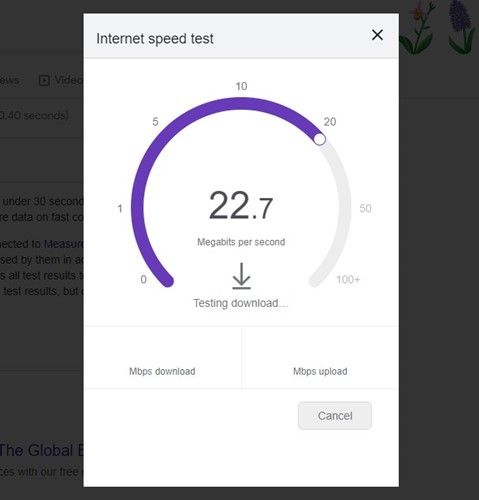
WhatsApp Backup Stuck in Progress issue is usually linked to unstable internet connectivity. So, before you try the next methods, ensure your phone is connected to a stable internet connection.
If you are unsure whether your internet connection is stable, visit the fast.com website. Alternatively, you can try switching between Mobile Data or WiFi Network (If you have both).
If everything is fine, restart the router or mobile data connection (whichever you’re using). Once done, open the WhatsApp app and start the backup process again.
2. Restart your smartphone
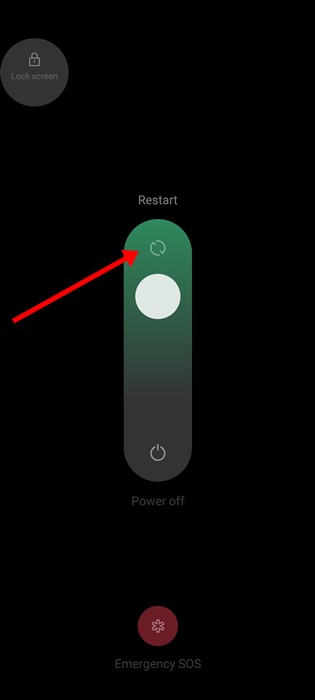
Be it Android or iPhone, a simple restart can fix the most complicated problems of your phone. Restarting will eliminate bugs preventing the WhatsApp app’s backup from processing properly. If you have an Android, long-press the Power button and select Restart.
3. Make Sure Backup Using Cellular is Enabled
WhatsApp app has a feature called ‘Back up using Cellular’ that allows data backup while using mobile data. If the feature is disabled, the backup will not progress. Therefore, you must ensure that the backup using the cellular feature is enabled on your WhatsApp account.
1. Open the WhatsApp app on your Android device.
2. Tap on three dots > Settings.
3. Tap on Chats.
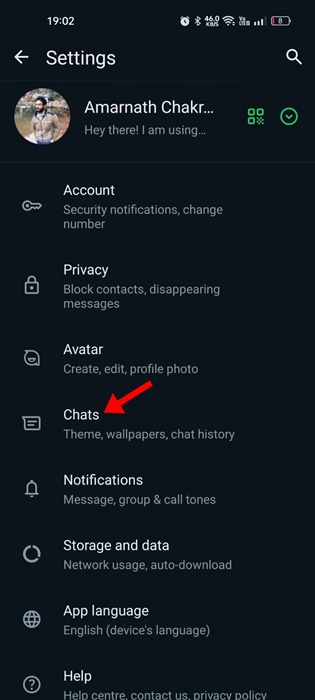
4. Scroll down and tap on Chats Backup.
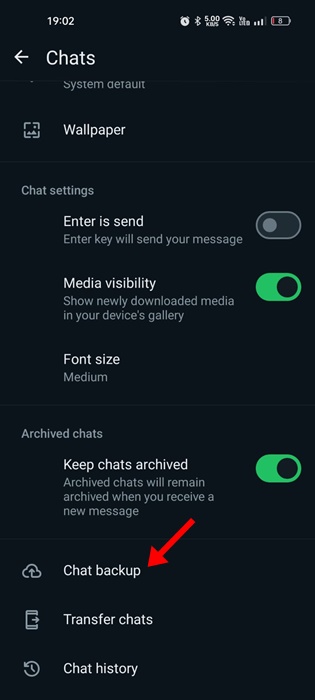
4. Scroll down to the bottom and make sure the Back up using Cellular option is enabled.
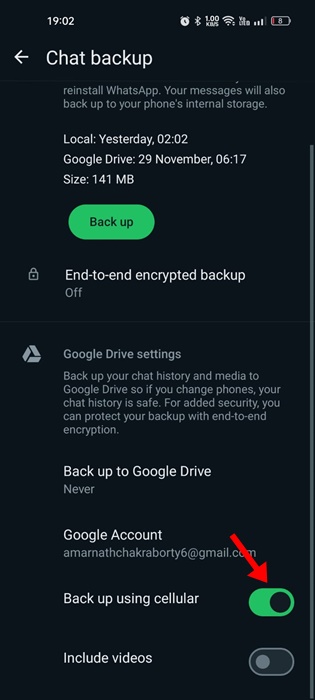
Once you enable the feature, wait for a few seconds. The WhatsApp Backup should progress now.
4. Exclude Videos from the WhatsApp Backup
If the WhatsApp app takes unusually long to complete the backup, chances are that the backup files have videos. Large videos often take time to upload, resulting in WhatsApp Backup being stuck. You can try excluding the videos from the WhatsApp Backup file to fix the issue.
1. Open the WhatsApp app on your Android or iPhone.
2. Move to the Settings.
3. Scroll down & tap on Chats.
4. Tap on the Chat Backup.
5. Scroll down and turn off the toggle for Include videos.
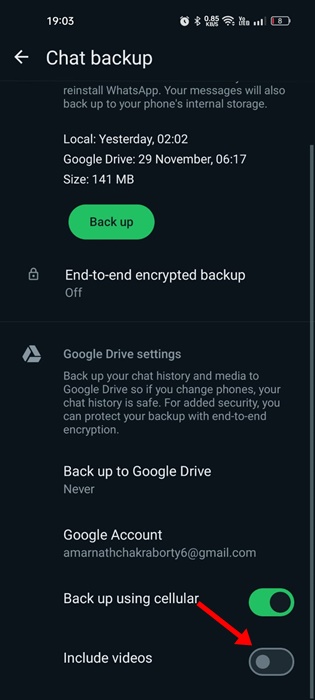
5. Force Stop the WhatsApp App
Force stopping will release all processes & tasks associated with the WhatsApp app from the background. Once you force stop the app, reopen it and initiate the backup again.
1. Long-press the WhatsApp app icon on your Android’s home screen.
2. On the menu that appears, tap on the App info.
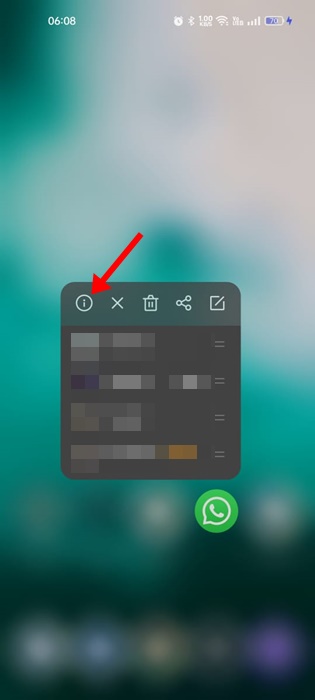
3. Tap the Force Stop.
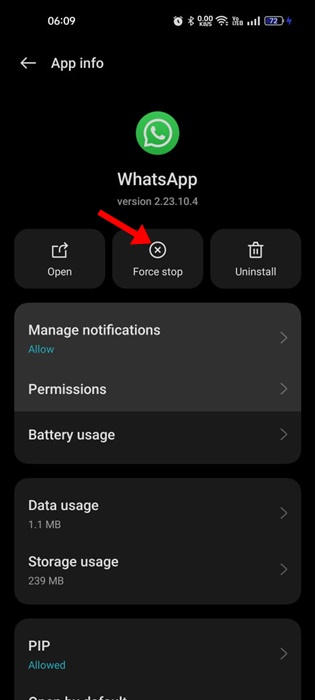
6. Update the WhatsApp App
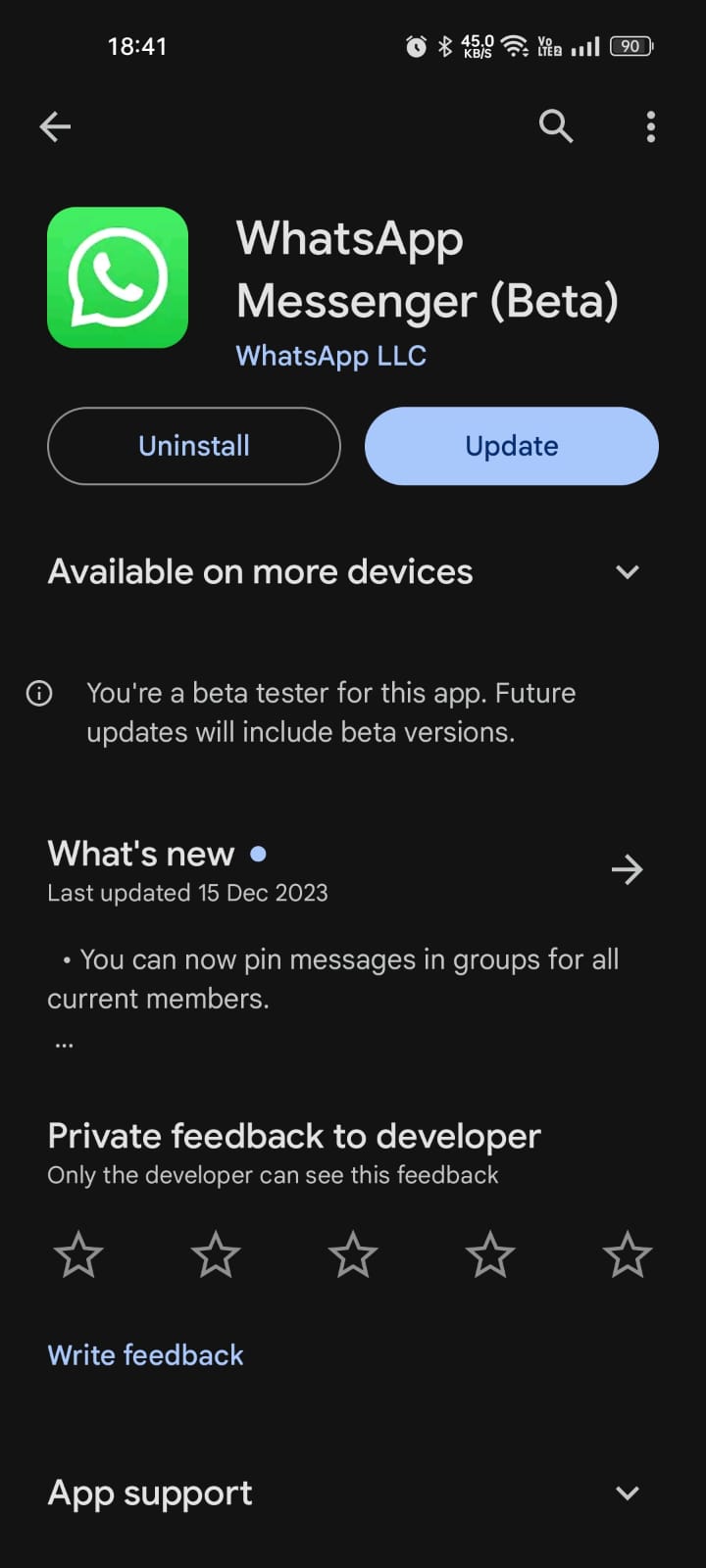
Updating the app will eliminate the bugs and glitches present in the installed version. Also, it’s a good idea to keep Android apps and games up to date at all times; this way, you can enjoy all the new features while maintaining great stability.
You can open your smartphone’s app store and update the WhatsApp app to the latest version. After the update, you can initiate the WhatsApp Chat again.
7. Delete Old WhatsApp Backup from the Google Drive
Existing WhatsApp backup files saved on your Google Drive account can sometimes cause problems with the new backups. So, if nothing worked in your favor until now, it’s best to delete the old backup files stored on your Google Drive.
1. Open the Google Drive app on your Android device. When the app opens, tap on the hamburger menu at the top left corner.
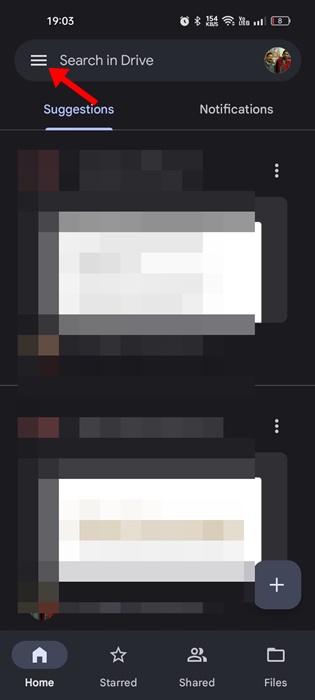
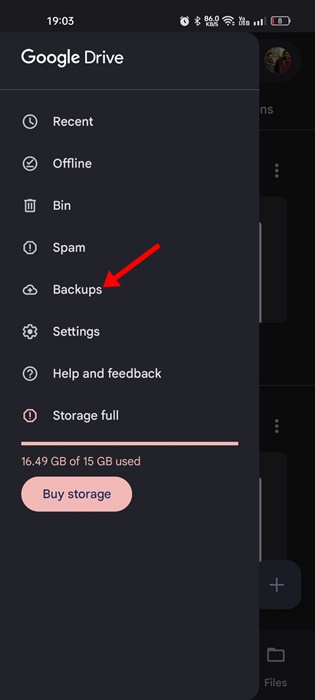
2. Tap on Backups.
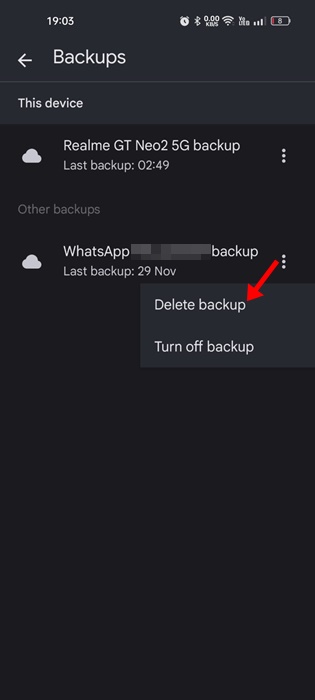
3. Find the WhatsApp Backup folder and tap on the three dots next to it.
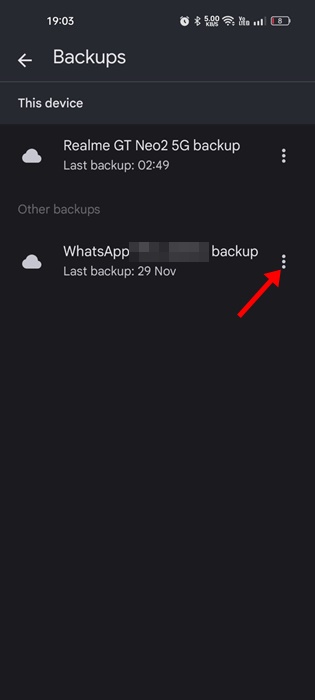
4. Select the Delete Backup.
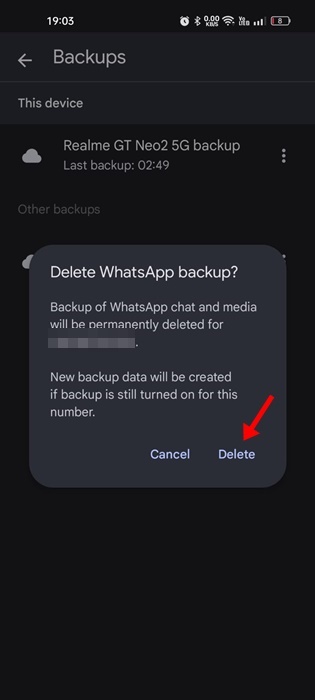
5. On the confirmation prompt, tap on the Delete button again.
8. Use a Different Google Account to Back up WhatsApp Chats
If the WhatsApp Backup remains Stuck in Progress or takes too long to complete, it’s best to connect a different Google Drive account to WhatsApp.
1. Open the WhatsApp app.
2. Move to the Settings and select Chats.
3. Tap on the Chat Backup.
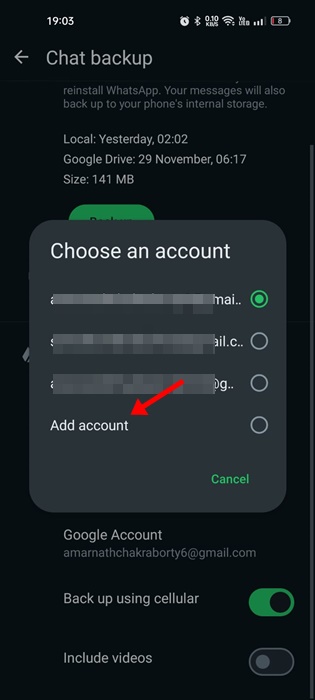
4. Select Google account.
5. Tap on the Add account and add another Google Account to save WhatsApp Backup.
9. Reinstall the WhatsApp App
If nothing works for you to fix the WhatsApp Backup Stuck in Progress issue, the final option is to reinstall the WhatsApp app. Reinstallation is easy, and it removes all corrupted installation files.
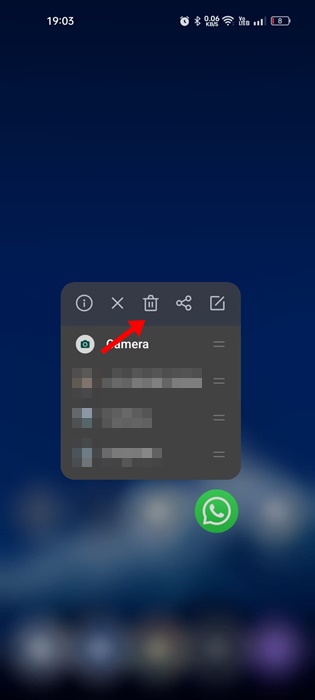
Reinstallation will also rule out incorrect settings that may be preventing WhatsApp’s backup process from being completed. To do this, press the WhatsApp app icon on your home screen and select Uninstall.
Once uninstalled, open the Google Play Store and install the WhatsApp app again. After installing WhatsApp, sign in with your phone number and initiate the backup process.
These are some of the best ways to fix WhatsApp Backup Stuck in Progress or taking too long. Let us know if you need more help resolving the WhatsApp Backup issues.
The post WhatsApp Backup Stuck in Progress? 9 Ways to Fix It appeared first on TechViral.
ethical hacking,hacking,bangla ethical hacking,bangla hacking tutorial,bangla tutorial,bangla hacking book,ethical hacking bangla,bangla,hacking apps,ethical hacking bangla tutorial,bangla hacking,bangla hacking pdf,bangla hacking video,bangla android hacking,bangla hacking tutorials,bangla fb hacking tutorial,bangla hacking book download,learn ethical hacking,hacking ebook,hacking tools,bangla ethical hacking course, tricks,hacking,ludo king tricks,whatsapp hacking trick 2019 tricks,wifi hacking tricks,hacking tricks: secret google tricks,simple hacking tricks,whatsapp hacking tricks,tips and tricks,wifi tricks,tech tricks,redmi tricks,hacking trick paytm cash,hacking trick helo app,hacking trick of helo app,paytm cash hacking trick,wifi password hacking,paytm cash hacking trick malayalam,hacker tricks, tips and tricks,pubg mobile tips and tricks,tricks,tips,tips and tricks for pubg mobile,100 tips and tricks,pubg tips and tricks,excel tips and tricks,google tips and tricks,kitchen tips and tricks,season 2 tips and tricks,android tips and tricks,fortnite tips and tricks,godnixon tips and tricks,free fire tips and tricks,advanced tips and tricks,whatsapp tips and tricks, facebook tricks,facebook,facebook hidden tricks,facebook tips and tricks,facebook latest tricks,facebook tips,facebook new tricks,facebook messenger tricks,facebook android app tricks,fb tricks,facebook app tricks,facebook tricks and tips,facebook tricks in hindi,tricks,facebook tutorial,new facebook tricks,cool facebook tricks,facebook tricks 2016,facebook tricks 2017,facebook secret tricks,facebook new tricks 2020,blogger blogspot seo tips and tricks,blogger tricks,blogger,blogger seo tips,blogger seo tips and tricks,seo for blogger,blogger seo in hindi,blogger seo best tips for increasing visitors,blogging tips and tricks,blogger blog seo,blogger seo in urdu,adsense approval trick,blogging tips and tricks for beginners,blogging tricks,blogger tutorial,blogger tricks 2016,blogger tricks 2017 bangla,tricks,bangla tutorial,bangla magic,bangla motivational video,bangla tricks,bangla tips,all bangla tips,magic tricks,akash bangla tricks,top 10 bangla tricks,tips and tricks,all bangla trick,bangla computer tricks,computer bangla tricks,bangla magic card tricks,ms word bangla tips and tricks,bangla computer tips,trick,psychology tricks,youtube bangla,magic tricks bangla,si trick Credit techviral


