
4 Best Ways to Forget WiFi Network in Windows 11
While the ability to automatically connect to a specific WiFi network is great, you might not always need it. In that case, you need to forget a wireless network on Windows 11. Here’s how you can forget it.
1. Forget a WiFi network from the Quick Settings
You can use the Quick Settings panel to forget a Wifi network on Windows 11.
1. Click on the Quick Settings Panel (Windows + A) on your Windows 11.
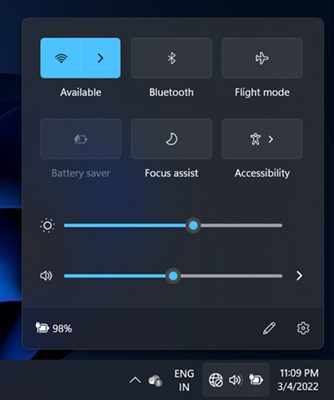
2. Make sure that the WiFi is turned on. Click the arrow button next to the WiFi to list all available networks within range.
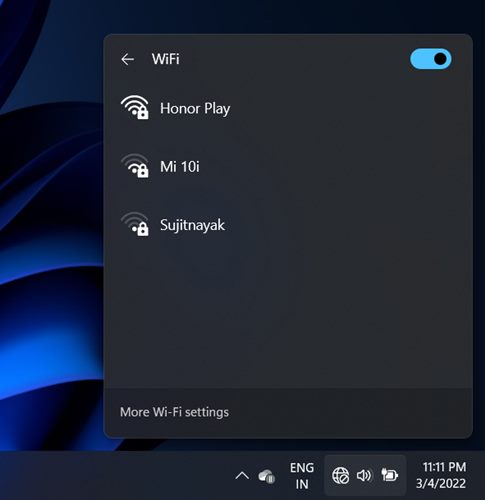
3. You need to find the WiFi network that you want to forget.
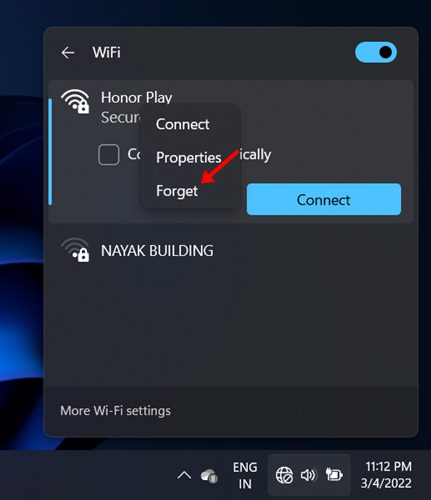
4. Right-click on the WiFi network and select Forget.
2. Forget a WiFi Network via Settings
It’s pretty easy to forget a WiFi network via Settings on Windows 11. Here’s what you should do.
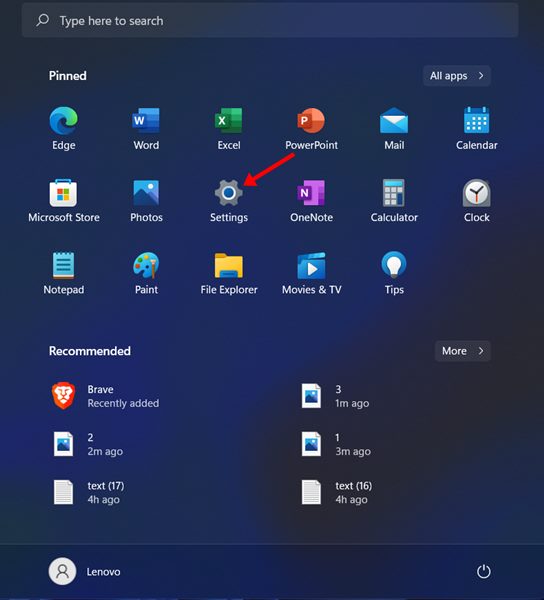
- Click on the Windows 11 Start button and select Settings.
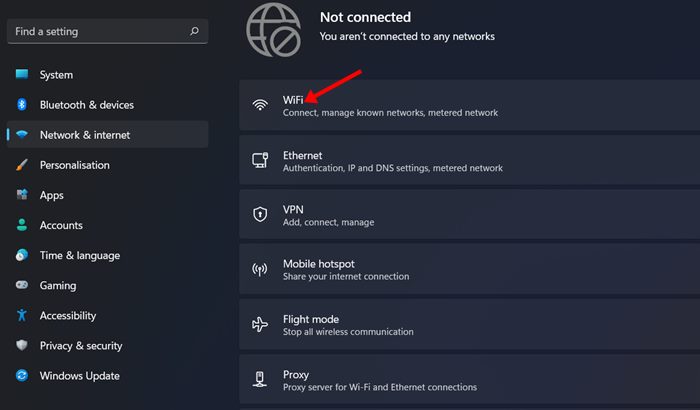
2. Click on the Network & Internet.
3. Under the Network & Internet, click WiFi.
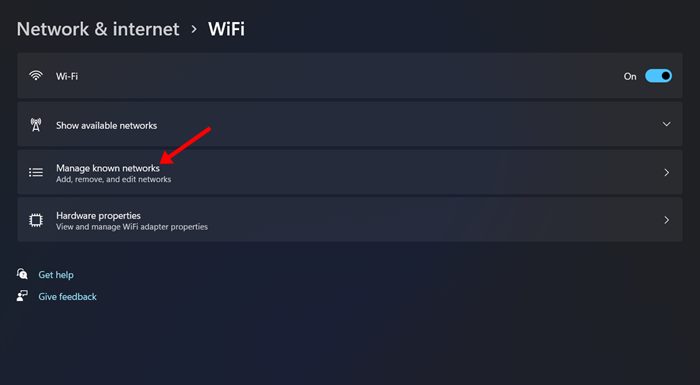
4. Click on the Manage Known Networks.
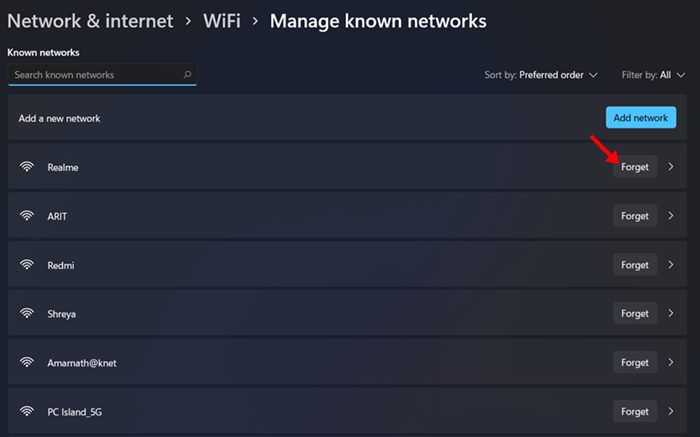
5. You will see a list of all wifi networks saved on your PC. To forget a WiFi network, click the Forget button next to the Wifi name.
3. Forget the WiFi Network via Registry Editor
This one is a bit more complicated than other methods, so make sure to follow the steps carefully.
1. Press the Windows Key + R button on your keyboard to open the RUN dialog box.
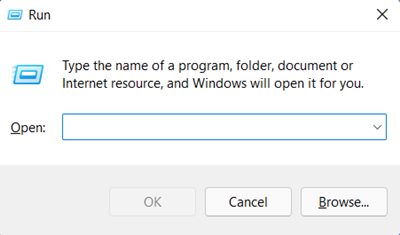
2. Type Regedit and press Enter.
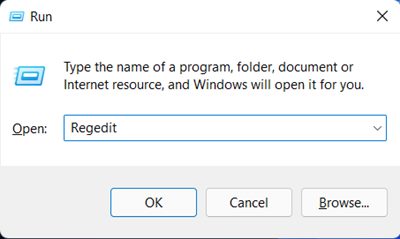
3. Navigate to the following path:
Computer\HKEY_LOCAL_MACHINE\SOFTWARE\Microsoft\Windows NT\CurrentVersion\NetworkList\Profiles
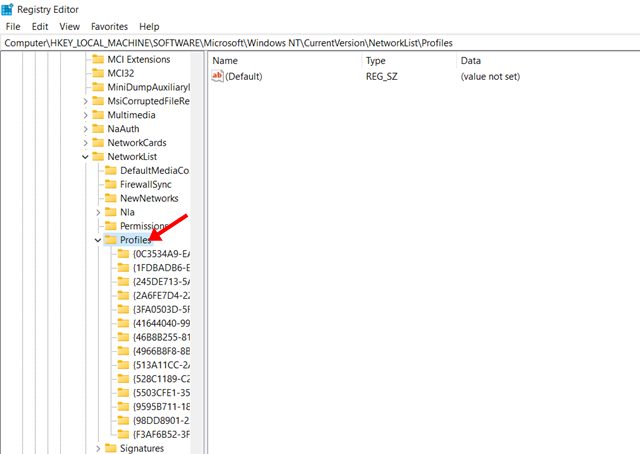
4. On the left pane, you will find many folders. These are the Network profiles saved on your system, but they will be in the form of letters & numbers.
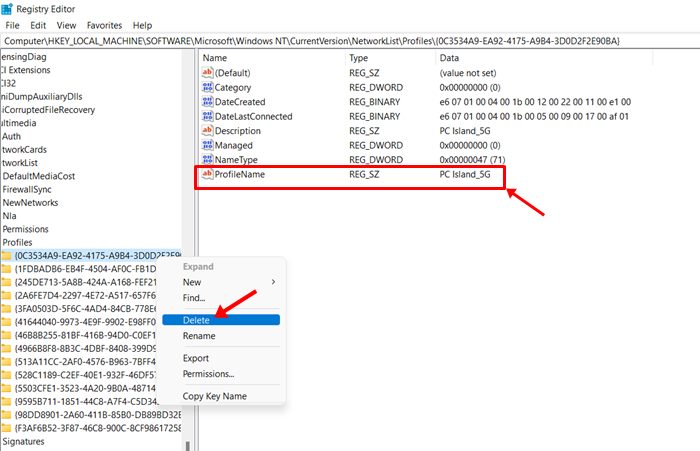
To identify the profile, you need to click on each folder individually, and in the right pane, look at the ProfileName key.
5. Once you find the network profile folder, right-click on the folder and select the Delete option.
4. Forget a WiFi Network on Windows 11 via Command Prompt
You can even rely on the Command Prompt to forget a WiFi network.
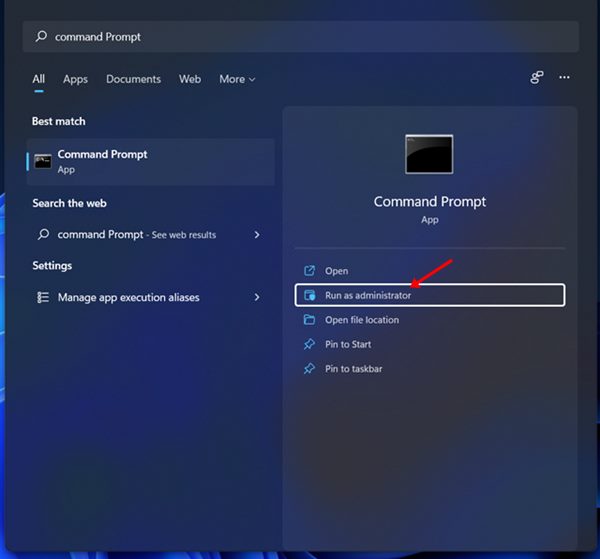
1. Click on Windows 11 Search and type in Command Prompt. Right-click on Command Prompt and select Run as Administrator.
2. Execute the command:
netsh wlan show profiles
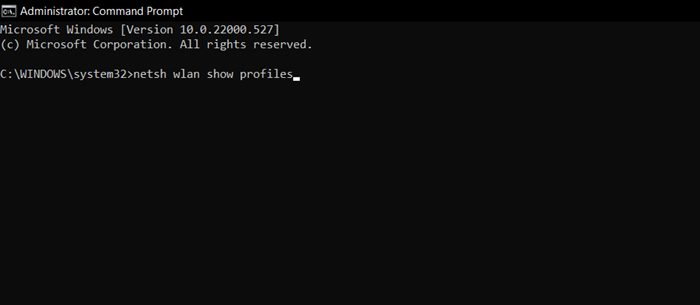
3. You will see a list of all saved wireless network profiles.
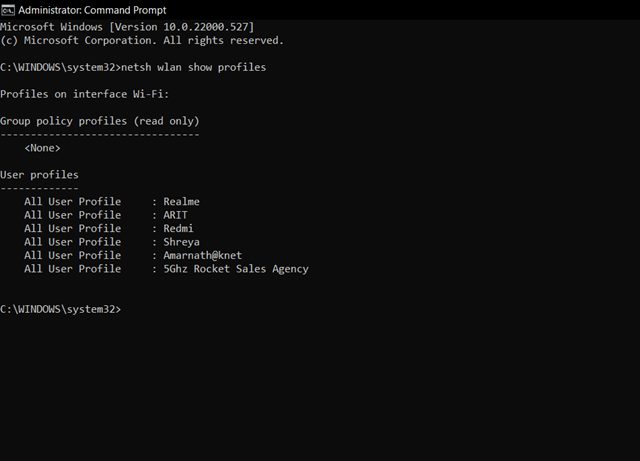
4. Type in the given command and press Enter.
netsh wlan delete profile name='network name'
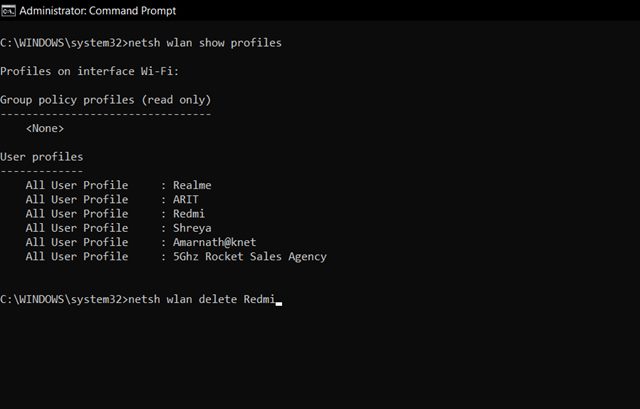
Note: Make sure to replace the Network Name with the actual WiFi profile name.
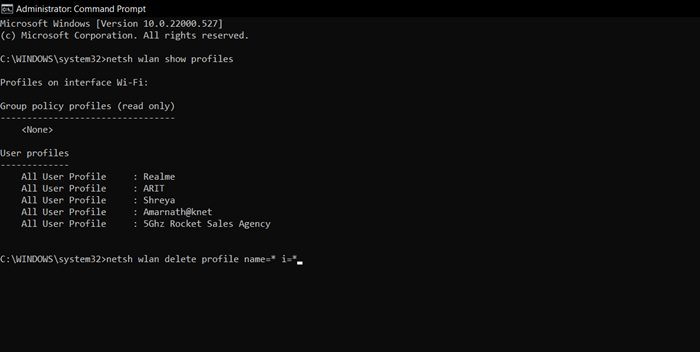
5. If you want to forget all networks saved on your system, you need to execute the command:
netsh wlan delete profile name=* i=*
How to Reconnect to a Forgotten WiFi Network?
Reconnecting requires manual selection and entering the password. If you have the authentication details, you can search for available nearby WiFi networks in Quick Settings (Windows + A).
The WiFi network you forgot will show up; click the Connect button and enter the password. This will reconnect your device to the forgotten WiFi network.
Also read: How to View WiFi Password in Windows 11
You can use these methods to forget wireless network connections in Windows 11. If you don’t want your device to connect to a particular WiFi network, you can forget that network.
The post 4 Best Ways to Forget WiFi Network in Windows 11 appeared first on TechViral.
ethical hacking,hacking,bangla ethical hacking,bangla hacking tutorial,bangla tutorial,bangla hacking book,ethical hacking bangla,bangla,hacking apps,ethical hacking bangla tutorial,bangla hacking,bangla hacking pdf,bangla hacking video,bangla android hacking,bangla hacking tutorials,bangla fb hacking tutorial,bangla hacking book download,learn ethical hacking,hacking ebook,hacking tools,bangla ethical hacking course, tricks,hacking,ludo king tricks,whatsapp hacking trick 2019 tricks,wifi hacking tricks,hacking tricks: secret google tricks,simple hacking tricks,whatsapp hacking tricks,tips and tricks,wifi tricks,tech tricks,redmi tricks,hacking trick paytm cash,hacking trick helo app,hacking trick of helo app,paytm cash hacking trick,wifi password hacking,paytm cash hacking trick malayalam,hacker tricks, tips and tricks,pubg mobile tips and tricks,tricks,tips,tips and tricks for pubg mobile,100 tips and tricks,pubg tips and tricks,excel tips and tricks,google tips and tricks,kitchen tips and tricks,season 2 tips and tricks,android tips and tricks,fortnite tips and tricks,godnixon tips and tricks,free fire tips and tricks,advanced tips and tricks,whatsapp tips and tricks, facebook tricks,facebook,facebook hidden tricks,facebook tips and tricks,facebook latest tricks,facebook tips,facebook new tricks,facebook messenger tricks,facebook android app tricks,fb tricks,facebook app tricks,facebook tricks and tips,facebook tricks in hindi,tricks,facebook tutorial,new facebook tricks,cool facebook tricks,facebook tricks 2016,facebook tricks 2017,facebook secret tricks,facebook new tricks 2020,blogger blogspot seo tips and tricks,blogger tricks,blogger,blogger seo tips,blogger seo tips and tricks,seo for blogger,blogger seo in hindi,blogger seo best tips for increasing visitors,blogging tips and tricks,blogger blog seo,blogger seo in urdu,adsense approval trick,blogging tips and tricks for beginners,blogging tricks,blogger tutorial,blogger tricks 2016,blogger tricks 2017 bangla,tricks,bangla tutorial,bangla magic,bangla motivational video,bangla tricks,bangla tips,all bangla tips,magic tricks,akash bangla tricks,top 10 bangla tricks,tips and tricks,all bangla trick,bangla computer tricks,computer bangla tricks,bangla magic card tricks,ms word bangla tips and tricks,bangla computer tips,trick,psychology tricks,youtube bangla,magic tricks bangla,si trick Credit techviral


