
6 Ways to Check RAM Information on Windows 11
Knowing your current PC’s RAM specifications might help you plan your next PC build. There are various ways to check RAM information on Windows 11; here are some of them.
1. Check RAM information via Settings
You can easily find the RAM information in the Settings.
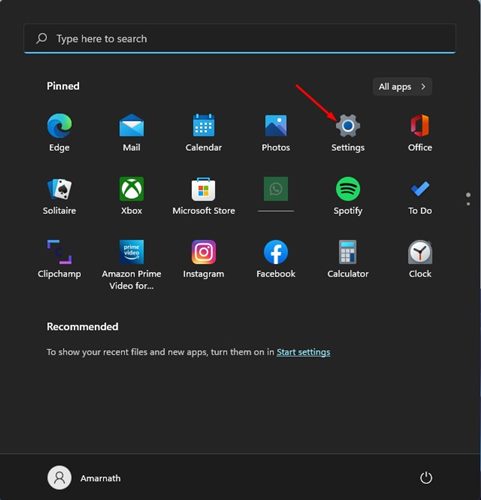
1. Click the Windows 11 Start button and select Settings.
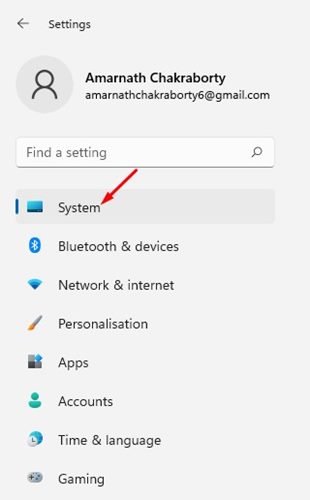
2. Click the System.
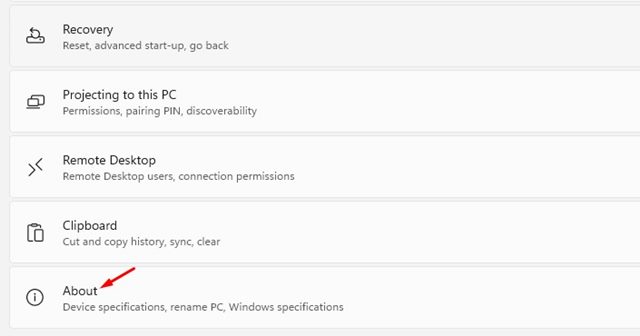
3. Scroll down and click About.
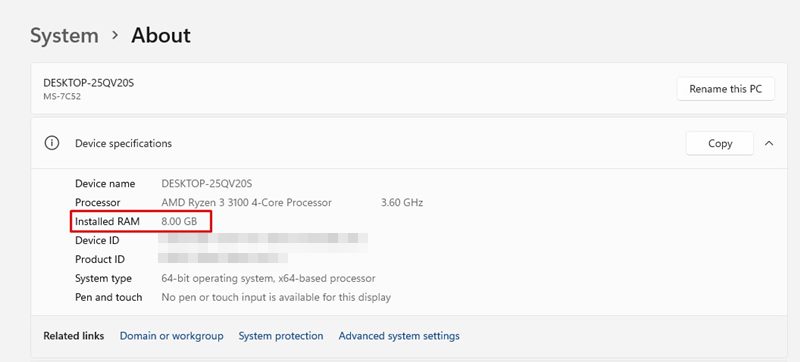
4. Expand the Device specification and check the Installed RAM. This will show you the amount of RAM installed on your PC.
2. Check RAM speed on Windows 11
If you want more information about your RAM, such as its speed, you need to use the Task Manager.
- Open Task Manager from the Windows Search.
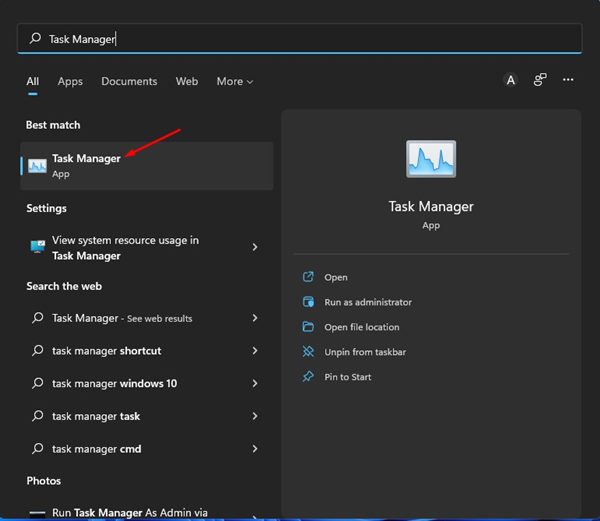
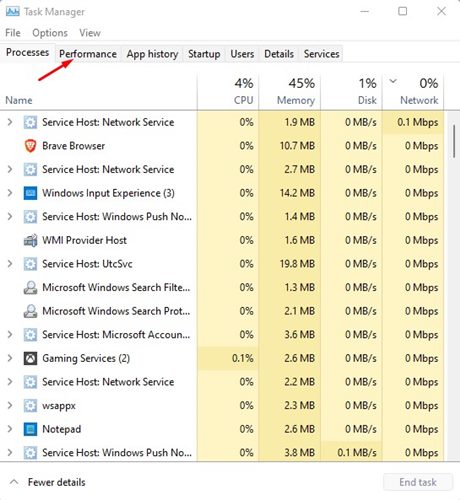
2. Switch to the Performance.
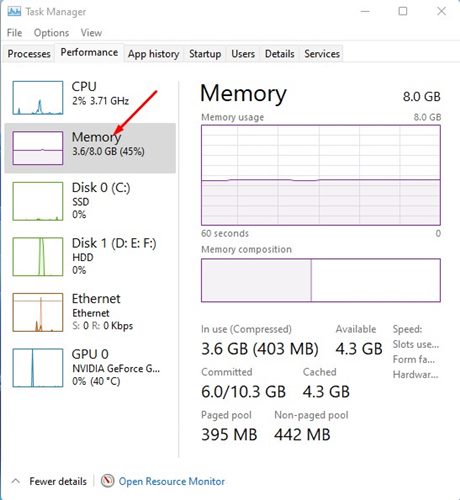
3. Select Memory.
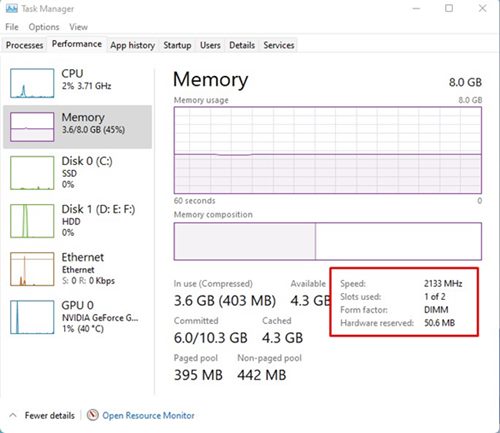
4. You will see the memory speed, the number of slots used, and other details.
3. Check RAM Information via Windows Terminal
You can use the Windows Terminal to check the total availability of system memory and a few other details.
1. Click the Windows 11 search and type in Windows Terminal.
2. Open Windows Terminal from the list of options.
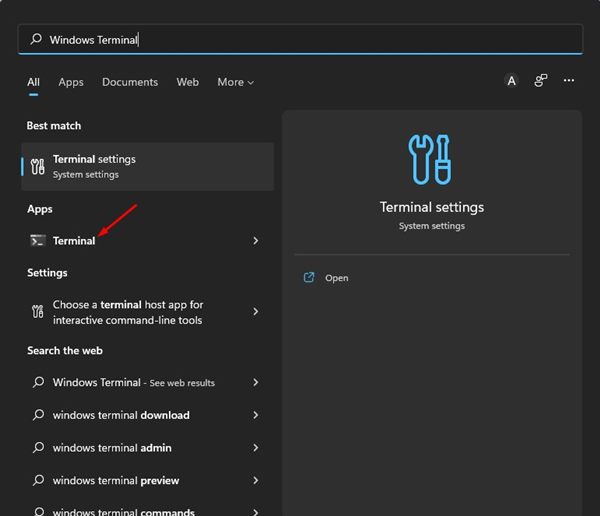
3. Execute the command:
systeminfo
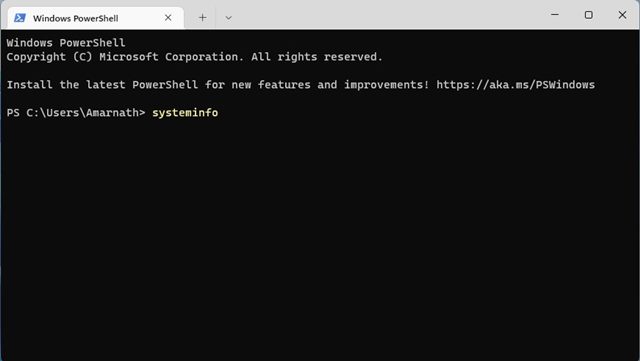
4. Windows Terminal will show you information about your system. Check the Total Physical Memory section to find the total RAM.
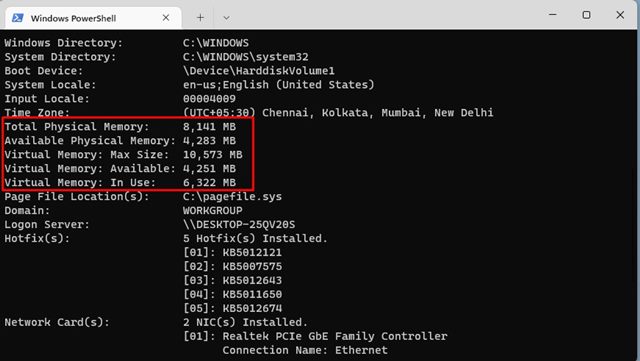
5. It also shows other information such as available RAM, Virtual memory, etc.
4. Check RAM information on Windows 11 via System Information
You can even use Windows 11’s System Information app to check RAM information.
1. Open Windows 11 search, type in msinfo, and press Enter. From the list of options, click on System Information.
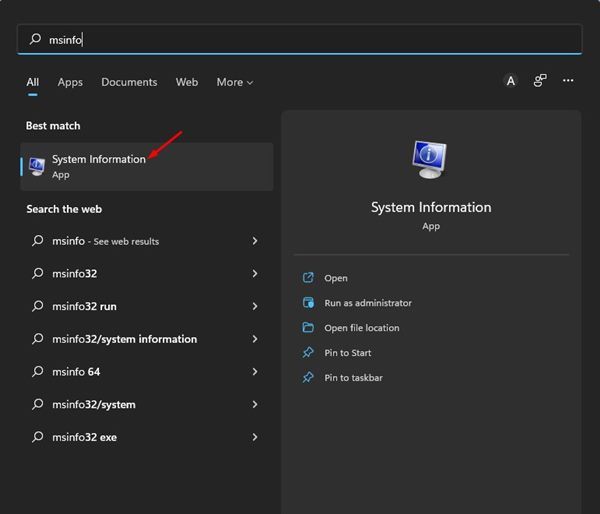
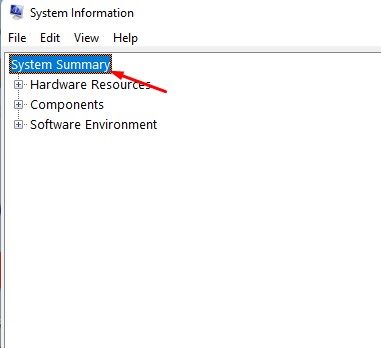
2. This will open the System Information app on your Windows 11 PC.
2. On the System Information window, select the System Summary.
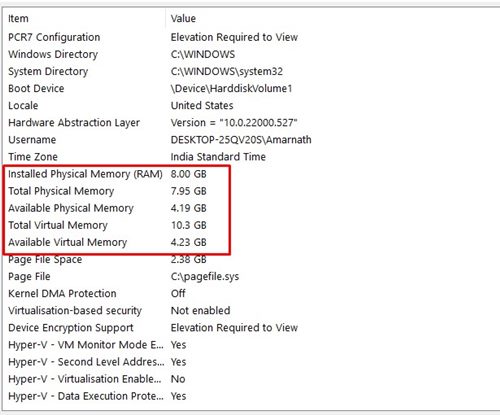
3. Check the Installed Physical Memory and Total Physical Memory options in the right pane. This will list the total amount of RAM installed on your system.
5. Check RAM Information using the DirectX Diagnostic Tool
DirectX Diagnostic Tool holds lots of information related to your PC. You can use it to check the RAM information as well.
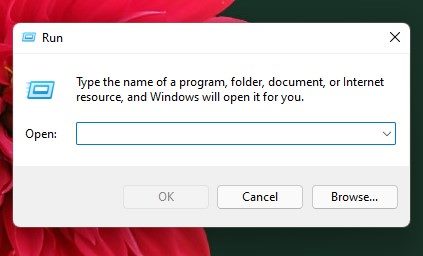
1. Press the Windows Key + R button on your keyboard. This will open the RUN dialog box.
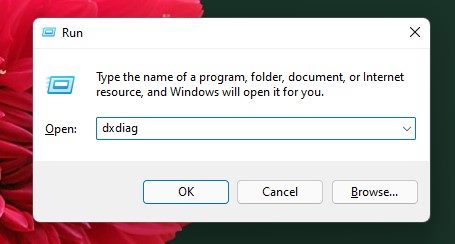
2. Type dxdiag in the RUN dialog box and press Enter.
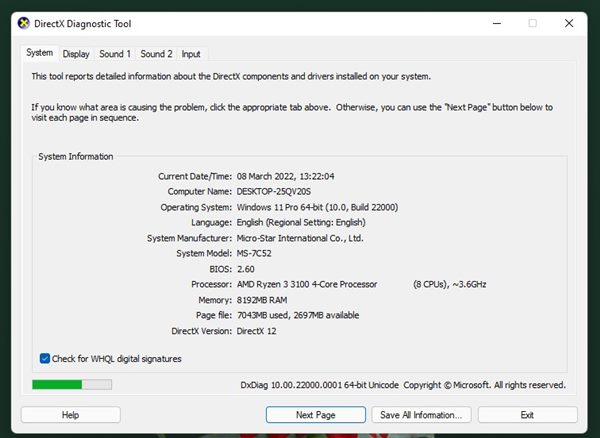
3. The DirectX Diagnostic Tool will open. Switch to the System tab and check the System Information section.
4. Check the Memory information to find your installed RAM.
6. Check RAM information on Windows 11 with HWiNFO
HWiNFO is a third-party program that gives a complete overview of your system’s hardware. The app displays CPU information, including temperatures and fan voltages. Here’s how to use it to check the RAM information.
1. Download & install the latest version of HWiNFO on your Windows 11 computer.
2. Open the tool and wait until it grabs all the information.
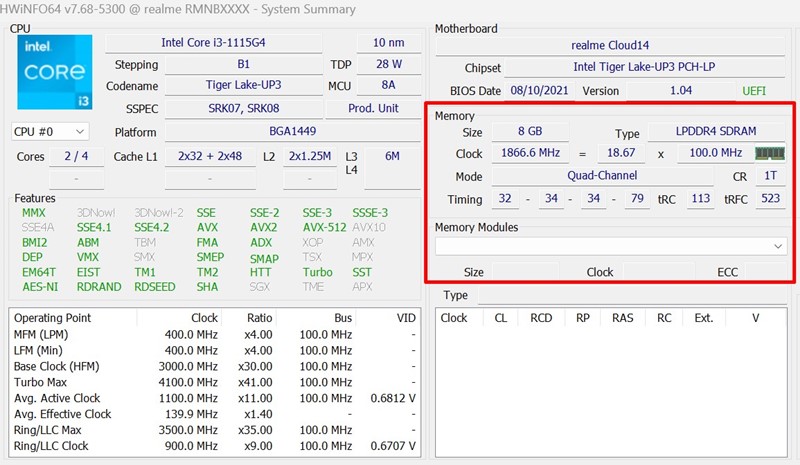
3. Once it gathers all the information, take a brief look at the Memory section. It will have all the RAM information you will possibly need.
These are the best ways to check RAM information on Windows 11. To know more about your PC’s specifications, check out our guide – How to Check Your PC’s Full Specifications in Windows 11.
The post 6 Ways to Check RAM Information on Windows 11 appeared first on TechViral.
ethical hacking,hacking,bangla ethical hacking,bangla hacking tutorial,bangla tutorial,bangla hacking book,ethical hacking bangla,bangla,hacking apps,ethical hacking bangla tutorial,bangla hacking,bangla hacking pdf,bangla hacking video,bangla android hacking,bangla hacking tutorials,bangla fb hacking tutorial,bangla hacking book download,learn ethical hacking,hacking ebook,hacking tools,bangla ethical hacking course, tricks,hacking,ludo king tricks,whatsapp hacking trick 2019 tricks,wifi hacking tricks,hacking tricks: secret google tricks,simple hacking tricks,whatsapp hacking tricks,tips and tricks,wifi tricks,tech tricks,redmi tricks,hacking trick paytm cash,hacking trick helo app,hacking trick of helo app,paytm cash hacking trick,wifi password hacking,paytm cash hacking trick malayalam,hacker tricks, tips and tricks,pubg mobile tips and tricks,tricks,tips,tips and tricks for pubg mobile,100 tips and tricks,pubg tips and tricks,excel tips and tricks,google tips and tricks,kitchen tips and tricks,season 2 tips and tricks,android tips and tricks,fortnite tips and tricks,godnixon tips and tricks,free fire tips and tricks,advanced tips and tricks,whatsapp tips and tricks, facebook tricks,facebook,facebook hidden tricks,facebook tips and tricks,facebook latest tricks,facebook tips,facebook new tricks,facebook messenger tricks,facebook android app tricks,fb tricks,facebook app tricks,facebook tricks and tips,facebook tricks in hindi,tricks,facebook tutorial,new facebook tricks,cool facebook tricks,facebook tricks 2016,facebook tricks 2017,facebook secret tricks,facebook new tricks 2020,blogger blogspot seo tips and tricks,blogger tricks,blogger,blogger seo tips,blogger seo tips and tricks,seo for blogger,blogger seo in hindi,blogger seo best tips for increasing visitors,blogging tips and tricks,blogger blog seo,blogger seo in urdu,adsense approval trick,blogging tips and tricks for beginners,blogging tricks,blogger tutorial,blogger tricks 2016,blogger tricks 2017 bangla,tricks,bangla tutorial,bangla magic,bangla motivational video,bangla tricks,bangla tips,all bangla tips,magic tricks,akash bangla tricks,top 10 bangla tricks,tips and tricks,all bangla trick,bangla computer tricks,computer bangla tricks,bangla magic card tricks,ms word bangla tips and tricks,bangla computer tips,trick,psychology tricks,youtube bangla,magic tricks bangla,si trick Credit techviral


