
Taskbar Not Showing on Windows 11? 5 Ways to Fix it
Even though Windows 11 receives frequent updates, it still has many bugs and glitches. Sometimes, the Windows Taskbar just disappears and appears only after a restart. This problem has been affecting many users recently.
If you’ve been using Windows 11 and the Taskbar disappears all of a sudden often, it’s time to troubleshoot it. Here’s what you can do to fix the problem.
1. Make changes to the Taskbar Alignment
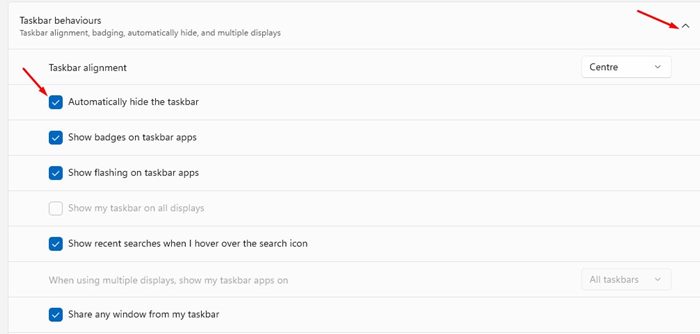
In Taskbar Alignment, you get an option ‘Automatically hide the taskbar’. If this is turned on, the Taskbar will auto hide itself.
Move your cursor toward the bottom of the screen (where the taskbar appears) to bring it back. However, if you don’t want this feature, you should turn off the ‘Automatically hide the taskbar’ option.
- Open the Settings app.
- Navigate to Personalization > Taskbar.
- Expand the Taskbar behaviours.
- Uncheck the ‘Automatically hide the taskbar’ option.
2. Restart Windows Explorer
If restarting Windows 11 brings back the Taskbar, try this fix. This will eliminate the need for restarting the computer to bring back the Taskbar.
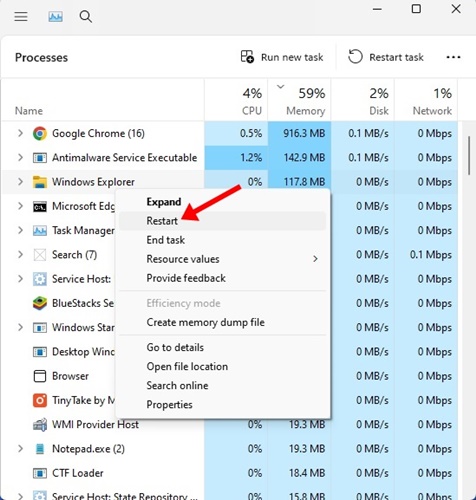
- Open the Task Manager on your PC.
- When the Task Manager opens, switch to the Processes tab.
- Find the Windows Explorer process.
- Right click on it and select Restart.
The display will go black for a second. This confirms that Windows Explorer has been restarted.
3. Run the System File Checker utility
Corrupted system files are another reason for the Taskbar not showing up on Windows 11. You can run the System File Checker utility to replace the corrupted system files.
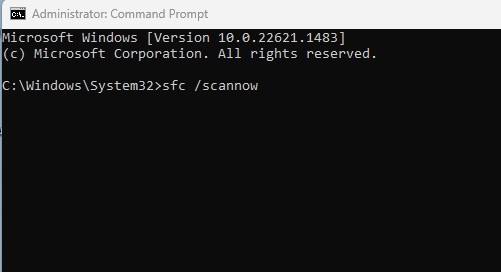
- Open Command Prompt with admin rights. (Right-click on CMD > Run as administrator).
- When the Command Prompt opens, type this command and press Enter.
sfc /scannow
The scan may take a while to complete. Make sure you don’t turn off the computer in between.
4. Run the DISM Command
If the System File Checker utility returns with an error, you need to run the DISM commands. Here’s what you need to do.
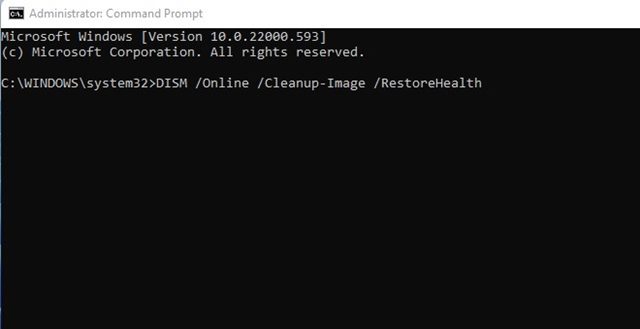
- Open Command Prompt with administrator rights.
- When the Command Prompt opens, execute these commands one by one.
DISM /Online /Cleanup-Image /RestoreHealth
Once done, restart your Windows 11 computer. This should bring the Taskbar back.
5. Update Windows 11
Chances are that the version of Windows you are using has a bug that’s preventing the Taskbar from showing up. You can eliminate such bugs & glitches by installing the pending updates.
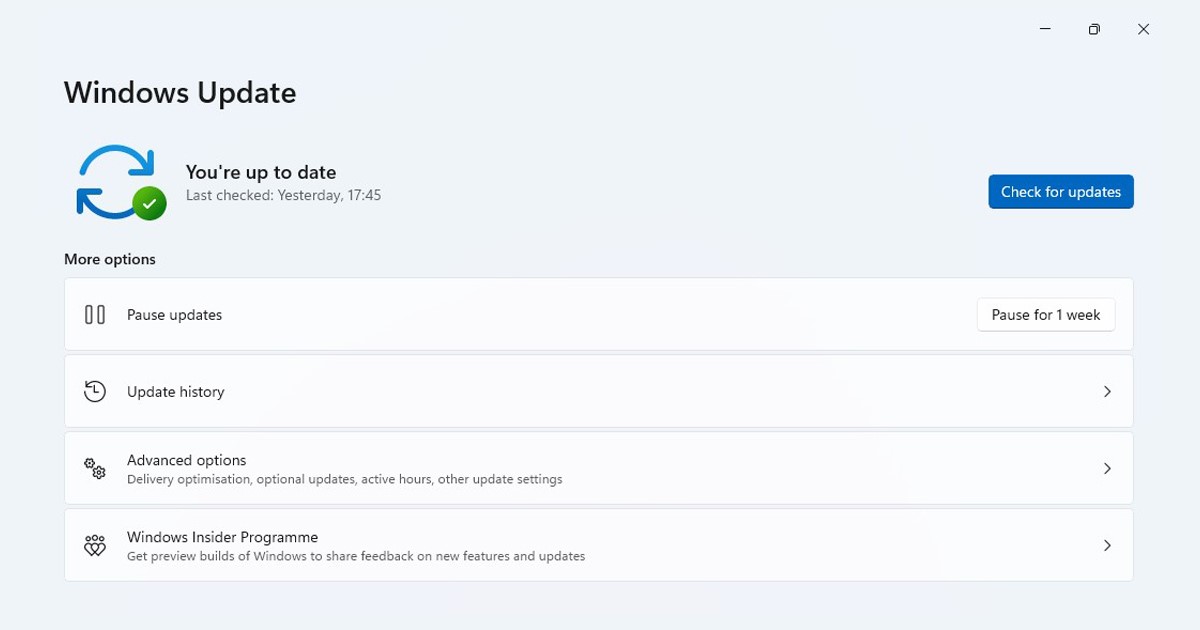
To update Windows 11, open Settings > Windows Updates. On the right side, click the Check for Updates button. Make sure to download & install all pending updates.
These are the best ways to fix the Taskbar disappeared in Windows 11. If you need more help on this topic, let us know in the comments.
The post Taskbar Not Showing on Windows 11? 5 Ways to Fix it appeared first on TechViral.
ethical hacking,hacking,bangla ethical hacking,bangla hacking tutorial,bangla tutorial,bangla hacking book,ethical hacking bangla,bangla,hacking apps,ethical hacking bangla tutorial,bangla hacking,bangla hacking pdf,bangla hacking video,bangla android hacking,bangla hacking tutorials,bangla fb hacking tutorial,bangla hacking book download,learn ethical hacking,hacking ebook,hacking tools,bangla ethical hacking course, tricks,hacking,ludo king tricks,whatsapp hacking trick 2019 tricks,wifi hacking tricks,hacking tricks: secret google tricks,simple hacking tricks,whatsapp hacking tricks,tips and tricks,wifi tricks,tech tricks,redmi tricks,hacking trick paytm cash,hacking trick helo app,hacking trick of helo app,paytm cash hacking trick,wifi password hacking,paytm cash hacking trick malayalam,hacker tricks, tips and tricks,pubg mobile tips and tricks,tricks,tips,tips and tricks for pubg mobile,100 tips and tricks,pubg tips and tricks,excel tips and tricks,google tips and tricks,kitchen tips and tricks,season 2 tips and tricks,android tips and tricks,fortnite tips and tricks,godnixon tips and tricks,free fire tips and tricks,advanced tips and tricks,whatsapp tips and tricks, facebook tricks,facebook,facebook hidden tricks,facebook tips and tricks,facebook latest tricks,facebook tips,facebook new tricks,facebook messenger tricks,facebook android app tricks,fb tricks,facebook app tricks,facebook tricks and tips,facebook tricks in hindi,tricks,facebook tutorial,new facebook tricks,cool facebook tricks,facebook tricks 2016,facebook tricks 2017,facebook secret tricks,facebook new tricks 2020,blogger blogspot seo tips and tricks,blogger tricks,blogger,blogger seo tips,blogger seo tips and tricks,seo for blogger,blogger seo in hindi,blogger seo best tips for increasing visitors,blogging tips and tricks,blogger blog seo,blogger seo in urdu,adsense approval trick,blogging tips and tricks for beginners,blogging tricks,blogger tutorial,blogger tricks 2016,blogger tricks 2017 bangla,tricks,bangla tutorial,bangla magic,bangla motivational video,bangla tricks,bangla tips,all bangla tips,magic tricks,akash bangla tricks,top 10 bangla tricks,tips and tricks,all bangla trick,bangla computer tricks,computer bangla tricks,bangla magic card tricks,ms word bangla tips and tricks,bangla computer tips,trick,psychology tricks,youtube bangla,magic tricks bangla,si trick Credit techviral


