
8 Ways to Fix ‘Shell Infrastructure Host’ High CPU Usage
If you are using a stable build of the Windows operating system, the Shell Infrastructure Host process is likely to run in the background and consume a small amount of Memory and CPU usage. However, sometimes, due to specific problems, the same process can raise CPU and RAM usage and freeze your computer. If you are experiencing problems due to Shell Infrastructure Host high CPU usage, try these fixes.
1. Restart your PC
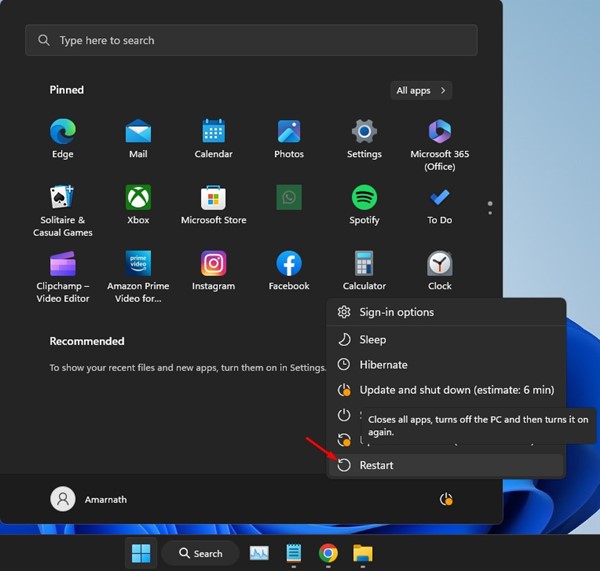
Some apps may prevent the Shell Infrastructure Host from functioning, resulting in high CPU and RAM usage. So, before making any changes, restart your computer.
To restart your Windows PC, click the Windows Start button and Power menu and select Restart. This will restart your Windows computer.
2. Run the System Maintenance Troubleshooter
The System Maintenance Troubleshooter has a few links to the Shell Infrastructure Host. You can run it to resolve the high CPU and Memory usage caused by the same process.
1. Open the Control Panel from the Windows Search.
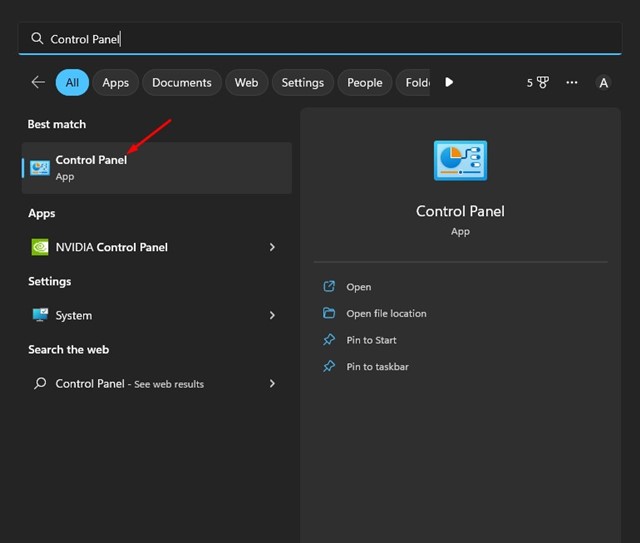
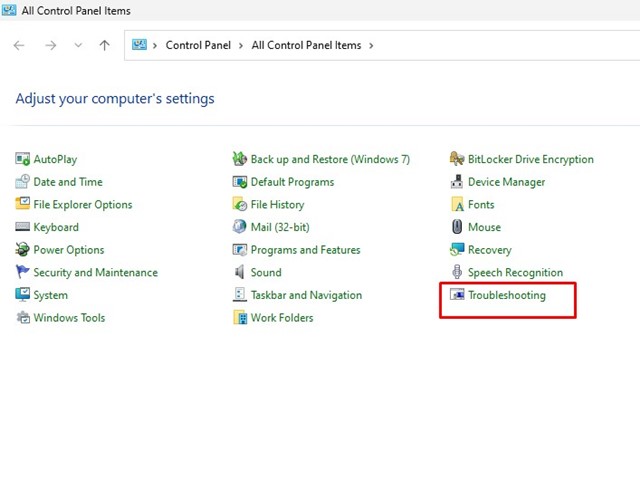
2. Click on Troubleshooting.
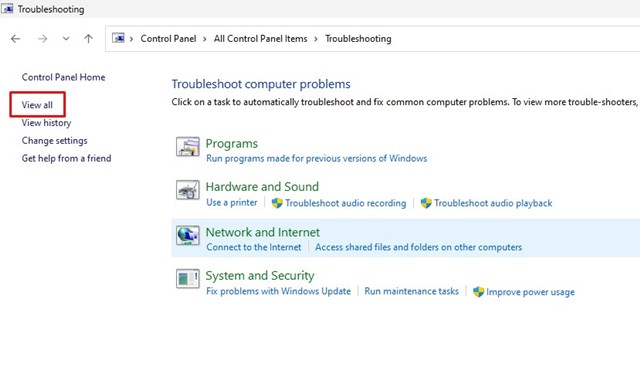
3. Click the View All button on the left pane.
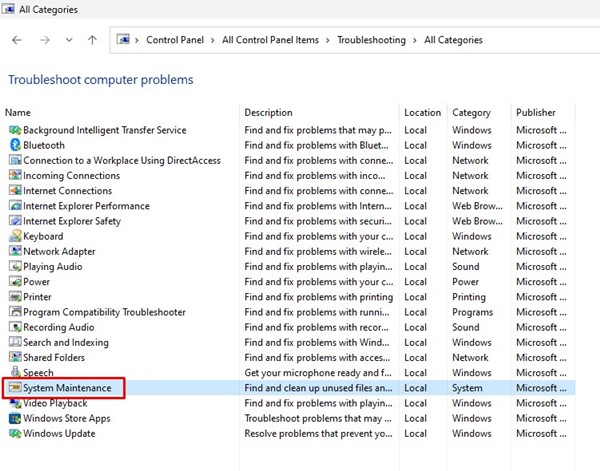
4. Find and click on System Maintenance.
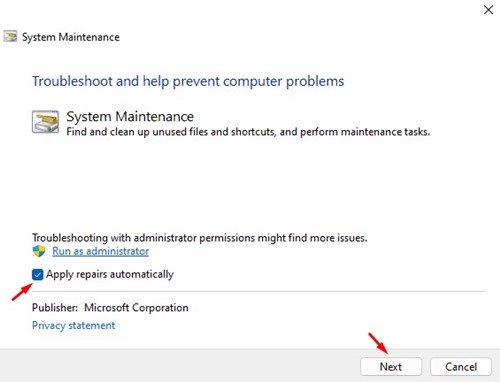
5. Check the Apply repairs automatically prompt and click the Next button.
3. Check for Programs Conflicting with the Process
Boot your computer into safe mode and check whether the ‘Shell Infrastructure Host’ process still causes high CPU or memory usage. If there’s no such issue in a clean boot or Safe Mode, you must find the problematic third-party software.
You can access the Control Panel and remove all suspicious programs. Alternatively, you can look closely at the Task Manager to find programs running in the background without your consent. If you find any apps that shouldn’t be on your computer, it’s recommended that you uninstall them.
4. Repair or Reset the Photos App
Corrupted Microsoft Photos installation files are said to trigger the problem. You can try repairing or resetting the Microsoft Photos app to resolve the issue.
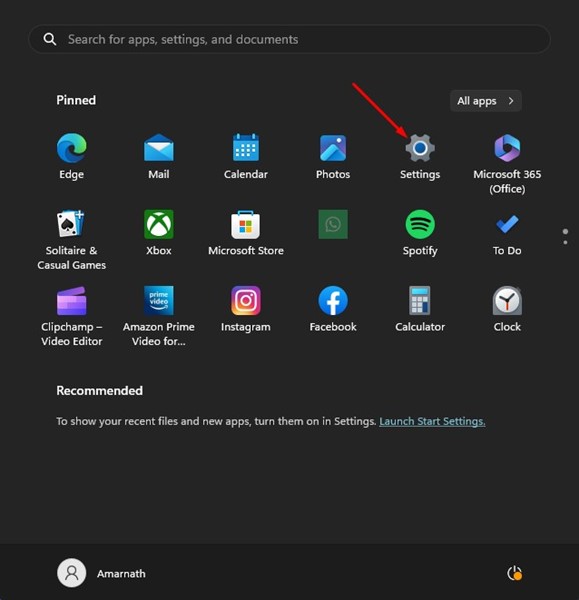
1. Click on Windows Search and select Settings.
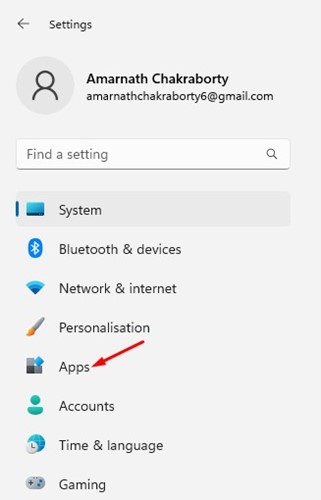
2. Switch to Apps.
3. Select Installed Apps.
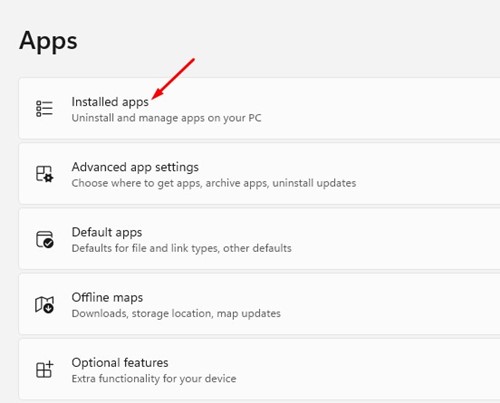
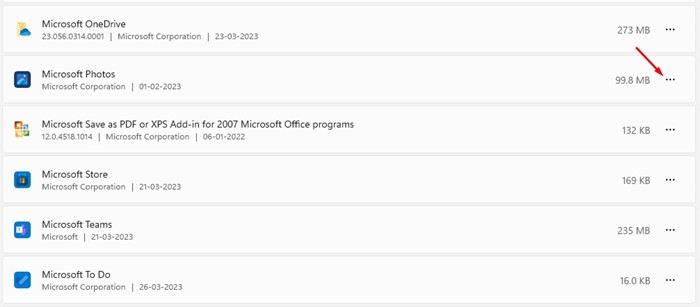
4. Click on the three dots beside it and select Advanced Options.
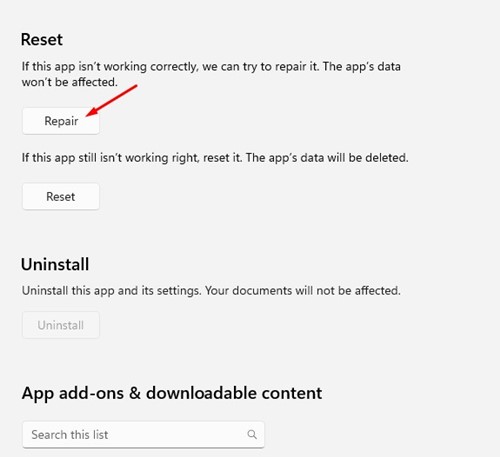
5. Scroll down and click on Repair. This will repair the Microsoft Photos app.
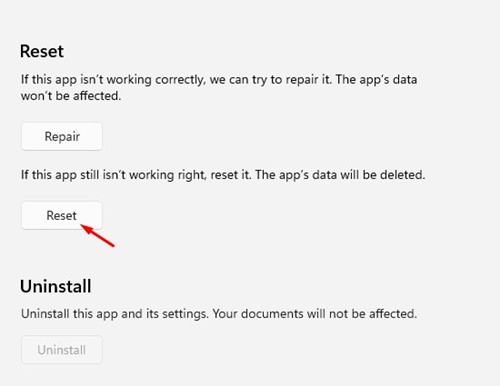
6. If repairing didn’t help, click the Reset button underneath the Repair button.
5. Run an Antimalware Scan
Next, you should run a full scan with the Windows Security app.
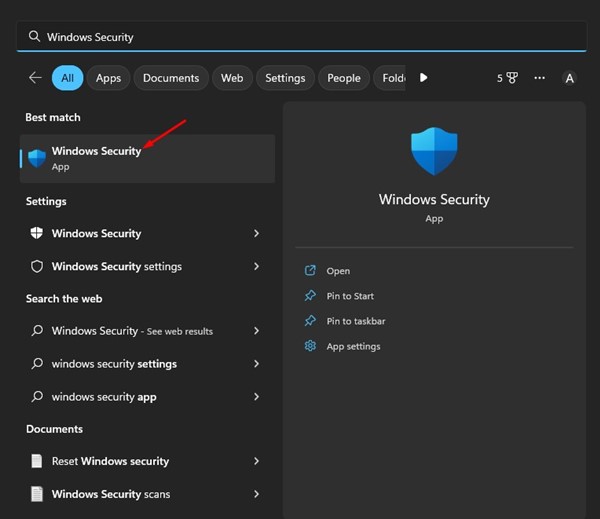
1. Open the Windows Security app from the Windows Search.
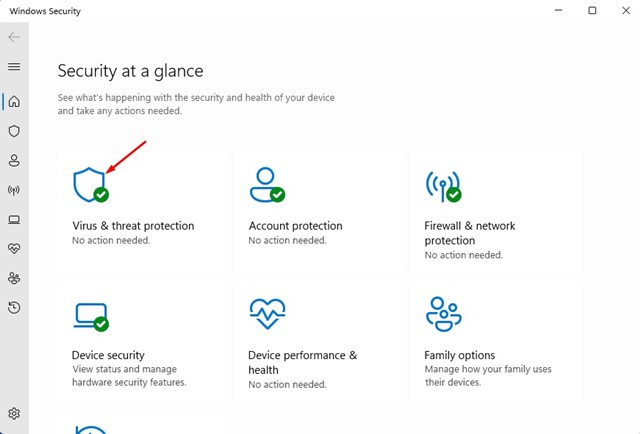
2. Click on Virus & Threat Protection.
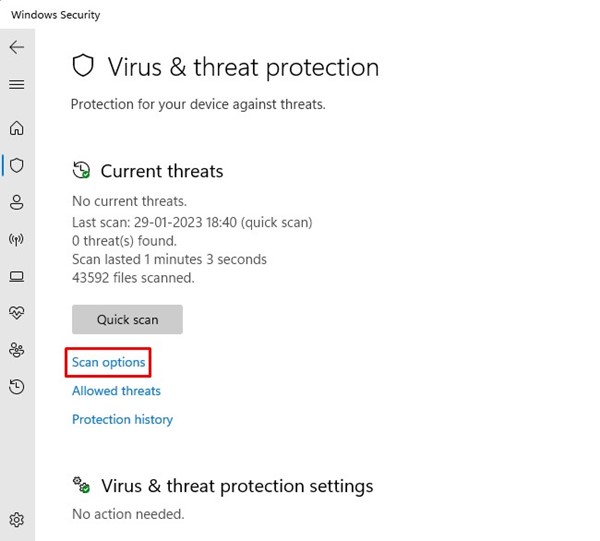
3. Click on Scan options.
4. Select Full Scan and click Scan Now.
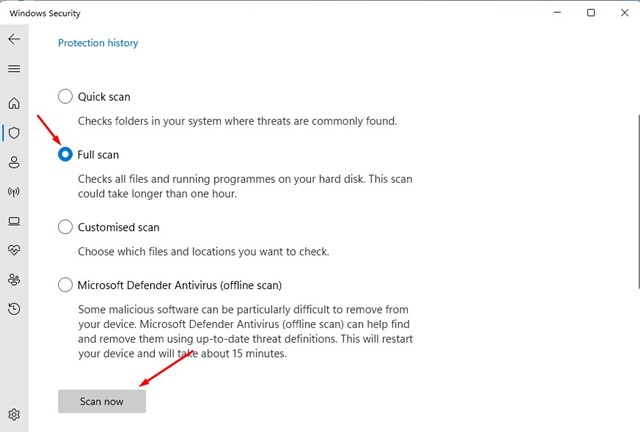
The full scan option will check all files and running programs on your hard disk. However, the scan could take up to one hour to complete.
6. Run the SFC/DISM Command
Another best way to resolve ‘Shell Infrastructure Host’ high CPU usage is by running the SFC and DISM commands. Both commands are designed to resolve problems associated with corrupted system files.
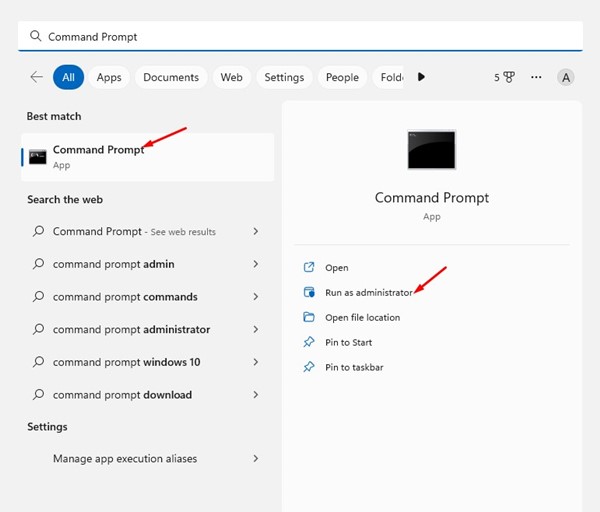
1. Click on Windows Search and type in CMD. Right-click Command Prompt and select Run as administrator.
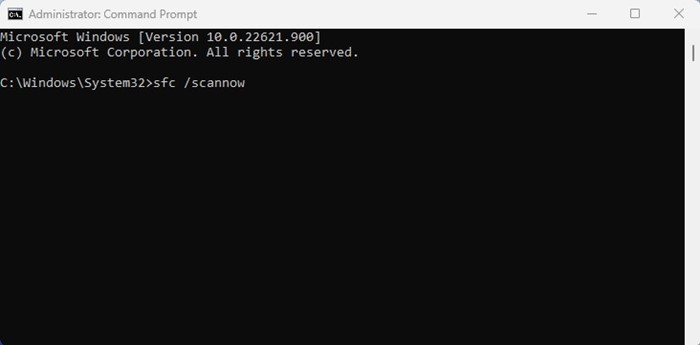
2. Type in sfc /scannow and press Enter.
3. If the SFC command returns an error, you need to execute this command:
DISM /Online /Cleanup-Image /RestoreHealth
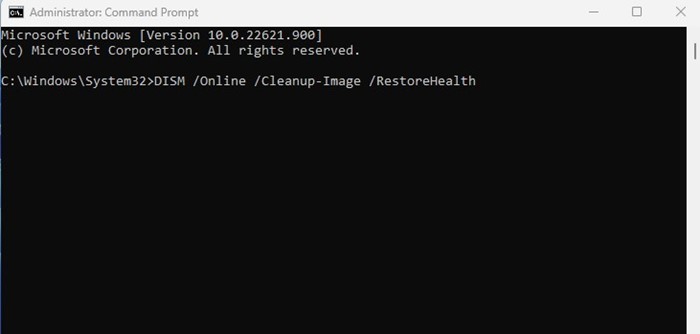
The DISM command may take a few minutes to complete. You must wait until the command finishes fixing all your corrupted system files.
7. Perform a Clean Boot
A clean boot is performed to boot Windows with minimal drivers and startup programs. It disables most third-party apps installed on your device. So, if Shell Infrastructure’s high CPU usage issue doesn’t appear when you clean boot, you must find and remove the conflicting third-party program.
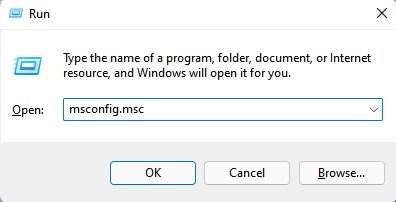
1. Press the Windows Key + R button on your keyboard. In the RUN dialog box, type msconfig.msc and press Enter.
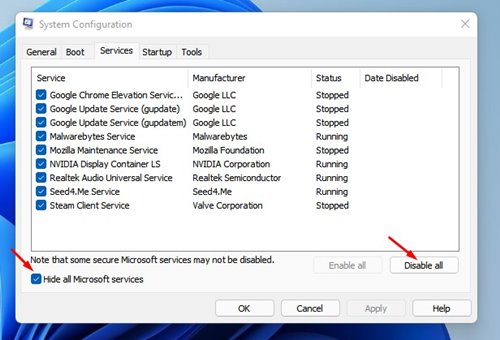
2. Switch to the Services tab on the System Configuration and check the Hide all Microsoft services checkbox. Once done, click on Disable All.
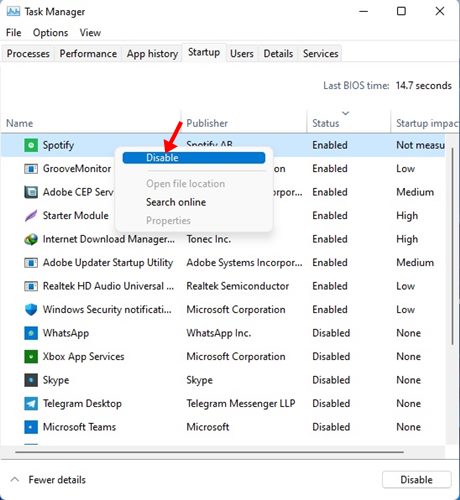
3. Launch Task Manager and switch to the Startup tab. Right-click on the apps you don’t want to run at startup and select Disable.
After making the changes, restart your computer. This will clean boot your PC; check if Shell Infrastructure Host still raises the CPU bar.
8. Update your Windows Operating System
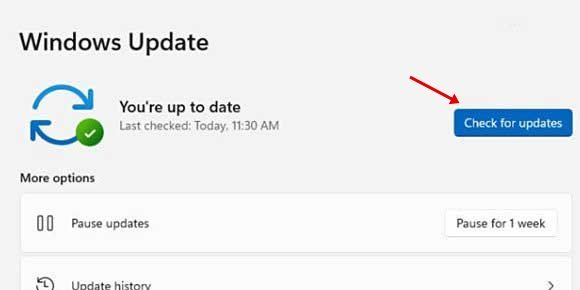
Updating Windows will likely rule out bugs or glitches that may conflict with the Shell Infrastructure Host process.
Keeping your system updated is always a good idea to enjoy the new features and enhanced security & privacy options. To update Windows, open Settings > Windows Update > Check for Updates.
Also read: How to Fix CxUIUSvc Service High CPU & RAM Usage (5 Ways)
These are the best methods to resolve ‘Shell Infrastructure Host’ high CPU usage on Windows computers. Let us know in the comments below if you need more help fixing the sihost.exe high CPU usage.
The post 8 Ways to Fix ‘Shell Infrastructure Host’ High CPU Usage appeared first on TechViral.
ethical hacking,hacking,bangla ethical hacking,bangla hacking tutorial,bangla tutorial,bangla hacking book,ethical hacking bangla,bangla,hacking apps,ethical hacking bangla tutorial,bangla hacking,bangla hacking pdf,bangla hacking video,bangla android hacking,bangla hacking tutorials,bangla fb hacking tutorial,bangla hacking book download,learn ethical hacking,hacking ebook,hacking tools,bangla ethical hacking course, tricks,hacking,ludo king tricks,whatsapp hacking trick 2019 tricks,wifi hacking tricks,hacking tricks: secret google tricks,simple hacking tricks,whatsapp hacking tricks,tips and tricks,wifi tricks,tech tricks,redmi tricks,hacking trick paytm cash,hacking trick helo app,hacking trick of helo app,paytm cash hacking trick,wifi password hacking,paytm cash hacking trick malayalam,hacker tricks, tips and tricks,pubg mobile tips and tricks,tricks,tips,tips and tricks for pubg mobile,100 tips and tricks,pubg tips and tricks,excel tips and tricks,google tips and tricks,kitchen tips and tricks,season 2 tips and tricks,android tips and tricks,fortnite tips and tricks,godnixon tips and tricks,free fire tips and tricks,advanced tips and tricks,whatsapp tips and tricks, facebook tricks,facebook,facebook hidden tricks,facebook tips and tricks,facebook latest tricks,facebook tips,facebook new tricks,facebook messenger tricks,facebook android app tricks,fb tricks,facebook app tricks,facebook tricks and tips,facebook tricks in hindi,tricks,facebook tutorial,new facebook tricks,cool facebook tricks,facebook tricks 2016,facebook tricks 2017,facebook secret tricks,facebook new tricks 2020,blogger blogspot seo tips and tricks,blogger tricks,blogger,blogger seo tips,blogger seo tips and tricks,seo for blogger,blogger seo in hindi,blogger seo best tips for increasing visitors,blogging tips and tricks,blogger blog seo,blogger seo in urdu,adsense approval trick,blogging tips and tricks for beginners,blogging tricks,blogger tutorial,blogger tricks 2016,blogger tricks 2017 bangla,tricks,bangla tutorial,bangla magic,bangla motivational video,bangla tricks,bangla tips,all bangla tips,magic tricks,akash bangla tricks,top 10 bangla tricks,tips and tricks,all bangla trick,bangla computer tricks,computer bangla tricks,bangla magic card tricks,ms word bangla tips and tricks,bangla computer tips,trick,psychology tricks,youtube bangla,magic tricks bangla,si trick Credit techviral


