
How to Fix Windows 11 Lag After Update (12 Methods)
While Windows updates are important, they can sometimes break the operating system. Recently, many users have reported that Windows 11 lags after an update. The operating system lags and crashes after installing the latest updates from Microsoft. If you’ve been facing the same problem, here’s what you should do.
1. Restart Windows 11
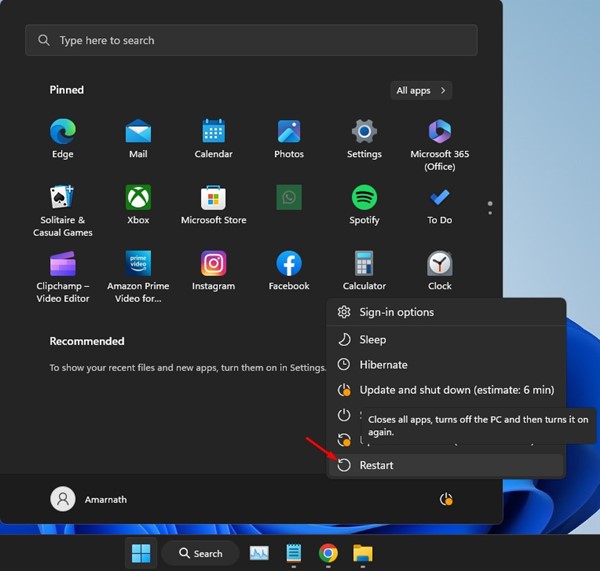
Like Windows updates, regular restarts are equally important. While Windows 11 forces you to restart your device to complete the installation, some updates don’t require a restart.
Restarting will eliminate background tasks and processes that may be conflicting with the operating system’s core functionality. To restart Windows 11, click on the Power Menu and select Restart.
2. Update your drivers
Maybe the version of Windows 11 installed has compatibility issues with your device drivers. Updating your device drivers can easily rule out driver incompatibility issues.
1. Open the Settings app on your Windows 11 computer.
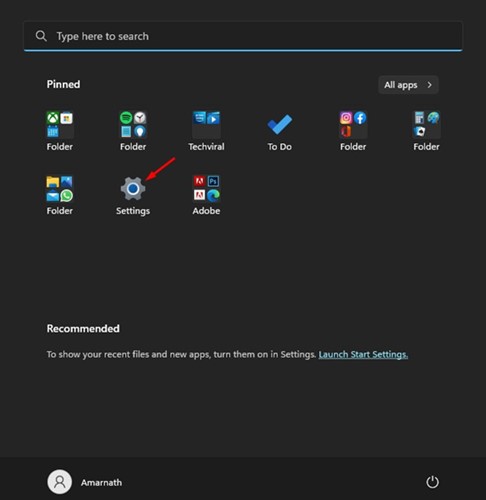
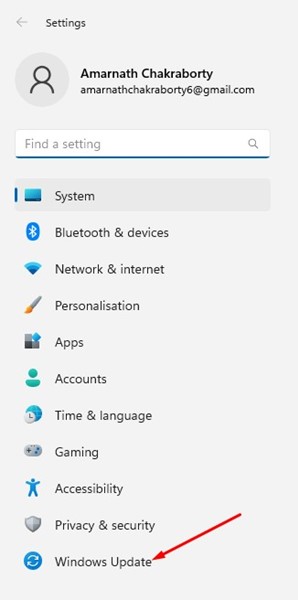
2. On the left side, switch to Windows Update.
3. On the right side, scroll down to Additional options & click on Optional updates.
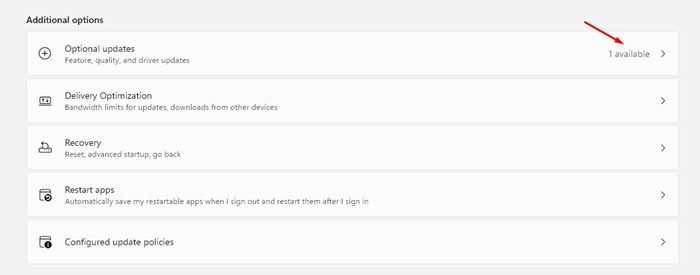
4. See if any updates are pending. If updates are available, click on the Download & Install button.
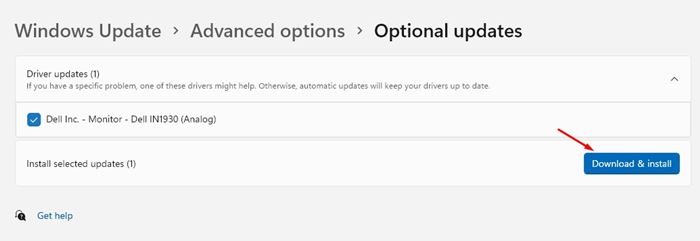
This will update all your device drivers on Windows 11. After updating the device drivers, make sure to restart your computer.
3. Remove Unused Apps
The apps you never use can still run at startup and in the background. Chances are that the background apps are the culprits; hence, your Windows 11 is lagging after the update. Hence, you should find and remove all unused apps from your computer.
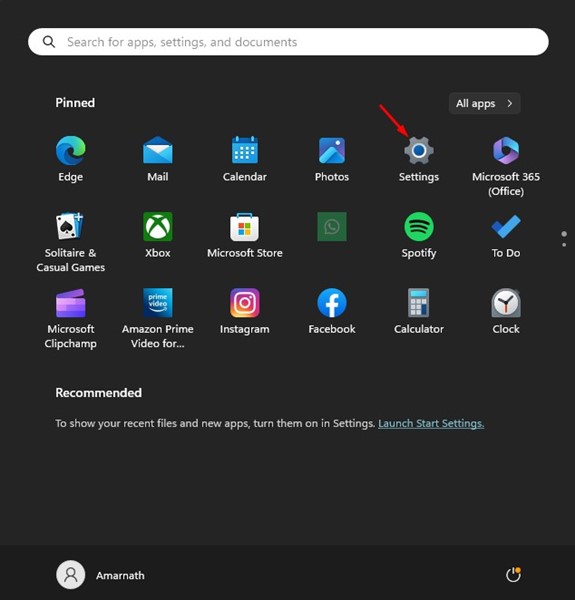
1. Open the Settings app on your Windows 11.
2. When the Settings app opens, navigate to Apps > Installed Apps.
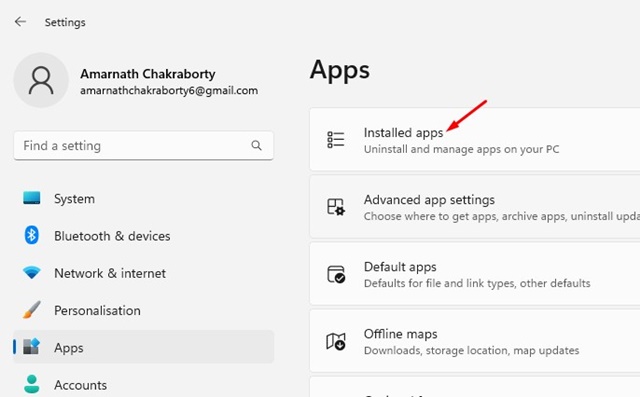
3. You will now see a list of apps that you never use.
4. Click on the three dots beside the app name & select Uninstall.

This is how you can remove unused apps from your Windows 11 computer.
4. Enable Storage Sense
Storage Sense is a feature that boosts your PC’s performance by removing all junk files. Once you set up Storage Sense, the utility will run on a schedule and free up storage space. This feature also cleans up the old update files stored on Windows 11.
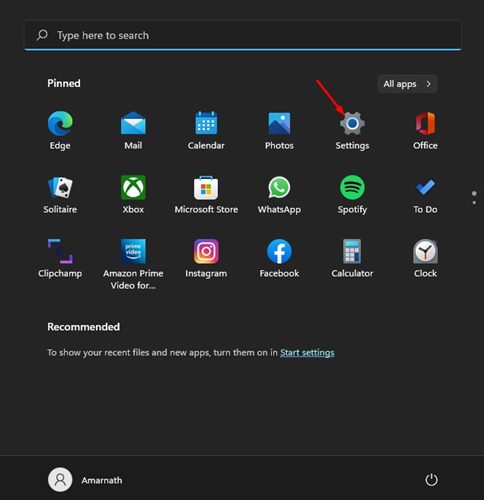
1. Open the Settings app on Windows 11.
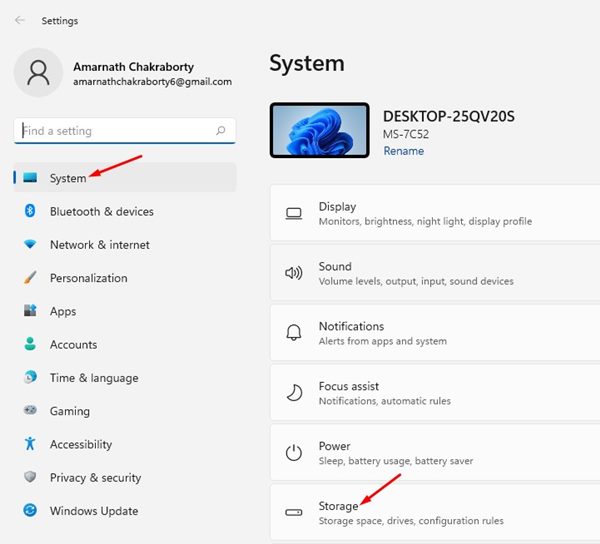
2. Now, navigate to System > Storage.
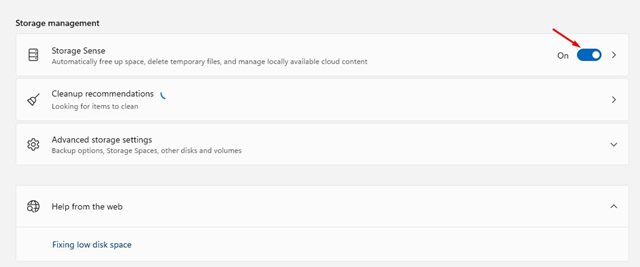
3. In the Storage Management section, enable the toggle beside Storage Sense.
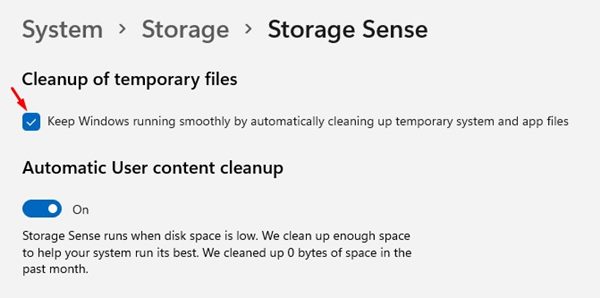
4. Now click on the Storage Sense option. On the next screen, check the option available under the Cleanup of Temporary Files section. Also, enable the toggle for Automatic User Content cleanup.
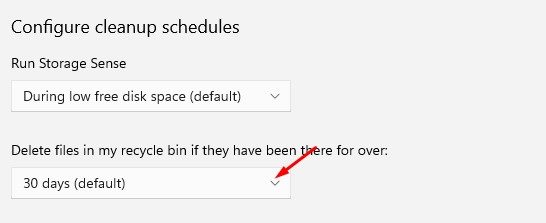
5. Now configure the cleanup schedules.
6. Now click on Run Storage Sense Now at the bottom of the screen.
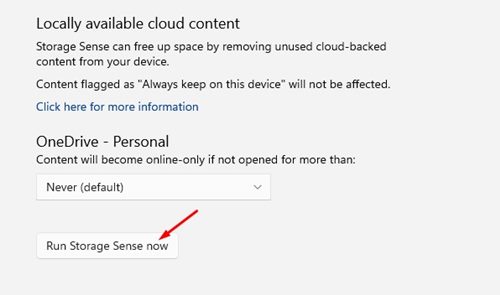
This is how you can enable Storage Sense on Windows 11 to free up storage space.
5. Disable the Startup Apps
If Windows 11 lags after restarting, you need to disable the Startup Apps.
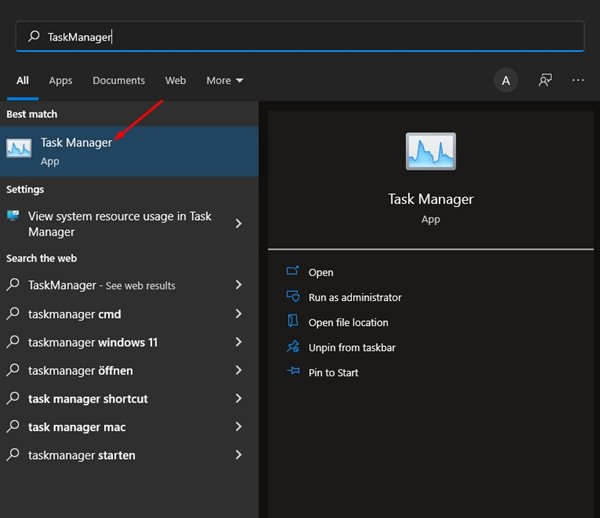
1. Type Task Manager in the Windows 11 Search. Next, open the Task Manager app from the list.
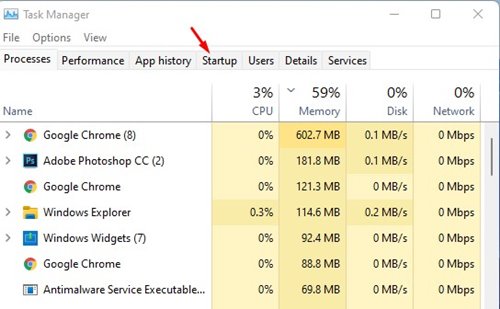
2. When Task Manager opens, switch to the Startup tab.
3. Right-click on the apps you don’t use and select Disable.
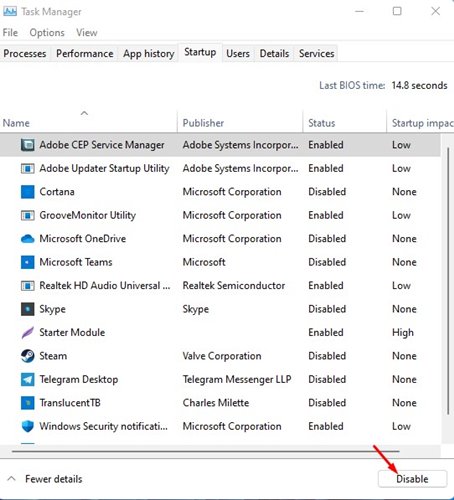
You must repeat the same steps to disable all apps you don’t want to run at startup. After making the changes, restart your Windows 11 PC.
6. Run the Disk Cleanup Utility
Storage Sense and the Disk Cleanup utility do the same thing; the only difference is that the Disk Cleanup utility is easier to access and use.
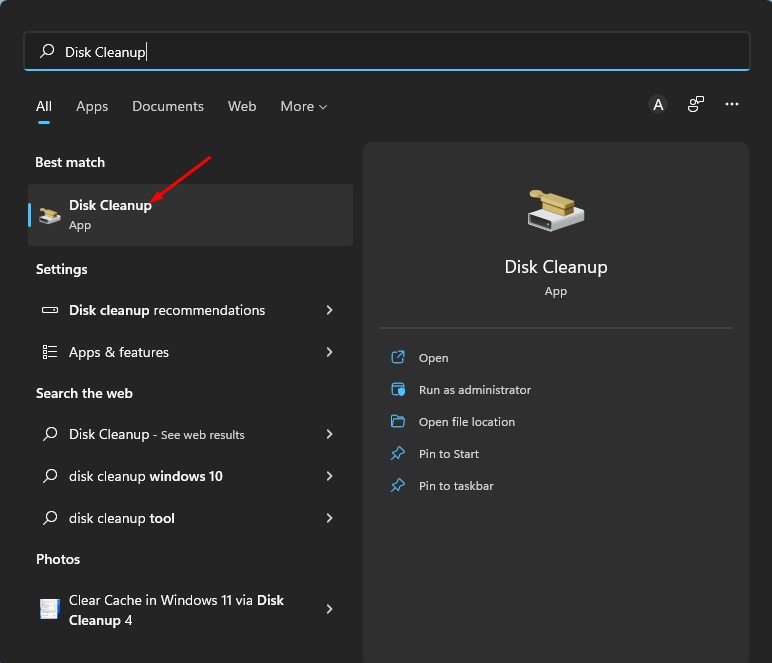
1. Type Disk Cleanup in Windows 11 Search. Next, open the Disk Cleanup utility from the list of best-match results.
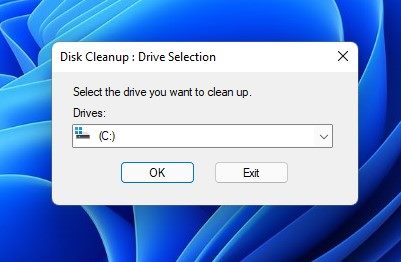
2. The Disk Cleanup utility will open. Select the drive where your OS has been installed and click OK.
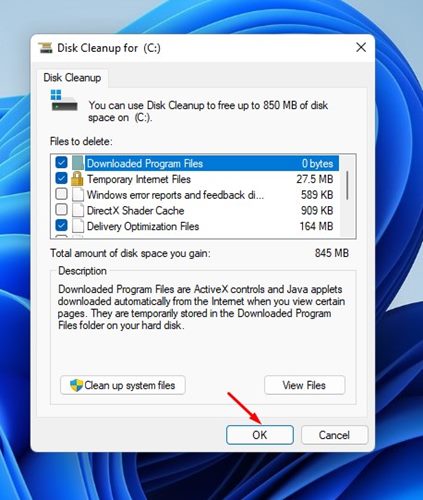
3. Now select the files you want to delete. You can use the default selections. Once you’ve done this, click the OK button.
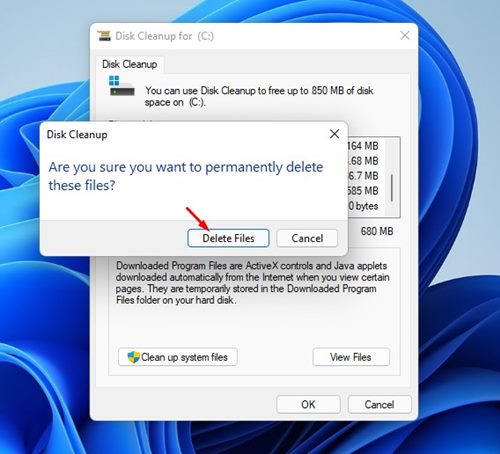
4. Now, on the Disk Cleanup confirmation prompt, click on Delete Files.
7. Adjust the Visual Effects
Visual effects are on the higher side of the new Windows 11 operating system, and they can potentially hamper your PC’s performance. Here’s how to adjust the visual effects on Windows 11 to fix lagging issues after an update.
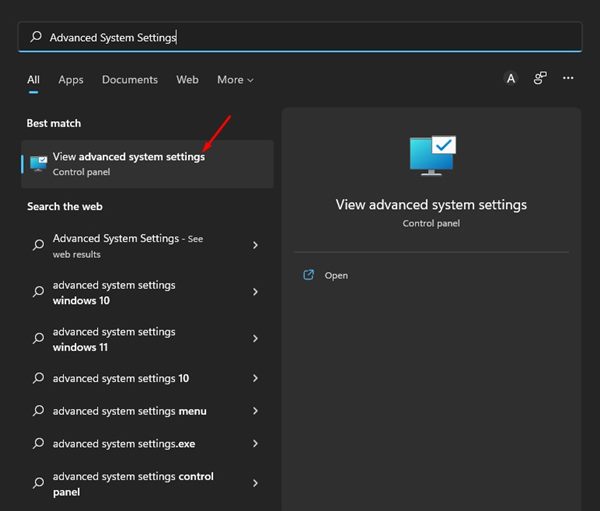
1. Type Advanced System Settings into the Windows 11 search field. Next, open the View Advanced System Settings Control Panel item.
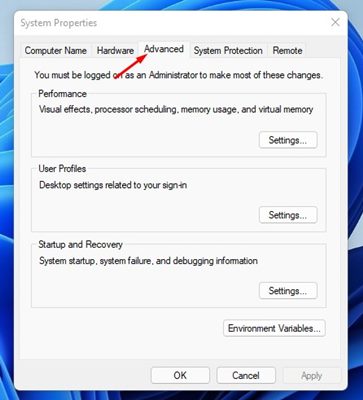
2. In System Properties, switch to the Advanced tab.
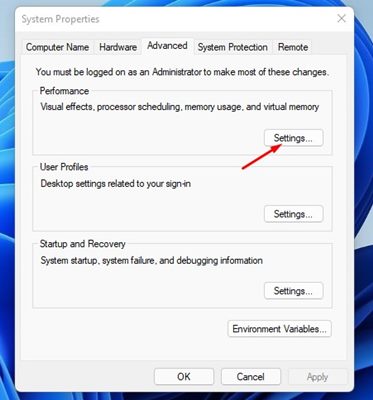
3. Now click the Settings button underneath the Performance section.
4. On the Visual Effects tab, check Adjust for best performance.
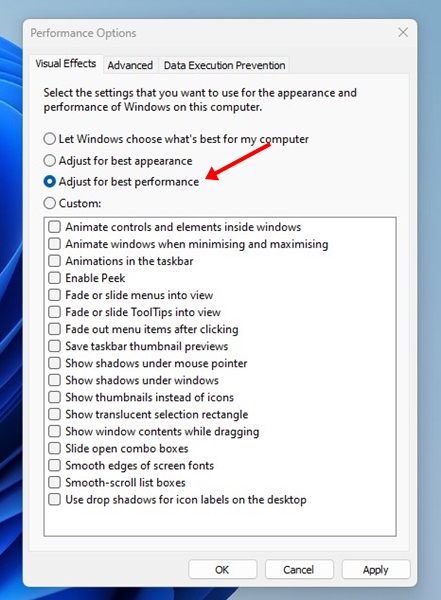
5. Finally, click on the OK button.
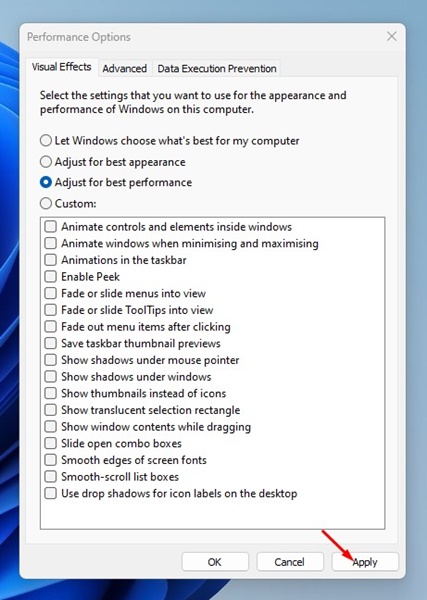
Make sure to restart your Windows 11 computer after making the changes.
8. Run a Full Antivirus Scan
If Windows 11 is still lagging, it’s best to check for security threats on your computer. Here’s how to run a Full Antivirus Scan on Windows 11.
1. Open the Windows Security app from the Windows 11 search.
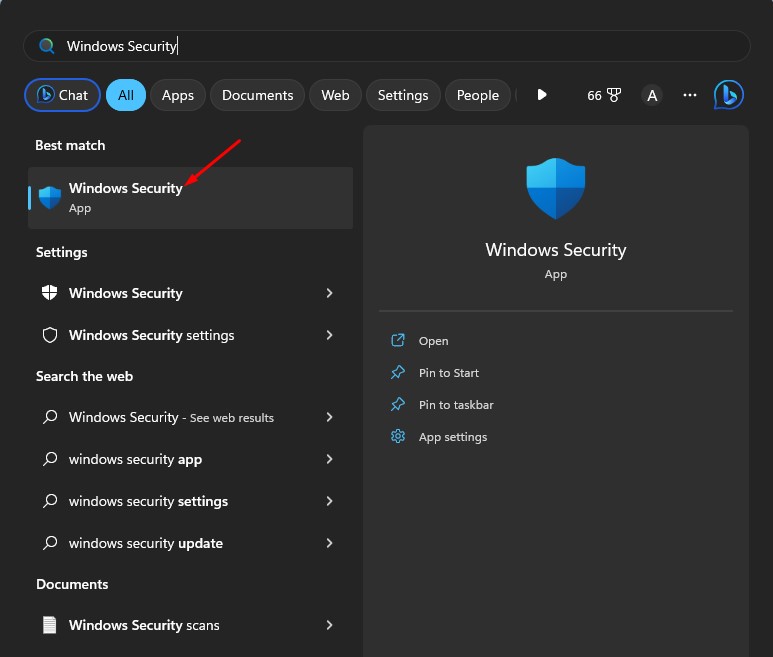
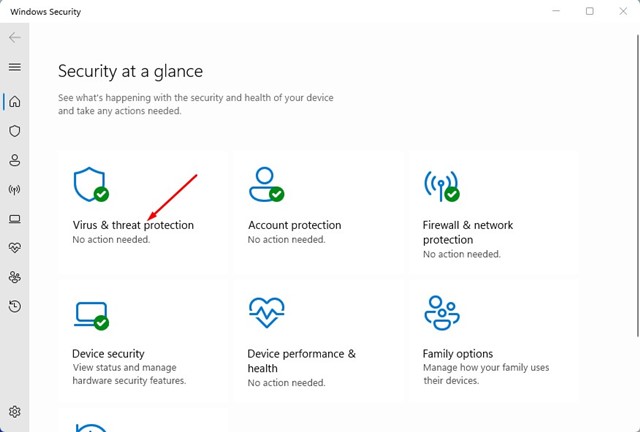
2. On Windows Security, click on Virus & Threat Protection.
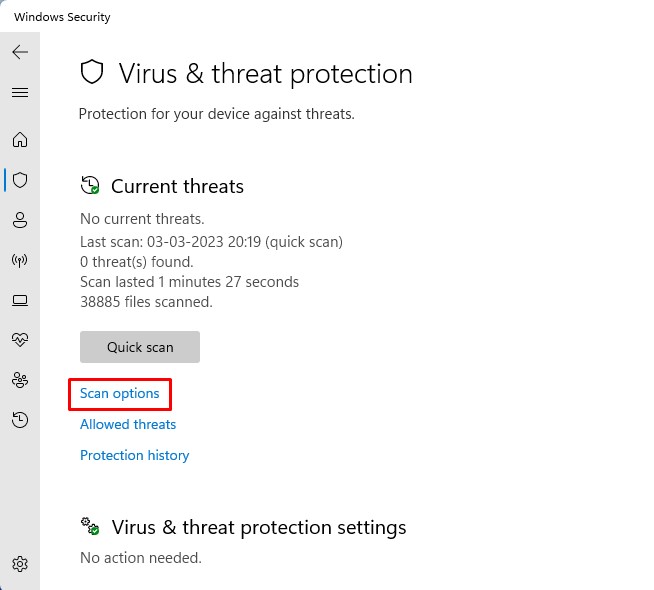
3. On the Virus & threat protection screen, click Scan options.
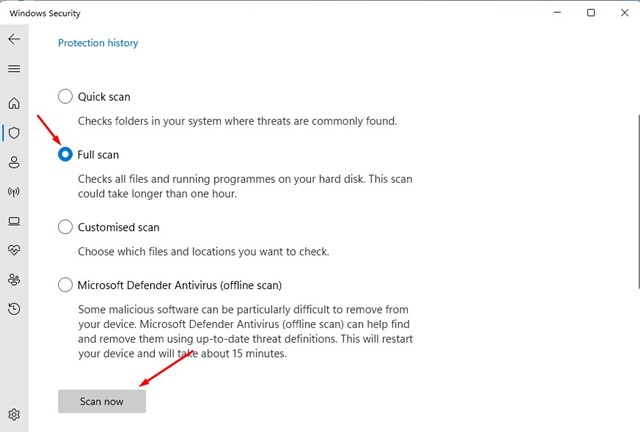
4. Now select Full Scan and click Scan Now.
9. Run SFC & DISM Command
System file corruption is another prominent reason for Windows 11 lagging after updates. Maybe some system files are corrupted during the update installation, leading to this problem.
The best you can do is run the SFC & DISM commands via the Command Prompt utility to fix the issue. Here’s what you need to do.
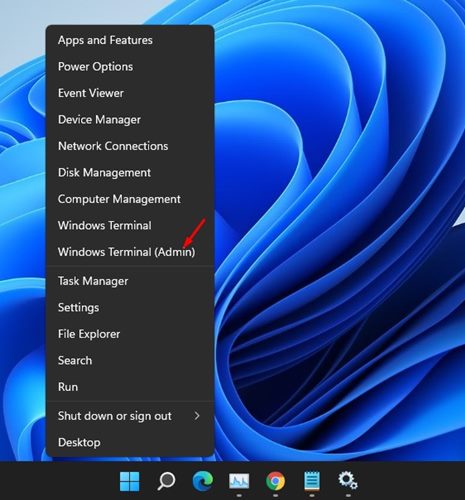
1. Right-click on the Windows 11 Start button and select Windows Terminal (Admin).
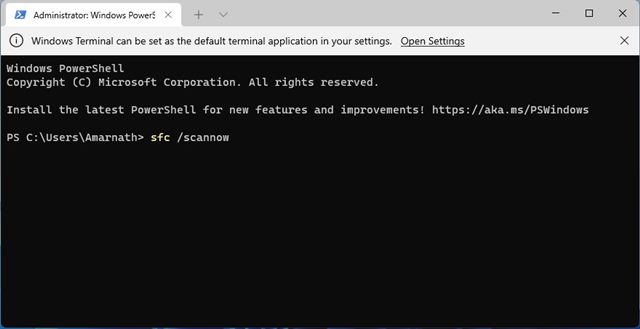
2. When Windows Terminal opens, type sfc /scannow and press Enter.
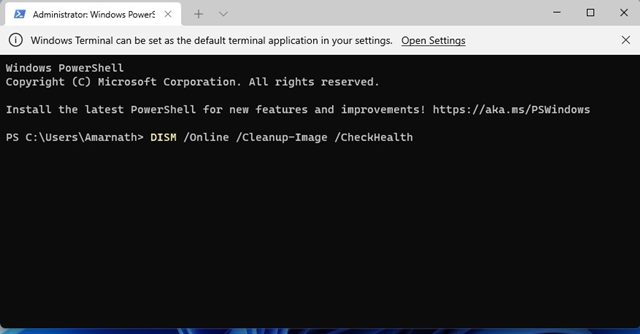
3. If the SFC Command returns an error message, you must run the DISM Commands. Here are the three commands you need to run one by one.
DISM /Online /Cleanup-Image /CheckHealth

DISM /Online /Cleanup-Image /ScanHealth

DISM /Online /Cleanup-Image /RestoreHealth
After executing all commands, you need to restart your Windows 11 computer.
10. Uninstall the Recent Windows 11 Updates
Since Windows 11 lags after installing an update, it makes sense to uninstall the recently installed updates. Here’s how you can uninstall the Recent Windows 11 updates.
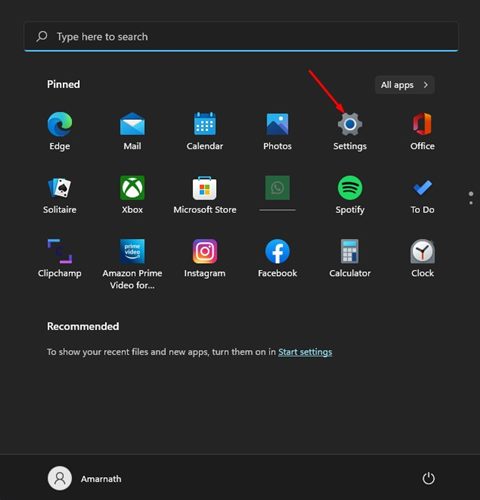
1. Open the Settings app from the Windows 11 Start Menu.
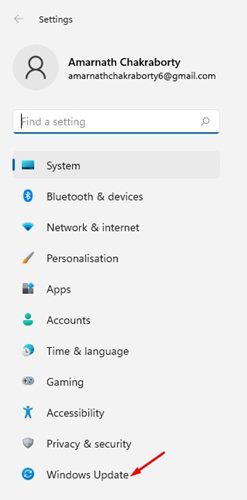
2. When the Settings app opens, switch to Windows Update.
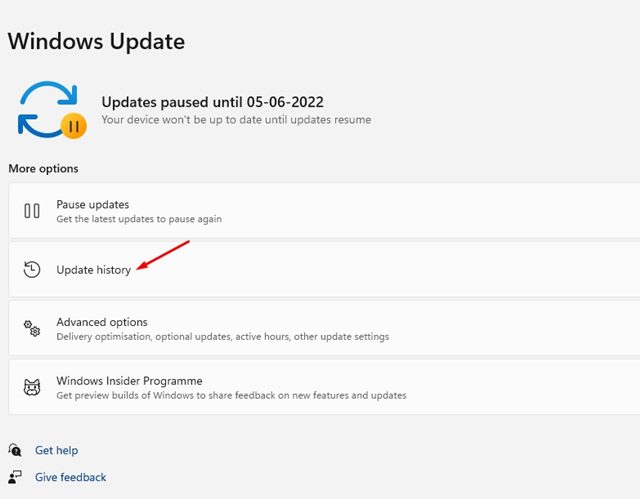
3. On the right side, click on Update history.
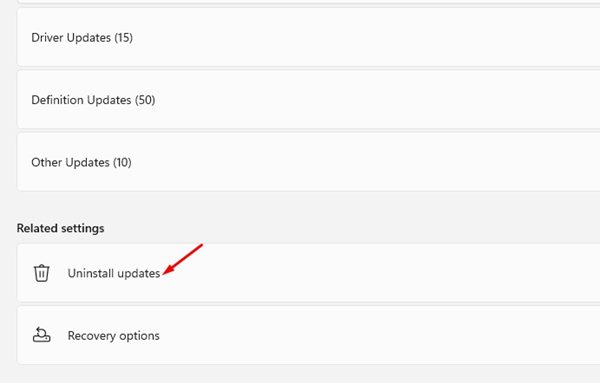
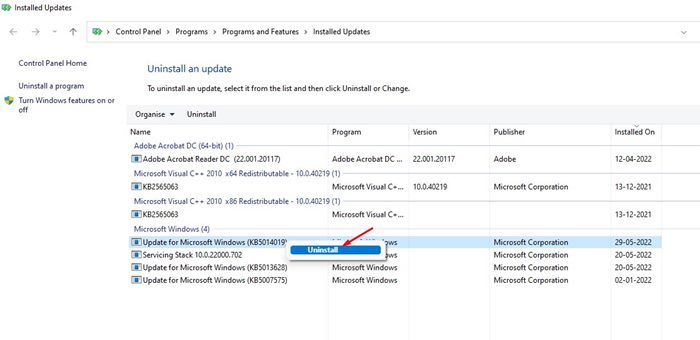
4. Under Related Settings, click on Uninstall Updates.
5. Now select the most recent updates and click Uninstall.
11. Perform a System Restore
You can even try rolling back your operating system to its previous state, provided Windows 11 lag after the update is not yet fixed. Here’s how you can perform a system restore on Windows 11.
- Click on the Windows Search & type System Restore.
- Open the Create a Restore point option from the list.
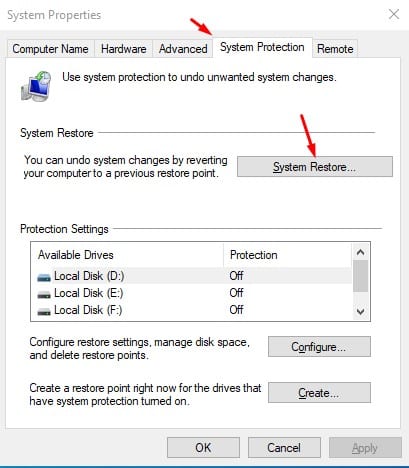
- In System Properties, click on the System Protection tab.
- Now click on the System Restore option.
- On the dialog box that appears, click Next.
Select the last restore point on your PC and click Next.
Your PC will automatically be rolled back to the stage when it’s working fine.
12. Reset Windows 11
Before you reset, make sure to back up your important files and folders to cloud storage or an external drive. Then, follow the steps we have shared.
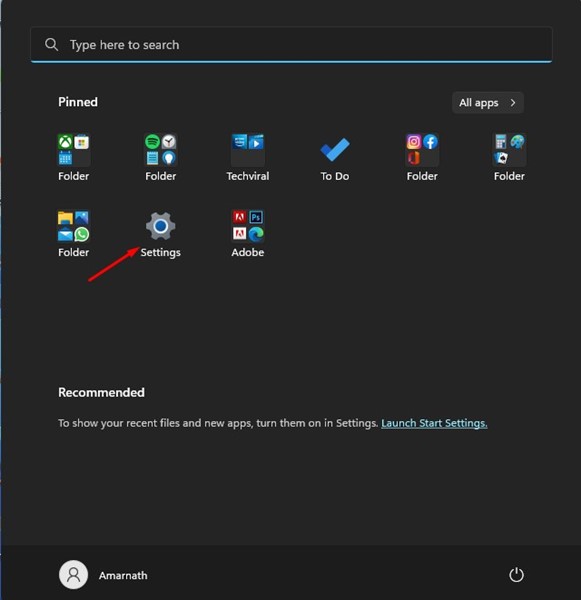
1. Open the Settings app on your Windows 11 from the Start Menu.
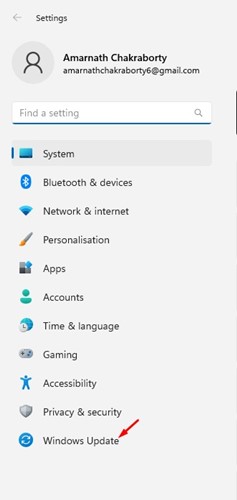
2. When the Settings app opens, switch to Windows Update.
3. On the right side, click on Advanced options.
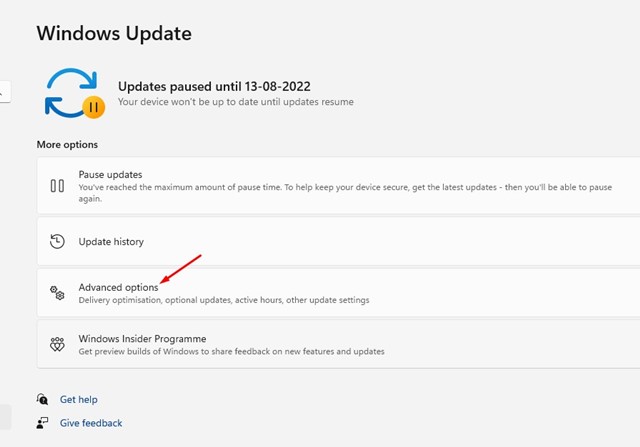
4. Scroll down to Additional options & click Recovery.
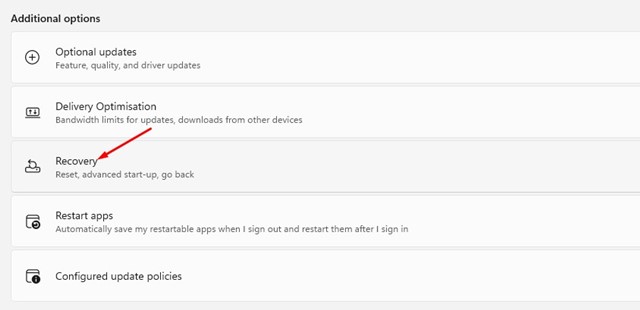
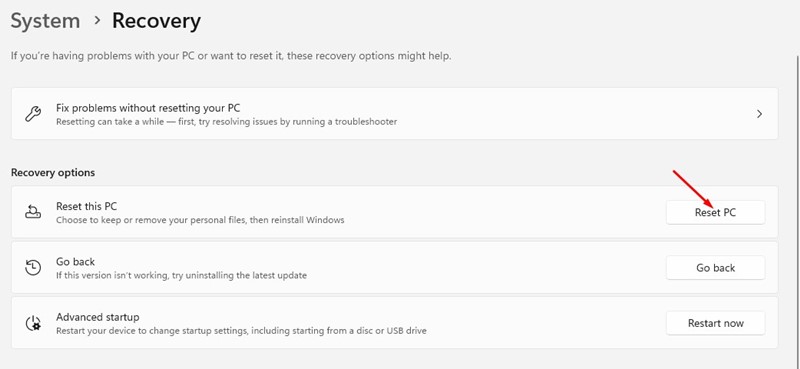
5. In the Recovery options, click on Reset PC.
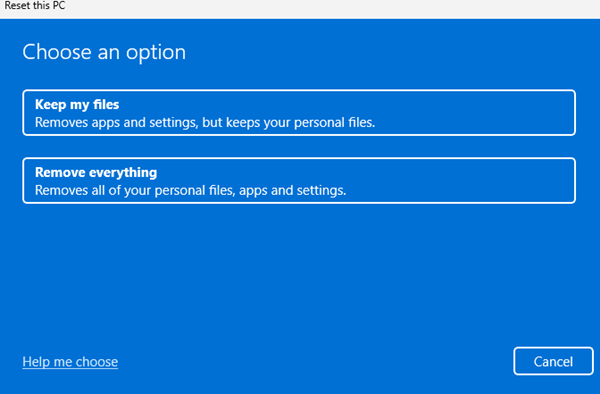
6. On the Reset this PC prompt, select Keep My Files.
7. On the next prompt, select Cloud Download. This will download a fresh copy of Windows from the internet & install it.
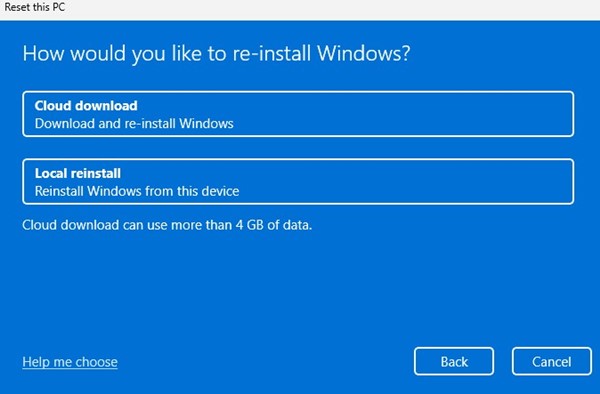
8. Finally, click the Reset button to start the Reset Process.
Now, wait patiently until the Reset process completes. After the reset, continue using the Windows 11 PC without any lag.
These are some of the best and most effective methods to fix Windows 11 Lag after an update. If you have followed all the methods carefully, chances are that the Windows 11 lag after the update issue is already fixed. Let us know if you need more help troubleshooting Windows 11 lag issues.
The post How to Fix Windows 11 Lag After Update (12 Methods) appeared first on TechViral.
ethical hacking,hacking,bangla ethical hacking,bangla hacking tutorial,bangla tutorial,bangla hacking book,ethical hacking bangla,bangla,hacking apps,ethical hacking bangla tutorial,bangla hacking,bangla hacking pdf,bangla hacking video,bangla android hacking,bangla hacking tutorials,bangla fb hacking tutorial,bangla hacking book download,learn ethical hacking,hacking ebook,hacking tools,bangla ethical hacking course, tricks,hacking,ludo king tricks,whatsapp hacking trick 2019 tricks,wifi hacking tricks,hacking tricks: secret google tricks,simple hacking tricks,whatsapp hacking tricks,tips and tricks,wifi tricks,tech tricks,redmi tricks,hacking trick paytm cash,hacking trick helo app,hacking trick of helo app,paytm cash hacking trick,wifi password hacking,paytm cash hacking trick malayalam,hacker tricks, tips and tricks,pubg mobile tips and tricks,tricks,tips,tips and tricks for pubg mobile,100 tips and tricks,pubg tips and tricks,excel tips and tricks,google tips and tricks,kitchen tips and tricks,season 2 tips and tricks,android tips and tricks,fortnite tips and tricks,godnixon tips and tricks,free fire tips and tricks,advanced tips and tricks,whatsapp tips and tricks, facebook tricks,facebook,facebook hidden tricks,facebook tips and tricks,facebook latest tricks,facebook tips,facebook new tricks,facebook messenger tricks,facebook android app tricks,fb tricks,facebook app tricks,facebook tricks and tips,facebook tricks in hindi,tricks,facebook tutorial,new facebook tricks,cool facebook tricks,facebook tricks 2016,facebook tricks 2017,facebook secret tricks,facebook new tricks 2020,blogger blogspot seo tips and tricks,blogger tricks,blogger,blogger seo tips,blogger seo tips and tricks,seo for blogger,blogger seo in hindi,blogger seo best tips for increasing visitors,blogging tips and tricks,blogger blog seo,blogger seo in urdu,adsense approval trick,blogging tips and tricks for beginners,blogging tricks,blogger tutorial,blogger tricks 2016,blogger tricks 2017 bangla,tricks,bangla tutorial,bangla magic,bangla motivational video,bangla tricks,bangla tips,all bangla tips,magic tricks,akash bangla tricks,top 10 bangla tricks,tips and tricks,all bangla trick,bangla computer tricks,computer bangla tricks,bangla magic card tricks,ms word bangla tips and tricks,bangla computer tips,trick,psychology tricks,youtube bangla,magic tricks bangla,si trick Credit techviral


