
Windows Security Not Opening on Windows 11? 9 Ways to Fix it
Windows Security app may fail to open for a few reasons. It could be system file corruption, invalid registry entries, etc. Here are some common reasons for this issue.
- You’re using a pirated version of Windows
- The version of Windows Security installed on your device is outdated.
- Corrupted system files.
- Invalid or corrupted registry entries.
- Windows Security app files are corrupted.
- You are using other security programs on your PC.
If you are experiencing these problems, here’s how to fix them.
1. Repair Windows Security
We will repair the Windows Security app to fix the issue of Windows Security not opening.
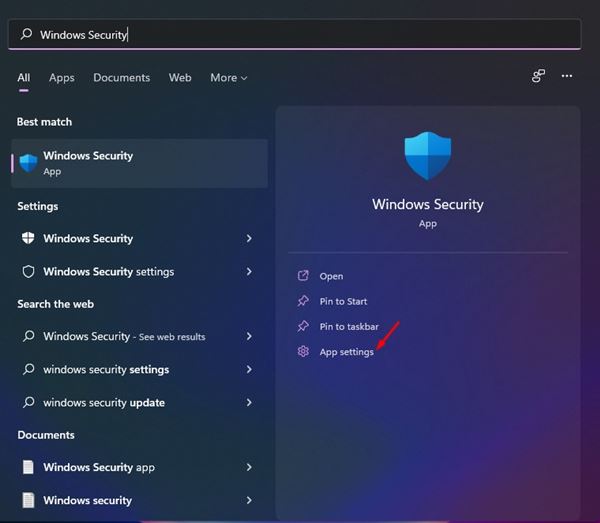
1. Click on the Windows 11 Start Menu and type Windows Security.
2. Click App Settings.
3. Scroll down and click Repair.
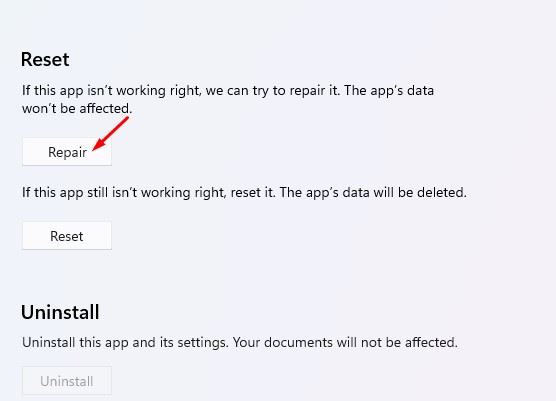
Wait until the process is completed. Once completed, you must run the app to check if the program persists.
2. Reset Windows Security App
We will reset the Windows Security app to fix Windows Security not opening or working on Windows 11.
1. Click on the Windows 11 Start Menu and type in Windows Security.
2. Click on App Settings.
3. Scroll down and click Reset.
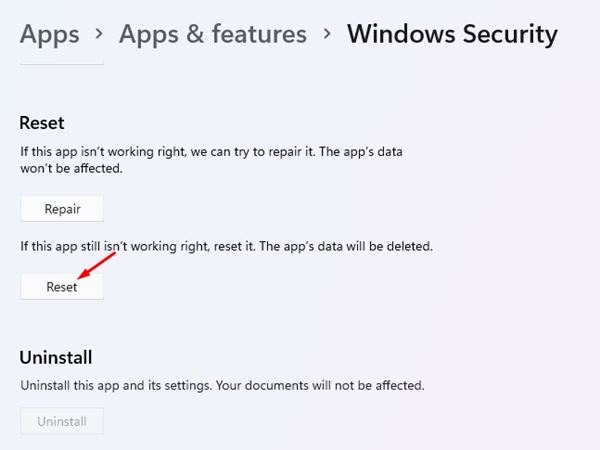
4. Follow the on-screen instructions to complete the reset process.
3. Restart the Security Center Service
For those who don’t know, Security Center is a Windows service that runs whenever your PC boots. Sometimes, the service fails to start, leading to Windows Security not opening the problem. Hence, we must restart the Security Center service to fix the Windows Security not opening problem.
1. Press the Windows Key + R to open the RUN dialog box. In the RUN dialog box, type services.msc and press Enter.
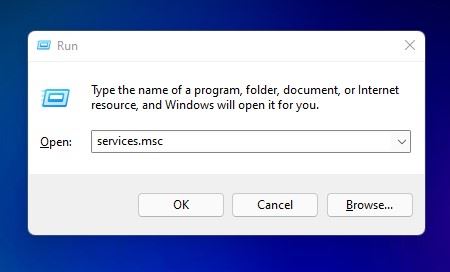
2. Find the Security Center.
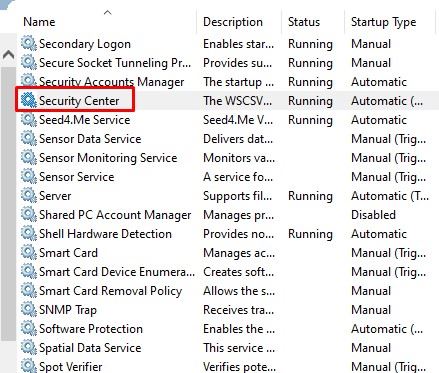
3. Right-click on the Security Center and select Restart.
4. Run an SFC Scan
System file corruption is another reason Windows Security does not open. Hence, we must run an SFC scan to fix the corrupted system files.
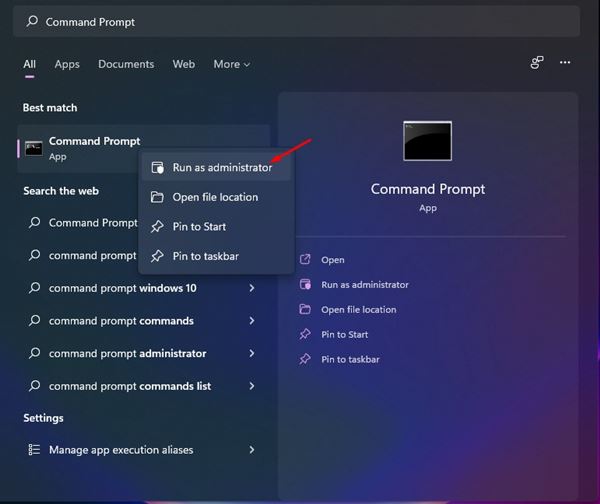
1. Open Windows Search and type in Command Prompt.
2. Right-click on Command Prompt and select Run as administrator.
3. Enter sfc /scannow
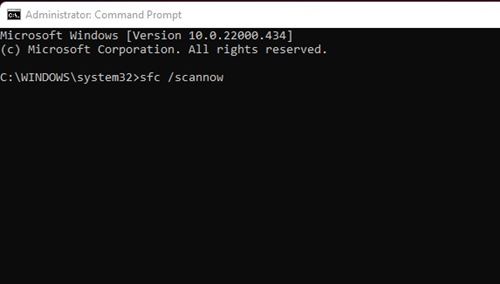
4. Wait until the process is complete. If Windows detects any problems, it will automatically fix them.
5. Re-register the Windows Security Apps
Re-registering the Windows Security app on Windows 11 has helped many users fix the problem. Here’s how you can re-register.
1. Type Command Prompt in the Windows 11 Search. Right-click on Command Prompt and select Run as administrator.
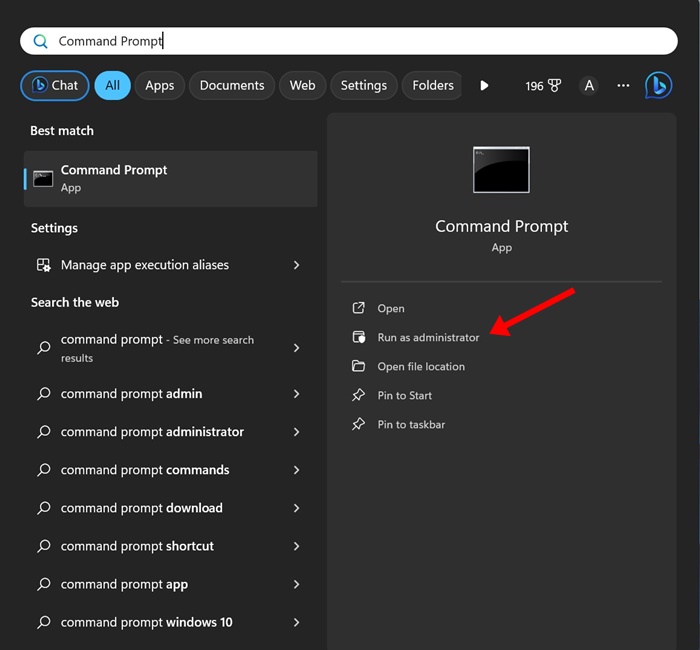
2. Execute this command and press Enter.
Get-AppxPackage Microsoft.SecHealthUI -AllUsers | Reset-AppxPackage
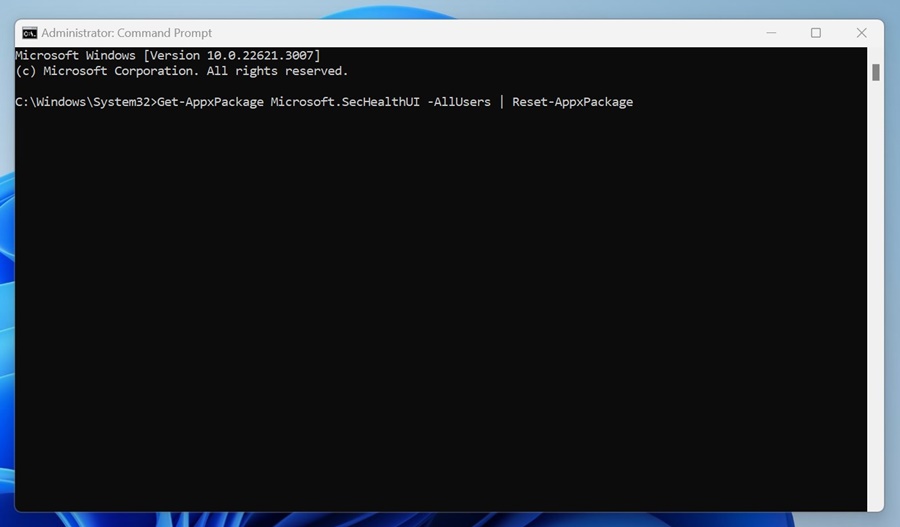
3. If the above command didn’t help, execute this command:
powershell -ExecutionPolicy Unrestricted Get-AppXPackage -AllUsers | Foreach {Add-AppxPackage -DisableDevelopmentMode -Register "$($_.InstallLocation)\AppXManifest.xml"}
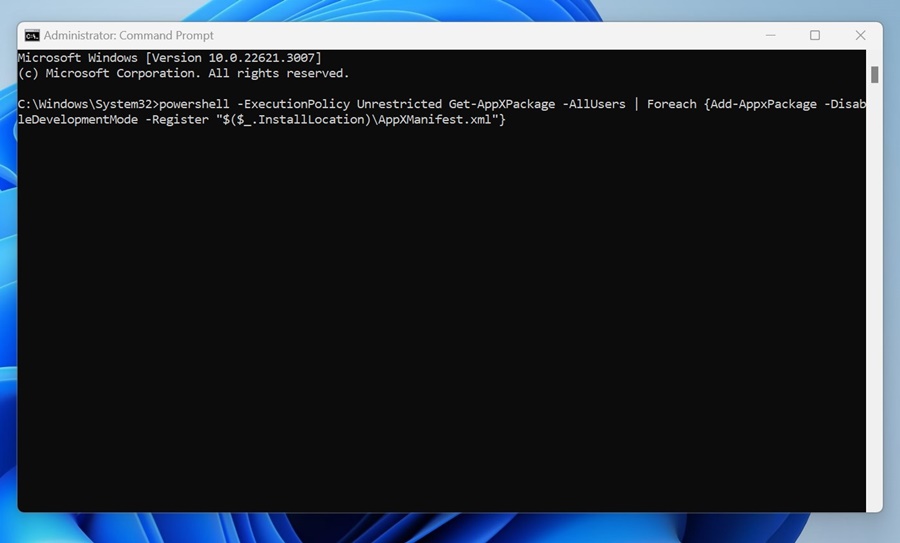
After executing the command, restart your computer and reopen the Windows Security app.
6. Uninstall Other Antivirus Programs
Neither Windows 10 nor Windows 11 allows you to run two different antivirus programs simultaneously. So, if you are using any antivirus program, you need to turn it off.
If disabling other antivirus programs didn’t help, uninstall them from your system. Once you’ve uninstalled other security programs, you must check whether Windows Security is opening.
7. Disable the Startup Program
Apart from the antivirus program, several types of third-party apps & services can interrupt the functioning of Windows Security. To resolve this issue, we must first find and disable the problematic startup app.
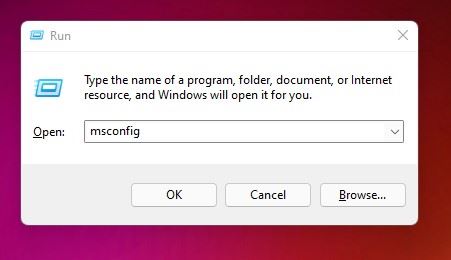
1. Press the Windows Key + R to open the RUN dialog box. In the RUN dialog box, enter msconfig and press Enter.
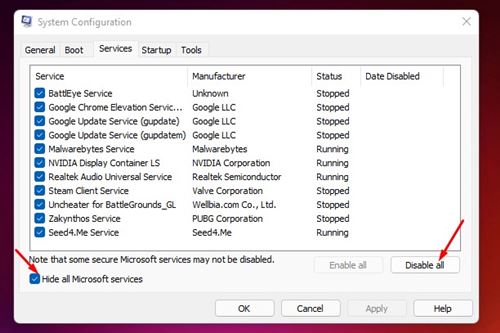
2. Select the Services tab on the System Configuration pop-up.
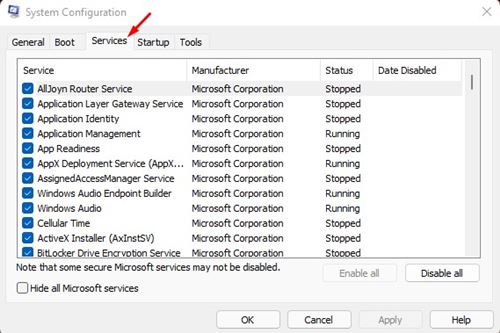
3. Check the box behind Hide all Microsoft Services and click Disable All.
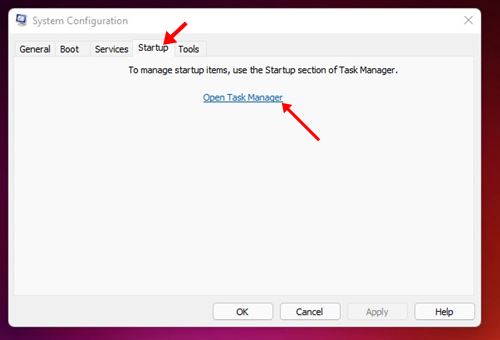
4. Switch to the Startup tab. Click Open Task Manager.
5. Under Startup, select a program and click the Disable button. Repeat this step until you turn off all the programs.
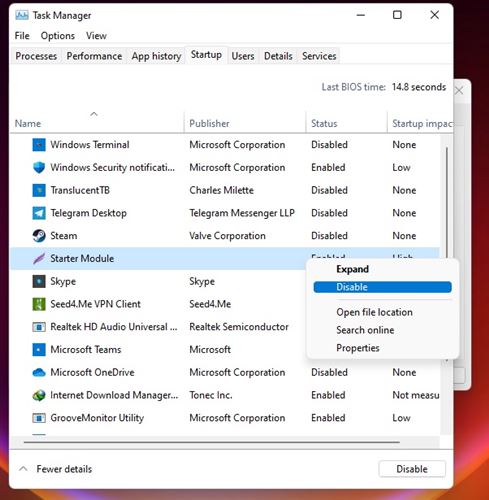
After making the changes, restart your Windows 11 PC. Your PC will restart without any third-party apps. If Windows Security opens after the restart, you need to check your recently installed apps & programs.
8. Update Windows 11
It’s possible that Windows Security is not opening due to an existing bug, which Microsoft has fixed with a system update. So, it’s recommended that you update Windows 11 to fix bug-related problems.
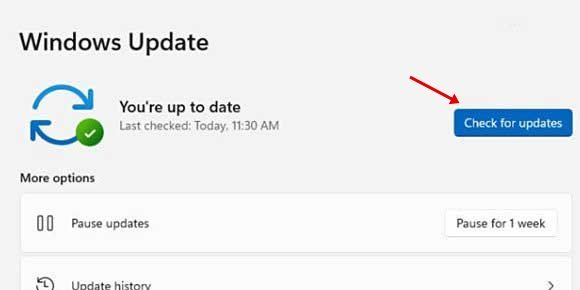
To update Windows 11, open Settings > Windows Update and click the Check for Updates button.
9. Reset Your Windows 11 PC
If nothing has worked for you, resetting your Windows 11 PC to its default state should be your last resort.
On Windows 11, you get the reset options in the Settings app and can keep your files. But resetting will still turn all settings and apps to their default state.
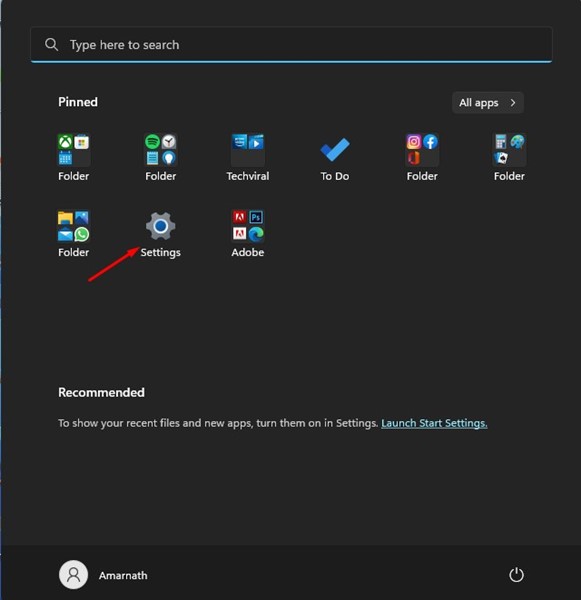
1. Click on the Windows 11 Start button and select Settings.
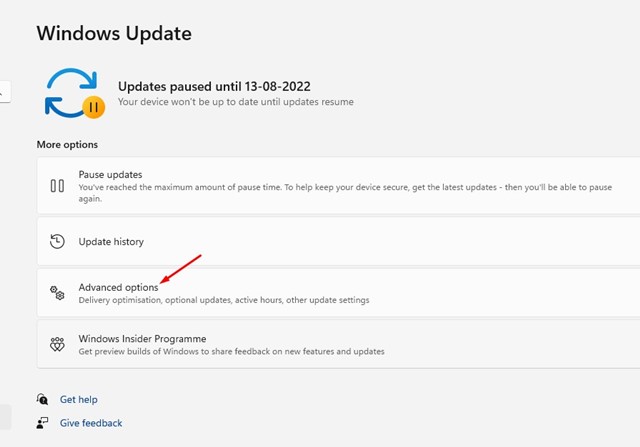
2. Switch to Windows Update > Advanced Options.
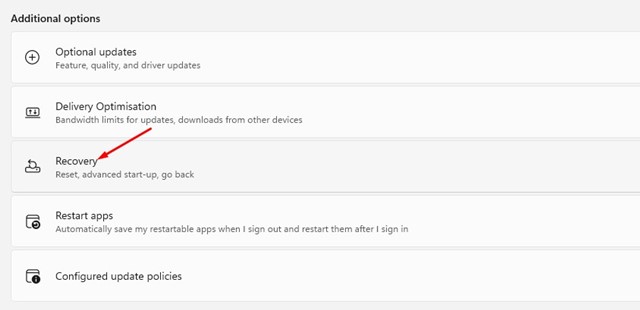
3. Click on Recovery.
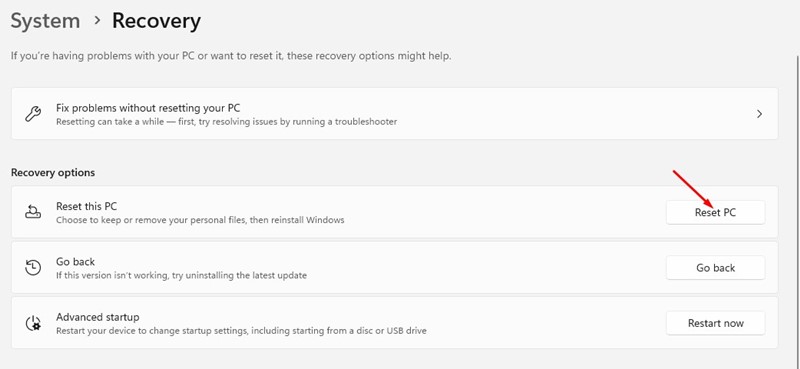
4. Scroll down to the Recovery options and click the Reset PC button.
5. You must choose whether to keep your files or Remove everything. Pick Keep my files if you wish to keep your files.
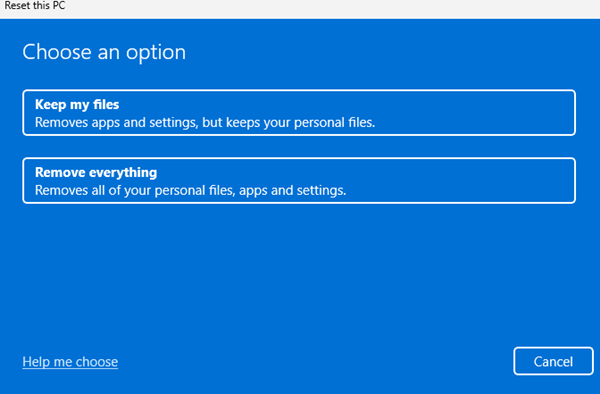
6. Follow the on-screen instructions to complete the reset process.
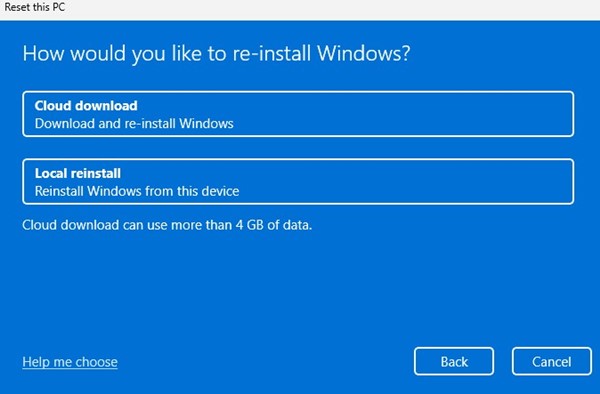
After the reset, open the Windows Security app again. This time, the Windows Security app will open.
We are sure these methods will help you fix the Windows Security app not opening problem on Windows 11. If you have any doubts, let us know in the comment box below.
The post Windows Security Not Opening on Windows 11? 9 Ways to Fix it appeared first on TechViral.
ethical hacking,hacking,bangla ethical hacking,bangla hacking tutorial,bangla tutorial,bangla hacking book,ethical hacking bangla,bangla,hacking apps,ethical hacking bangla tutorial,bangla hacking,bangla hacking pdf,bangla hacking video,bangla android hacking,bangla hacking tutorials,bangla fb hacking tutorial,bangla hacking book download,learn ethical hacking,hacking ebook,hacking tools,bangla ethical hacking course, tricks,hacking,ludo king tricks,whatsapp hacking trick 2019 tricks,wifi hacking tricks,hacking tricks: secret google tricks,simple hacking tricks,whatsapp hacking tricks,tips and tricks,wifi tricks,tech tricks,redmi tricks,hacking trick paytm cash,hacking trick helo app,hacking trick of helo app,paytm cash hacking trick,wifi password hacking,paytm cash hacking trick malayalam,hacker tricks, tips and tricks,pubg mobile tips and tricks,tricks,tips,tips and tricks for pubg mobile,100 tips and tricks,pubg tips and tricks,excel tips and tricks,google tips and tricks,kitchen tips and tricks,season 2 tips and tricks,android tips and tricks,fortnite tips and tricks,godnixon tips and tricks,free fire tips and tricks,advanced tips and tricks,whatsapp tips and tricks, facebook tricks,facebook,facebook hidden tricks,facebook tips and tricks,facebook latest tricks,facebook tips,facebook new tricks,facebook messenger tricks,facebook android app tricks,fb tricks,facebook app tricks,facebook tricks and tips,facebook tricks in hindi,tricks,facebook tutorial,new facebook tricks,cool facebook tricks,facebook tricks 2016,facebook tricks 2017,facebook secret tricks,facebook new tricks 2020,blogger blogspot seo tips and tricks,blogger tricks,blogger,blogger seo tips,blogger seo tips and tricks,seo for blogger,blogger seo in hindi,blogger seo best tips for increasing visitors,blogging tips and tricks,blogger blog seo,blogger seo in urdu,adsense approval trick,blogging tips and tricks for beginners,blogging tricks,blogger tutorial,blogger tricks 2016,blogger tricks 2017 bangla,tricks,bangla tutorial,bangla magic,bangla motivational video,bangla tricks,bangla tips,all bangla tips,magic tricks,akash bangla tricks,top 10 bangla tricks,tips and tricks,all bangla trick,bangla computer tricks,computer bangla tricks,bangla magic card tricks,ms word bangla tips and tricks,bangla computer tips,trick,psychology tricks,youtube bangla,magic tricks bangla,si trick Credit techviral


