
How to Enable Reputation-Based Protection in Windows 11
Security is not a problem for users who don’t install third-party apps on their system, but if you use lots of them, you must protect your devices with an extra layer of security. If we talk about Windows 11, the operating system ships with a built-in security program called Windows Defender.
Windows Defender is indeed a great security program offered by Microsoft, and it comes for free. Also, it offers many features that users don’t know like Reputation-based Protection.
Reputation Based Protection is a very useful security feature introduced by Microsoft in its Windows defender app. This is a feature that protects your PC from unwanted software installation & hackers who might try to get into your PC without your consent.
If you do not use any third-party security program, the feature may already be enabled, but if not, it is easy to set up. Hence, in this article, we will share a step-by-step guide on setting up and enabling Reputation-based protection on Windows 11. But, first, let’s check out what Reputation-based protection does to protect your PC.
What does Reputation-based protection do?
Well, Reputation-based protection is basically a feature of Windows Security that brings many useful security features. Here’s what it does.
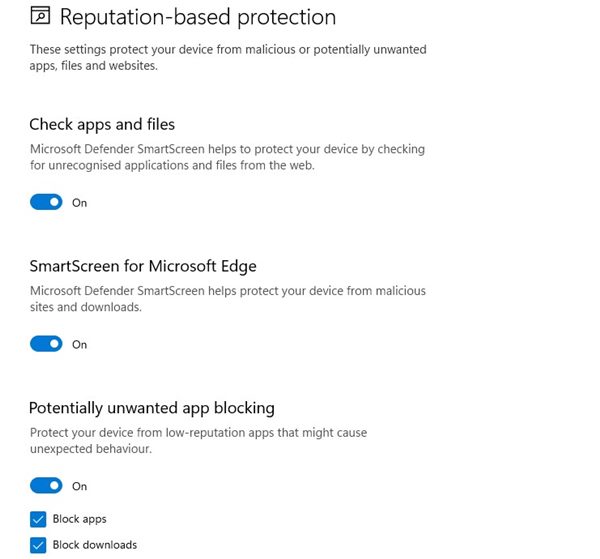
Check App and Files: This forces the Microsoft Defender SmartScreen feature to check for unrecognized apps and files from the web.
SmartScreen for Microsoft Edge: This one helps protect your device from malicious sites and downloads.
Potentially unwanted app blocking: This feature protect your device from low-reputation apps that might cause unexpected behavior.
SmartScreen for Microsoft Store Apps: This one protects your device by checking the web content that Microsoft Store apps use.
Steps to Enable Reputation-based protection in Windows 11
Well, you should enable Reputation-Based protection on Windows 11 to protect your device from malicious or potentially unwanted apps, files, and websites. Here’s what you need to do.
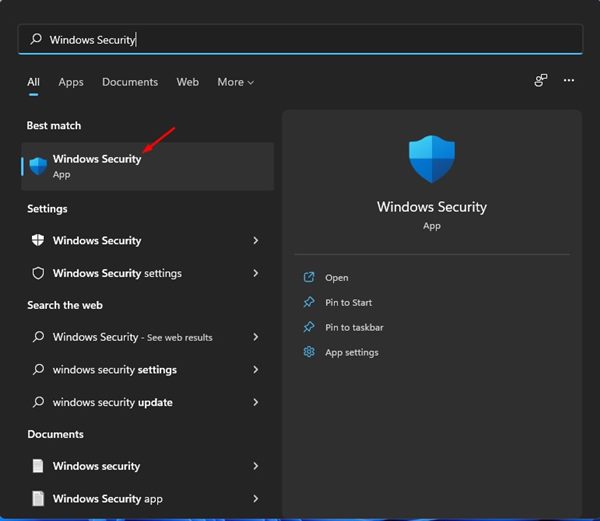
1. First of all, open the Windows 11 search and type in Windows Security. Next, open Windows Security from the search results.
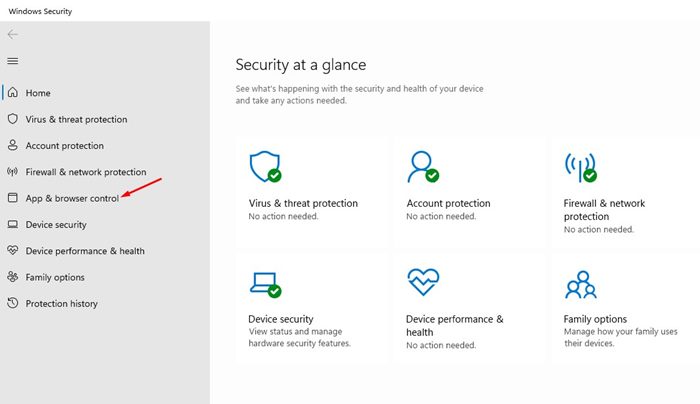
2. On Windows Security, click on the App & Browser Control option.
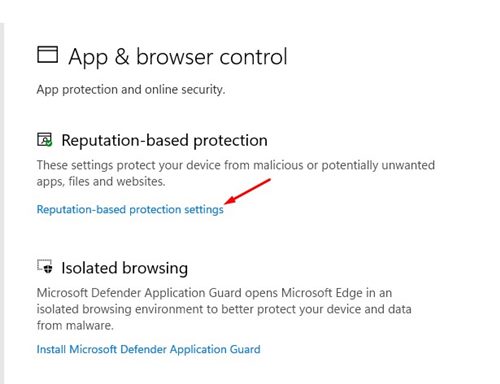
3. On the top, click on the Reputation-based protection Settings link as shown in the screenshot below.
4. You will find several options on the next screen. You need to turn on all options to enable Reputation-based protection.
That’s it! This is how you can enable Reputation-based protection on Windows 11 operating system.
Reputation-based protection is a handy feature of Windows Security. You can enable this feature to protect your device from various security threats. I hope this article helped you! Please share it with your friends also. If you have any doubts related to this, let us know in the comment box below.
The post How to Enable Reputation-Based Protection in Windows 11 appeared first on TechViral.
ethical hacking,hacking,bangla ethical hacking,bangla hacking tutorial,bangla tutorial,bangla hacking book,ethical hacking bangla,bangla,hacking apps,ethical hacking bangla tutorial,bangla hacking,bangla hacking pdf,bangla hacking video,bangla android hacking,bangla hacking tutorials,bangla fb hacking tutorial,bangla hacking book download,learn ethical hacking,hacking ebook,hacking tools,bangla ethical hacking course, tricks,hacking,ludo king tricks,whatsapp hacking trick 2019 tricks,wifi hacking tricks,hacking tricks: secret google tricks,simple hacking tricks,whatsapp hacking tricks,tips and tricks,wifi tricks,tech tricks,redmi tricks,hacking trick paytm cash,hacking trick helo app,hacking trick of helo app,paytm cash hacking trick,wifi password hacking,paytm cash hacking trick malayalam,hacker tricks, tips and tricks,pubg mobile tips and tricks,tricks,tips,tips and tricks for pubg mobile,100 tips and tricks,pubg tips and tricks,excel tips and tricks,google tips and tricks,kitchen tips and tricks,season 2 tips and tricks,android tips and tricks,fortnite tips and tricks,godnixon tips and tricks,free fire tips and tricks,advanced tips and tricks,whatsapp tips and tricks, facebook tricks,facebook,facebook hidden tricks,facebook tips and tricks,facebook latest tricks,facebook tips,facebook new tricks,facebook messenger tricks,facebook android app tricks,fb tricks,facebook app tricks,facebook tricks and tips,facebook tricks in hindi,tricks,facebook tutorial,new facebook tricks,cool facebook tricks,facebook tricks 2016,facebook tricks 2017,facebook secret tricks,facebook new tricks 2020,blogger blogspot seo tips and tricks,blogger tricks,blogger,blogger seo tips,blogger seo tips and tricks,seo for blogger,blogger seo in hindi,blogger seo best tips for increasing visitors,blogging tips and tricks,blogger blog seo,blogger seo in urdu,adsense approval trick,blogging tips and tricks for beginners,blogging tricks,blogger tutorial,blogger tricks 2016,blogger tricks 2017 bangla,tricks,bangla tutorial,bangla magic,bangla motivational video,bangla tricks,bangla tips,all bangla tips,magic tricks,akash bangla tricks,top 10 bangla tricks,tips and tricks,all bangla trick,bangla computer tricks,computer bangla tricks,bangla magic card tricks,ms word bangla tips and tricks,bangla computer tips,trick,psychology tricks,youtube bangla,magic tricks bangla,si trick Credit techviral


