
8 Ways to Fix Graphics Device Error Code 43
Windows 11 users often face an unusual error message linked with the Display driver that reads, ‘Windows has stopped this device because it has reported problems. (Code 43). The error message appears in the device manager while the device is being enabled.
What is Code 43 Error on Display Driver?
If you’ve been recently getting Error Code 43, it simply means that Windows 11 failed to establish communication with the device, and the necessary drivers have crashed. This error has much to do with the Display Drivers used on your PC; in the worst case, this could also be a hardware failure.
However, before anticipating the worst, we have to follow some basic troubleshooting to determine whether it’s a software or hardware problem.
1. Shutdown your Computer/Laptop
A shutdown will remove glitches and bugs that may conflict with the installed graphics driver.
- Click on the Windows 11 Start button.
- On the Start menu, click on the Power button and select Shutdown.
- Wait for about 5 minutes and power on your PC again.
If you can’t shut down, hold the power button for at least 30 seconds to force it to shut down. After the shutdown, wait for about 5 minutes before powering on.
2. Run the Hardware and Devices Troubleshooter
The hardware and devices troubleshooter can find and fix existing issues with your graphics device. It’s important to run that troubleshooter and see if it helps.
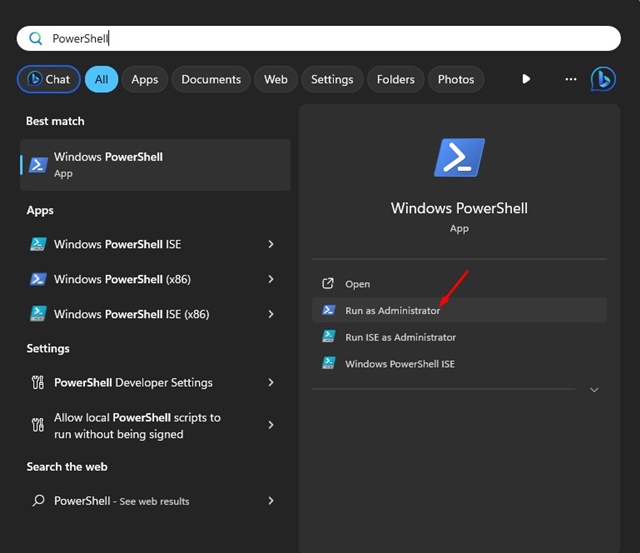
1. To run the Hardware and Devices Troubleshooter, type in PowerShell on the Windows 11 Search.
2. Right-click on the Windows PowerShell app and select Run as administrator.
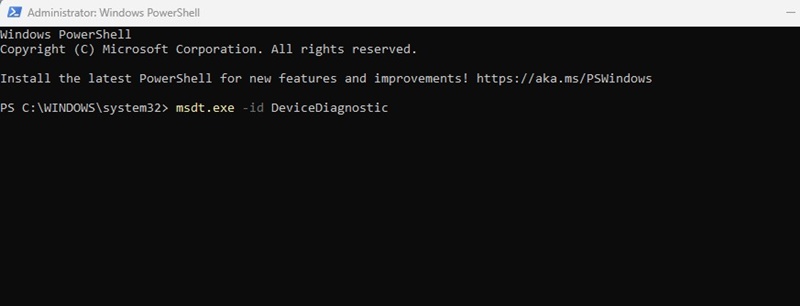
3. Execute the given command:
msdt.exe -id DeviceDiagnostic
4. This will open the Hardware and Devices troubleshooter on Windows 11.
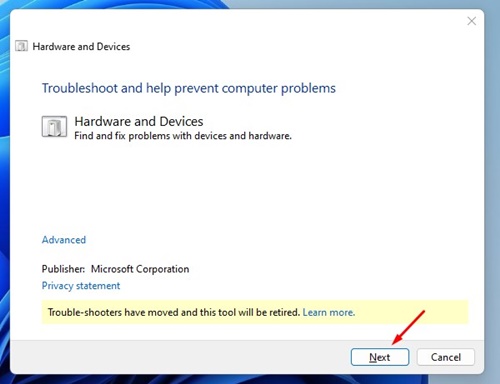
5. Click Next and follow the on-screen instructions to complete the troubleshooting process.
Once the process is complete, restart your PC, check whether the error still appears, and if Windows detects your connected graphics card.
3. Update your Graphics Driver
Many Windows 11 users have claimed to resolve the graphics device error code 43 problem by updating the graphics driver. You can also try doing it.
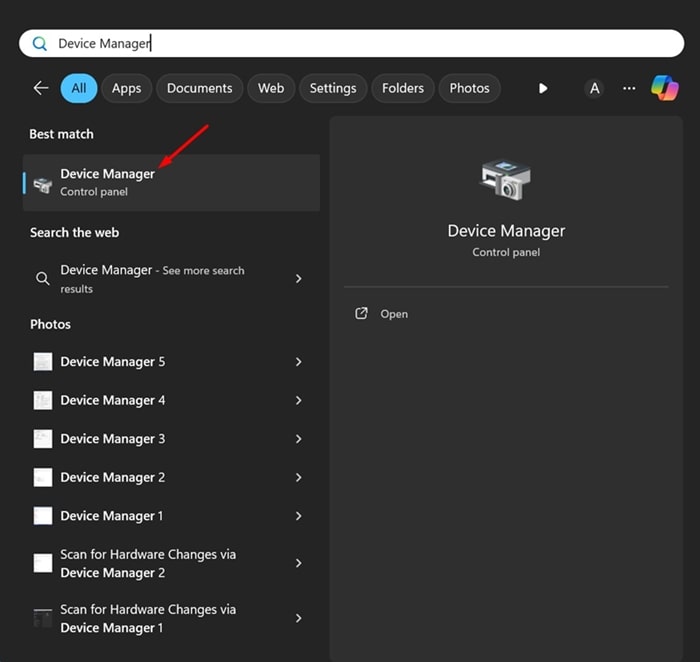
1. Open the Device Manager app from the Windows Search.
2. Expand the Display adapters tree.
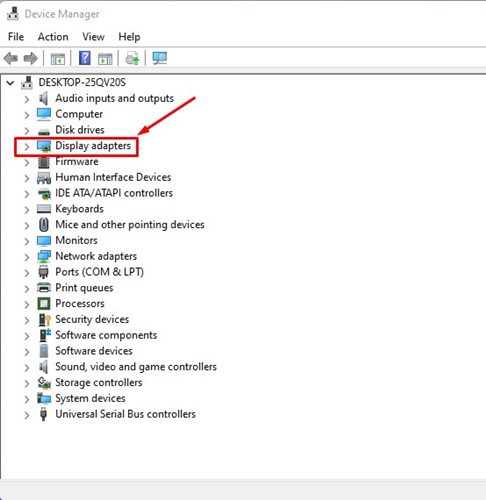
3. Right-click on your graphics device and select Update Driver.

4. Select Search automatically for updated driver software.
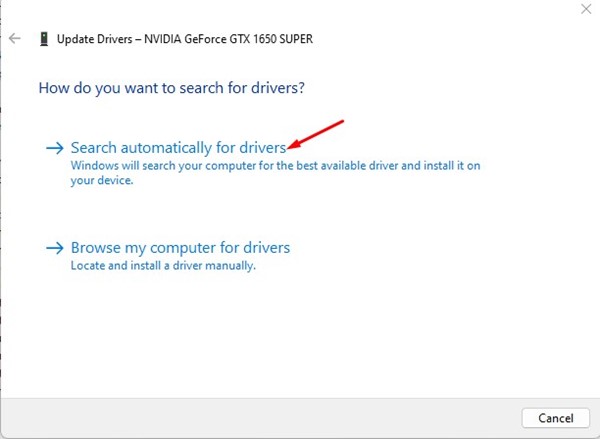
Follow the on-screen instructions to complete the graphics driver update process. After the update is complete, make sure to restart your PC.
4. Roll Back the Graphics Driver Updates
If updating the graphics driver didn’t help, you can try rolling back the drivers to the previous version and see if it does.
1. Open the Device Manager app from the Windows Search.
2. Expand the Display adapters tree.
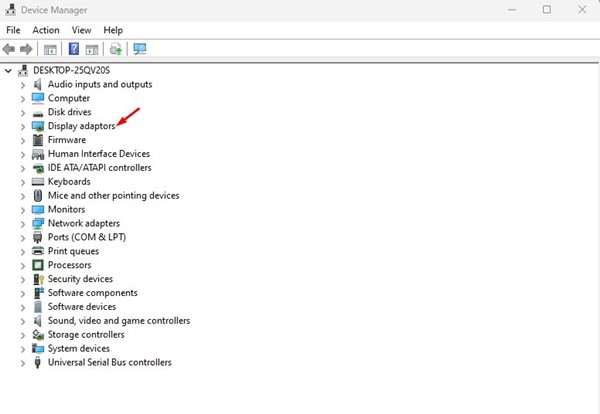
3. Right-click on your graphics device and select Properties.
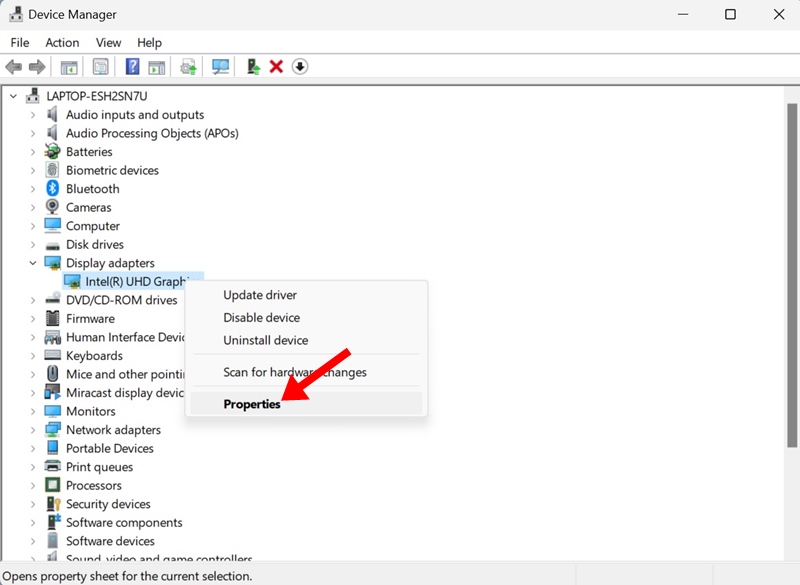
4. Click on Roll Back Driver.
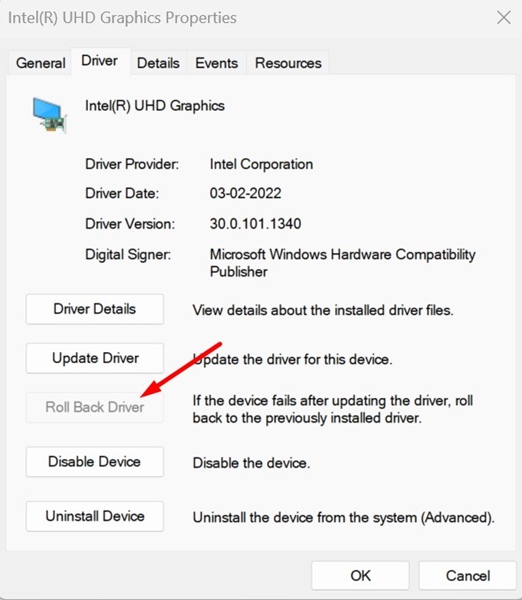
Follow the on-screen instructions to roll back the graphics driver to the previous version. After the rollback, restart your Windows 11 PC.
5. Uninstall the Graphics Device
If both update and rollback failed to fix the Graphics device error code 43, you can try uninstalling the graphics device from your system. Here’s what you need to do.
1. Open the Device Manager app from the Windows Search.
2. Expand the Display adapters tree.
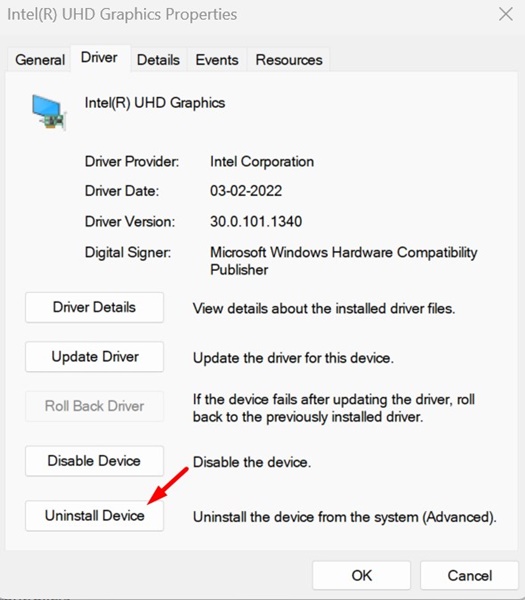
3. Right-click on your graphics device and select Properties.
4. Click on Uninstall device.
5. Click Uninstall.
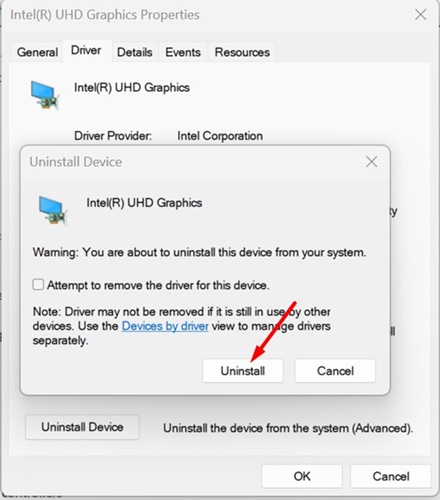
6. Once uninstalled, restart your PC. After the restart, Windows 11 will automatically enable the device and compatible drivers.
6. Disable the Overclocking
If you’re a gamer and overclocked your GPU, you need to revert the changes. While overclocking does boost gaming performance, it also brings many problems.
It can also reduce the life span of your GPU. Windows may not be detecting your GPU because of the wrong overclock settings. So, it’s best to turn off the GPU overclocking and check whether it solves the problem.
7. Download & Install the Graphics Driver from the official website
Forcing an unsigned graphics driver can trigger Error 43. You may be able to install an unsigned driver successfully, but when you reboot your PC, it will show you the error.
The best way to eliminate such an issue is to download and manually install the graphics driver from the official website. For example, if you have an NVIDIA graphics card, you can try downloading and manually installing the graphics drivers from NVIDIA’s official website.
So, find the most appropriate graphics driver and install it manually on your device.
8. Update your BIOS
BIOS is firmware built on a chip on your PC’s motherboard. It handles hardware initialization and runs processes during startup. Problematic or incorrect BIOS configuration can trigger Graphics Device Error 43; hence, it’s very important to update the BIOS.
Updating BIOS could be complicated, but you can visit your motherboard manufacturer’s website and follow its instructions. Otherwise, you can watch YouTube videos on how to update your BIOS to the latest version.
We know this software-based troubleshooting will fix the Graphics Device Driver error code 43. However, if the problem persists, you can take your PC or Graphics card to the local service center to rule out the possibility of a hardware fault.
The post 8 Ways to Fix Graphics Device Error Code 43 appeared first on TechViral.
ethical hacking,hacking,bangla ethical hacking,bangla hacking tutorial,bangla tutorial,bangla hacking book,ethical hacking bangla,bangla,hacking apps,ethical hacking bangla tutorial,bangla hacking,bangla hacking pdf,bangla hacking video,bangla android hacking,bangla hacking tutorials,bangla fb hacking tutorial,bangla hacking book download,learn ethical hacking,hacking ebook,hacking tools,bangla ethical hacking course, tricks,hacking,ludo king tricks,whatsapp hacking trick 2019 tricks,wifi hacking tricks,hacking tricks: secret google tricks,simple hacking tricks,whatsapp hacking tricks,tips and tricks,wifi tricks,tech tricks,redmi tricks,hacking trick paytm cash,hacking trick helo app,hacking trick of helo app,paytm cash hacking trick,wifi password hacking,paytm cash hacking trick malayalam,hacker tricks, tips and tricks,pubg mobile tips and tricks,tricks,tips,tips and tricks for pubg mobile,100 tips and tricks,pubg tips and tricks,excel tips and tricks,google tips and tricks,kitchen tips and tricks,season 2 tips and tricks,android tips and tricks,fortnite tips and tricks,godnixon tips and tricks,free fire tips and tricks,advanced tips and tricks,whatsapp tips and tricks, facebook tricks,facebook,facebook hidden tricks,facebook tips and tricks,facebook latest tricks,facebook tips,facebook new tricks,facebook messenger tricks,facebook android app tricks,fb tricks,facebook app tricks,facebook tricks and tips,facebook tricks in hindi,tricks,facebook tutorial,new facebook tricks,cool facebook tricks,facebook tricks 2016,facebook tricks 2017,facebook secret tricks,facebook new tricks 2020,blogger blogspot seo tips and tricks,blogger tricks,blogger,blogger seo tips,blogger seo tips and tricks,seo for blogger,blogger seo in hindi,blogger seo best tips for increasing visitors,blogging tips and tricks,blogger blog seo,blogger seo in urdu,adsense approval trick,blogging tips and tricks for beginners,blogging tricks,blogger tutorial,blogger tricks 2016,blogger tricks 2017 bangla,tricks,bangla tutorial,bangla magic,bangla motivational video,bangla tricks,bangla tips,all bangla tips,magic tricks,akash bangla tricks,top 10 bangla tricks,tips and tricks,all bangla trick,bangla computer tricks,computer bangla tricks,bangla magic card tricks,ms word bangla tips and tricks,bangla computer tips,trick,psychology tricks,youtube bangla,magic tricks bangla,si trick Credit techviral


