
How to Check Your Startup and Shutdown History in Windows
Checking the Startup and Shutdown History can help you find underlying issues and troubleshoot them effectively. So, whether you’re a pro Windows user or just a beginner, here are the best ways to check the Startup and Shutdown history on a Windows PC.
Important Event ID You Should Remember
Before checking the startup and shutdown history via the Event Viewer, it’s important to know the important Event IDs. These Event IDs will help you better identify the startup and shutdown events.
Event ID 6005: This one is a startup identifier. If this appears, it means a system startup.
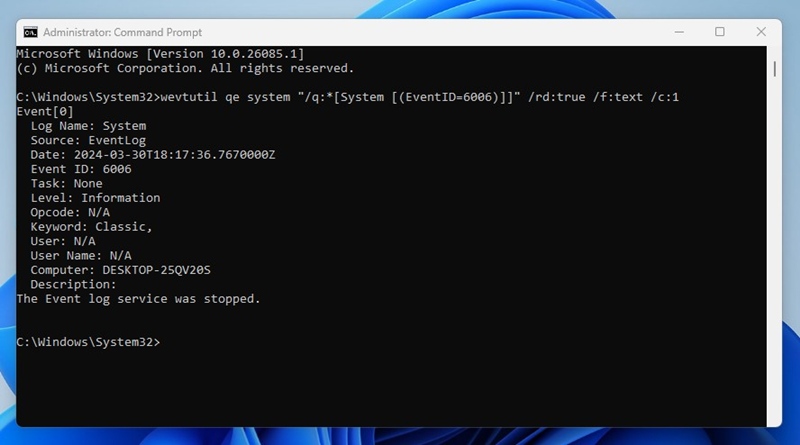
Event ID 6006: This one is used to identify a system shutdown.
Event ID 6008: This is also a system shutdown identifier, but it signifies that your PC has shut down abruptly.
Event ID 6013: This Event ID shows your system uptime in seconds.
Event ID 41: This means your PC rebooted without shutting down completely.
Event ID 1074: This event appears when an app forces a system to restart or when the user restarts/shutdown down via the Start Menu.
Event ID 1076: This event details why your system was restarted or shut down.
1. Check Startup and Shutdown History via Command Prompt
You can use the Command Prompt to view your PC’s Startup and Shutdown history.
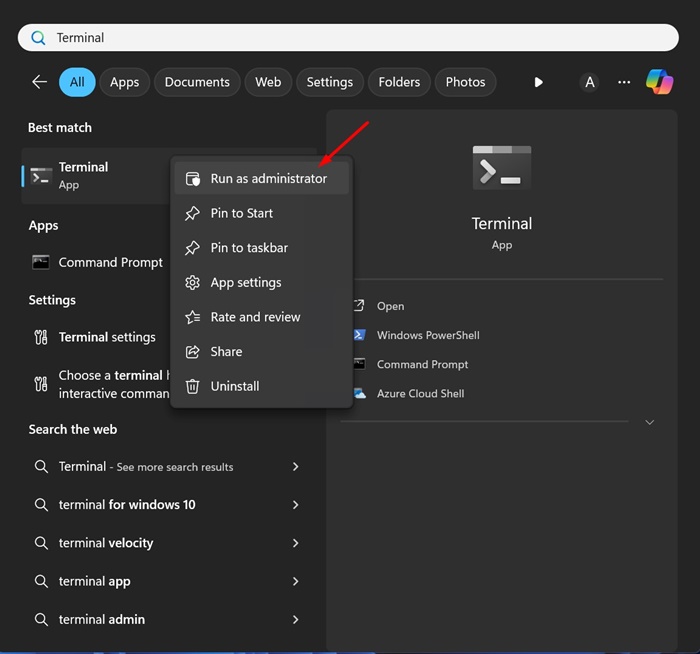
1. Type Command Prompt in the Windows 11 Search. When the Command Prompt appears, right-click on it and select Run as administrator.
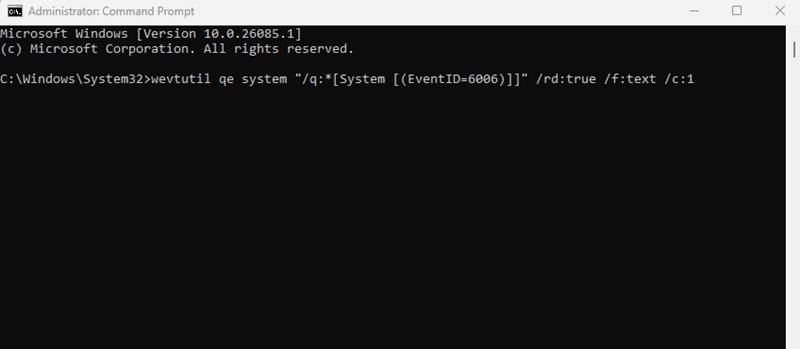
2. Execute this command:
wevtutil qe system “/q:*[System [(EventID=6006)]]” /rd:true /f:text /c:1
3. The command prompt will now show the shutdown activity.
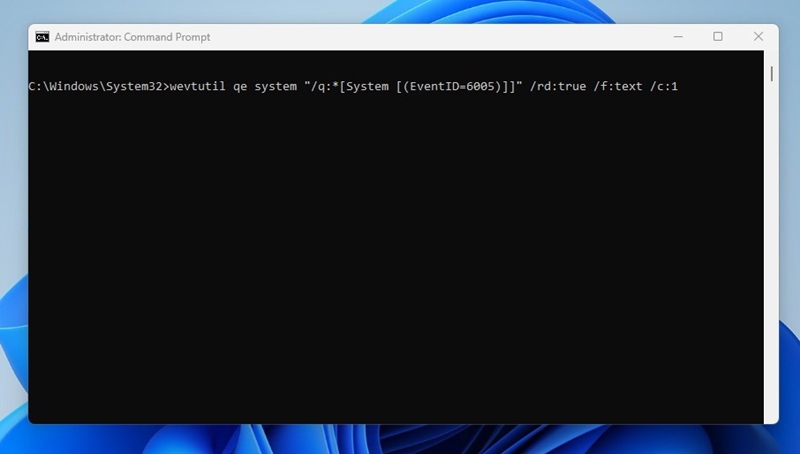
4. To view the startup activity, execute this command:
wevtutil qe system “/q:*[System [(EventID=6005)]]” /rd:true /f:text /c:1
2. Check the Startup and Shutdown History via Windows Event Viewer
Not everyone is comfortable handling the Event Viewer tool; this is why we have mentioned the Event Viewer in the second spot.
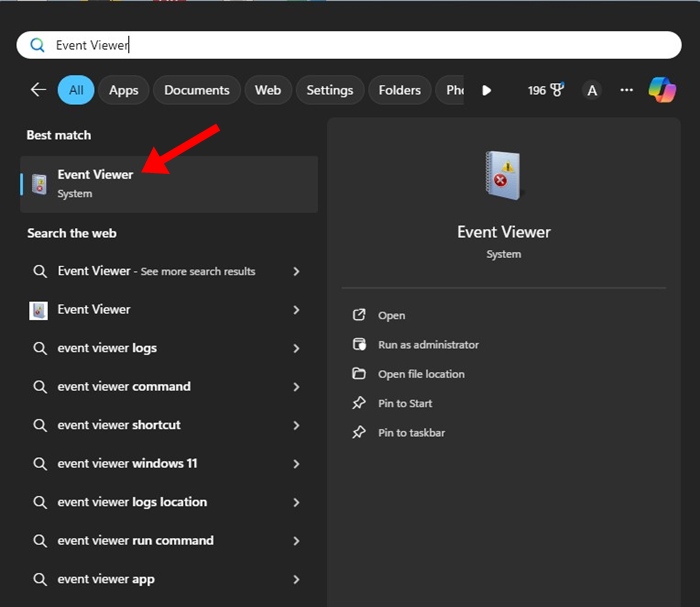
1. Open the Event Viewer app from the Windows 11 Search.
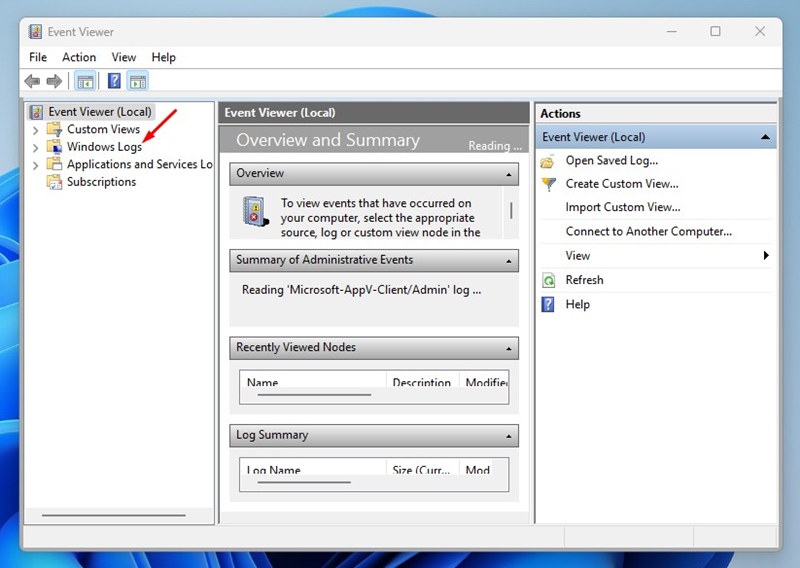
2. Switch to Windows Logs.
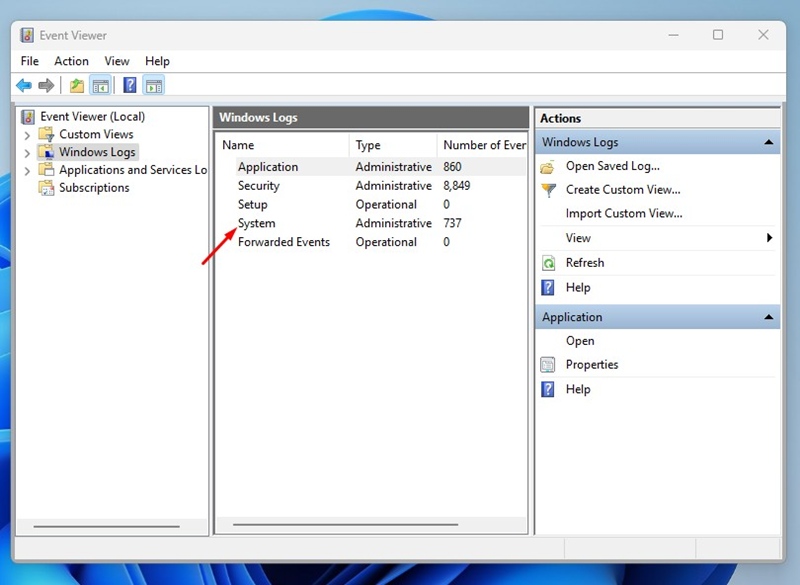
3. Double-click on System.
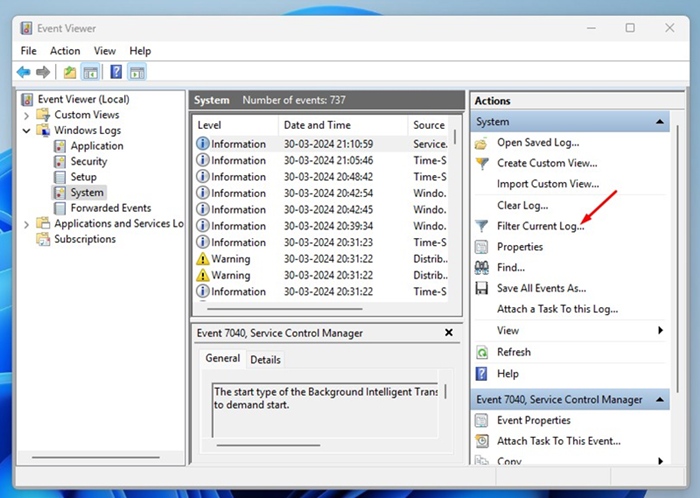
4. Click on Filter Current Log.
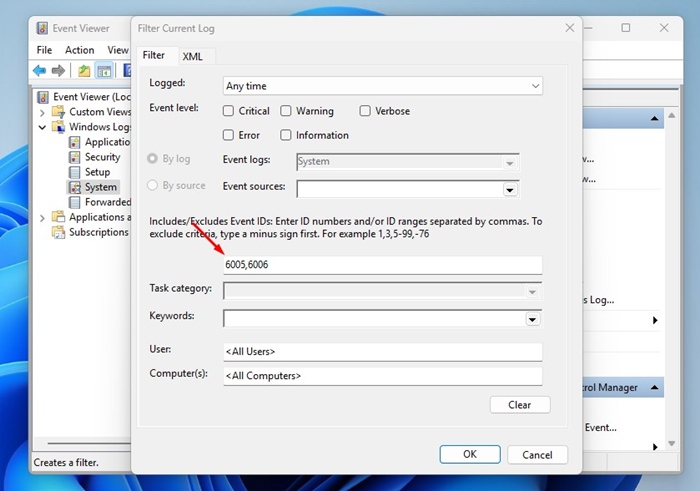
5. On the Filter Current Log prompt, enter 6005 and 6006 in the field shown in the screenshot and click OK.
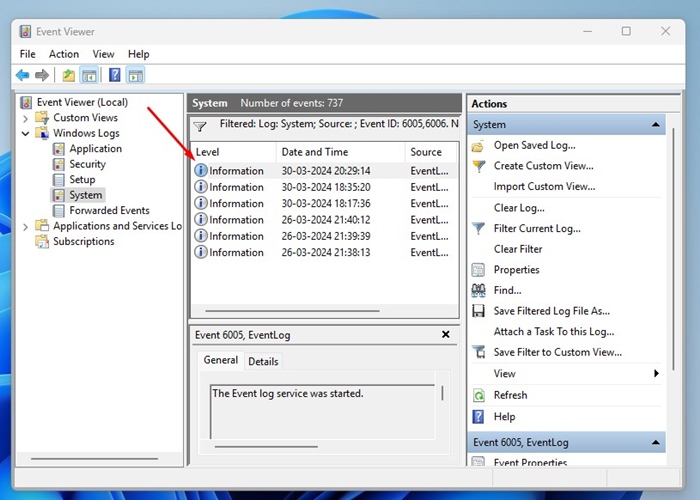
6. You will see many event logs. Each log indicates either a shutdown or a startup. You can double-click on the event logs to view more information.
3. View Startup & Shutdown History on Windows Using PowerShell
This method will use the PowerShell utility to check the Startup and Shutdown history.
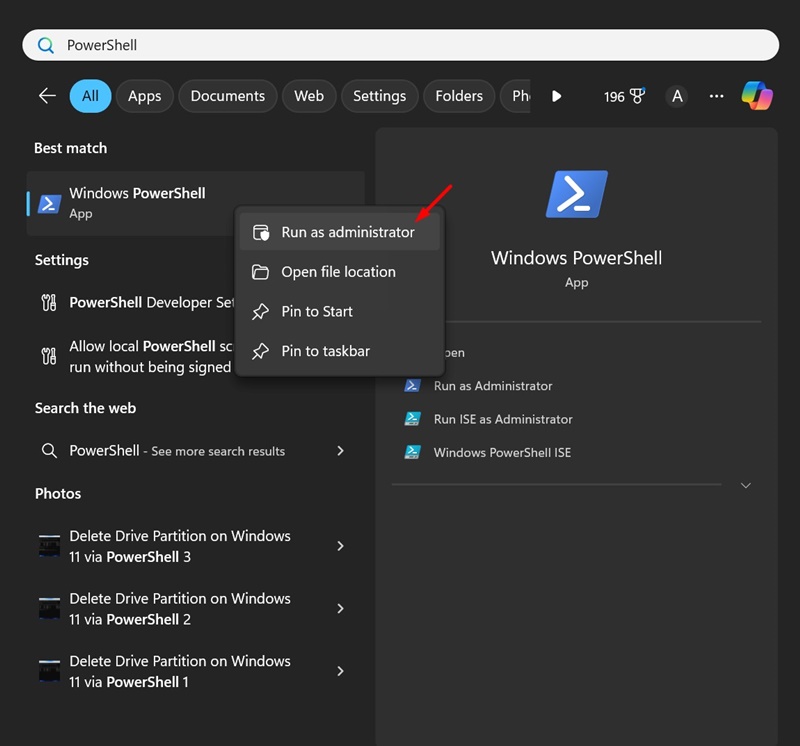
1. Type in PowerShell in the Windows Search. Right-click the PowerShell and select Run as administrator.
2. Execute the given command:
Get-EventLog -LogName System |? {$_.EventID -in (6005,6006,6008,6009,1074,1076)} | ft TimeGenerated,EventId,Message -AutoSize -wrap
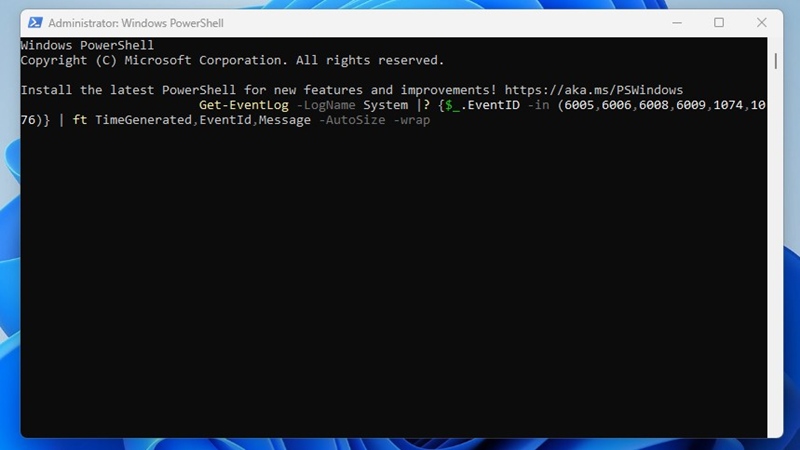
3. The PowerShell utility will return detailed information on the event codes you’ve entered in the command. The result will be divided into three columns: Time Generated, EventID, and Message.
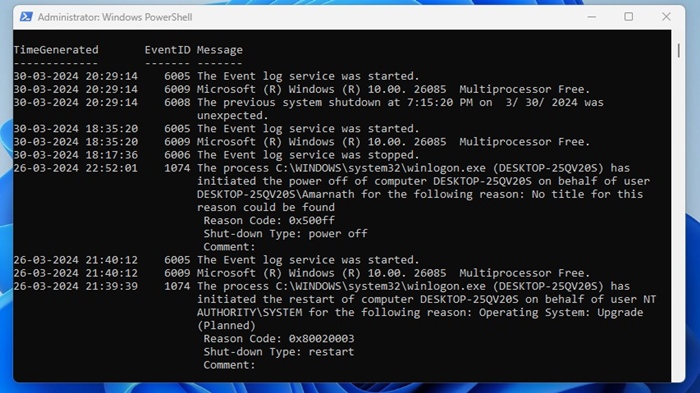
You need to analyze the information to find the history of the startup and shutdown.
This guide explains how to check the Startup and Shutdown history on a Windows PC. You can use this information to troubleshoot many PC issues. In the comments, let us know if you need more help on this specific topic.
The post How to Check Your Startup and Shutdown History in Windows appeared first on TechViral.
ethical hacking,hacking,bangla ethical hacking,bangla hacking tutorial,bangla tutorial,bangla hacking book,ethical hacking bangla,bangla,hacking apps,ethical hacking bangla tutorial,bangla hacking,bangla hacking pdf,bangla hacking video,bangla android hacking,bangla hacking tutorials,bangla fb hacking tutorial,bangla hacking book download,learn ethical hacking,hacking ebook,hacking tools,bangla ethical hacking course, tricks,hacking,ludo king tricks,whatsapp hacking trick 2019 tricks,wifi hacking tricks,hacking tricks: secret google tricks,simple hacking tricks,whatsapp hacking tricks,tips and tricks,wifi tricks,tech tricks,redmi tricks,hacking trick paytm cash,hacking trick helo app,hacking trick of helo app,paytm cash hacking trick,wifi password hacking,paytm cash hacking trick malayalam,hacker tricks, tips and tricks,pubg mobile tips and tricks,tricks,tips,tips and tricks for pubg mobile,100 tips and tricks,pubg tips and tricks,excel tips and tricks,google tips and tricks,kitchen tips and tricks,season 2 tips and tricks,android tips and tricks,fortnite tips and tricks,godnixon tips and tricks,free fire tips and tricks,advanced tips and tricks,whatsapp tips and tricks, facebook tricks,facebook,facebook hidden tricks,facebook tips and tricks,facebook latest tricks,facebook tips,facebook new tricks,facebook messenger tricks,facebook android app tricks,fb tricks,facebook app tricks,facebook tricks and tips,facebook tricks in hindi,tricks,facebook tutorial,new facebook tricks,cool facebook tricks,facebook tricks 2016,facebook tricks 2017,facebook secret tricks,facebook new tricks 2020,blogger blogspot seo tips and tricks,blogger tricks,blogger,blogger seo tips,blogger seo tips and tricks,seo for blogger,blogger seo in hindi,blogger seo best tips for increasing visitors,blogging tips and tricks,blogger blog seo,blogger seo in urdu,adsense approval trick,blogging tips and tricks for beginners,blogging tricks,blogger tutorial,blogger tricks 2016,blogger tricks 2017 bangla,tricks,bangla tutorial,bangla magic,bangla motivational video,bangla tricks,bangla tips,all bangla tips,magic tricks,akash bangla tricks,top 10 bangla tricks,tips and tricks,all bangla trick,bangla computer tricks,computer bangla tricks,bangla magic card tricks,ms word bangla tips and tricks,bangla computer tips,trick,psychology tricks,youtube bangla,magic tricks bangla,si trick Credit techviral


