
Can’t Install Apps from Microsoft Store? 8 Best Ways to Fix it
While the Microsoft Store is pretty useful, the problem appears when it fails to install apps. Many Windows 11 users have recently reported that they can’t install apps from the Microsoft Store on Windows 11. If you have been facing similar problems, here’s what you can do.
1. Restart your Windows 11

Users have already faced similar Microsoft Store problems on the latest builds of Windows 11. The best way to eliminate operating system bugs/glitches is to restart the computer. Click on the Windows 11 Power Menu and select Restart.
After restarting, open the Microsoft Store app and try to install it again. This time, the app should be installed on your device.
2. Re-login to the Microsoft Store
Many Windows 11 users have reported fixing the Microsoft Store not downloading & installing apps problem by signing out & signing in to their Account. You can try this solution as well.
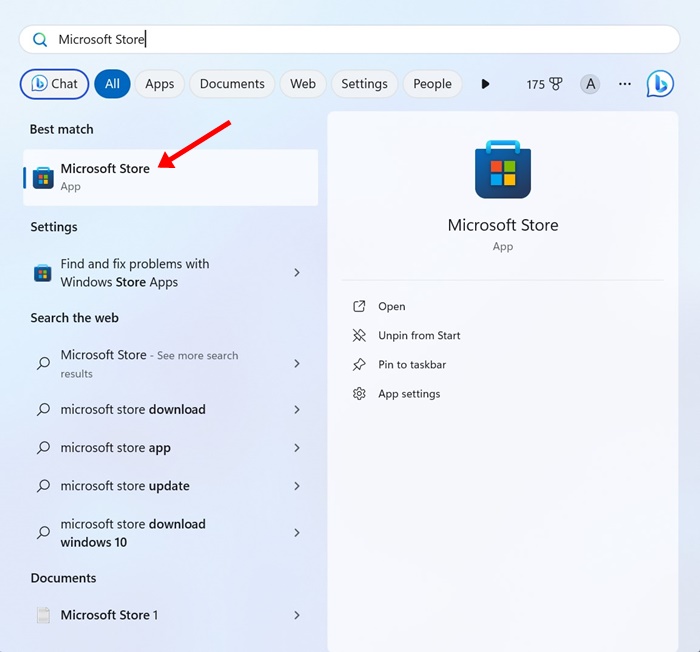
1. Open the Microsoft Store app from the Windows search.
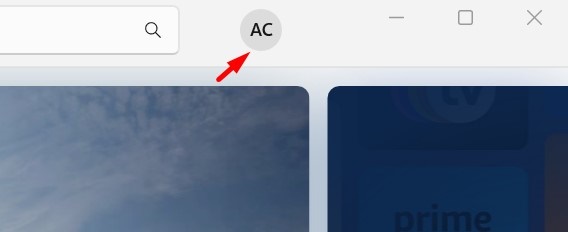
2. Click the profile icon in the top right corner.
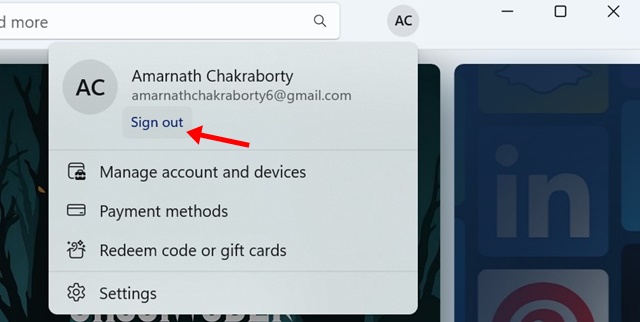
3. Click on the Sign out near your profile name.
4. Click the profile icon again & select Sign in.
5. Sign in with your Microsoft Account again.
3. Run the Windows Store App Troubleshooter
If the Microsoft Store is still unable to download apps, the next best step is to run the Windows Store Troubleshooter.
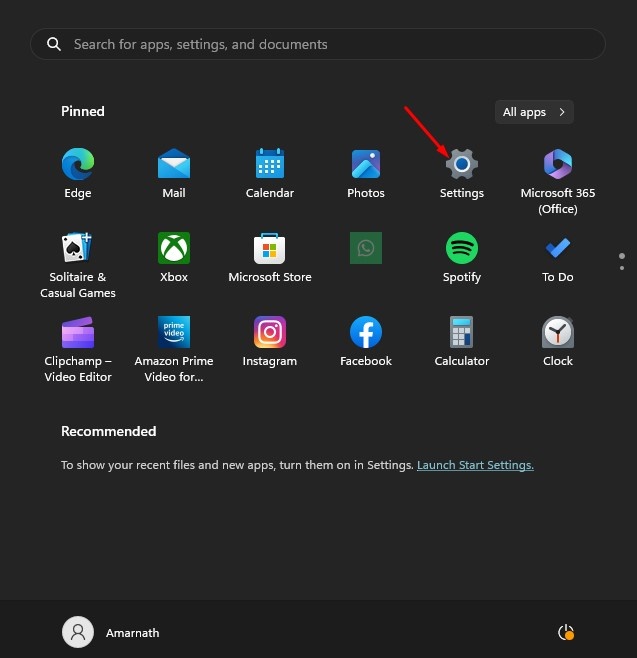
1. Click on the Windows 11 Start button & select Settings.
2. Switch to the System.
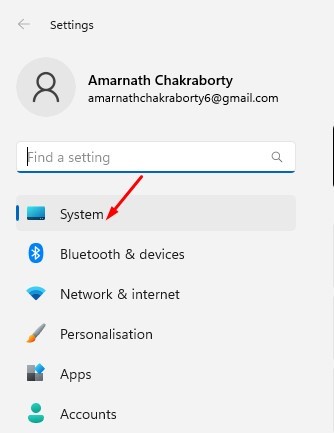
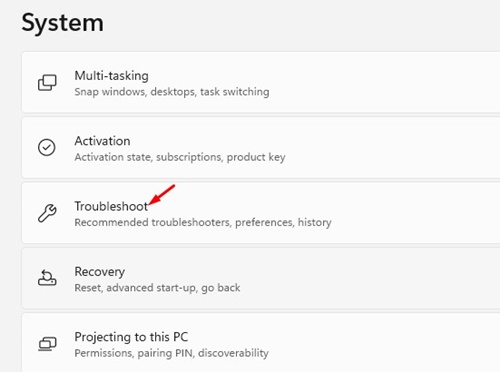
3. Click on Troubleshoot.
4. Click on Other troubleshooters.
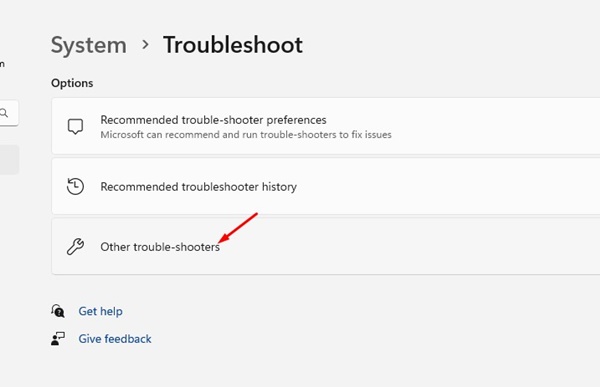
5. Find the Windows Store App troubleshooter and click the Run button beside it.
Just follow the on-screen instructions to complete the troubleshooting process.
4. Restart the Application Identity Service
The role of Application Identity Service on Windows 11 is to check an app’s identity when it’s running. If the Microsoft Store can’t install an app on Windows 11, restart the Application Identity Service.
1. Open the Services app from the Windows Search.
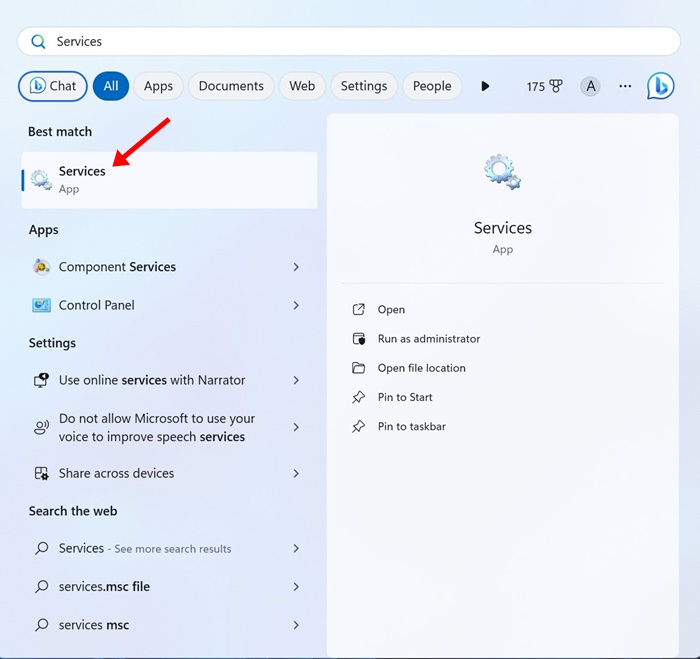
2. Double-click on the Application Identity.
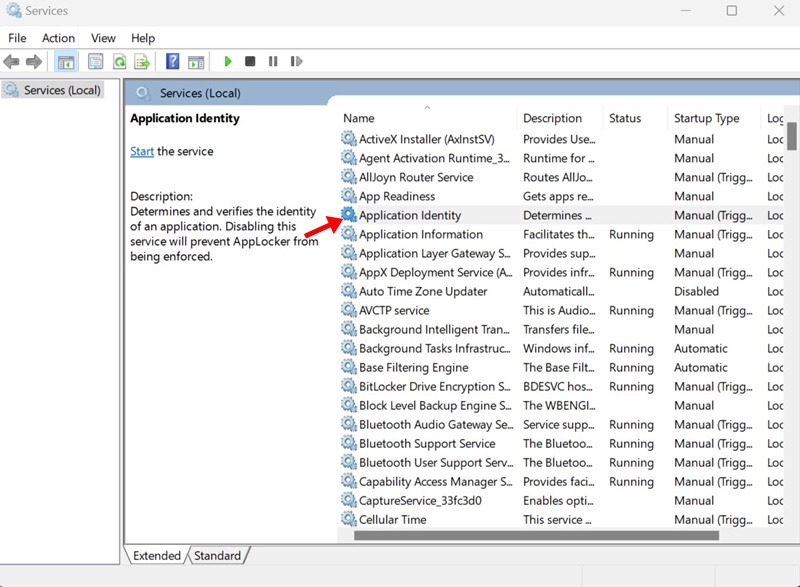
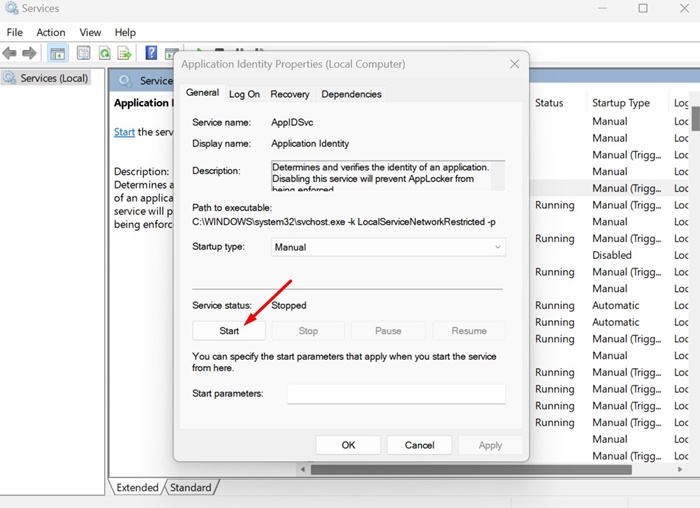
3. Click on the Stop button. Once stopped, click on Start.
5. Clear the Microsoft Store Cache
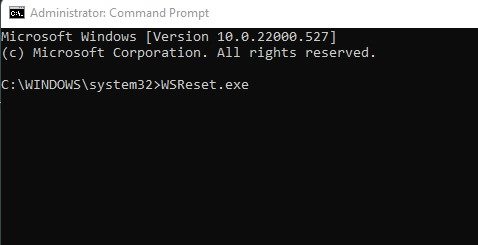
A corrupted Microsoft Store Cache is one of the common reasons Microsoft Store fails to install apps. To fix this issue, you need to reset the Microsoft Store Cache.
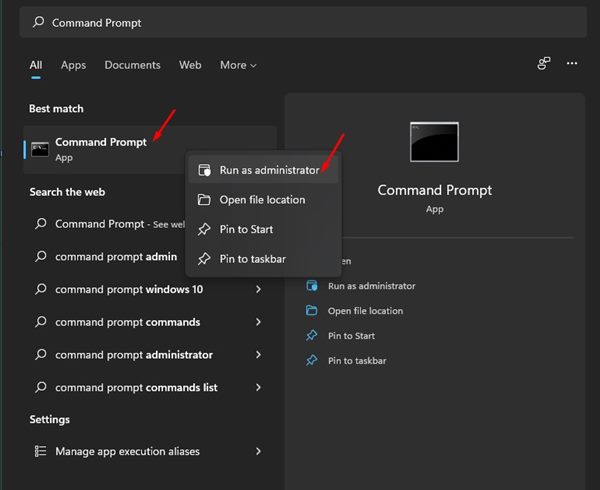
1. Type in Command Prompt in the Windows 11 search. Next, right-click on the Command Prompt & select Run as administrator.
2. Enter WSReset.exe and press Enter.
6. Reset the Microsoft Store App
If nothing worked for you, the next best option is to reset the Microsoft Store app.
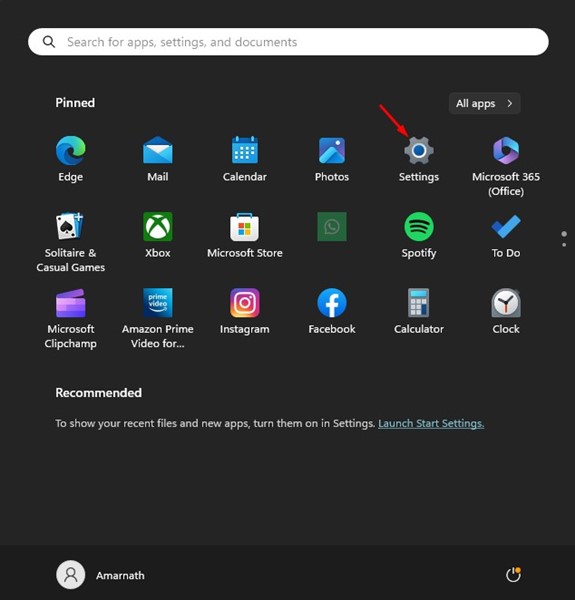
1. Click on the Windows 11 Start button & select Settings.
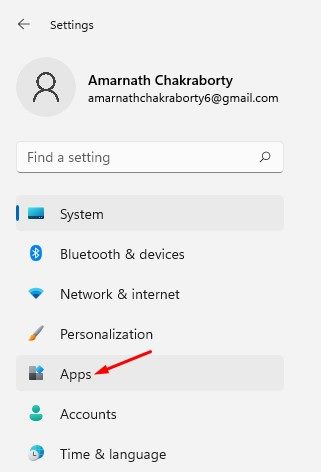
2. Select Apps.
3. Click on Apps & features.
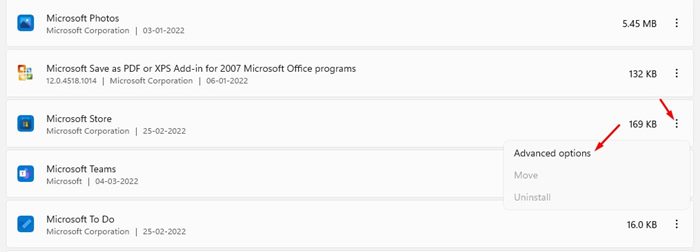
4. Find the Microsoft Store. Click on the three dots beside it & select Advanced options.
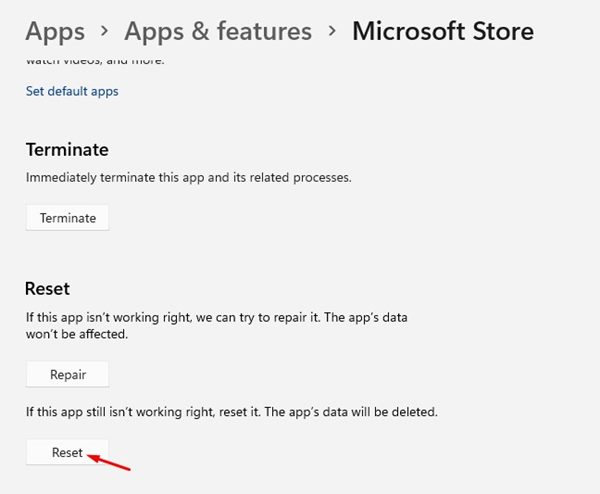
5. Click on Reset.
7. Run SFC and DISM Scan
System file corruption could also be a reason you’re unable to install apps from the Microsoft Store. You can rule out the system file corruption issues by running the SFC and DISM commands.
1. Type Command Prompt in the Windows 11 search. Next, right-click on the Command Prompt and select Run as administrator.
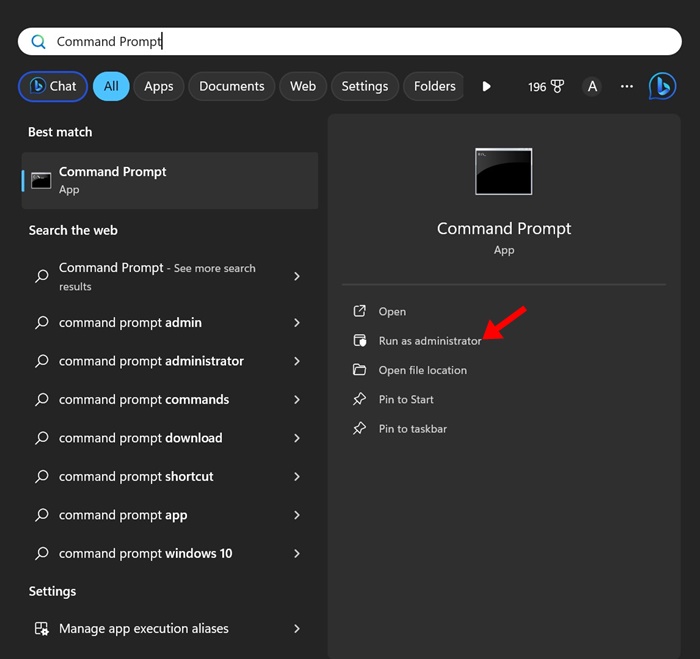
2. Execute the given command:
sfc /scannow

3. If the command prompt returns with an error, execute this command:
DISM /Online /Cleanup-Image /RestoreHealth
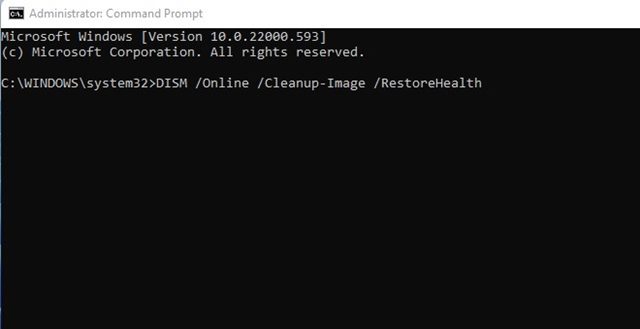
After executing the command, restart your Windows 11 PC and try to install the app again from the Microsoft Store.
8. Download the App from their official website
Despite trying all these methods, if you still can’t install the apps from the Microsoft Store, you can consider downloading them from their official website.
Alternatively, you can use the software download websites to download the files. Just make sure to download the apps from trusted sources only.
These are a few working methods to fix Microsoft Store can’t install the app on Windows 11 issue. If you have followed all methods, you will be able to download & install apps from the Microsoft Store.
The post Can’t Install Apps from Microsoft Store? 8 Best Ways to Fix it appeared first on TechViral.
ethical hacking,hacking,bangla ethical hacking,bangla hacking tutorial,bangla tutorial,bangla hacking book,ethical hacking bangla,bangla,hacking apps,ethical hacking bangla tutorial,bangla hacking,bangla hacking pdf,bangla hacking video,bangla android hacking,bangla hacking tutorials,bangla fb hacking tutorial,bangla hacking book download,learn ethical hacking,hacking ebook,hacking tools,bangla ethical hacking course, tricks,hacking,ludo king tricks,whatsapp hacking trick 2019 tricks,wifi hacking tricks,hacking tricks: secret google tricks,simple hacking tricks,whatsapp hacking tricks,tips and tricks,wifi tricks,tech tricks,redmi tricks,hacking trick paytm cash,hacking trick helo app,hacking trick of helo app,paytm cash hacking trick,wifi password hacking,paytm cash hacking trick malayalam,hacker tricks, tips and tricks,pubg mobile tips and tricks,tricks,tips,tips and tricks for pubg mobile,100 tips and tricks,pubg tips and tricks,excel tips and tricks,google tips and tricks,kitchen tips and tricks,season 2 tips and tricks,android tips and tricks,fortnite tips and tricks,godnixon tips and tricks,free fire tips and tricks,advanced tips and tricks,whatsapp tips and tricks, facebook tricks,facebook,facebook hidden tricks,facebook tips and tricks,facebook latest tricks,facebook tips,facebook new tricks,facebook messenger tricks,facebook android app tricks,fb tricks,facebook app tricks,facebook tricks and tips,facebook tricks in hindi,tricks,facebook tutorial,new facebook tricks,cool facebook tricks,facebook tricks 2016,facebook tricks 2017,facebook secret tricks,facebook new tricks 2020,blogger blogspot seo tips and tricks,blogger tricks,blogger,blogger seo tips,blogger seo tips and tricks,seo for blogger,blogger seo in hindi,blogger seo best tips for increasing visitors,blogging tips and tricks,blogger blog seo,blogger seo in urdu,adsense approval trick,blogging tips and tricks for beginners,blogging tricks,blogger tutorial,blogger tricks 2016,blogger tricks 2017 bangla,tricks,bangla tutorial,bangla magic,bangla motivational video,bangla tricks,bangla tips,all bangla tips,magic tricks,akash bangla tricks,top 10 bangla tricks,tips and tricks,all bangla trick,bangla computer tricks,computer bangla tricks,bangla magic card tricks,ms word bangla tips and tricks,bangla computer tips,trick,psychology tricks,youtube bangla,magic tricks bangla,si trick Credit techviral


