
5 Best Ways to Open WebP Images on Windows 11
WebP is an image format, but not all web browsers or image viewers support it. If you use Windows 10 or 11, you can’t open the WebP files without a third-party photo viewer. Below, we have shared some of the best ways to open WebP images on Windows 11.
Also read: Enable Windows Photo Viewer in Windows 11
1. Open a WebP Image on Windows 11 via the Photos App
To open a WebP image in the Photos app, you must change the File Explorer options.
1. Open File Explorer Options from the Windows Search.
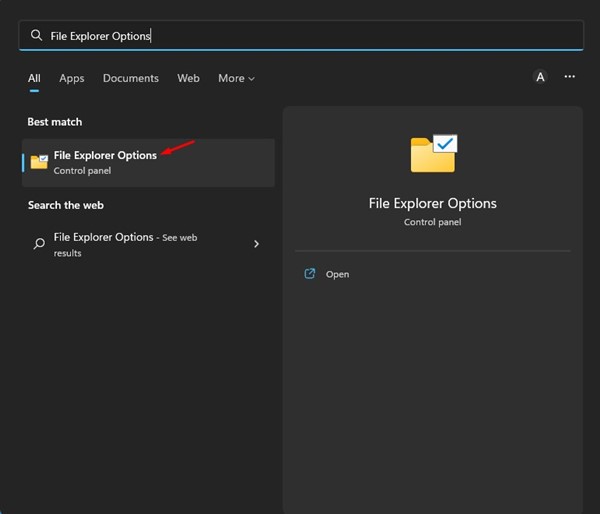
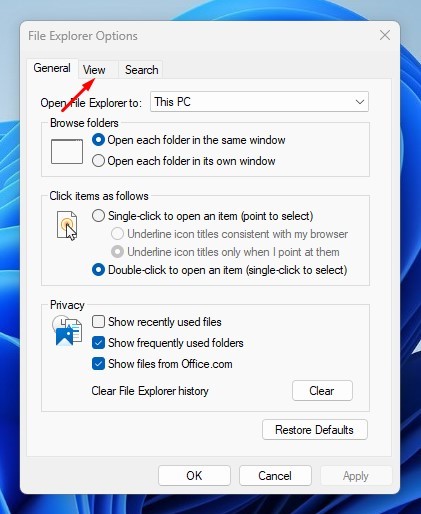
2. Switch to View.
3. Scroll down and uncheck the Hide extensions for the known file types.
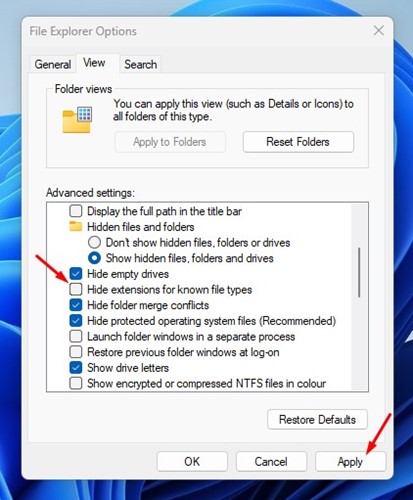
4. Click on the Apply button and then on OK.
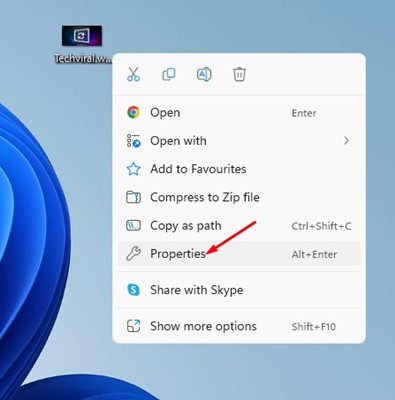
5. Locate the WebP file that you want to open. Right-click on it and select Properties.
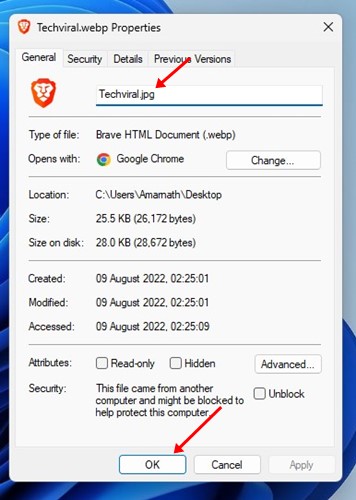
6. At the end of the file name, replace the .webp extension with .jpg, .jpeg, or .png. Once done, click OK.
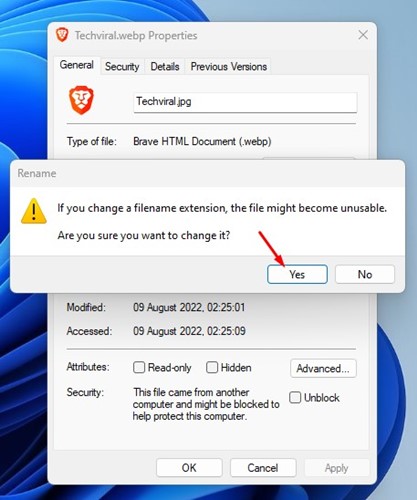
7. You will see a confirmation prompt. Click Yes.
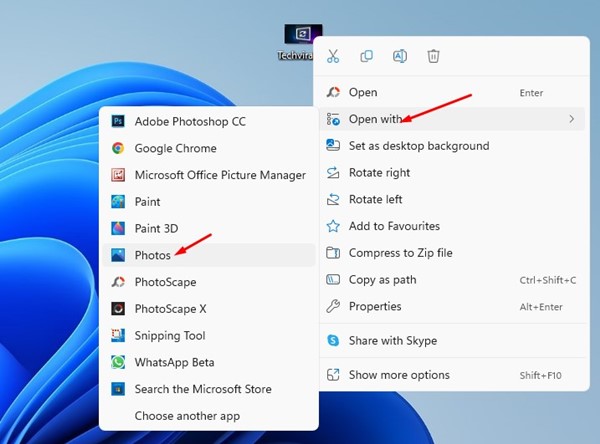
8. Right-click on the image you renamed and select Open With > Photos.
2. Open WebP Images on Microsoft Paint
On Windows 11, you have both Paint and Paint 3D; you can use the Paint app to open WebP images. Microsoft Paint natively supports the WebP file format.
1. Open the Paint app from the Windows 11 Search.

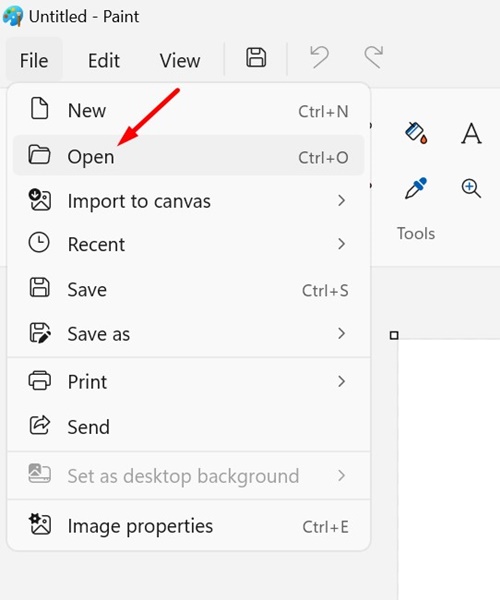
2. Click on File.
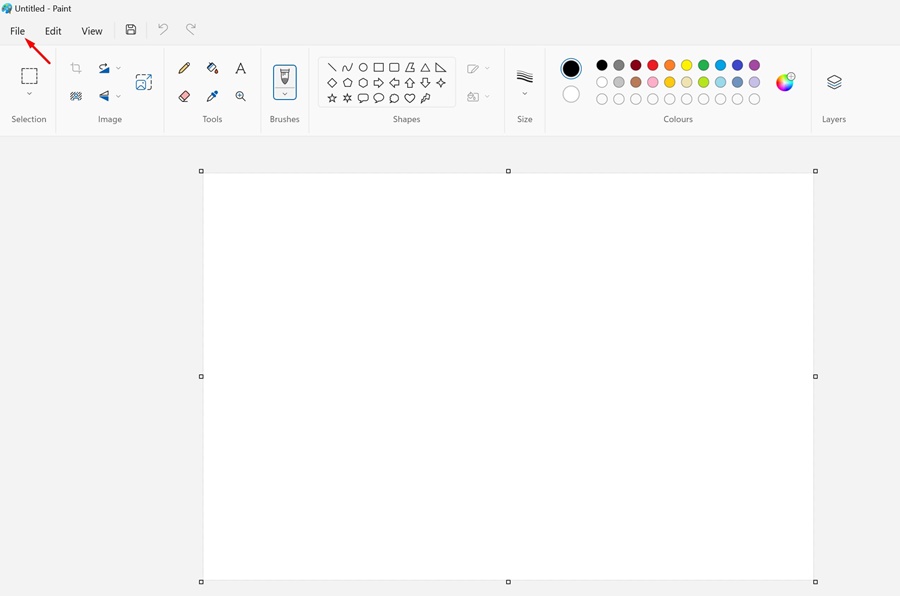
3. Click on Open and select the WebP image file you want to view.
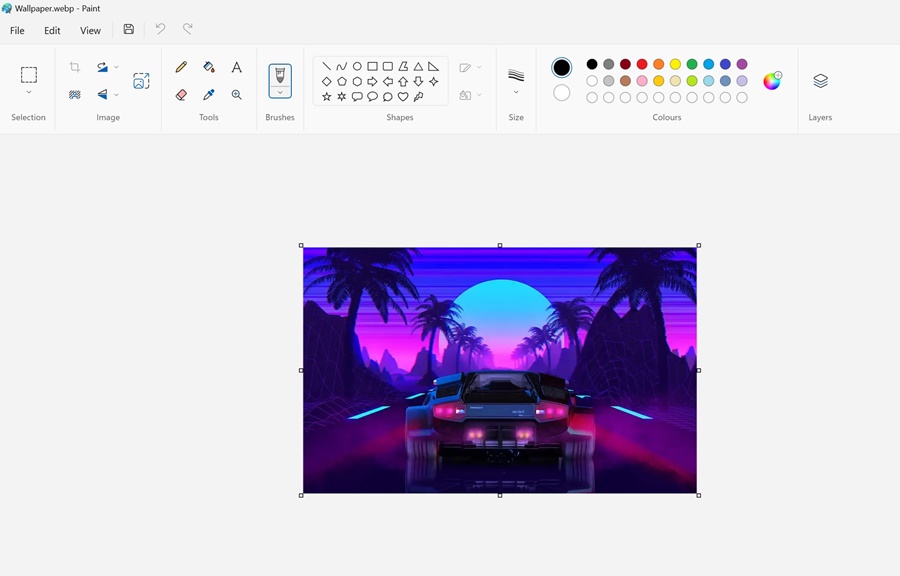
4. The Paint app will open the WebP file you’ve selected.
3. Open WebP Images with a Web Browser
You can use web browsers like Microsoft Edge and Google Chrome to open the WebP files already saved on your computer.
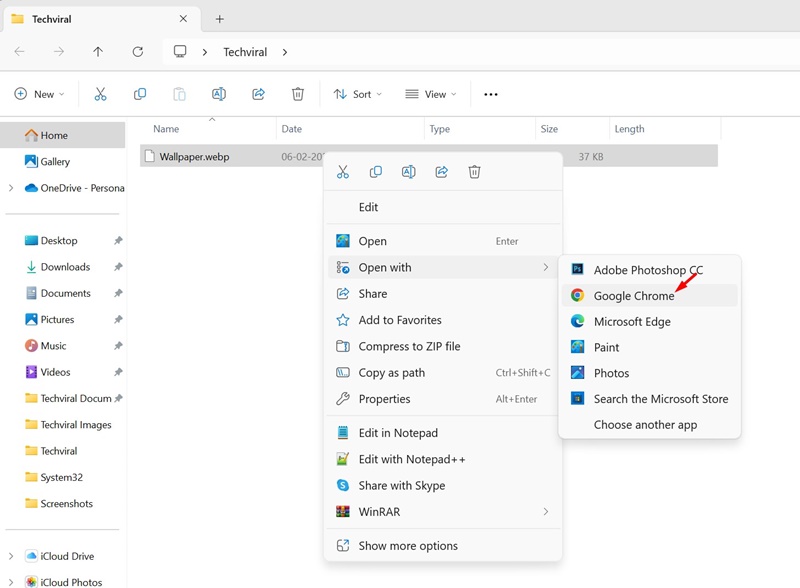
To open WebP images, right-click on the file and select Open With > Google Chrome/Microsoft Edge.
Both Google Chrome and Microsoft Edge are Chromium-based and support WebP files natively. You can also drag and drop the WebP images to the web browser for viewing.
4. Convert WebP to JPG
Another good way to open WebP images on Windows 11 is by converting them to any other image file format. You can convert the WebP to JPG or PNG from this website.
1. Open your favorite web browser and visit the cloudconvert website.
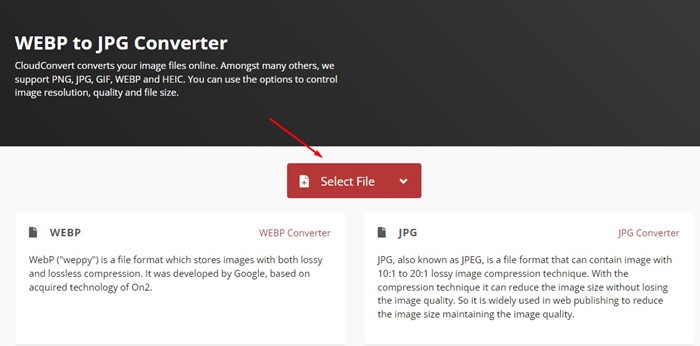
2. On the WebP to JPG converter, click on the Select file button and locate the WebP image.
3. Click on the Convert to drop-down and select the output file format.
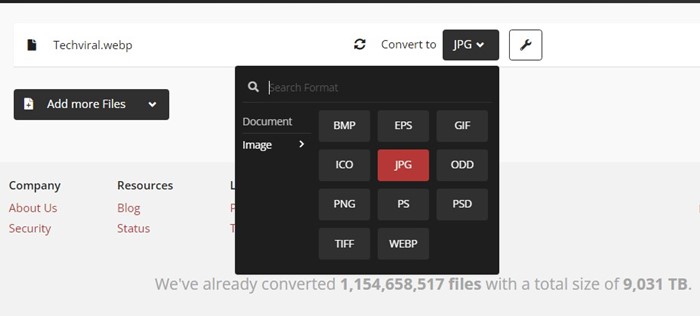
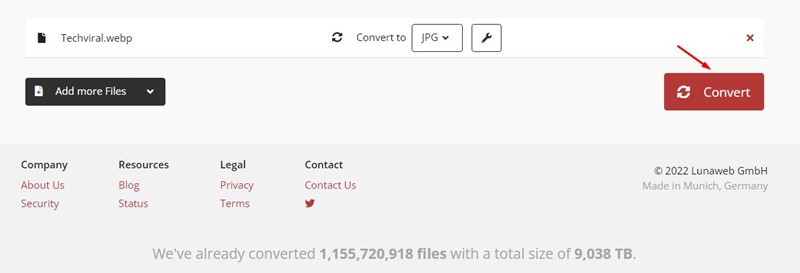
4. Click on the Convert button.
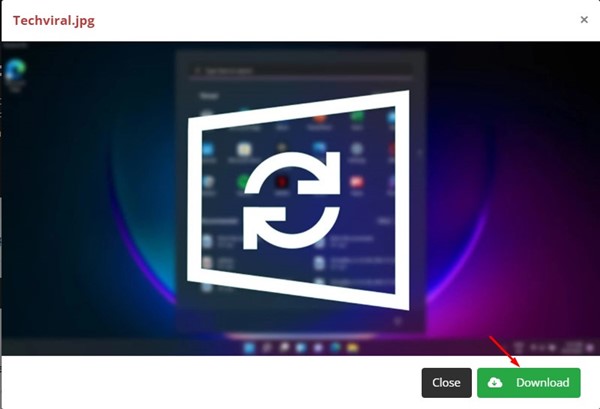
6. Click the Download button.
Like CloudConvert, you can also use other image converters to convert WebP images on Windows 11 computers.
5. Use a third-party photo viewer for WebP files
If you don’t want to do the manual work, install a third-party photo viewer compatible with the WebP files.
On Techviral, we have already shared a list of the best Photo viewers for Windows 11 to open WebP files. You can install any of the Photo viewers listed in that article to open the WebP files on your computer without converting.
These are some of the best methods to open WebP files on Windows 11. If you know any other easy way to deal with the WebP file format in Windows 11, let us know in the comment box below.
The post 5 Best Ways to Open WebP Images on Windows 11 appeared first on TechViral.
ethical hacking,hacking,bangla ethical hacking,bangla hacking tutorial,bangla tutorial,bangla hacking book,ethical hacking bangla,bangla,hacking apps,ethical hacking bangla tutorial,bangla hacking,bangla hacking pdf,bangla hacking video,bangla android hacking,bangla hacking tutorials,bangla fb hacking tutorial,bangla hacking book download,learn ethical hacking,hacking ebook,hacking tools,bangla ethical hacking course, tricks,hacking,ludo king tricks,whatsapp hacking trick 2019 tricks,wifi hacking tricks,hacking tricks: secret google tricks,simple hacking tricks,whatsapp hacking tricks,tips and tricks,wifi tricks,tech tricks,redmi tricks,hacking trick paytm cash,hacking trick helo app,hacking trick of helo app,paytm cash hacking trick,wifi password hacking,paytm cash hacking trick malayalam,hacker tricks, tips and tricks,pubg mobile tips and tricks,tricks,tips,tips and tricks for pubg mobile,100 tips and tricks,pubg tips and tricks,excel tips and tricks,google tips and tricks,kitchen tips and tricks,season 2 tips and tricks,android tips and tricks,fortnite tips and tricks,godnixon tips and tricks,free fire tips and tricks,advanced tips and tricks,whatsapp tips and tricks, facebook tricks,facebook,facebook hidden tricks,facebook tips and tricks,facebook latest tricks,facebook tips,facebook new tricks,facebook messenger tricks,facebook android app tricks,fb tricks,facebook app tricks,facebook tricks and tips,facebook tricks in hindi,tricks,facebook tutorial,new facebook tricks,cool facebook tricks,facebook tricks 2016,facebook tricks 2017,facebook secret tricks,facebook new tricks 2020,blogger blogspot seo tips and tricks,blogger tricks,blogger,blogger seo tips,blogger seo tips and tricks,seo for blogger,blogger seo in hindi,blogger seo best tips for increasing visitors,blogging tips and tricks,blogger blog seo,blogger seo in urdu,adsense approval trick,blogging tips and tricks for beginners,blogging tricks,blogger tutorial,blogger tricks 2016,blogger tricks 2017 bangla,tricks,bangla tutorial,bangla magic,bangla motivational video,bangla tricks,bangla tips,all bangla tips,magic tricks,akash bangla tricks,top 10 bangla tricks,tips and tricks,all bangla trick,bangla computer tricks,computer bangla tricks,bangla magic card tricks,ms word bangla tips and tricks,bangla computer tips,trick,psychology tricks,youtube bangla,magic tricks bangla,si trick Credit techviral


