
8 Ways to Fix Unfortunately Gmail has stopped
Android can sometimes show errors while opening email apps, such as ‘Unfortunately Gmail has stopped.’ If you’re experiencing the same problem, here’s what you should do to resolve it.
1. Reopen the Gmail app
If you have encountered the Gmail has stopped error, the first thing to do is reopen the app. This is one of the best ways to resolve the email message.
Reopening the app will remove all its processes from the background and free up the RAM. Your email app will attempt to make a fresh connection, possibly fixing the email keeps stopping issue.
2. Close Background Apps
While the Gmail app for Android is supposed to use less RAM, it can still crash if your phone doesn’t have sufficient RAM for opening new apps.
The problem mainly appears on phones with less than 4GB of RAM and many apps running in the background. You can close all unused apps to free up the RAM and have a superior multitasking experience.
3. Restart your phone
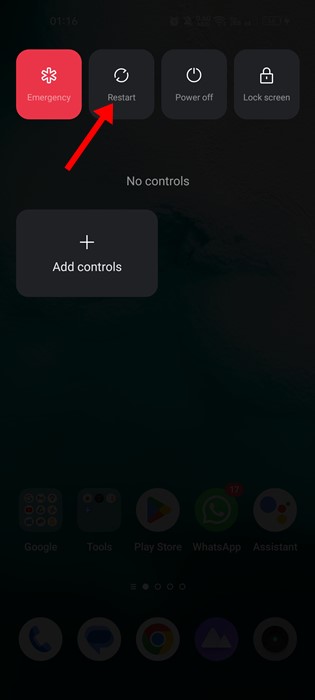
If reopening the app doesn’t help, restart your phone. Restarting will terminate all background apps and processes. So, if any background app or process conflicts with the email app’s functioning, a restart will fix it.
Restarting Android is super easy; press the Power button to open the Power options. On the Power options, select Restart.
4. Force Stop the Gmail app
Force stop is a great option on Android to deal with apps that refuse to close normally. Force-stopping the email app will stop all services related to the app in the background.
1. Long-press the Gmail app and select App Info.
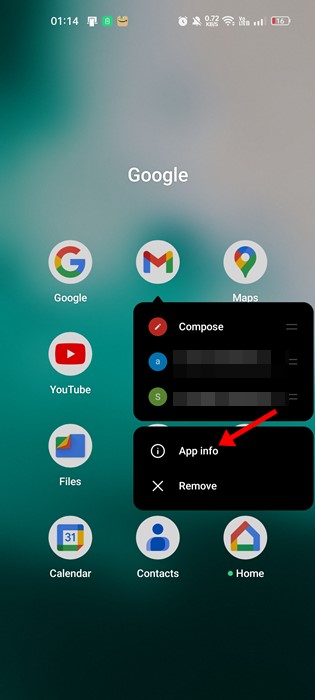
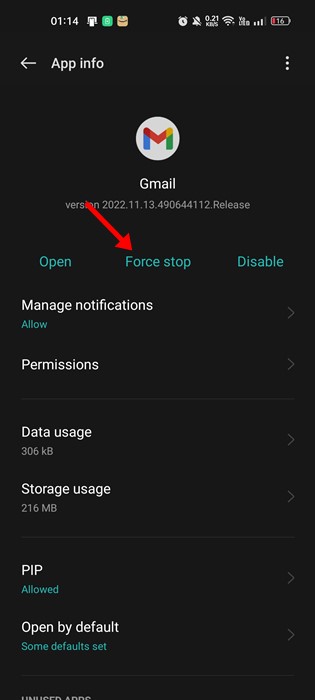
2. Tap the Force Stop.
5. Uninstall Android System Webview Updates
Android System WebView has no direct link with email keeps stopping, and many users have found uninstalling the updates for the Android System WebView app helpful.
1. Open the Settings app on your device. Next, navigate to the Apps.
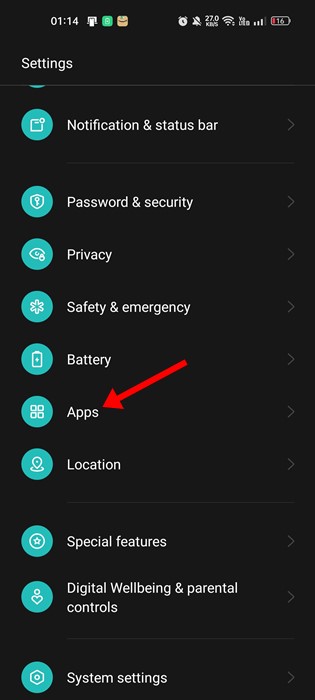
2. Tap on the App List or App Management.
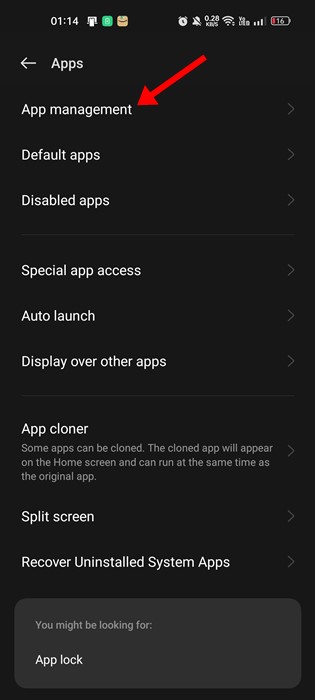
3. Find and tap on the Android System WebView
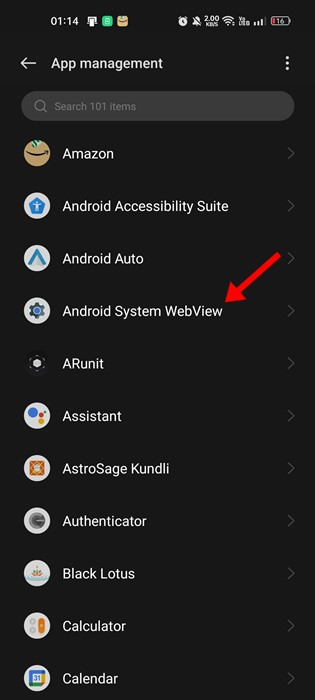
4. Tap the three dots in the top-right corner and select Uninstall updates.
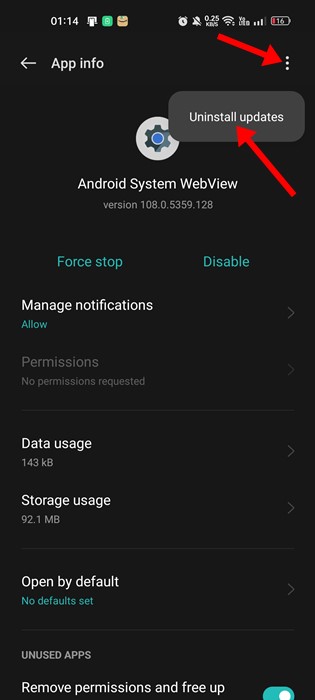
6. Sign out of your email account
If any account-related problem prevents you from using the email app, signing out and logging back in will fix it.
The sign-out process may vary depending on the email app you are using. However, if your Gmail app keeps stopping on Android, the only way to sign out of the Gmail app is to remove your entire account from your phone.
There is no ‘Sign out’ option for Android’s Gmail app, which is why third-party email management apps are the best.
7. Clear the Gmail App Cache
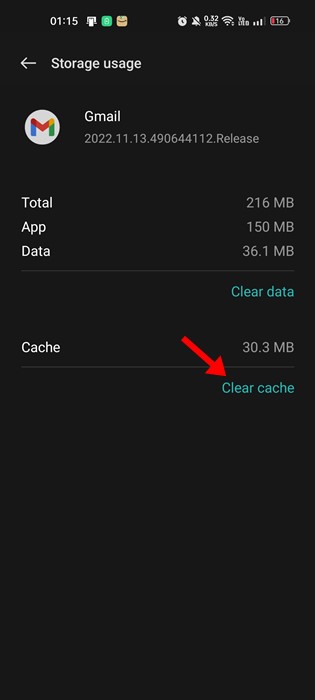
Even after following all the methods, if the email app keeps stopping, the only option is to clear the app’s cache. An outdated or corrupted cache file might be preventing you from using the app properly. Here’s how you can clear the Gmail app cache.
1Long-pressss the Gmail app icon and select App Info.
2. Tap Storage Usage.
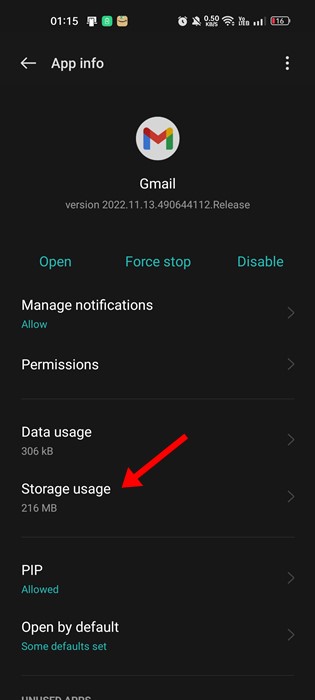
3. Tap Clear cache.
8. Update the App
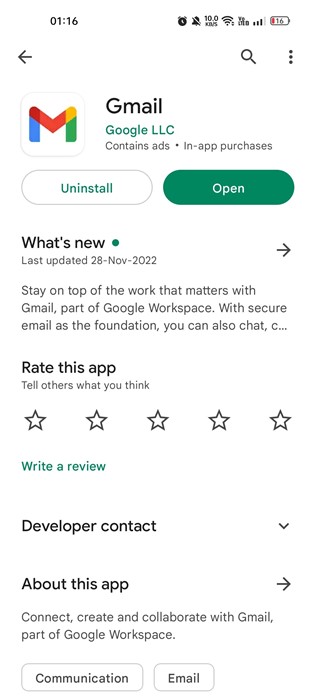
Outdated apps often have bugs and glitches that may forcibly close the app once it’s opened. Another prominent reason the ‘Email keeps stopping’ error message is the bugs residing in the outdated app version.
You can eliminate such bugs by installing the latest version of the email app on your Android. Just head to the Google Play Store and install the pending app updates. Once updated, use the app normally; the email app won’t stop anymore.
Also read: How to Recover Permanently Deleted Gmail Emails
These are a few simple methods to fix the email keeps stopping on Android smartphones. If you need more help resolving the Gmail not responding problem, let us know in the comments.
The post 8 Ways to Fix Unfortunately Gmail has stopped appeared first on TechViral.
ethical hacking,hacking,bangla ethical hacking,bangla hacking tutorial,bangla tutorial,bangla hacking book,ethical hacking bangla,bangla,hacking apps,ethical hacking bangla tutorial,bangla hacking,bangla hacking pdf,bangla hacking video,bangla android hacking,bangla hacking tutorials,bangla fb hacking tutorial,bangla hacking book download,learn ethical hacking,hacking ebook,hacking tools,bangla ethical hacking course, tricks,hacking,ludo king tricks,whatsapp hacking trick 2019 tricks,wifi hacking tricks,hacking tricks: secret google tricks,simple hacking tricks,whatsapp hacking tricks,tips and tricks,wifi tricks,tech tricks,redmi tricks,hacking trick paytm cash,hacking trick helo app,hacking trick of helo app,paytm cash hacking trick,wifi password hacking,paytm cash hacking trick malayalam,hacker tricks, tips and tricks,pubg mobile tips and tricks,tricks,tips,tips and tricks for pubg mobile,100 tips and tricks,pubg tips and tricks,excel tips and tricks,google tips and tricks,kitchen tips and tricks,season 2 tips and tricks,android tips and tricks,fortnite tips and tricks,godnixon tips and tricks,free fire tips and tricks,advanced tips and tricks,whatsapp tips and tricks, facebook tricks,facebook,facebook hidden tricks,facebook tips and tricks,facebook latest tricks,facebook tips,facebook new tricks,facebook messenger tricks,facebook android app tricks,fb tricks,facebook app tricks,facebook tricks and tips,facebook tricks in hindi,tricks,facebook tutorial,new facebook tricks,cool facebook tricks,facebook tricks 2016,facebook tricks 2017,facebook secret tricks,facebook new tricks 2020,blogger blogspot seo tips and tricks,blogger tricks,blogger,blogger seo tips,blogger seo tips and tricks,seo for blogger,blogger seo in hindi,blogger seo best tips for increasing visitors,blogging tips and tricks,blogger blog seo,blogger seo in urdu,adsense approval trick,blogging tips and tricks for beginners,blogging tricks,blogger tutorial,blogger tricks 2016,blogger tricks 2017 bangla,tricks,bangla tutorial,bangla magic,bangla motivational video,bangla tricks,bangla tips,all bangla tips,magic tricks,akash bangla tricks,top 10 bangla tricks,tips and tricks,all bangla trick,bangla computer tricks,computer bangla tricks,bangla magic card tricks,ms word bangla tips and tricks,bangla computer tips,trick,psychology tricks,youtube bangla,magic tricks bangla,si trick Credit techviral


