
How to Fix No Celullar Service After iOS Update
The Cellular Data No Service or Cellular Service Unavailable after updating iOS usually appears due to bugs and glitches. It may also have to do with your cellular provider. Chances are that the cellular networks are not available in your region, and you’re blaming it all on the iOS update.
Incorrect network settings can be another reason for no cellular services. Whatever the problem is, most cellular service problems can be easily fixed by following these steps.
1. Restart your iPhone
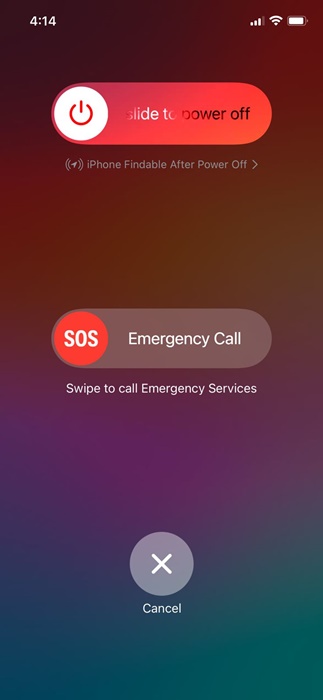
Cellular services not available after an iOS update are usually a result of an existing network glitch, which can be fixed by a simple restart.
Before trying the advanced solutions, it’s recommended to restart your iPhone. To restart your iPhone, press and hold the side and volume down buttons.
This will open the Power screen; select the Slide to Restart option to restart your iPhone.
2. Turn On/Off the Airplane Mode
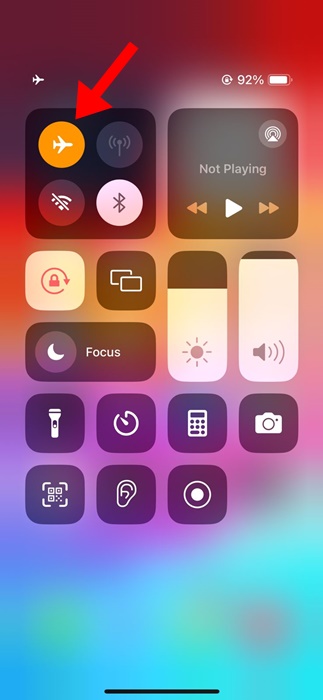
When turned on, airplane mode disconnects all network connectivity, allowing your iPhone to reconnect to your cellular network. So, if cellular services are still unavailable, you can try turning on/off the Airplane mode.
Open the Control Center on your iPhone and tap Airplane mode. This will enable the Airplane mode on your iPhone. Once enabled, please wait a few seconds and tap the Airplane mode icon again to disable it.
3. Check Your Network Connection
Before troubleshooting the network issues, it’s important to ensure your iPhone has cellular coverage. You need to open the Control Center on your iPhone and see how many bars are available for your cellular network.
If the bars for cellular networks are one or zero, you must move to a different location with better coverage.
4. Update the Carrier Settings
According to a few iPhone users, Cellular services being unavailable after an iOS update isn’t a bug; it happens after an update if your carrier still has older settings. You can resolve this issue by updating your carrier settings.
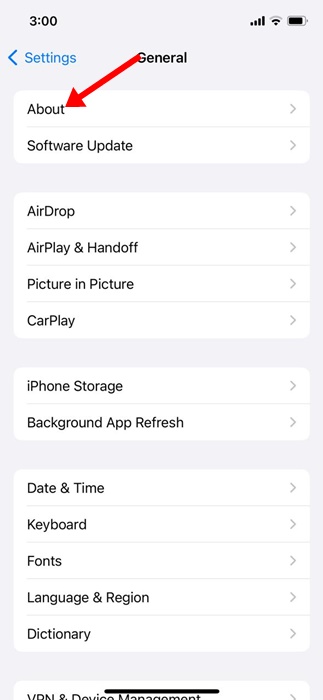
1. To get started, ensure your iPhone is connected to WiFi or cellular networks.
2. Open the Settings app.
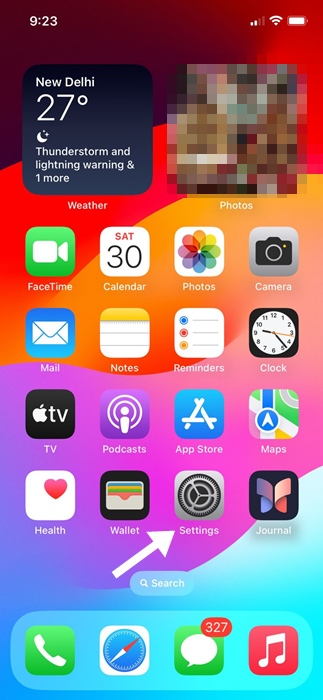
3. Tap on General.
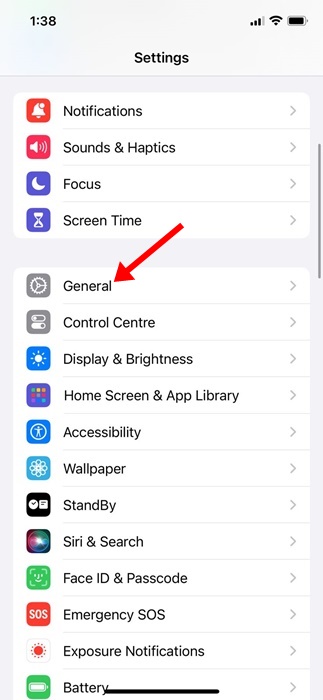
4. Tap About.
4. Remove & Reinsert the SIM card
Removing and reinserting the SIM card will fetch fresh carrier settings, which may fix the issue you’re facing.
While this isn’t a sure-shot fix, there’s no harm in trying it. Also, when you turn on your iPhone, the device will attempt to connect to the nearest cell phone tower.
Turn off your iPhone and remove the SIM card. Once ejected, reinsert it and turn on your iPhone.
5. Manually Search for Networks
If Cellular data is still not available after the iOS Update, it’s time to manually connect to the mobile networks.
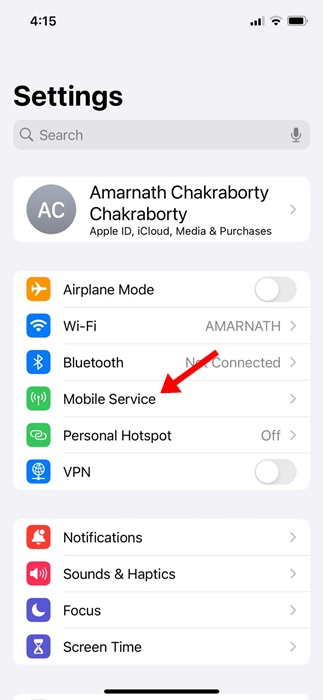
1. Launch the Settings app.
2. Tap Mobile Service.
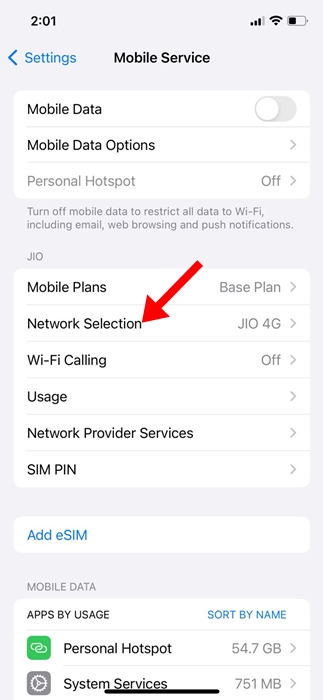
3. Tap Network Selection.
4. Turn off the toggle for Automatic.
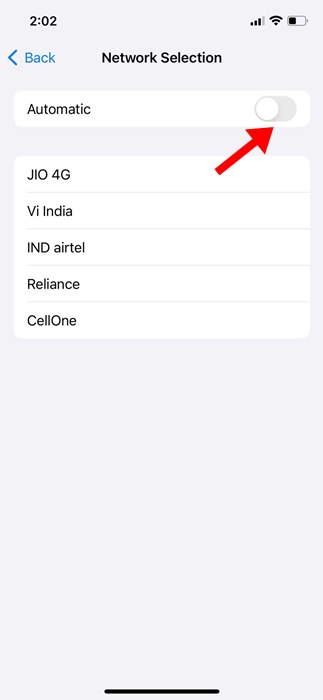
5. Your iPhone will return with all the networks you can connect with. Pick the relevant one.
6. Make sure the Date & Time are correct on your iPhone
If you can make calls but can’t connect to the internet, you need to check your iPhone’s date and time settings. The Internet may not work if the time and date are incorrect. Follow the steps shared below to correct it.
1. Launch the Settings app.
2. When the Settings app opens, tap General.
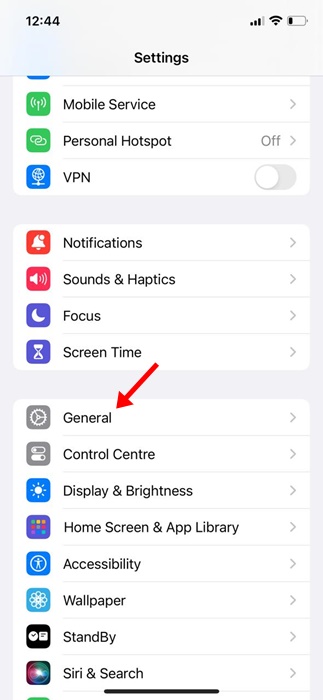
3. Tap Date & Time.
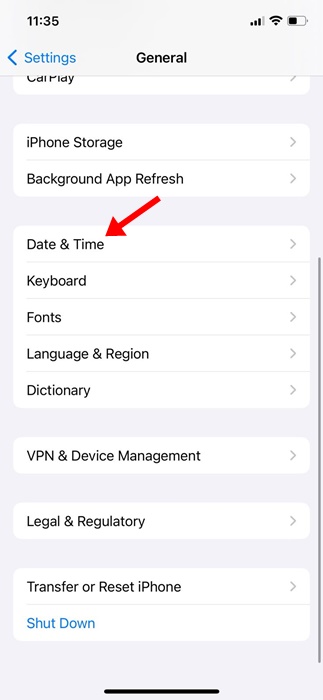
4. Enable the toggle for ‘Set Automatically’.
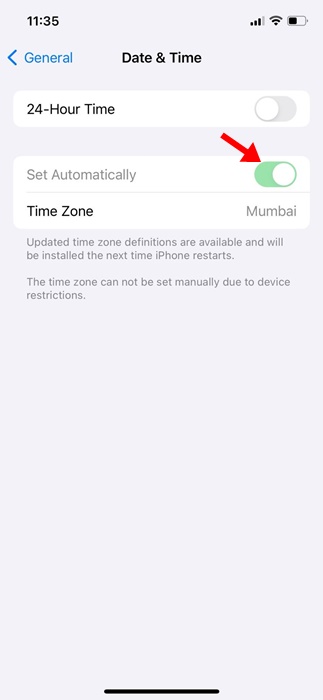
After making the change, restart your iPhone. This should fix the incorrect date & time on your iPhone and restore the internet connectivity.
7. Delete your Existing VPN & APN Settings
If the issue is still not fixed, you can delete your existing VPN and APN entries. If your telecom operator allows you to view your APN settings, head to Settings > Cellular > Cellular Data Networks.
Head to Settings > Mobile Data > Mobile Data Options > Mobile Data Network. If your iPhone has neither option, you must contact your telecom operator and ask them to send the new APN settings.
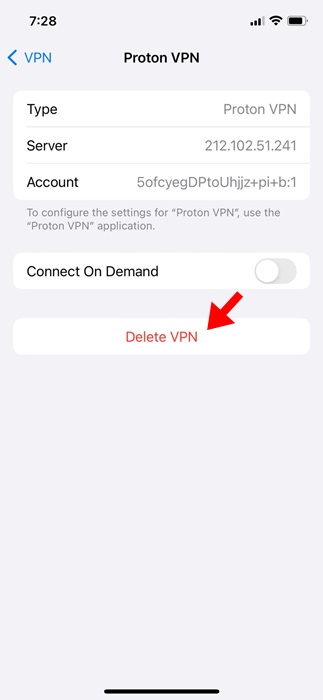
You can remove the VPN profile via Settings > General > VPN & Device Management > VPN. On the next screen, tap the (i) next to the VPN profile and delete it.
8. Reset your Network Settings on iPhone
If nothing works for you, the only thing left is to reset your iPhone’s network settings.
1. Launch the Settings app.
2. Tap General.
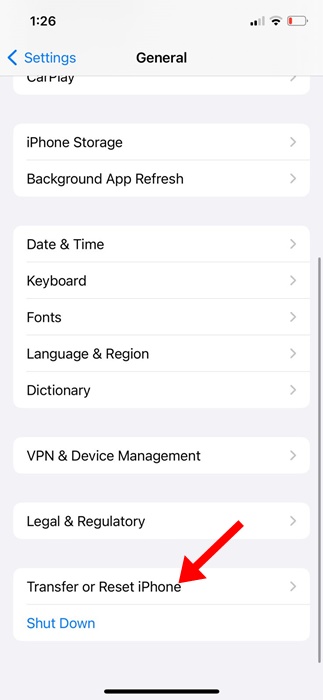
3. Tap Transfer or Reset iPhone.
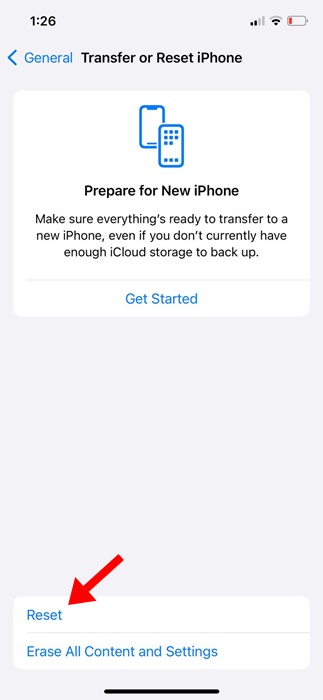
4. On the Transfer or Reset iPhone screen, tap Reset.
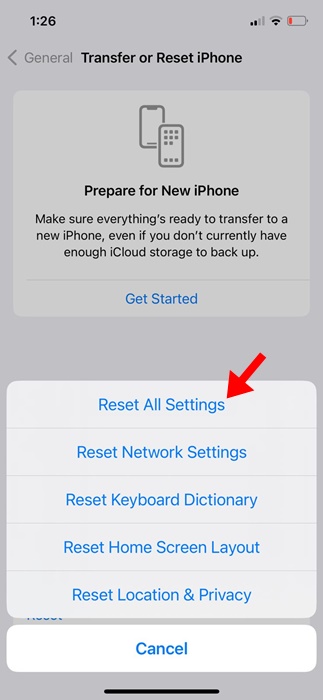
5. On the Reset Prompt, tap Reset Network Settings.
These are a few simple methods to fix cellular services that are not available after the iOS update issue. Let us know if you need more help with this topic.
The post How to Fix No Celullar Service After iOS Update appeared first on TechViral.
ethical hacking,hacking,bangla ethical hacking,bangla hacking tutorial,bangla tutorial,bangla hacking book,ethical hacking bangla,bangla,hacking apps,ethical hacking bangla tutorial,bangla hacking,bangla hacking pdf,bangla hacking video,bangla android hacking,bangla hacking tutorials,bangla fb hacking tutorial,bangla hacking book download,learn ethical hacking,hacking ebook,hacking tools,bangla ethical hacking course, tricks,hacking,ludo king tricks,whatsapp hacking trick 2019 tricks,wifi hacking tricks,hacking tricks: secret google tricks,simple hacking tricks,whatsapp hacking tricks,tips and tricks,wifi tricks,tech tricks,redmi tricks,hacking trick paytm cash,hacking trick helo app,hacking trick of helo app,paytm cash hacking trick,wifi password hacking,paytm cash hacking trick malayalam,hacker tricks, tips and tricks,pubg mobile tips and tricks,tricks,tips,tips and tricks for pubg mobile,100 tips and tricks,pubg tips and tricks,excel tips and tricks,google tips and tricks,kitchen tips and tricks,season 2 tips and tricks,android tips and tricks,fortnite tips and tricks,godnixon tips and tricks,free fire tips and tricks,advanced tips and tricks,whatsapp tips and tricks, facebook tricks,facebook,facebook hidden tricks,facebook tips and tricks,facebook latest tricks,facebook tips,facebook new tricks,facebook messenger tricks,facebook android app tricks,fb tricks,facebook app tricks,facebook tricks and tips,facebook tricks in hindi,tricks,facebook tutorial,new facebook tricks,cool facebook tricks,facebook tricks 2016,facebook tricks 2017,facebook secret tricks,facebook new tricks 2020,blogger blogspot seo tips and tricks,blogger tricks,blogger,blogger seo tips,blogger seo tips and tricks,seo for blogger,blogger seo in hindi,blogger seo best tips for increasing visitors,blogging tips and tricks,blogger blog seo,blogger seo in urdu,adsense approval trick,blogging tips and tricks for beginners,blogging tricks,blogger tutorial,blogger tricks 2016,blogger tricks 2017 bangla,tricks,bangla tutorial,bangla magic,bangla motivational video,bangla tricks,bangla tips,all bangla tips,magic tricks,akash bangla tricks,top 10 bangla tricks,tips and tricks,all bangla trick,bangla computer tricks,computer bangla tricks,bangla magic card tricks,ms word bangla tips and tricks,bangla computer tips,trick,psychology tricks,youtube bangla,magic tricks bangla,si trick Credit techviral


