
How to Stop Random USB Connect/Disconnect Noises in Windows
The connect/disconnect noise is essential for the USB device because it lets users know that Windows has detected external hardware. However, things become spooky when you hear the USB jingles happening for no apparent reason.
If you are also dealing with random USB Connect/Disconnect noises, here’s what you should do.
1. Reconnect the USB Devices
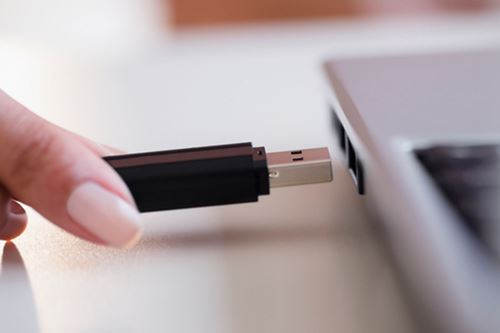
To stop random USB connection sounds, reconnect the USB devices. You must remove all USB devices, including the External HDD/SSD, PenDrive, etc.
Once removed, reconnect them to the computer. Sometimes, a simple disconnect and reconnect fixes drivers & installation problems. So, before trying any other method, reattach all the USB devices.
2. Check for a faulty USB Port
If you’re troubleshooting random USB connect/disconnect noises on Windows, it’s important to check for a faulty USB port.
You will also have to check for electrical problems, as faulty ports may experience voltage irregularities, leading to failed device recognition.
If you feel your USB port is faulty, you must get it fixed or replaced.
3. Avoid using USB Hubs
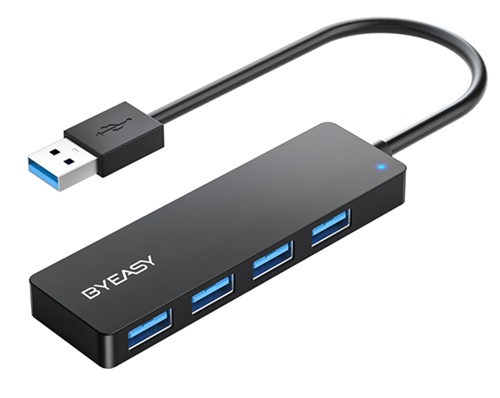
USB Hubs have served as a great way to increase the number of USB ports, but these portable devices are prone to damage.
It’s possible that the USB Hub or the cable powering it is damaged, leading to random USB connect/disconnect noises.
So, if possible, disconnect the USB hub from your PC and connect your device to the USB Port set in the motherboard. If the USB hub were the culprit, you would no longer hear the random USB connect and disconnect noise.
4. Device Manager
Whenever you connect a USB device, if any sound or noise starts to jingle without any reason, this could be the reason for enabling and continuously disabling a particular device driver.
For that, head to the device manager and scroll down to the bottom of the window. To open the Device Manager, open the Start menu and search for it. Next, open the Device Manager from the list.
You need to check the USB Devices for errors in the Device Manager. If any USB device is problematic, it will have a yellow exclamation mark behind it.
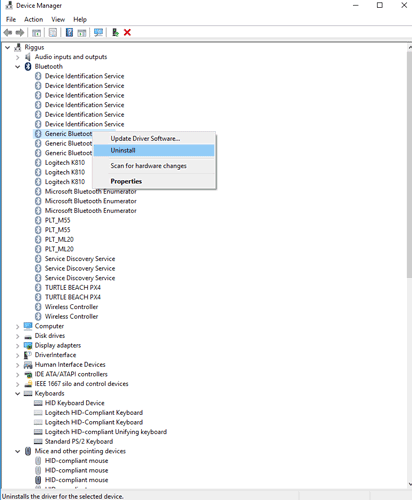
Don’t forget to see the hidden files, too. Notice that if any driver file shows an error, this could cause the sound. If you have managed to find any driver, then update that particular driver or uninstall it.
5. USBDeview
For those who don’t know, USB Device is a third-party software that is widely used to track USB devices more accurately. In addition, the tool is capable of telling you about possible problems that rely on USB.
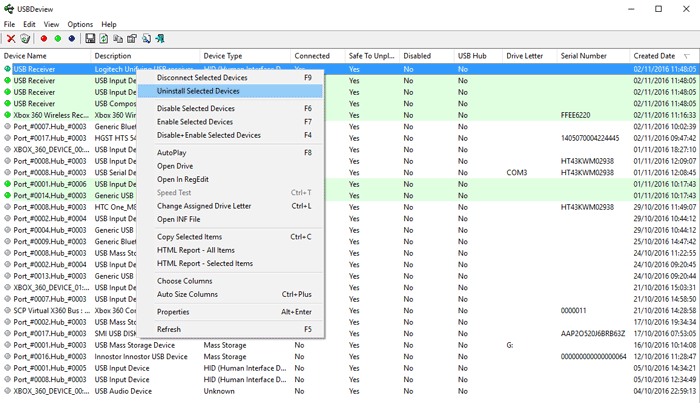
This tool will help you track whether or not the USB devices are connected when their drivers were installed, and the last time they were plugged in or out of your PC.
Once installed, you will see a list of all USB devices currently and previously connected to your PC. You must check for the ‘Last Plug/Unplug’ date column to find the culprit device.
Once found, you need to uninstall the device from the USBDeview and then unplug it. Once done, plug it back in, and it will reinstall the driver.
6. Turn Off USB Notification Sounds
Well, most of the time, those random USB Connect/Disconnect noises result from driver clashes or lapses in the device’s power. So, it isn’t a sign of anything severe. So, if any particular device or its drivers are responsible for the sounds, you can disable the USB notification sounds.
To disable USB Notification Sounds, right-click on the Speaker and then click on Sounds. Under Sounds, click Program Events and select Device Connect. Now, under Sounds, you need to select None.
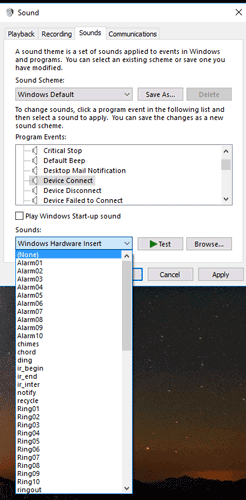
Similarly, you need to do the same for ‘Device Disconnect’. This will disable all USB Notification Sounds on your Windows computer.
7. Disable USB Selective Suspend
If you don’t know, USB Selective Suspend is a feature that saves power by suspending specific USB Ports on your computer. If any port is not in use and USB Selective Suspend is turned on, it will be suspended to save power. While the feature is useful, it can sometimes create USB Connect/Disconnect noise.
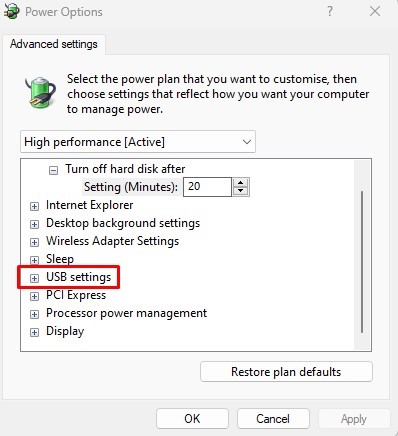
1. Open the Edit Power Plan from the Windows Search.
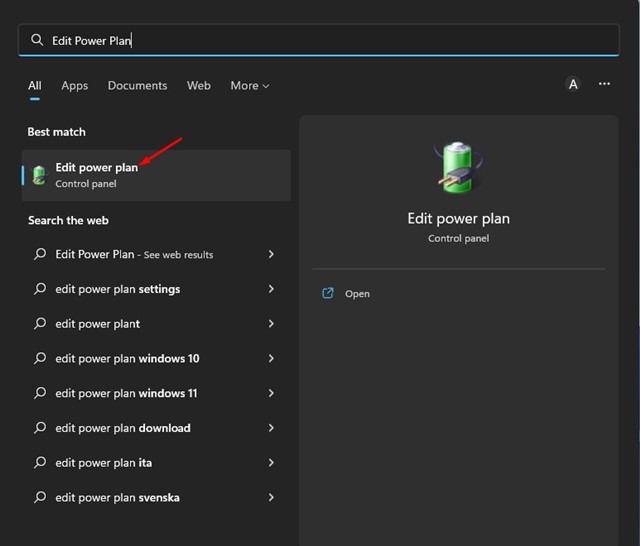
2. Click the Change Advanced power settings link on the Edit Plan Settings page.
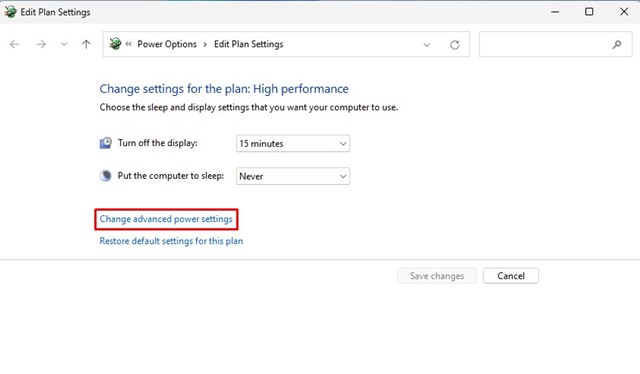
3. Select your active power plan from the drop-down.
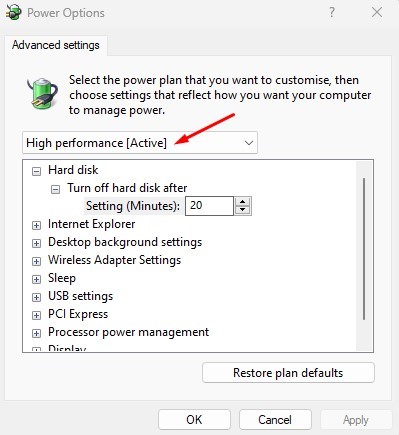
4. Scroll down and expand the USB selective suspend setting.
5. Set the USB Selective Suspend settings to Disabled.
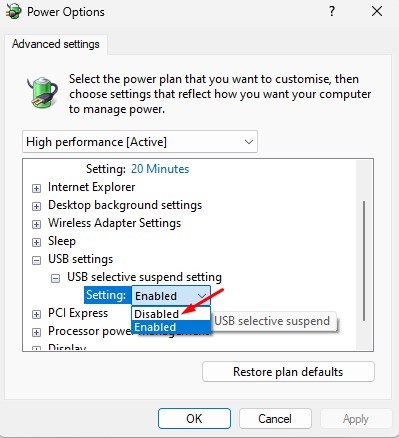
After making the changes, restart your Windows computer. This will prevent a random USB Connect/Disconnect sound issue.
This is all about how to stop Random USB Connect/Disconnect Noises in Windows computers. If you have any doubts, let us know in the comment box below.
The post How to Stop Random USB Connect/Disconnect Noises in Windows appeared first on TechViral.
ethical hacking,hacking,bangla ethical hacking,bangla hacking tutorial,bangla tutorial,bangla hacking book,ethical hacking bangla,bangla,hacking apps,ethical hacking bangla tutorial,bangla hacking,bangla hacking pdf,bangla hacking video,bangla android hacking,bangla hacking tutorials,bangla fb hacking tutorial,bangla hacking book download,learn ethical hacking,hacking ebook,hacking tools,bangla ethical hacking course, tricks,hacking,ludo king tricks,whatsapp hacking trick 2019 tricks,wifi hacking tricks,hacking tricks: secret google tricks,simple hacking tricks,whatsapp hacking tricks,tips and tricks,wifi tricks,tech tricks,redmi tricks,hacking trick paytm cash,hacking trick helo app,hacking trick of helo app,paytm cash hacking trick,wifi password hacking,paytm cash hacking trick malayalam,hacker tricks, tips and tricks,pubg mobile tips and tricks,tricks,tips,tips and tricks for pubg mobile,100 tips and tricks,pubg tips and tricks,excel tips and tricks,google tips and tricks,kitchen tips and tricks,season 2 tips and tricks,android tips and tricks,fortnite tips and tricks,godnixon tips and tricks,free fire tips and tricks,advanced tips and tricks,whatsapp tips and tricks, facebook tricks,facebook,facebook hidden tricks,facebook tips and tricks,facebook latest tricks,facebook tips,facebook new tricks,facebook messenger tricks,facebook android app tricks,fb tricks,facebook app tricks,facebook tricks and tips,facebook tricks in hindi,tricks,facebook tutorial,new facebook tricks,cool facebook tricks,facebook tricks 2016,facebook tricks 2017,facebook secret tricks,facebook new tricks 2020,blogger blogspot seo tips and tricks,blogger tricks,blogger,blogger seo tips,blogger seo tips and tricks,seo for blogger,blogger seo in hindi,blogger seo best tips for increasing visitors,blogging tips and tricks,blogger blog seo,blogger seo in urdu,adsense approval trick,blogging tips and tricks for beginners,blogging tricks,blogger tutorial,blogger tricks 2016,blogger tricks 2017 bangla,tricks,bangla tutorial,bangla magic,bangla motivational video,bangla tricks,bangla tips,all bangla tips,magic tricks,akash bangla tricks,top 10 bangla tricks,tips and tricks,all bangla trick,bangla computer tricks,computer bangla tricks,bangla magic card tricks,ms word bangla tips and tricks,bangla computer tips,trick,psychology tricks,youtube bangla,magic tricks bangla,si trick Credit techviral


