
5 Best Ways to Delete User Profile in Windows 11
While creating a user profile is straightforward, what if you need to remove an existing one? Deleting a user profile on Windows 11 doesn’t require any third-party apps or advanced tools like CMD/PowerShell. Here’s how you can remove a user account.
1. Delete User Profile via Settings App
We will use the Windows 11 Settings app to delete a user profile.
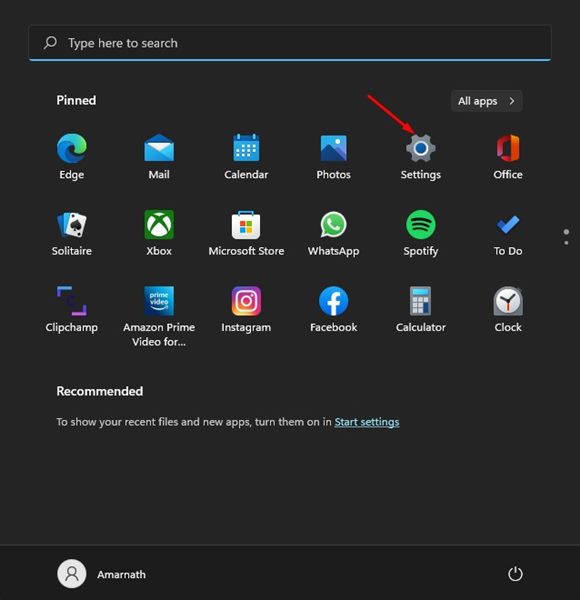
1. Click the Windows 11 Start button and select Settings.
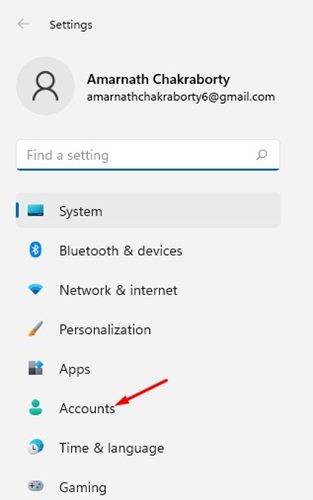
2. Click on Accounts.
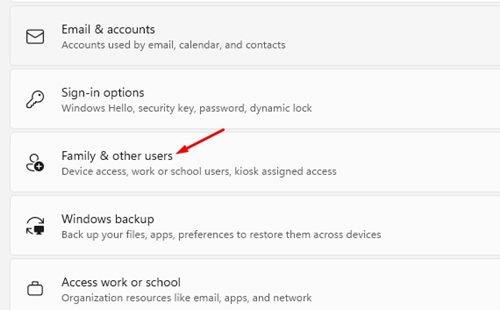
3. Click on the Family & other users.
4. On the Other user’s section, click on the user profile name to expand the section.
5. Once expanded, click Remove.
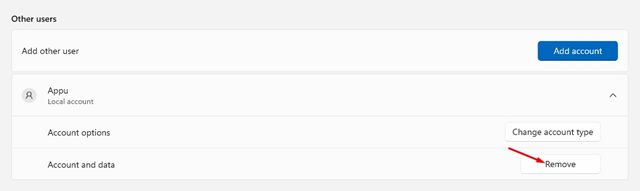
6. Click Delete account and data.
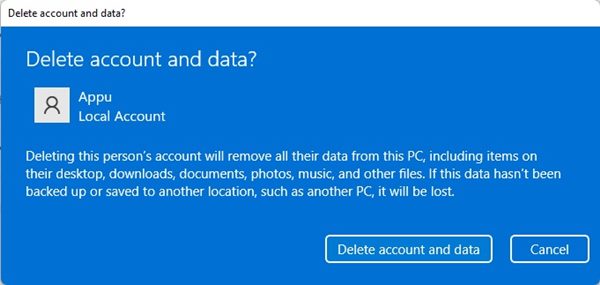
2. Deleting a User Profile via Control Panel
We will use the Windows 11 Control Panel to delete a user profile in this method.
1. Click on the Windows 11 Search and type Control Panel.
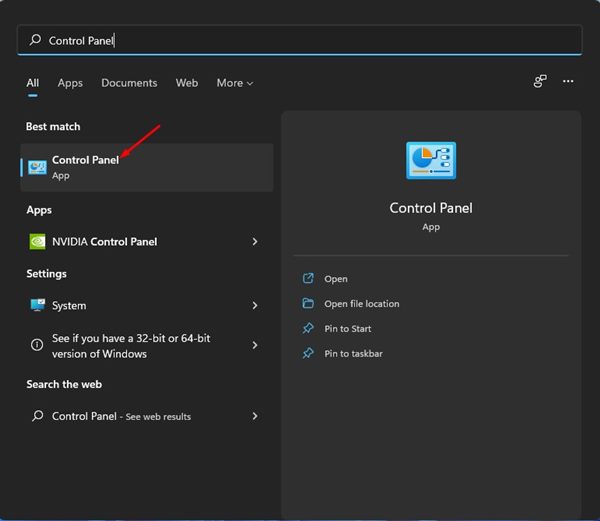
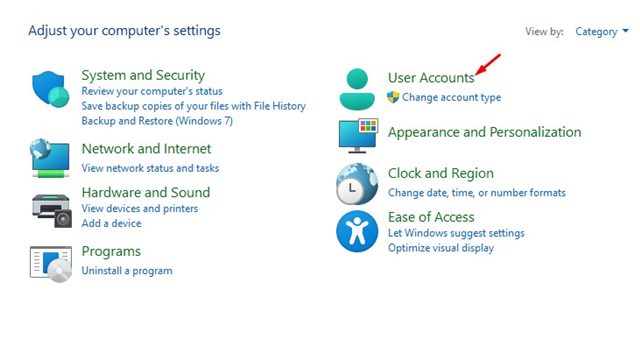
2. Click User Accounts.
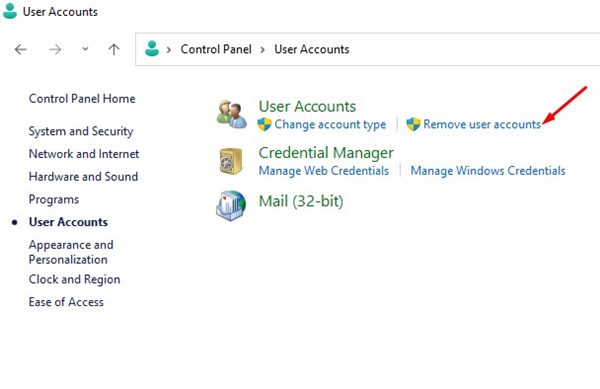
3. Click Remove user accounts link.
4. Select the account that you want to delete.
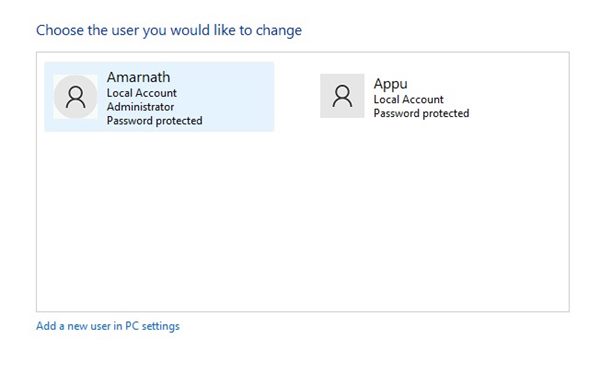
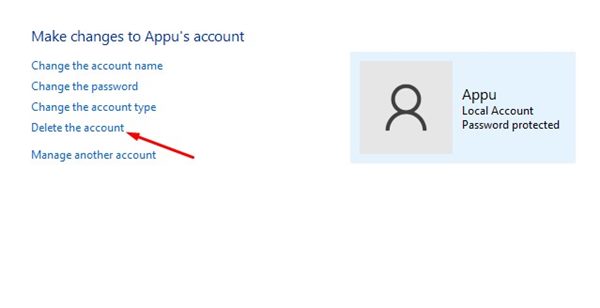
5. Click Delete the account.
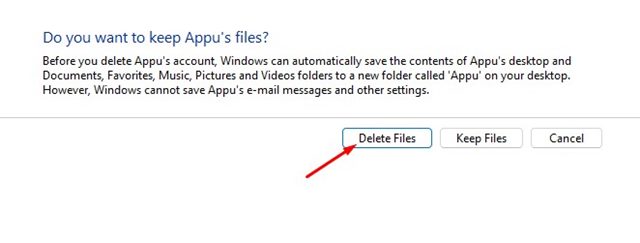
6. You will be asked whether you want to keep the files saved by the user. Click on the Delete Files button if you don’t want the files.
3. Delete a User Profile via User Accounts Wizard
The User Account profiles tool allows you to delete multiple user profiles at once, making it easier than the previous two methods. However, this option is not available in all Windows 11 builds.
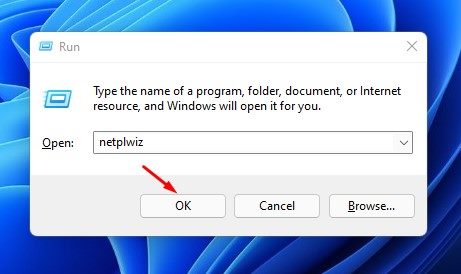
1. Press the Windows Key + R button to open the RUN dialog box. On the RUN dialog box, enter netplwiz and press Enter.
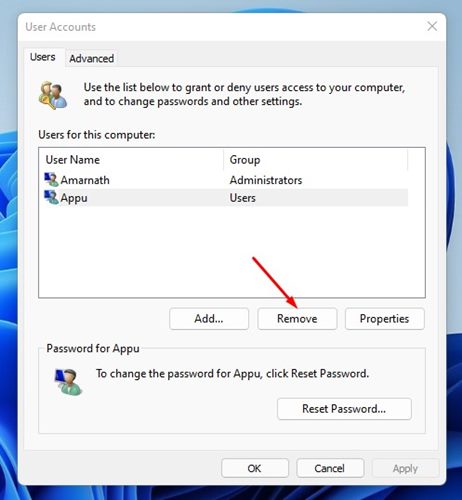
2. Click the Users tab and select the account you want to remove.
3. Click Remove.
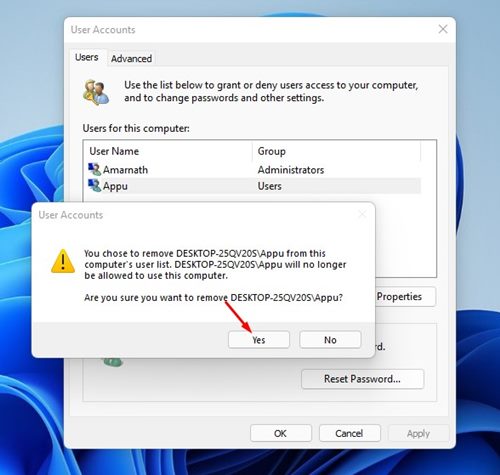
4. Click Yes.
4. Delete User Profile from Advanced System Properties
The Advanced System Properties of Windows 11 lets you manage your user profiles. You can also use it to delete a user profile on Windows 11.
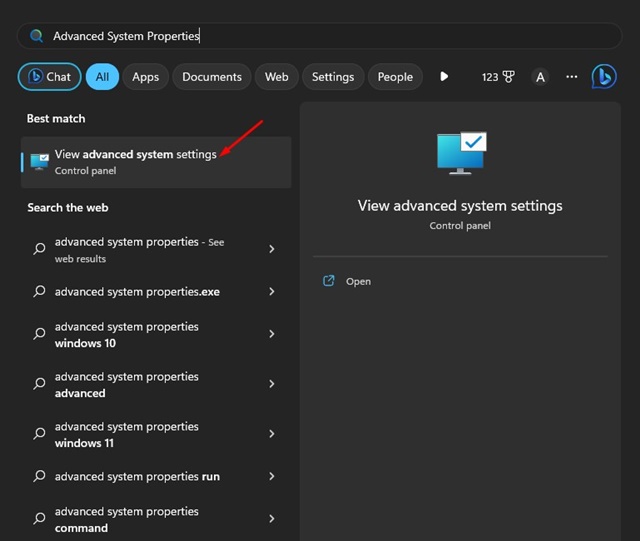
1. Click on Windows 11 search and type Advanced System Properties.
2. Select View Advanced System Settings.
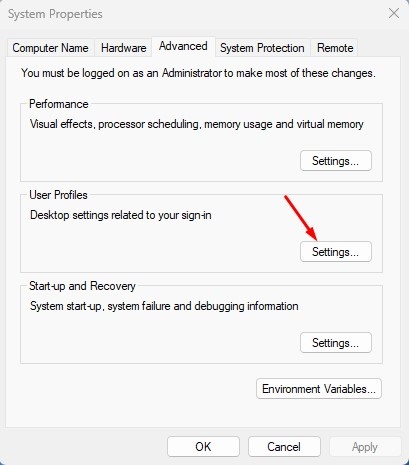
3. This will open the System Properties. Switch to Advanced.
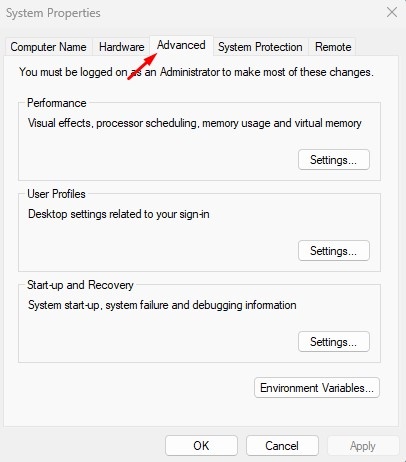
4. Click the Settings button under the User Profiles.
5. Select the profile you want to delete and click Delete.
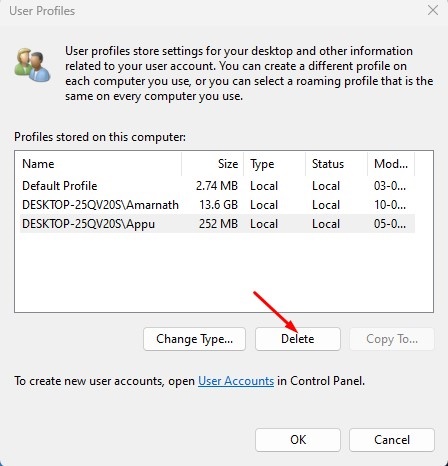
If the Delete option is grayed out, the user account is currently in use and logged in. Switch to a different user account and delete it.
5. Delete User Profile Using the Registry Editor
You can also use the Registry Editor to delete a user profile. The steps to delete a user profile using the Registry are a bit complicated; hence, follow them carefully.
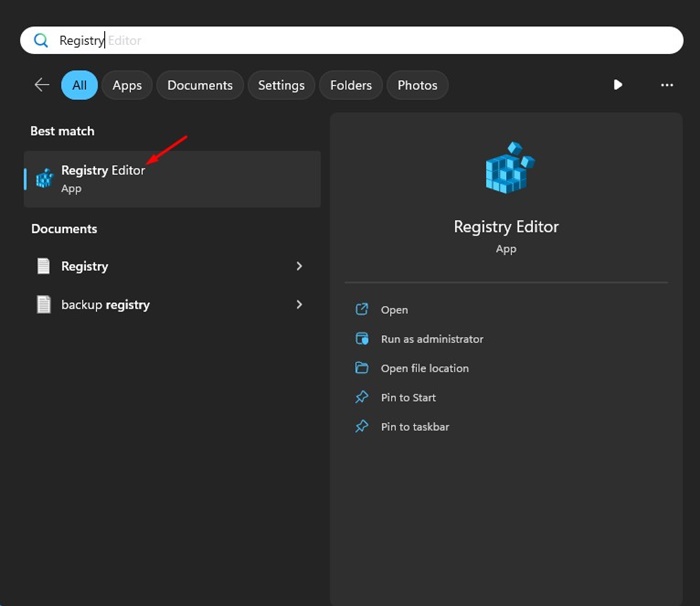
1. Open the Registry Editor app from the Windows Search.
2. Navigate to this path:
HKEY_LOCAL_MACHINE\SOFTWARE\Microsoft\Windows NT\CurrentVersion\ProfileList
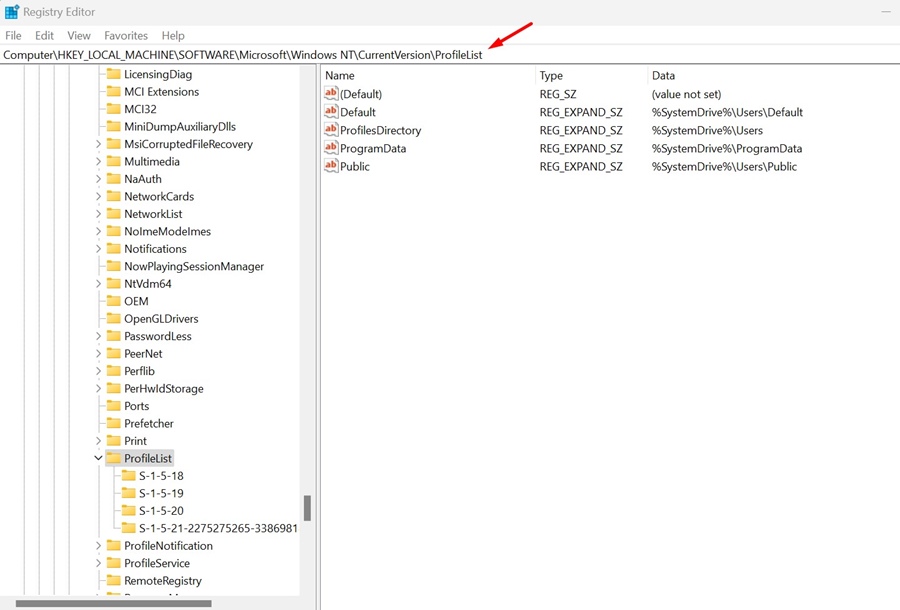
3. Expand the ProfileList folder. You will find many subfolders; select the last one.
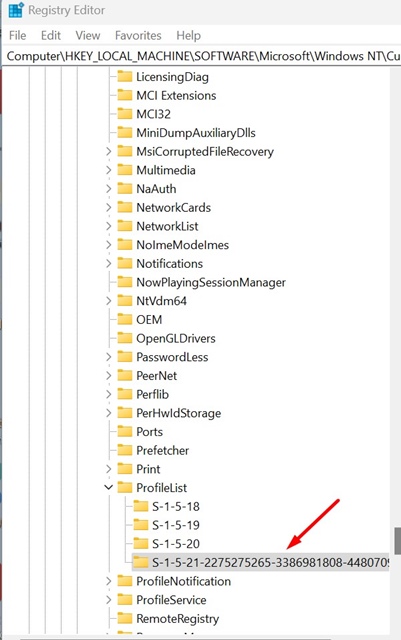
4. On the right side, find and right-click the ProfileImagePath key directing to the profile name you want to delete. On the context menu, select Delete.
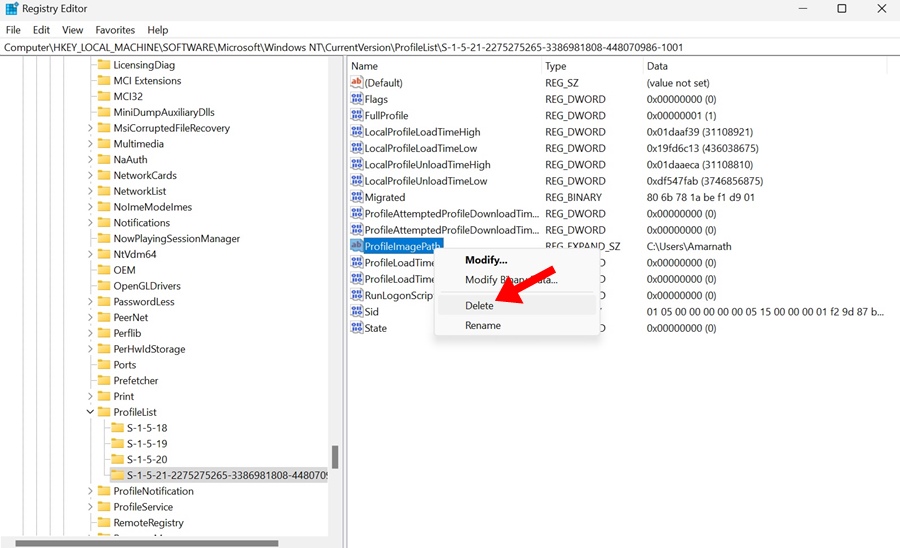
5. On the Delete confirmation prompt, click Yes.
Creating and deleting a user profile in Windows 11 is pretty straightforward. You can rely on any of these four methods to delete existing user profiles in the operating system. If you have any doubts, let us know in the comment box below.
The post 5 Best Ways to Delete User Profile in Windows 11 appeared first on TechViral.
ethical hacking,hacking,bangla ethical hacking,bangla hacking tutorial,bangla tutorial,bangla hacking book,ethical hacking bangla,bangla,hacking apps,ethical hacking bangla tutorial,bangla hacking,bangla hacking pdf,bangla hacking video,bangla android hacking,bangla hacking tutorials,bangla fb hacking tutorial,bangla hacking book download,learn ethical hacking,hacking ebook,hacking tools,bangla ethical hacking course, tricks,hacking,ludo king tricks,whatsapp hacking trick 2019 tricks,wifi hacking tricks,hacking tricks: secret google tricks,simple hacking tricks,whatsapp hacking tricks,tips and tricks,wifi tricks,tech tricks,redmi tricks,hacking trick paytm cash,hacking trick helo app,hacking trick of helo app,paytm cash hacking trick,wifi password hacking,paytm cash hacking trick malayalam,hacker tricks, tips and tricks,pubg mobile tips and tricks,tricks,tips,tips and tricks for pubg mobile,100 tips and tricks,pubg tips and tricks,excel tips and tricks,google tips and tricks,kitchen tips and tricks,season 2 tips and tricks,android tips and tricks,fortnite tips and tricks,godnixon tips and tricks,free fire tips and tricks,advanced tips and tricks,whatsapp tips and tricks, facebook tricks,facebook,facebook hidden tricks,facebook tips and tricks,facebook latest tricks,facebook tips,facebook new tricks,facebook messenger tricks,facebook android app tricks,fb tricks,facebook app tricks,facebook tricks and tips,facebook tricks in hindi,tricks,facebook tutorial,new facebook tricks,cool facebook tricks,facebook tricks 2016,facebook tricks 2017,facebook secret tricks,facebook new tricks 2020,blogger blogspot seo tips and tricks,blogger tricks,blogger,blogger seo tips,blogger seo tips and tricks,seo for blogger,blogger seo in hindi,blogger seo best tips for increasing visitors,blogging tips and tricks,blogger blog seo,blogger seo in urdu,adsense approval trick,blogging tips and tricks for beginners,blogging tricks,blogger tutorial,blogger tricks 2016,blogger tricks 2017 bangla,tricks,bangla tutorial,bangla magic,bangla motivational video,bangla tricks,bangla tips,all bangla tips,magic tricks,akash bangla tricks,top 10 bangla tricks,tips and tricks,all bangla trick,bangla computer tricks,computer bangla tricks,bangla magic card tricks,ms word bangla tips and tricks,bangla computer tips,trick,psychology tricks,youtube bangla,magic tricks bangla,si trick Credit techviral


