
How to Fix Microsoft Store Keeps Logging Out
Recently, many Windows 11 users have reported issues with the Microsoft Store logging them out randomly, sometimes even during app installations. If you use the Microsoft Store to download apps and games but find yourself repeatedly logged out, here’s what you should do.
1. Restart your PC

Bugs and glitches in the operating system can prevent the Microsoft Store app from functioning properly.
You can eliminate such bugs & glitches by restarting your computer. Simply click on the Windows 11 Start button and select the Power Menu.
On the Power menu options, select Restart. This will restart your Windows 11 PC; after the restart, check whether the Microsoft Store app still logs you out.
2. Rule out Microsoft Account Issues
If the Microsoft Account you’re using on Windows 11 is unverified or missing important information, you will face problems while using most Microsoft apps and services.
To resolve this, you can verify your Microsoft Account. Also, change your Microsoft account password to rule out potential security concerns.
To manage your Microsoft Account, visit this webpage and pick the appropriate option.
3. Run the Microsoft Store Apps Troubleshooter
If the Microsoft Store keeps logging out while updating an app, you can try running the Microsoft Store Apps Troubleshooter on your Windows 11.
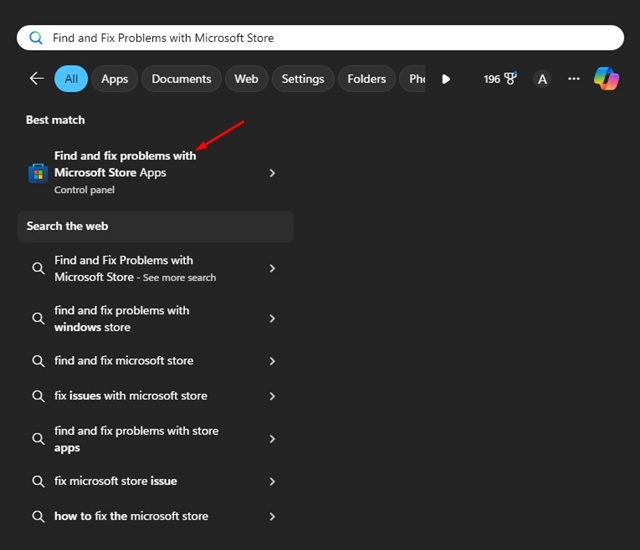
1. Open the Windows Search and type in Microsoft Store App Troubleshooter. Click on the Find and fix problems with Microsoft Store apps.
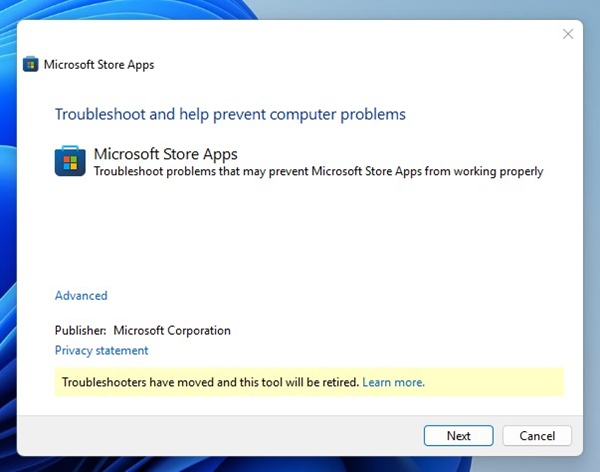
2. This will open the Microsoft Store Troubleshooter on your PC. Click Next.
3. Wait until the Microsoft Store Troubleshooter finds and fixes problems.
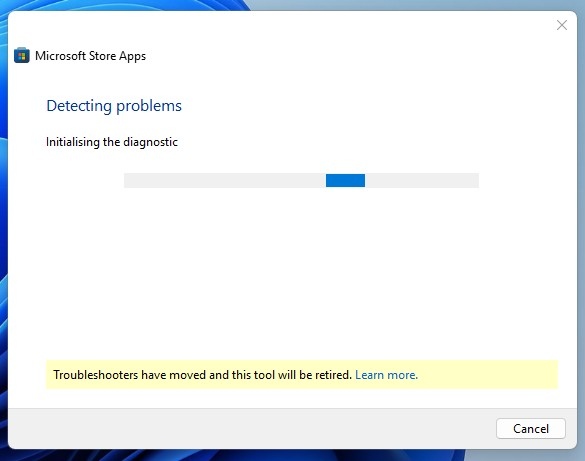
Once the process is complete, restart your Windows PC and check if the issue is fixed.
4. Check the Regional Settings of Windows 11
Incorrect Country or Region selection is another prominent reason for the Microsoft Store keeps logging out issue. If the regional settings are incorrect, you may also face other issues, such as being Unable to download apps or the Microsoft App Store not loading.
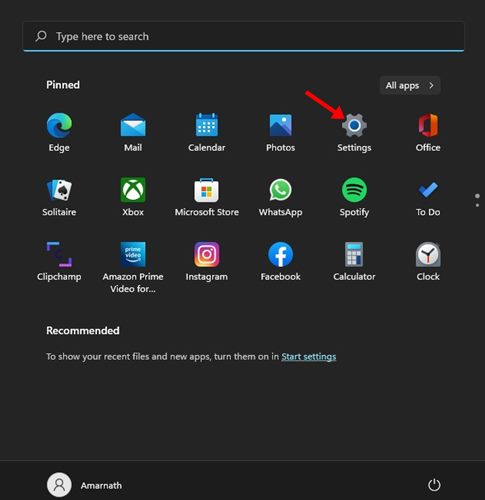
1. Click on the Windows 11 Start button and select Settings.
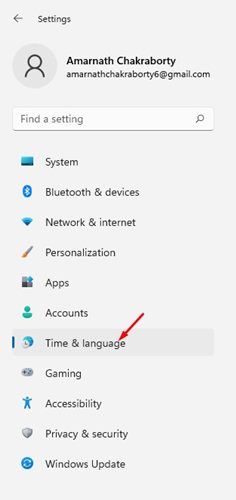
2. Switch to Time & Language.
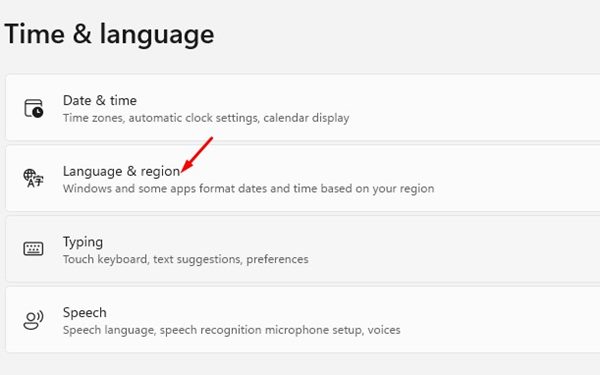
3. Click Language & region.
4. In the Language & region window, check whether the Country or Region and Regional Format are correct.
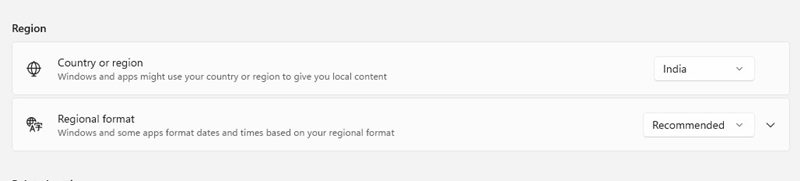
If incorrect, you must select the right options to fix the Microsoft Store issues. After making the changes, make sure to restart your Windows PC.
5. Clear the Microsoft Store Cache
Like every other Windows app, the Microsoft Store app also saves Cache on your device for quicker access. If this cache file is corrupted, certain features of the Microsoft Store may fail to work. You can get rid of this by clearing the Microsoft Store cache.
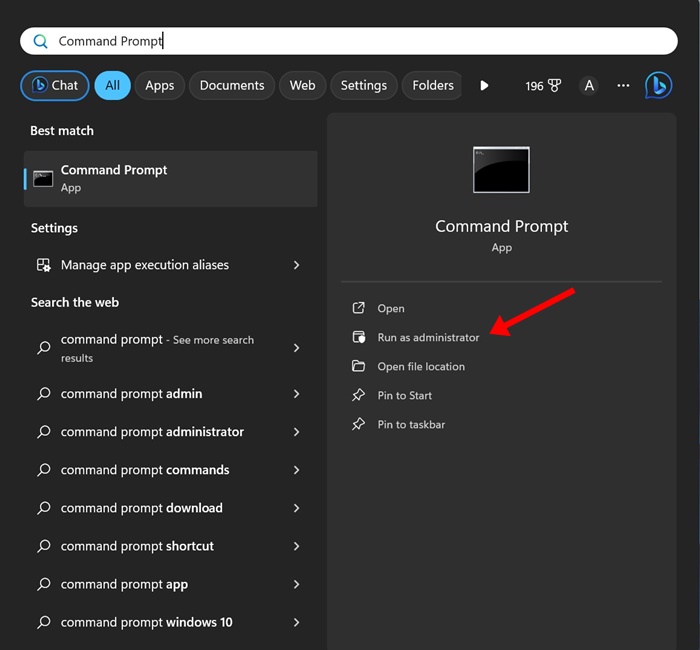
1. Type Command Prompt in the Windows 11 Search. Next, right-click on the Command Prompt and select Run as administrator.
2. Execute this given command:
WSReset.exe
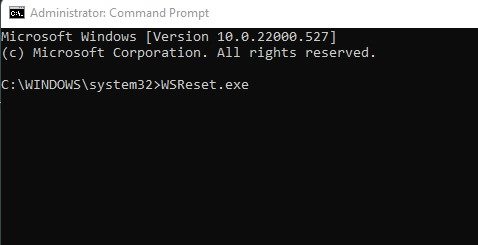
Wait for the process to complete. Once completed, restart your Windows 11 PC and reaccess the Microsoft Store. This type of Microsoft Store won’t log you out.
6. Repair or Reset the Microsoft Store App
Many Windows 11 users have fixed the Microsoft Store keeps logging out issue just by repairing or resetting the app from the Settings. You can try doing that as well and see if it works.
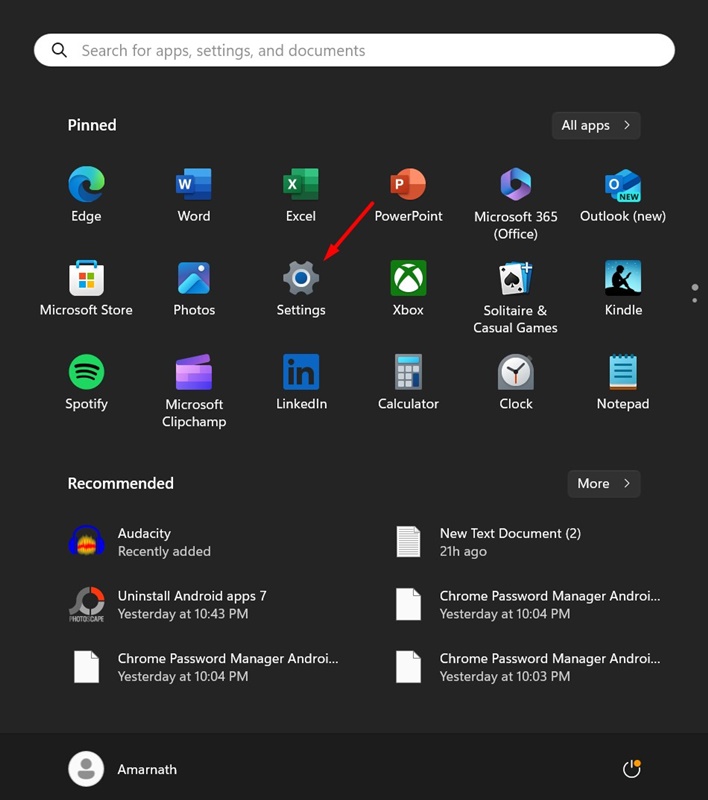
1. Press the Windows Key + I button your keyboard. This will open Settings.
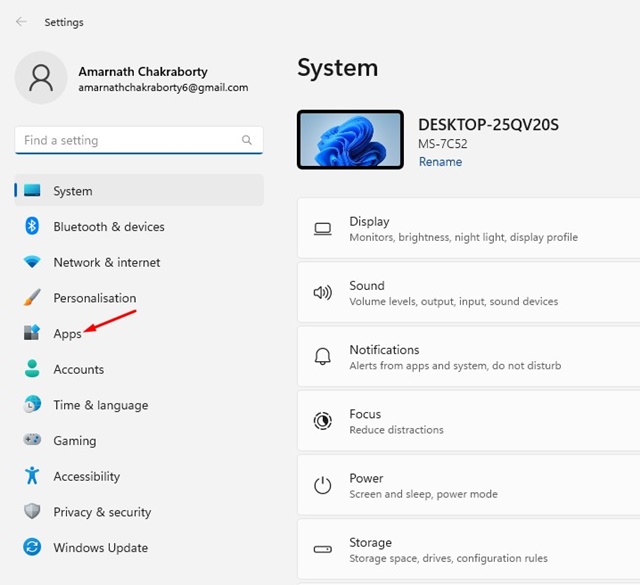
2. Switch to Apps.
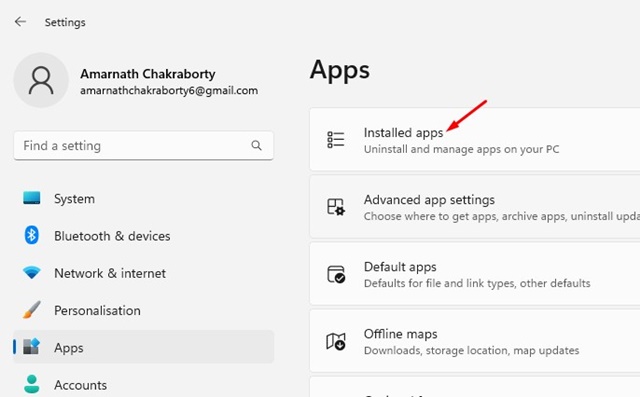
3. Click Installed Apps.
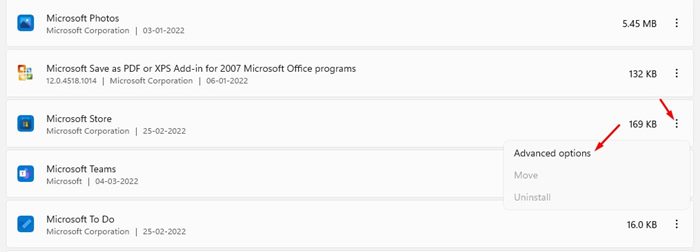
4. Find the Microsoft Store and click on the three dots next to it. On the menu that appears, select Advanced Options.
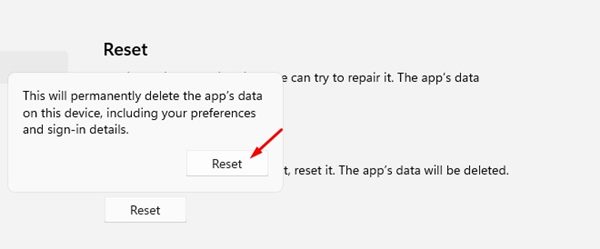
5. On the next screen, click the Repair button to repair problems with the Microsoft Store app. If repairing didn’t help, click Reset.
7. Re-register the Microsoft Store app
Microsoft Store is a system app, so it can’t be uninstalled and reinstalled. You only have the option to re-register the app.
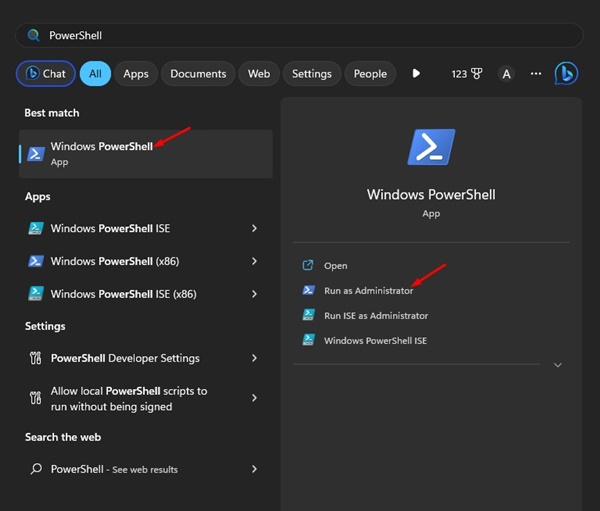
1. Type in PowerShell on Windows 11 Search. Right-click on the PowerShell and select Run as administrator.
2. Execute this command:
Get-AppXPackage WindowsStore -AllUsers | Foreach {Add-AppxPackage -DisableDevelopmentMode -Register "$($_.InstallLocation)\AppXManifest.xml"}
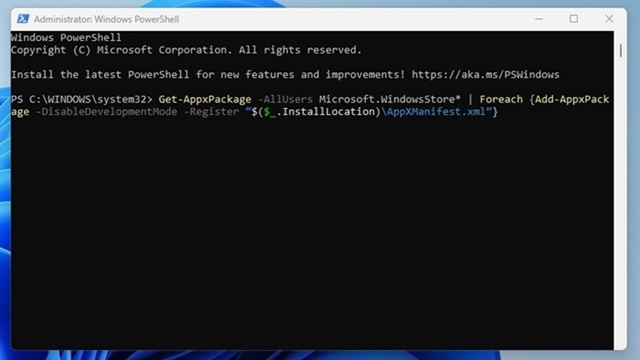
After executing the command, close the PowerShell utility and restart Windows 11. After the restart, check whether the Microsoft Store randomly logging out issue has been resolved.
8. Update your Windows 11
Maybe the version of Windows 11 you’re using has a bug or glitch that may be preventing the Microsoft Store app from functioning properly. You can eliminate such bugs & glitches by installing the pending Windows 11 updates.
1. Press the Windows Key + I button to open Settings.
2. Switch to Windows Update.
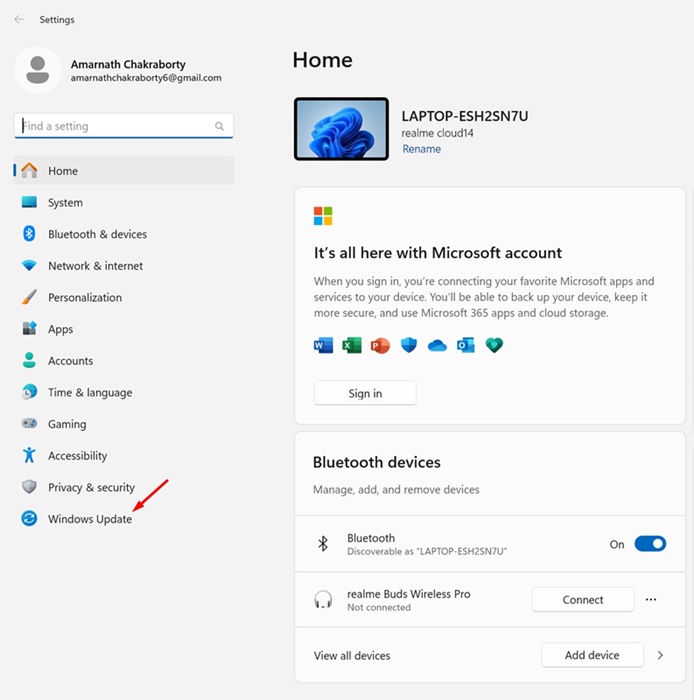
3. Click Check for Updates.

4. Click on Download & Install.
These are the few simple steps to fix the Microsoft Store keeps logging out issue on Windows. If you need more help with this topic, let us know in the comments.
The post How to Fix Microsoft Store Keeps Logging Out appeared first on TechViral.
ethical hacking,hacking,bangla ethical hacking,bangla hacking tutorial,bangla tutorial,bangla hacking book,ethical hacking bangla,bangla,hacking apps,ethical hacking bangla tutorial,bangla hacking,bangla hacking pdf,bangla hacking video,bangla android hacking,bangla hacking tutorials,bangla fb hacking tutorial,bangla hacking book download,learn ethical hacking,hacking ebook,hacking tools,bangla ethical hacking course, tricks,hacking,ludo king tricks,whatsapp hacking trick 2019 tricks,wifi hacking tricks,hacking tricks: secret google tricks,simple hacking tricks,whatsapp hacking tricks,tips and tricks,wifi tricks,tech tricks,redmi tricks,hacking trick paytm cash,hacking trick helo app,hacking trick of helo app,paytm cash hacking trick,wifi password hacking,paytm cash hacking trick malayalam,hacker tricks, tips and tricks,pubg mobile tips and tricks,tricks,tips,tips and tricks for pubg mobile,100 tips and tricks,pubg tips and tricks,excel tips and tricks,google tips and tricks,kitchen tips and tricks,season 2 tips and tricks,android tips and tricks,fortnite tips and tricks,godnixon tips and tricks,free fire tips and tricks,advanced tips and tricks,whatsapp tips and tricks, facebook tricks,facebook,facebook hidden tricks,facebook tips and tricks,facebook latest tricks,facebook tips,facebook new tricks,facebook messenger tricks,facebook android app tricks,fb tricks,facebook app tricks,facebook tricks and tips,facebook tricks in hindi,tricks,facebook tutorial,new facebook tricks,cool facebook tricks,facebook tricks 2016,facebook tricks 2017,facebook secret tricks,facebook new tricks 2020,blogger blogspot seo tips and tricks,blogger tricks,blogger,blogger seo tips,blogger seo tips and tricks,seo for blogger,blogger seo in hindi,blogger seo best tips for increasing visitors,blogging tips and tricks,blogger blog seo,blogger seo in urdu,adsense approval trick,blogging tips and tricks for beginners,blogging tricks,blogger tutorial,blogger tricks 2016,blogger tricks 2017 bangla,tricks,bangla tutorial,bangla magic,bangla motivational video,bangla tricks,bangla tips,all bangla tips,magic tricks,akash bangla tricks,top 10 bangla tricks,tips and tricks,all bangla trick,bangla computer tricks,computer bangla tricks,bangla magic card tricks,ms word bangla tips and tricks,bangla computer tips,trick,psychology tricks,youtube bangla,magic tricks bangla,si trick Credit techviral


