
How to Fix Windows 11 Not Updating Time & Showing Wrong Time
On Windows 11, if the time and date are misconfigured, the device will have problems connecting with online services and applications. If your Windows 11 is showing the wrong date and time or is not updating automatically, here’s what you should do.
1. Allow Windows 11 to Update Time Automatically
If the time & date aren’t updating, you first need to confirm whether the time is set to update automatically. If the time settings were manually set, Windows 11 wouldn’t update the time automatically.
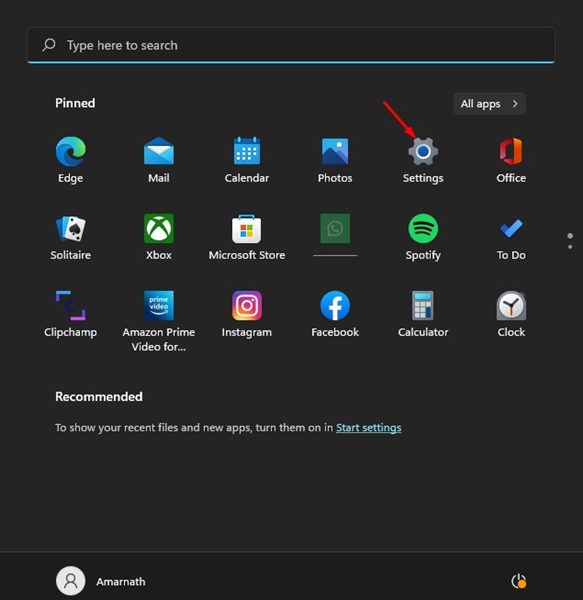
1. Click the Windows 11 Start button and select Settings.
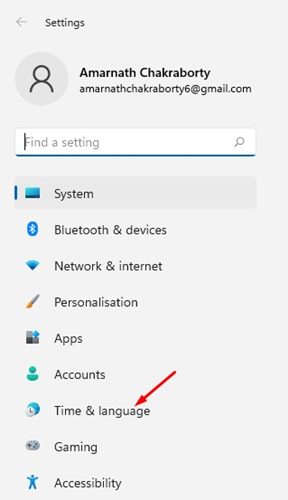
2. Click on the Time & Language.
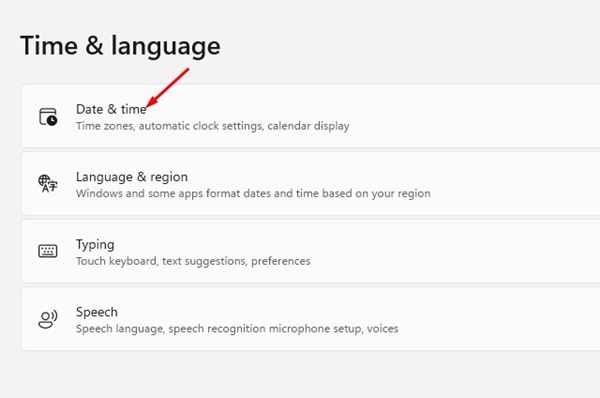
3. Click on the Date & time.
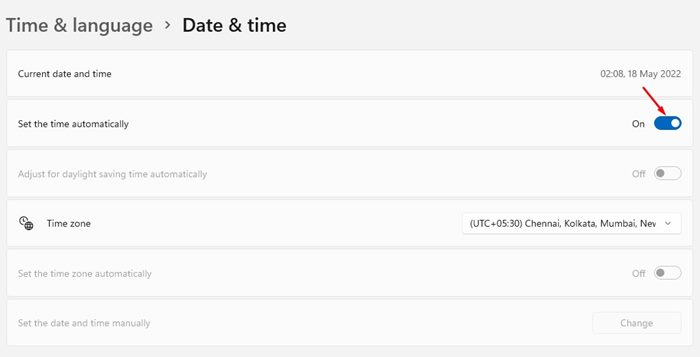
4. On the Date & time page, turn on the toggle to Set the time automatically.
2. Manually Sync the Windows Clock
One of the best things you can do to resolve Windows 11 not updating time is to manually sync the Windows clock.
1. Open the Windows 11 Start menu and select Settings.
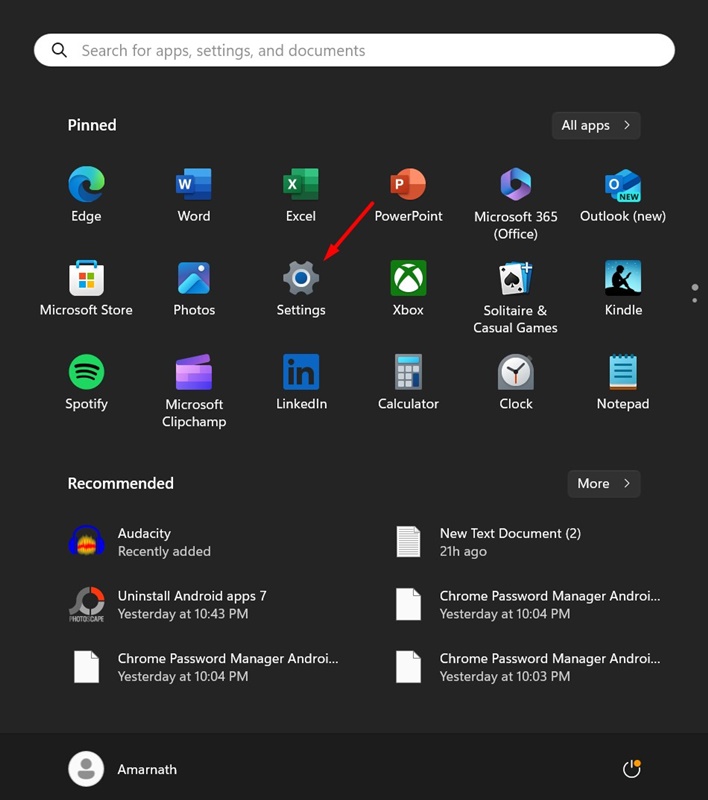
2. Switch to Time & Language.
3. Select Date & Time.
4. Click Sync Now.
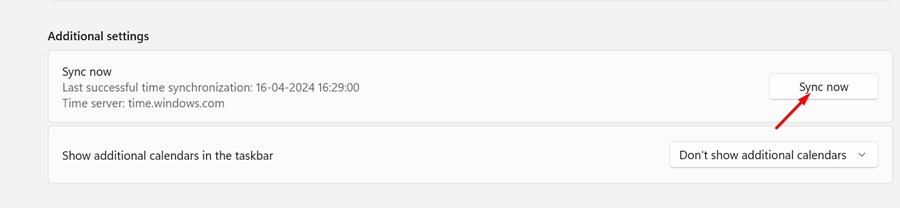
Upon successful sync, you will notice a check mark next to the Sync Now button.
3. Check the Time Zone Settings
Misconfigured time zone settings are usually the leading cause of the wrong time on the Windows operating system.
We have shared a detailed guide on how to change the time zone in Windows 11, which would help you pick the appropriate time zone based on your region.
4. Check the Windows Time Service Status
If your Windows 11 device still displays the wrong time, check whether the Windows Time Service is running.
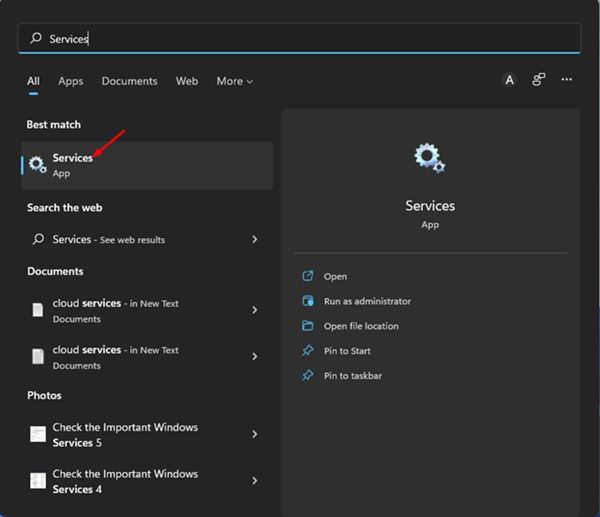
1. Open the Services app from the Windows Search.
2. Find the Windows Time.
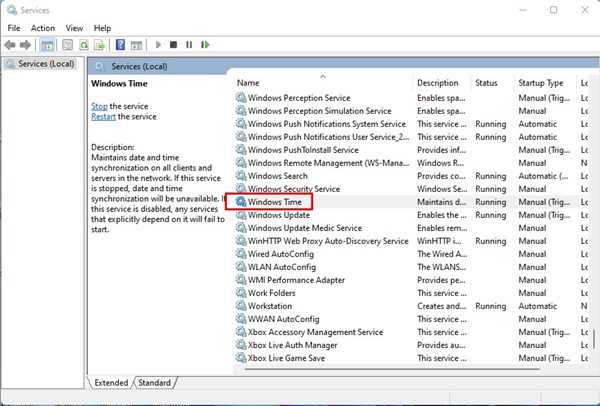
3. Double-click on the Windows Time. Click on the drop-down menu behind the Startup type and select Automatic.
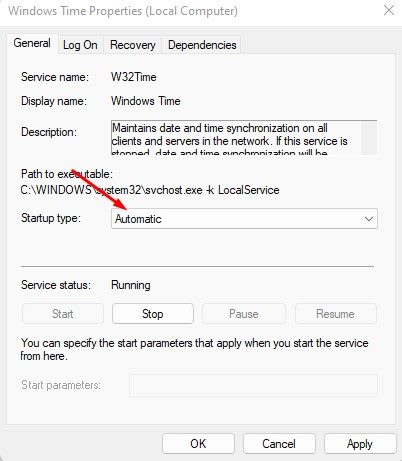
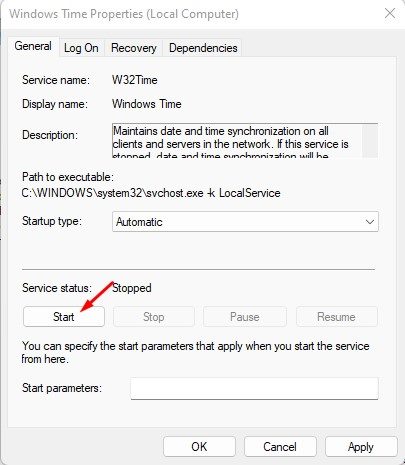
4. Click on the Start button underneath Service Status.
5. Click the Apply button and OK.
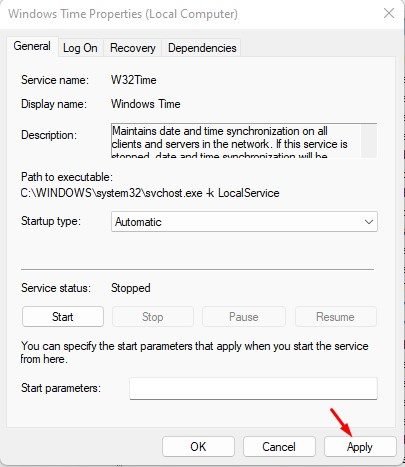
After making the changes, make sure to restart your computer.
5. Use a Different Time Server
If your Windows 11 device has problems synchronizing with the Internet time server, the time won’t update. If the wrong time issue is unresolved, you can try switching the Internet time server.
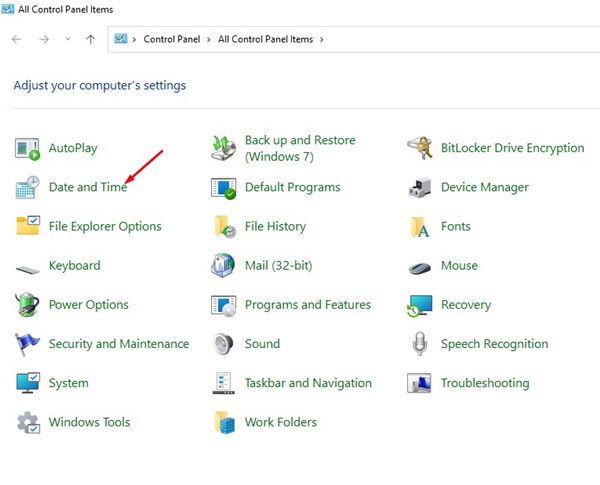
1. Open Control Panel from the Windows Search.
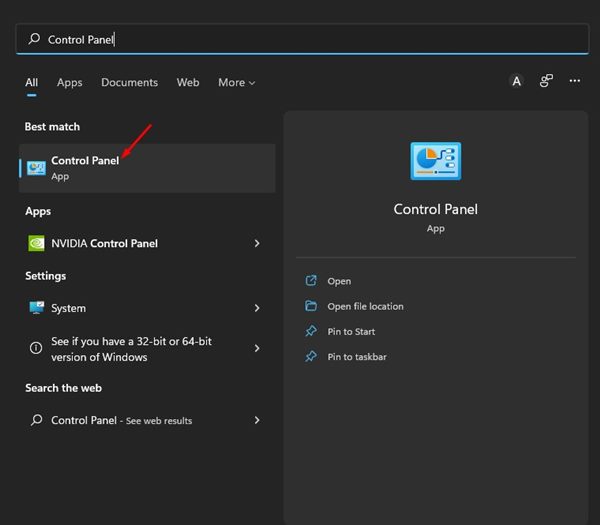
2. Click on Date and Time.
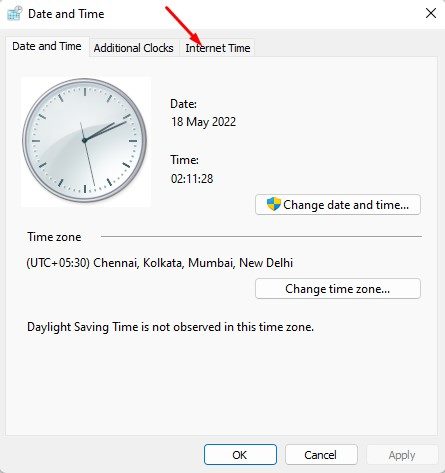
3. On the Date and Time Window, click Internet Time.
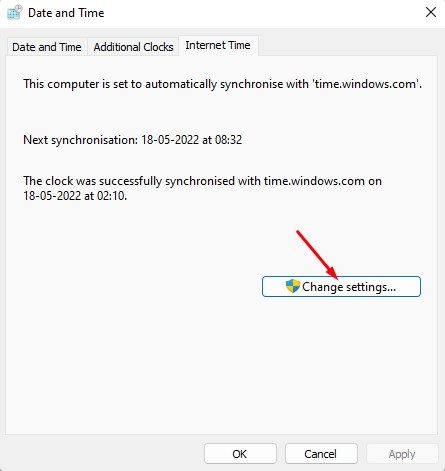
4. Click on the Change settings..
5. Check the ‘Synchronise with an Internet time server’ option and select a different Internet time server. Once you’ve done this, click Update Now.
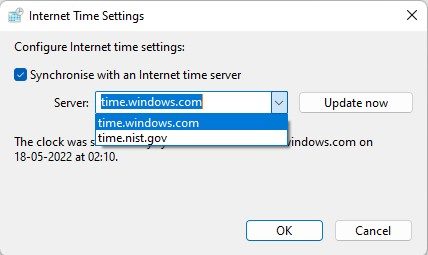
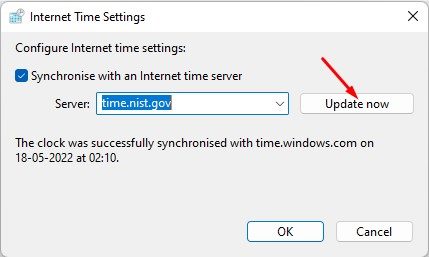
After making the changes, click the OK button.
6. Re-register the Windows Time Process
Windows Time Service, or W32Time.exe, is a process responsible for synchronizing the date and time on all clients and servers in the network.
If this service has stopped working due to malware or corrupted system files, the date and time won’t update. You need to re-register the Windows Time Process to fix the Windows 11 not updating time and date problem.
1. Open the Windows 11 search and type in Command Prompt. Right-click on the Command Prompt and select Run as administrator.
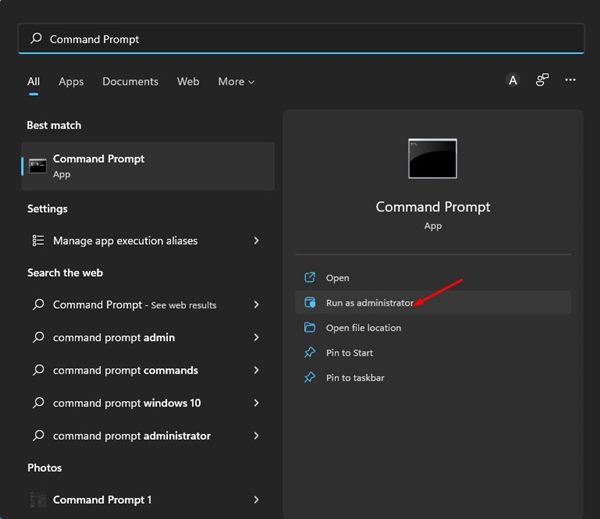
2. Execute the commands one by one.
net stop w32timew32tm /unregisterw32tm /register
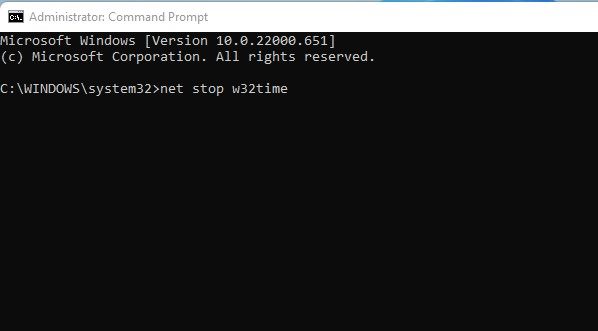
3. After executing the commands, close the Command Prompt and restart your Windows 11 PC.
This will re-register the Windows Time Process in your Windows 11 Computer.
7 Re-register the Windows Time DLL file
Sometimes, the problem can be linked to the w3time.dll file. If this file is corrupted or unavailable, Windows 11 will face a problem updating the time. To resolve the issue, re-register the Windows Time DLL files.
1. Type CMD in the Windows 11 search. Right-click on the CMD and select Run as administrator.
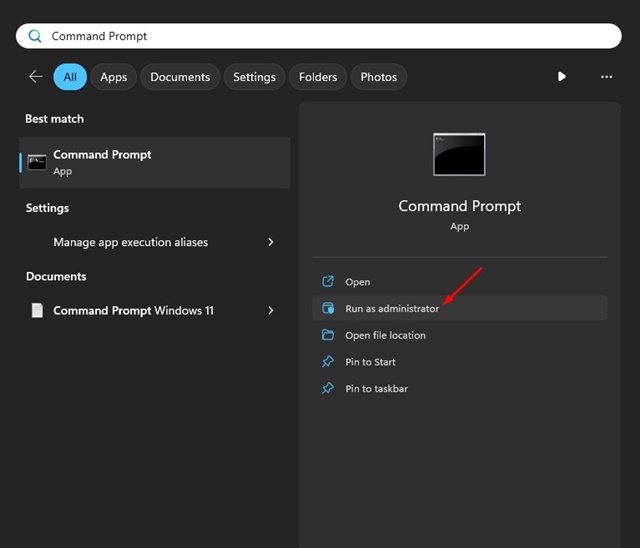
2. Paste the given contact and press Enter.
regsvr32 w32time.dll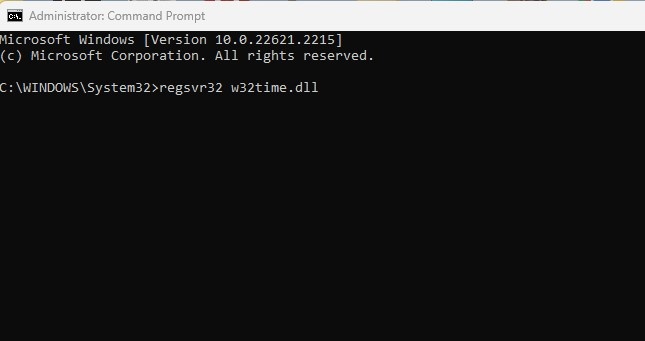
8. Check the CMOS Battery
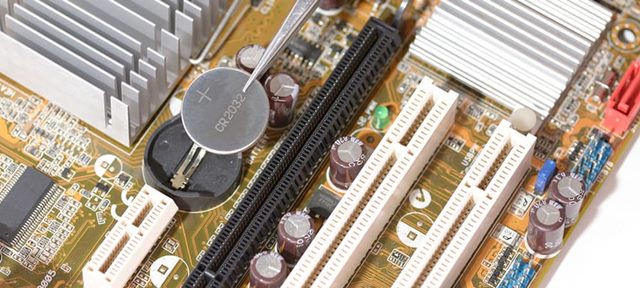
The CMOS Battery powers your PC/Laptop’s BIOS firmware, which is responsible for booting your computer and configuring the data flow. If the CMOS battery is dead, the chip will start to lose information.
One of the first symptoms of a dead CMOS battery is the computer failing to update the time and date. If all of the methods failed to fix the Windows 11 not updating date and time problem, you need to check and replace the CMOS battery.
An incorrect date and time on Windows 11 might seem like a small issue, but many things rely on it. If it is left unresolved, it can cause many problems.
The methods we shared were supposed to fix every time and date-related problem on Windows, but if the problem is still unresolved, you may try resetting your Windows 11 PC.
The post How to Fix Windows 11 Not Updating Time & Showing Wrong Time appeared first on TechViral.
ethical hacking,hacking,bangla ethical hacking,bangla hacking tutorial,bangla tutorial,bangla hacking book,ethical hacking bangla,bangla,hacking apps,ethical hacking bangla tutorial,bangla hacking,bangla hacking pdf,bangla hacking video,bangla android hacking,bangla hacking tutorials,bangla fb hacking tutorial,bangla hacking book download,learn ethical hacking,hacking ebook,hacking tools,bangla ethical hacking course, tricks,hacking,ludo king tricks,whatsapp hacking trick 2019 tricks,wifi hacking tricks,hacking tricks: secret google tricks,simple hacking tricks,whatsapp hacking tricks,tips and tricks,wifi tricks,tech tricks,redmi tricks,hacking trick paytm cash,hacking trick helo app,hacking trick of helo app,paytm cash hacking trick,wifi password hacking,paytm cash hacking trick malayalam,hacker tricks, tips and tricks,pubg mobile tips and tricks,tricks,tips,tips and tricks for pubg mobile,100 tips and tricks,pubg tips and tricks,excel tips and tricks,google tips and tricks,kitchen tips and tricks,season 2 tips and tricks,android tips and tricks,fortnite tips and tricks,godnixon tips and tricks,free fire tips and tricks,advanced tips and tricks,whatsapp tips and tricks, facebook tricks,facebook,facebook hidden tricks,facebook tips and tricks,facebook latest tricks,facebook tips,facebook new tricks,facebook messenger tricks,facebook android app tricks,fb tricks,facebook app tricks,facebook tricks and tips,facebook tricks in hindi,tricks,facebook tutorial,new facebook tricks,cool facebook tricks,facebook tricks 2016,facebook tricks 2017,facebook secret tricks,facebook new tricks 2020,blogger blogspot seo tips and tricks,blogger tricks,blogger,blogger seo tips,blogger seo tips and tricks,seo for blogger,blogger seo in hindi,blogger seo best tips for increasing visitors,blogging tips and tricks,blogger blog seo,blogger seo in urdu,adsense approval trick,blogging tips and tricks for beginners,blogging tricks,blogger tutorial,blogger tricks 2016,blogger tricks 2017 bangla,tricks,bangla tutorial,bangla magic,bangla motivational video,bangla tricks,bangla tips,all bangla tips,magic tricks,akash bangla tricks,top 10 bangla tricks,tips and tricks,all bangla trick,bangla computer tricks,computer bangla tricks,bangla magic card tricks,ms word bangla tips and tricks,bangla computer tips,trick,psychology tricks,youtube bangla,magic tricks bangla,si trick Credit techviral


