
Speakers Stopped Working? Here’s How You Can Fix it
Speaker problems on Windows can ruin your computer experience because you won’t be able to hear anything. We will share some of the best methods for fixing speakers that have stopped working due to Windows errors.
1. Check If the Audio Was Muted
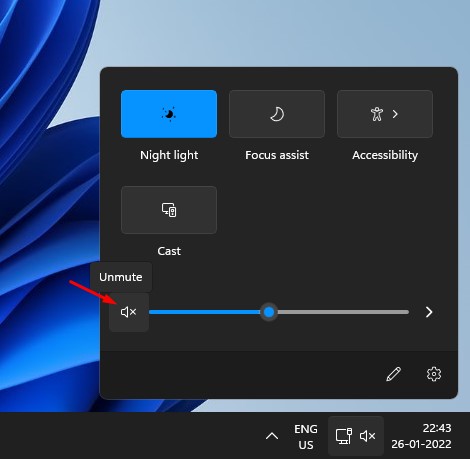
Before you try the other things, you must ensure that the audio on your computer/laptop is not muted. Audio can be muted by just hitting the wrong button or using the wrong hotkey.
If speakers stop working on your Windows, you should first check whether the audio has been muted.
To unmute your audio, play an audio or video file, and press the mute button on your keyboard. You can also click the speaker icon on your system tray to mute/unmute the audio.
2. Check if the Speakers are properly connected to the PC

The next thing you need to do is check if the speakers are properly connected to your PC/Laptop. You need to examine the speaker jack on your PC closely.
Unless you have a USB speaker or headphones, you must connect your audio device to a 3.5mm port.
Ensure that the 3.5mm jack of your headphones or speaker is plugged into the correct port.
3. Using Audio Troubleshooter
You can use the Audio Troubleshooter tool to fix various audio-related errors on Windows computers. Even if it fails to fix the problem, it will reveal the actual cause.
1. Open the search box and search for Troubleshooting.

2. Open the Troubleshooting page and click Troubleshoot audio playback.
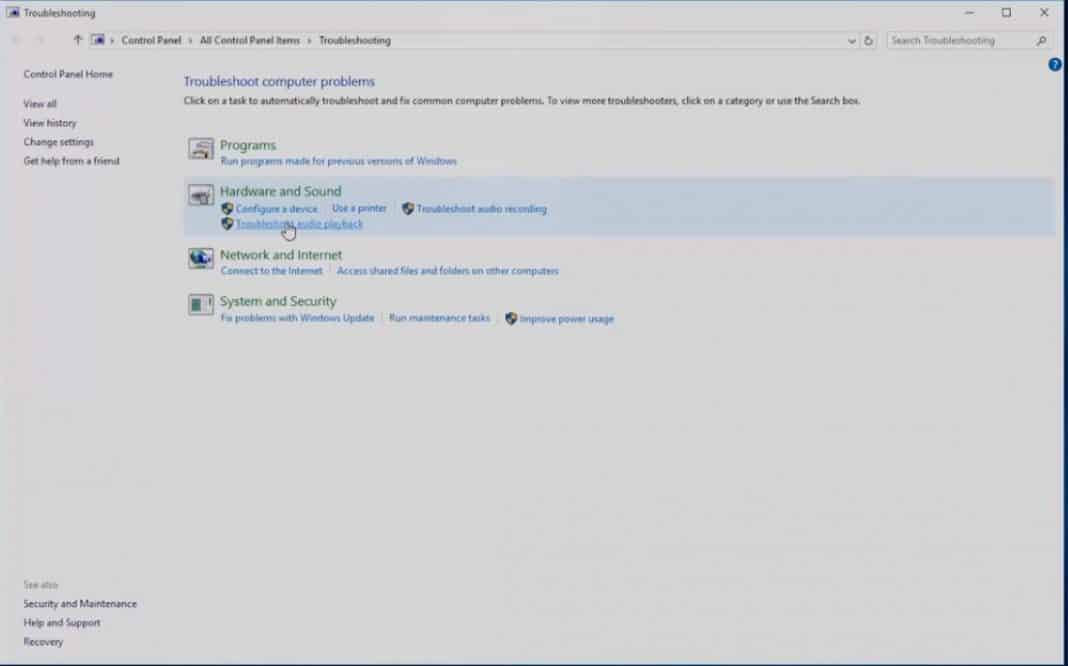
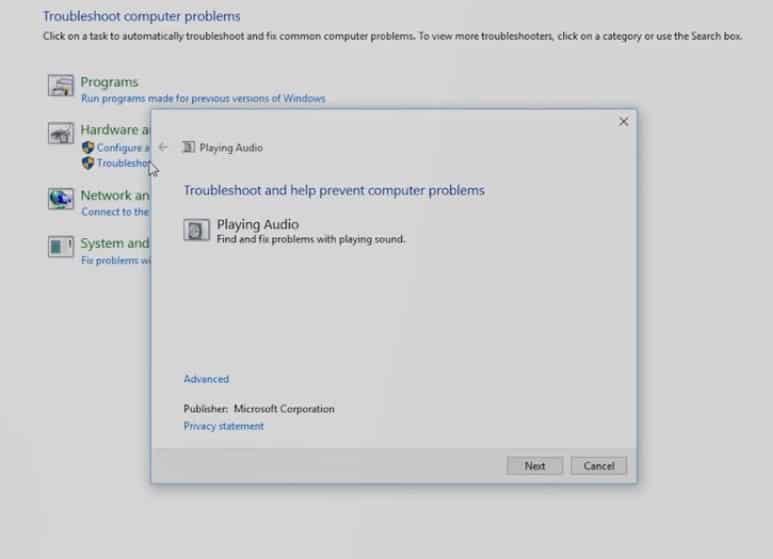
3. You will see another page asking you to troubleshoot playing audio. Click on Next.
4. The Troubleshooting tool will scan and fix the audio-related problems. Wait a few seconds.
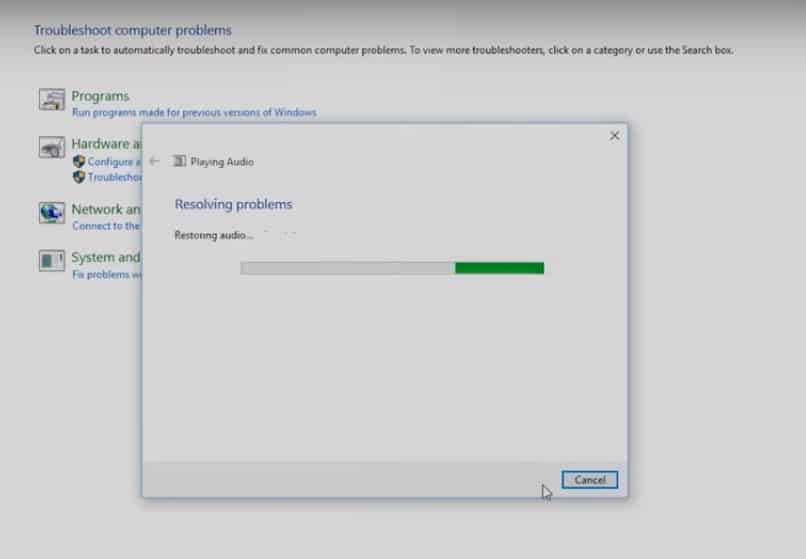
The Audio Troubleshooter will either fix the problem or let you know the actual cause of the problem.
4. Reinstall Drivers
If you have Speaker problems on Windows computers, reinstalling the drivers might be the best solution.
- Open Device Manager and expand the Sound, Video, and Game Controllers.
2. Right-click on the current sound card and select Properties. Under the Properties, head to the Driver tab and select ‘Uninstall’
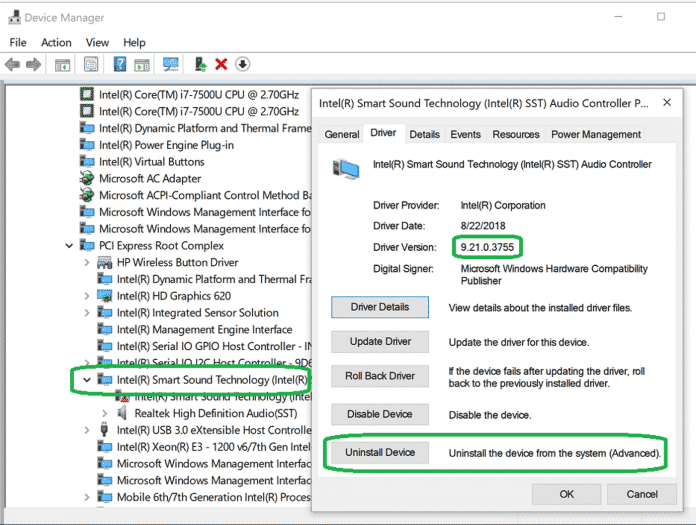
Click on Apply and restart your computer. The operating system will automatically install the required audio drivers during the restart.
5. Update the Audio Driver
Outdated audio drivers can also cause several sound-related errors, including the Speaker stops working. We will update the Audio Driver through the Device Manager to fix the Speaker stopped working error message.
1. Search for Device Manager on the Windows Search bar and open the first option.
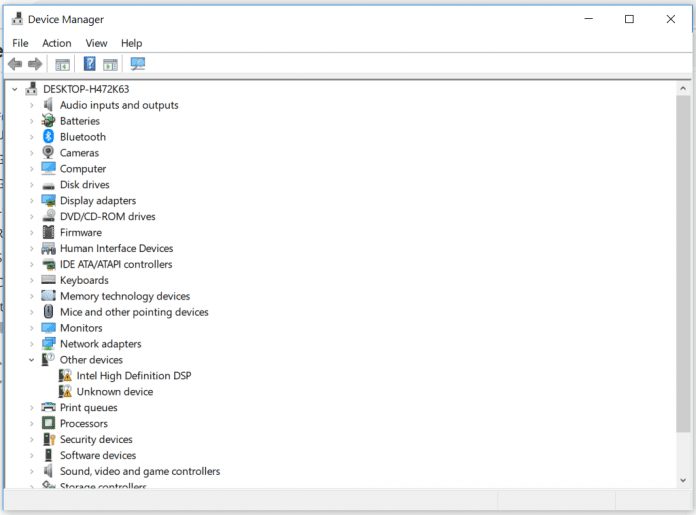
2. Expand System Device
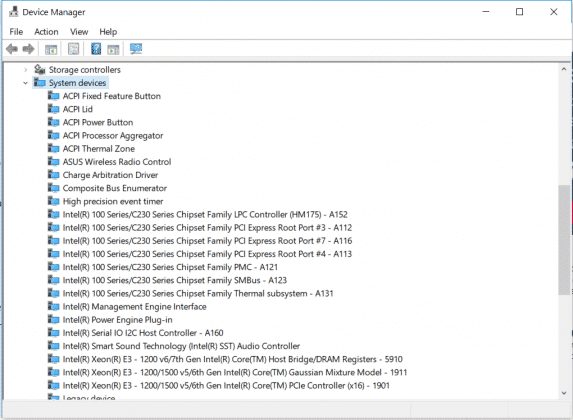
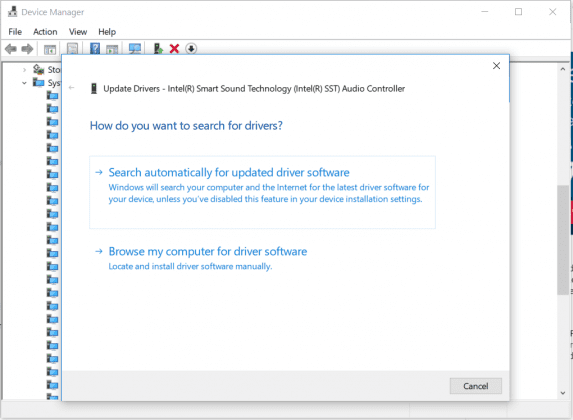
3. Find the Audio driver. Right-click on it and then select Update Driver.
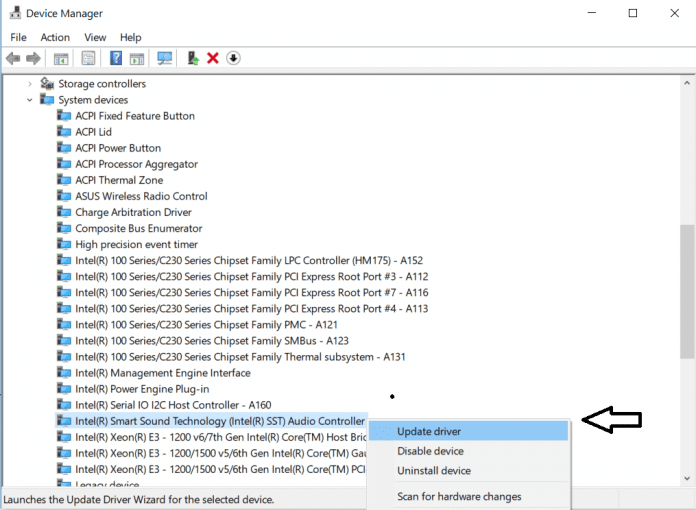
4. You will be asked to select whether you want to select the drive manually or search the web. Select the first option and click on Next
6. Set the Speaker device
Windows updates often change the default audio playback device, leading to speaker problems. We will set the default speaker device to fix the Speaker stopped working problem.
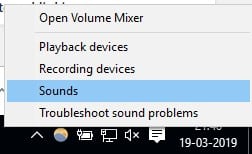
1. Click on the Start menu and search for Sound. Open the first option from the list.
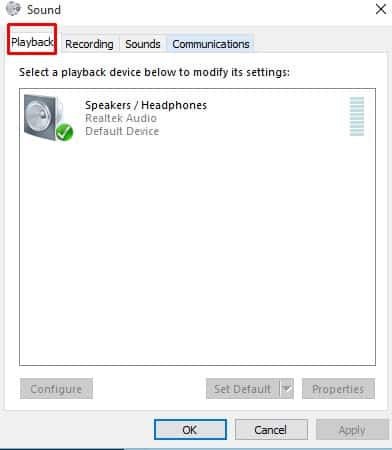
2. Switch to Playback.
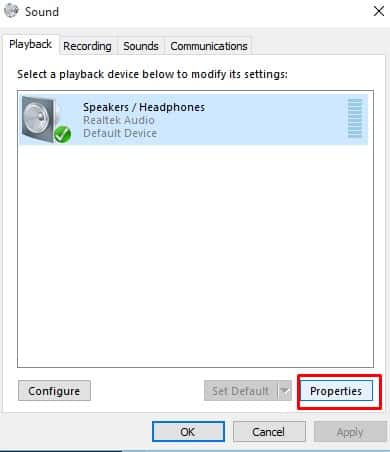
3. Right-click on the device in which you want to set the audio playback and then click on Properties
4. Select Use this device (Enable).

Click on Ok and then on Apply. Restart the computer, and your speaker will now work fine.
7. Change The Audio Format
You could try changing the audio format if the above methods fail to fix the speaker problem.
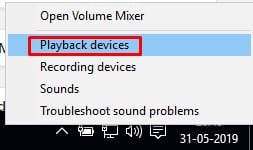
1. Right-click on the Speaker icon from the notification bar and then click on Playback devices.
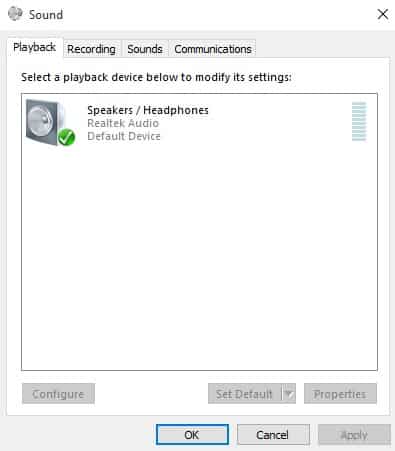
2. Double-click the default playback device in the Sound settings.
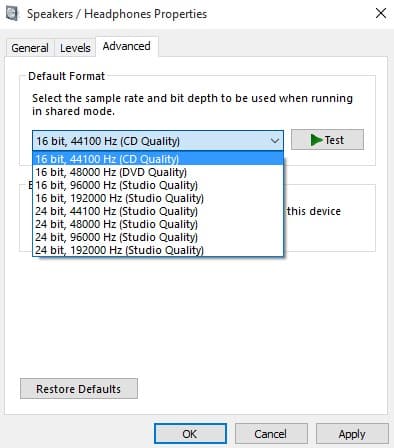
3. Select the audio format from the ‘Advanced’ tab. You need to try a different audio format to check which one works.
These are the best methods for fixing speakers that have stopped working on Windows computers. If you know other methods that work, please let us know in the comment box below.
The post Speakers Stopped Working? Here’s How You Can Fix it appeared first on TechViral.
ethical hacking,hacking,bangla ethical hacking,bangla hacking tutorial,bangla tutorial,bangla hacking book,ethical hacking bangla,bangla,hacking apps,ethical hacking bangla tutorial,bangla hacking,bangla hacking pdf,bangla hacking video,bangla android hacking,bangla hacking tutorials,bangla fb hacking tutorial,bangla hacking book download,learn ethical hacking,hacking ebook,hacking tools,bangla ethical hacking course, tricks,hacking,ludo king tricks,whatsapp hacking trick 2019 tricks,wifi hacking tricks,hacking tricks: secret google tricks,simple hacking tricks,whatsapp hacking tricks,tips and tricks,wifi tricks,tech tricks,redmi tricks,hacking trick paytm cash,hacking trick helo app,hacking trick of helo app,paytm cash hacking trick,wifi password hacking,paytm cash hacking trick malayalam,hacker tricks, tips and tricks,pubg mobile tips and tricks,tricks,tips,tips and tricks for pubg mobile,100 tips and tricks,pubg tips and tricks,excel tips and tricks,google tips and tricks,kitchen tips and tricks,season 2 tips and tricks,android tips and tricks,fortnite tips and tricks,godnixon tips and tricks,free fire tips and tricks,advanced tips and tricks,whatsapp tips and tricks, facebook tricks,facebook,facebook hidden tricks,facebook tips and tricks,facebook latest tricks,facebook tips,facebook new tricks,facebook messenger tricks,facebook android app tricks,fb tricks,facebook app tricks,facebook tricks and tips,facebook tricks in hindi,tricks,facebook tutorial,new facebook tricks,cool facebook tricks,facebook tricks 2016,facebook tricks 2017,facebook secret tricks,facebook new tricks 2020,blogger blogspot seo tips and tricks,blogger tricks,blogger,blogger seo tips,blogger seo tips and tricks,seo for blogger,blogger seo in hindi,blogger seo best tips for increasing visitors,blogging tips and tricks,blogger blog seo,blogger seo in urdu,adsense approval trick,blogging tips and tricks for beginners,blogging tricks,blogger tutorial,blogger tricks 2016,blogger tricks 2017 bangla,tricks,bangla tutorial,bangla magic,bangla motivational video,bangla tricks,bangla tips,all bangla tips,magic tricks,akash bangla tricks,top 10 bangla tricks,tips and tricks,all bangla trick,bangla computer tricks,computer bangla tricks,bangla magic card tricks,ms word bangla tips and tricks,bangla computer tips,trick,psychology tricks,youtube bangla,magic tricks bangla,si trick Credit techviral


