
How to Fix Internet Problems with New SSD
After installing a new SSD, you may experience various problems like slow internet, frequent disconnections, or the internet not working at all. You can easily eliminate most of those problems by following these steps.
1. Restart your PC

Restarting your PC, especially after installing new hardware, is essential as it refreshes the operating system, resets the network settings, and reloads all needed drivers.
If all these things malfunction, you may experience internet issues. Your best bet is to restart your Windows PC and see if it helps.
2. Check if your internet is working
If an internet problem appears after installing a new SSD, it’s important to check whether there’s actually a problem triggered by the SSD installation or if it’s just that the internet itself is not working.
You can connect your phone to the same WiFi network and check if the internet works. Doing so will help you pinpoint the actual cause and avoid unnecessary troubleshooting.
3. Update the Network Drivers
Sometimes, internet problems you get after installing a new SSD are just because of compatibility issues. You can eliminate such problems by updating the network drivers from the Device Manager.
1. Open Device Manager from the Windows Search.
2. Expand the Network Adapters tab.
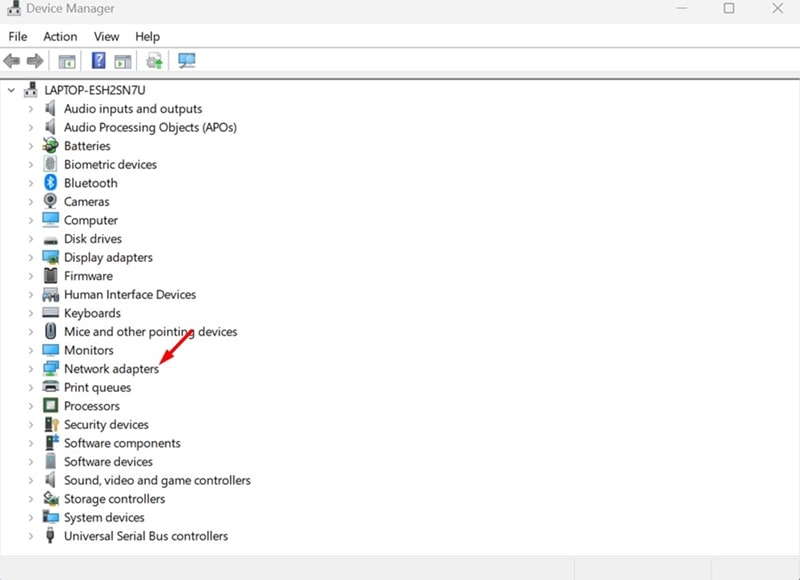
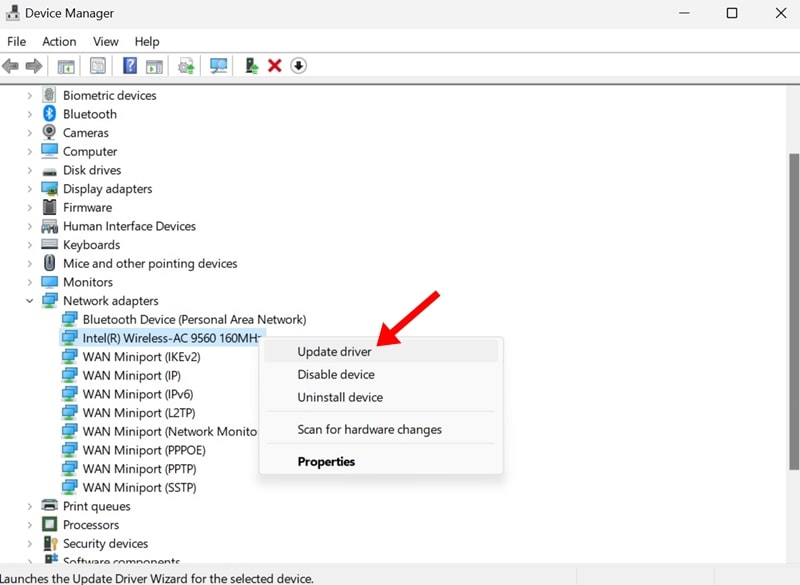
3. Right-click on the connected network card and select Update Driver.
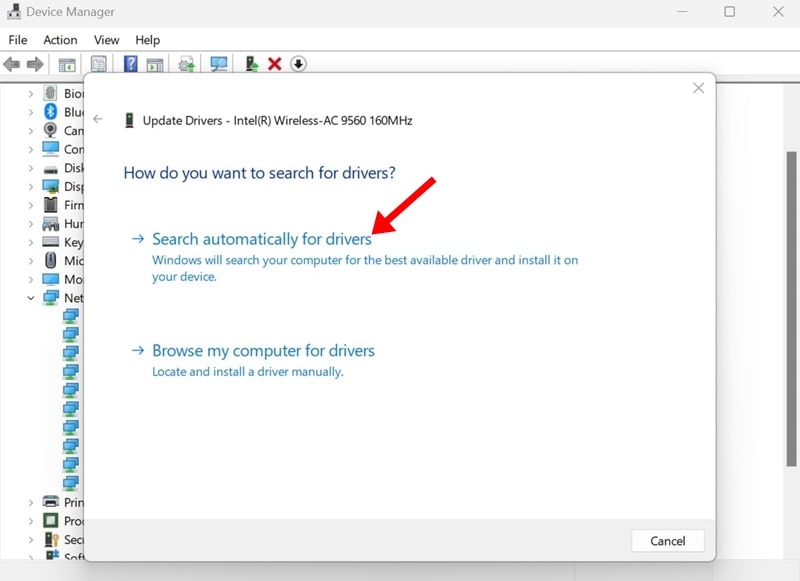
4. On the prompt that appears, select Search automatically for drivers.
4. Manually Install the WiFi Drivers
If you’re using a dedicated WiFi card on your PC, you will have to download the most compatible driver from the official website.
Identify your WiFi card model, visit the manufacturer’s website, search for your WiFi card model, and download the correct driver.
Once downloaded, you need to run the installer and follow the on-screen instructions.
5. Install the Windows Updates
Installing the pending Windows updates is important, especially after making the hardware changes. Windows Updates enhance compatibility with the new hardware, improve system stability, and fix security loopholes.
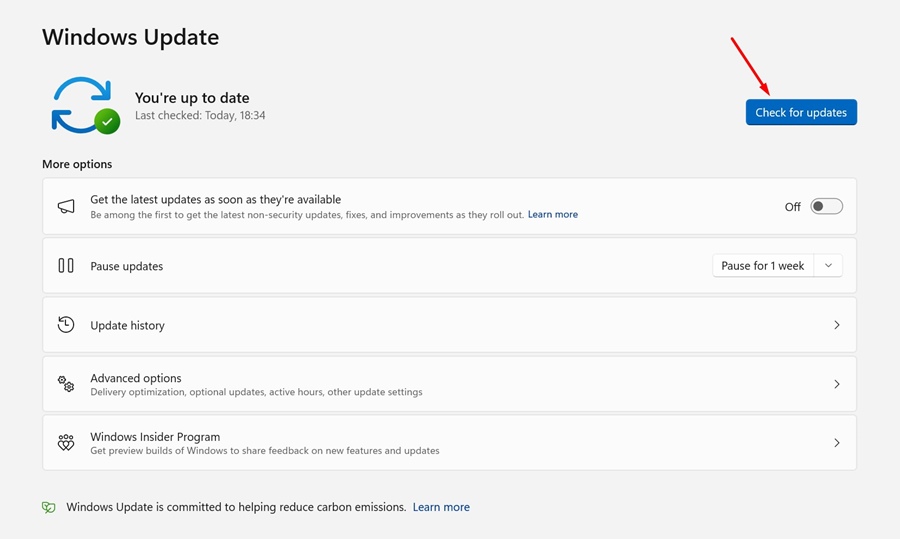
It will also help you rule out network and driver issues by installing all required drivers. Head to Settings > Windows Updates and click Check for Updates.
6. Reset the DNS on your PC
If you’re still experiencing internet issues, it’s time to reset the DNS on Windows.
1. Type CMD in Windows Search. Right-click on the CMD and select Run as administrator.
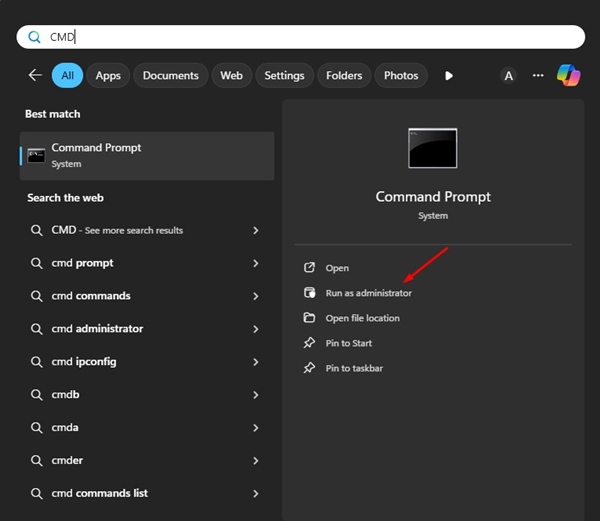
2. Execute these commands one after another:
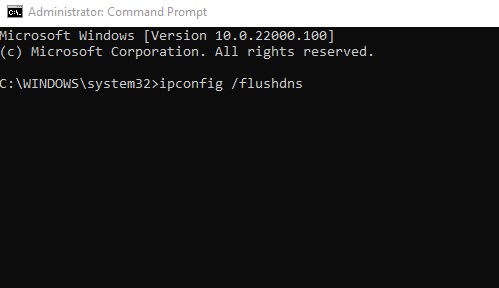
- ipconfig /flushdns
- ipconfig /registerdns
- ipconfig /release
- ipconfig /renew
- netsh winsock reset
After executing all commands, close the Command Prompt.
7. Reset the Network Settings
If nothing worked to fix your internet problems after changing the SSD, you can reset the network settings.
1. Launch the Settings app and switch to the Network & Internet tab.
2. Click Advanced Network Settings.
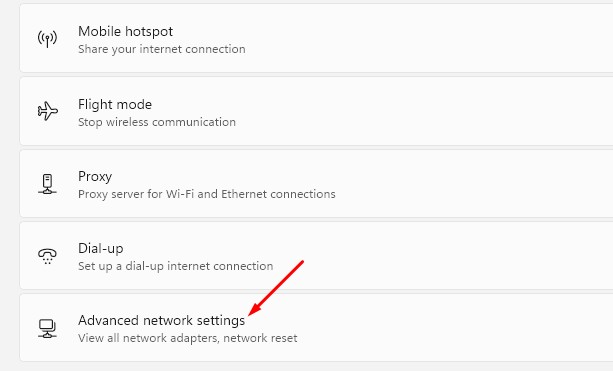
3. Click Network Reset.
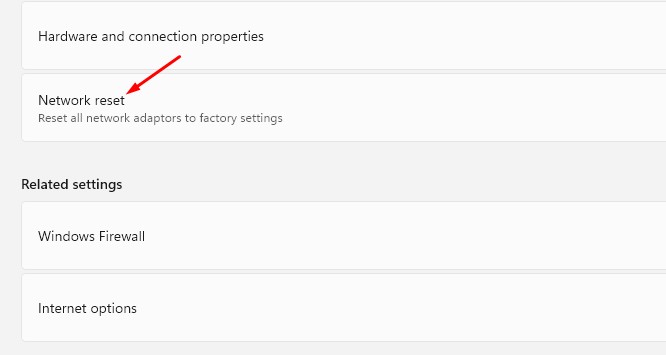
4. Click the Reset Now button on the Network Reset section.
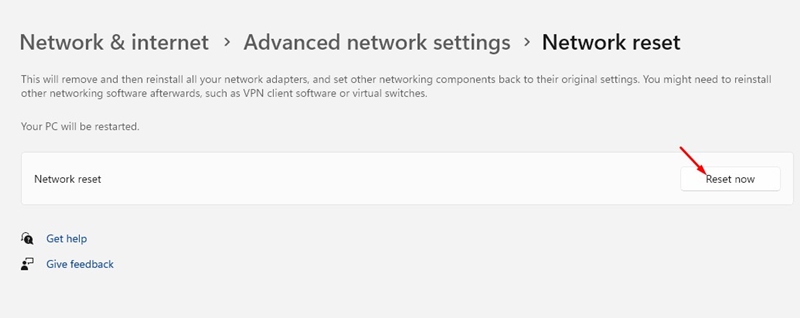
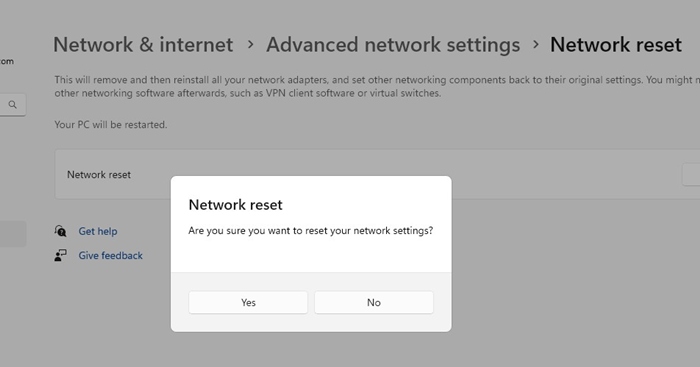
5. On the Network Reset confirmation prompt, Yes.
These are a few simple ways to fix internet problems with the new SSD on Windows. If you need more help with this topic, let us know in the comments below.
The post How to Fix Internet Problems with New SSD appeared first on TechViral.
ethical hacking,hacking,bangla ethical hacking,bangla hacking tutorial,bangla tutorial,bangla hacking book,ethical hacking bangla,bangla,hacking apps,ethical hacking bangla tutorial,bangla hacking,bangla hacking pdf,bangla hacking video,bangla android hacking,bangla hacking tutorials,bangla fb hacking tutorial,bangla hacking book download,learn ethical hacking,hacking ebook,hacking tools,bangla ethical hacking course, tricks,hacking,ludo king tricks,whatsapp hacking trick 2019 tricks,wifi hacking tricks,hacking tricks: secret google tricks,simple hacking tricks,whatsapp hacking tricks,tips and tricks,wifi tricks,tech tricks,redmi tricks,hacking trick paytm cash,hacking trick helo app,hacking trick of helo app,paytm cash hacking trick,wifi password hacking,paytm cash hacking trick malayalam,hacker tricks, tips and tricks,pubg mobile tips and tricks,tricks,tips,tips and tricks for pubg mobile,100 tips and tricks,pubg tips and tricks,excel tips and tricks,google tips and tricks,kitchen tips and tricks,season 2 tips and tricks,android tips and tricks,fortnite tips and tricks,godnixon tips and tricks,free fire tips and tricks,advanced tips and tricks,whatsapp tips and tricks, facebook tricks,facebook,facebook hidden tricks,facebook tips and tricks,facebook latest tricks,facebook tips,facebook new tricks,facebook messenger tricks,facebook android app tricks,fb tricks,facebook app tricks,facebook tricks and tips,facebook tricks in hindi,tricks,facebook tutorial,new facebook tricks,cool facebook tricks,facebook tricks 2016,facebook tricks 2017,facebook secret tricks,facebook new tricks 2020,blogger blogspot seo tips and tricks,blogger tricks,blogger,blogger seo tips,blogger seo tips and tricks,seo for blogger,blogger seo in hindi,blogger seo best tips for increasing visitors,blogging tips and tricks,blogger blog seo,blogger seo in urdu,adsense approval trick,blogging tips and tricks for beginners,blogging tricks,blogger tutorial,blogger tricks 2016,blogger tricks 2017 bangla,tricks,bangla tutorial,bangla magic,bangla motivational video,bangla tricks,bangla tips,all bangla tips,magic tricks,akash bangla tricks,top 10 bangla tricks,tips and tricks,all bangla trick,bangla computer tricks,computer bangla tricks,bangla magic card tricks,ms word bangla tips and tricks,bangla computer tips,trick,psychology tricks,youtube bangla,magic tricks bangla,si trick Credit techviral


