
How to Fix Screen Goes Black For a Second on Windows
There is nothing more frustrating than a monitor that randomly goes black for no reason. If you’re a gamer, this can completely ruin your gaming experience on a Windows 11 PC. Here are a few possible reasons for the Monitor going black for a few seconds.
- Loose, poorly fitted, or damaged cables that connect your monitor to your PC.
- Outdated or Corrupted Graphics Drivers.
- Incorrect Power Settings configuration.
- Incompatibility & Stability issues.
- Hardware Problems in your Monitor or PC.
Now that you know the possible reasons, here’s how you can troubleshoot it.
1. Closely Examine the Cable Connections
If the monitor keeps going black every few seconds or minutes, it is usually due to loose, poorly fitted, or defective cable connections.
The first step is to examine the cables connecting your monitor to the CPU. Check whether the cable is damaged, fitted in the right port, etc. If you’re unsure, try a different cable and monitor and see if it helps.
2. Update your PC’s Graphics Driver
Outdated or incompatible graphics drivers are among the most prominent reasons for the Screen going black issue. Hence, you should update your PC’s graphics driver.
1. Open Device Manager from the Windows Search.
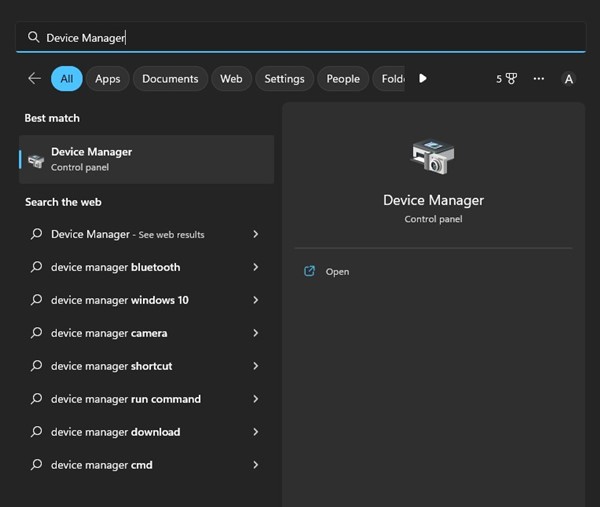
2. Expand Display Adapters.
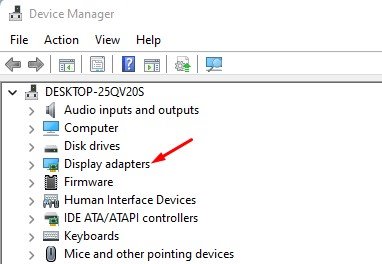
3. Right-click on your current graphics adapter and select Properties. On the Properties, click Update Driver. Or else, right-click on your graphics driver and select Update Driver.

5. On the “How do you want to search for drivers?” prompt, select ‘Search automatically for drivers’.
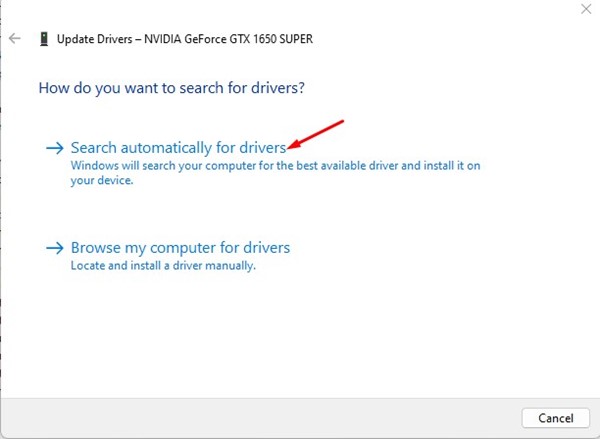
Windows 11 will automatically search for available graphics driver updates. If an update is available, it will be downloaded and installed automatically.
3. Roll back your Graphics Drivers
If updating the driver doesn’t help or brings more problems, you should roll back your graphics card’s driver.
1. Open the Device Manager app.
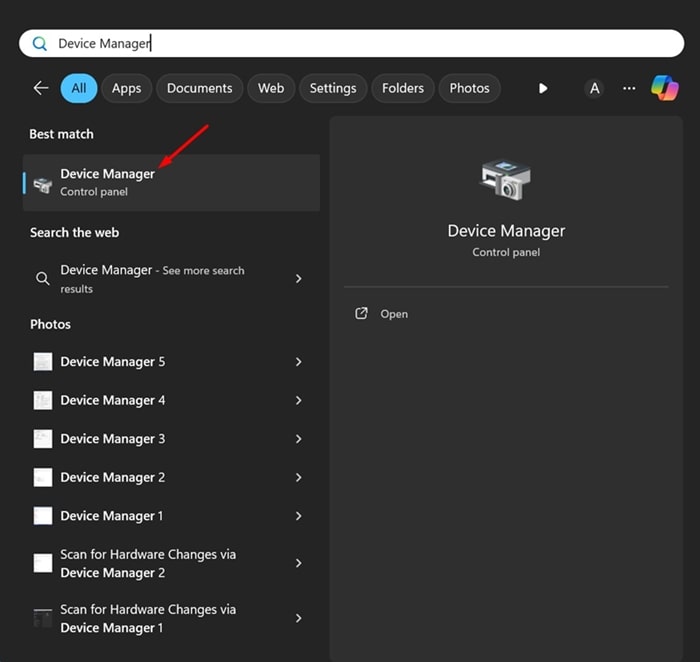
2. Expand the Display Adaptors.
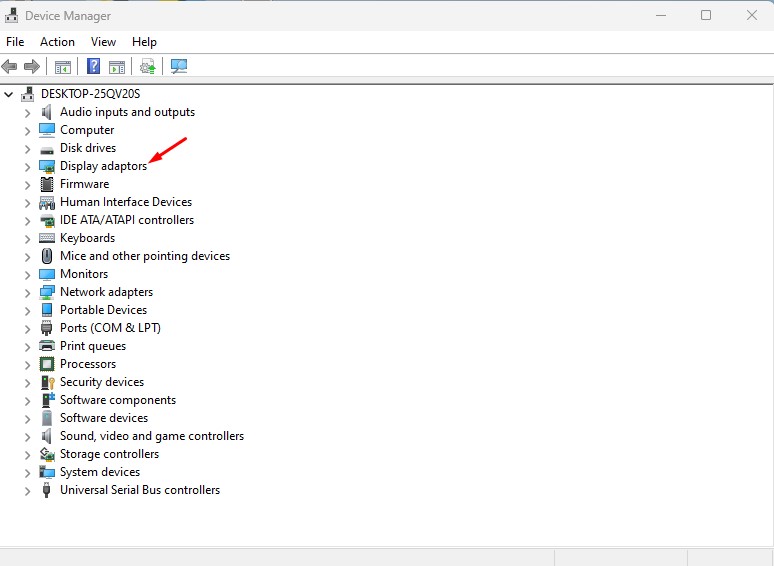
3. Right-click on your current graphics adapter and select Properties.
4. Click Roll Back Driver (If available)
5. You must follow the on-screen instructions to complete the driver rollback process.
4. Make Changes to your PC’s Power Settings
You can modify the Power Plan settings to prevent your Screen from going black after a few seconds.
1. Open Control Panel from the Windows Search.
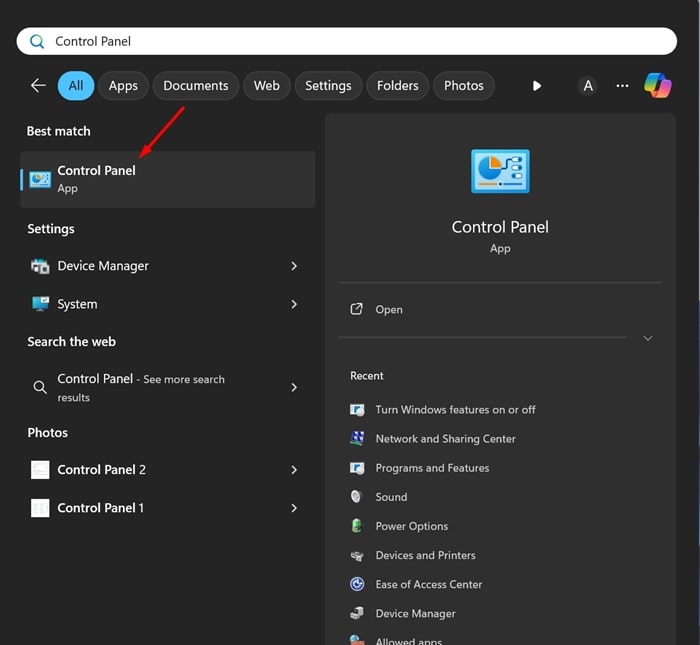
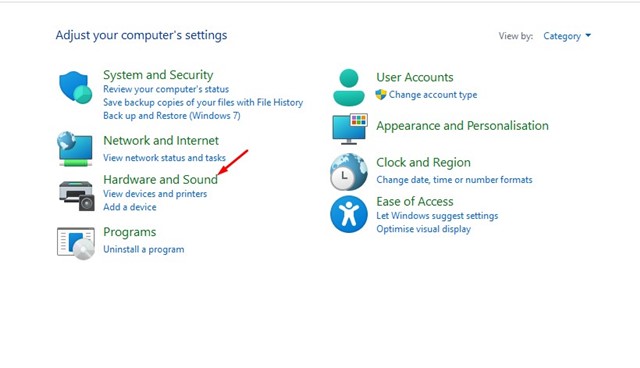
2. Select Hardware and Sound.
3. Click Power Options.
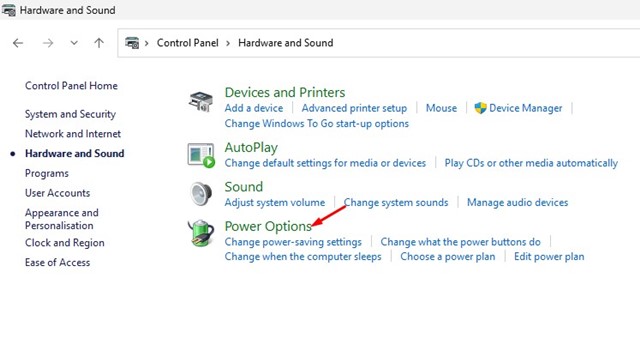
4. Select Change Plan Settings beside your selected Power Plan.
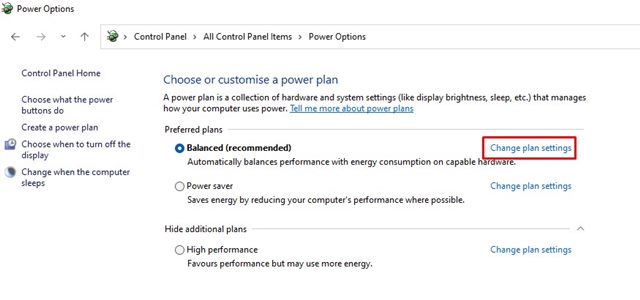
5. Select Never for both On Battery and Plugged in on Turn off the Display and Put the computer to sleep.
6. After making the change, click Save Changes.
5. Perform a Clean Boot
Performing a clean boot will help you fix the Screen Goes Black problem by eliminating third-party app conflicts. So, you should perform a clean boot as well.
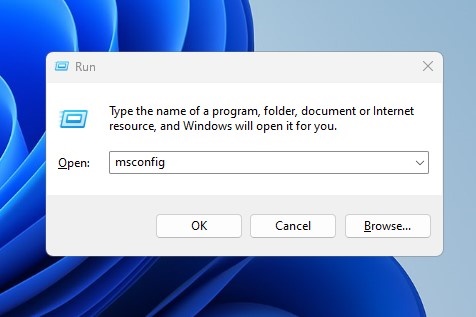
1. Press the Windows Key + R button on your keyboard. This will open the RUN dialog box. In the RUN dialog box, type msconfig and press Enter.
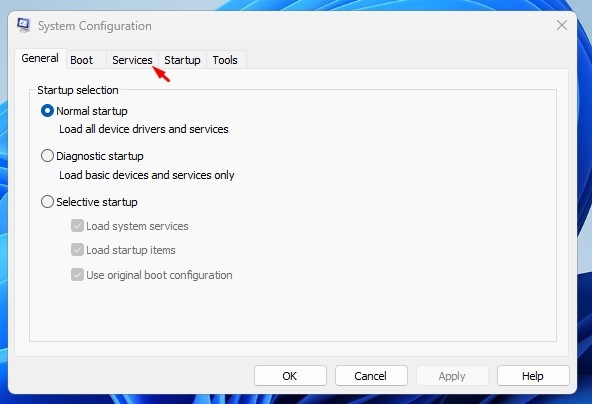
2. On the System Configuration utility, switch to Services.
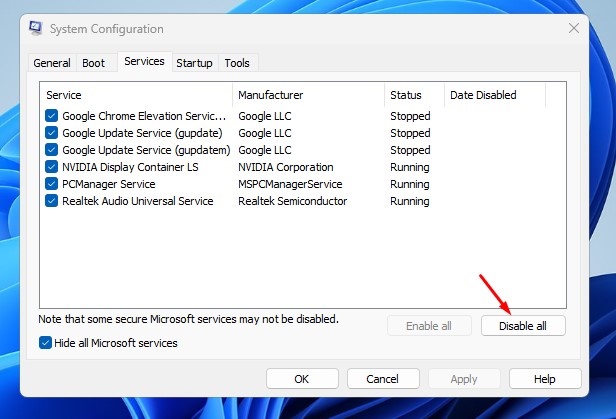
3. Check ‘Hide All Microsoft Services’ and click Disable All.
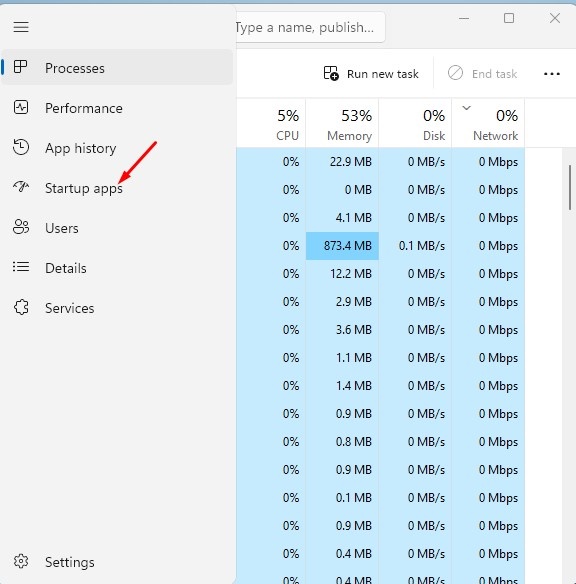
4. Open Task Manager and switch to the Startup tab.
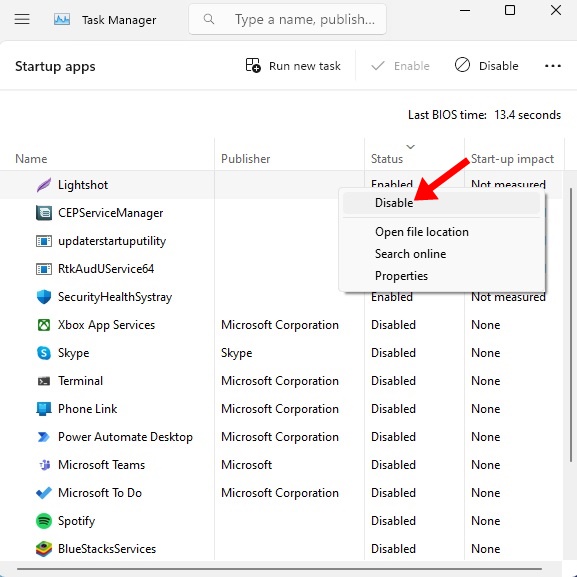
5. Right-click on the Startup problems that are enabled and select Disable.
6. Click Apply on the System Configuration utility and close it.
Restart your Windows 11 Computer. This will boot your PC in a clean state without any third-party apps or services. Check whether the Screen still goes black after a second or a minute.
6. Disable the Overclocking
Overclocking the GPU or CPU improves system performance. Gamers often overclock their GPU and CPU frequencies to boost their gaming performance.
However, overclocking has its disadvantages, like system hangs, crashes, heating issues, and more. Your PC’s monitor may go black out of nowhere due to overclocking. It’s recommended to undo any overclocking and see if it helps.
7. Perform a System Restore
A System Restore will roll back your device settings to a previous date when everything was working fine.
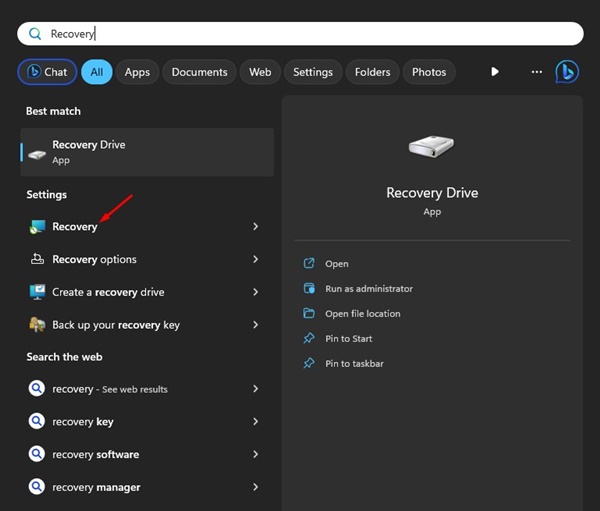
1. Open the Recovery app from the Windows Search.
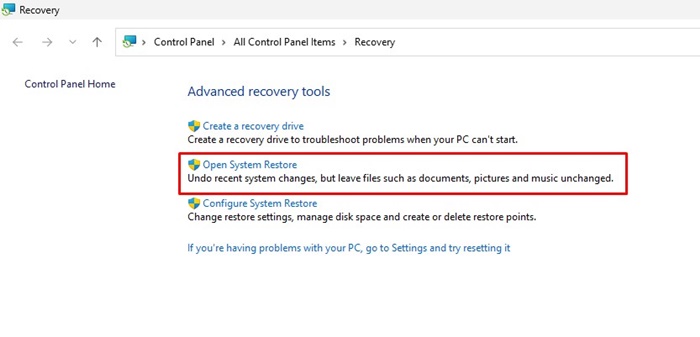
2. Click on Open System Restore.
3. Select Choose a different restore point.
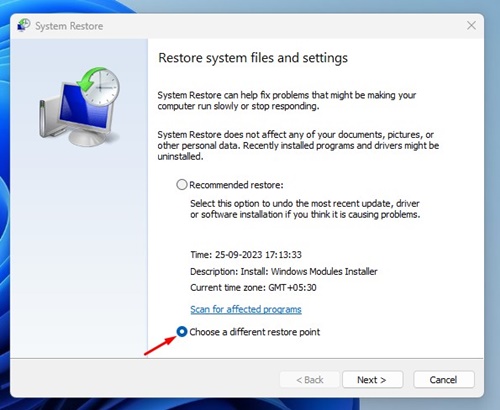
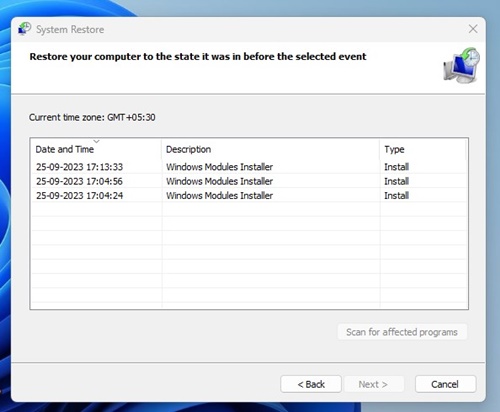
4. Select a Restore point created on a date when your PC is working fine and click Next.
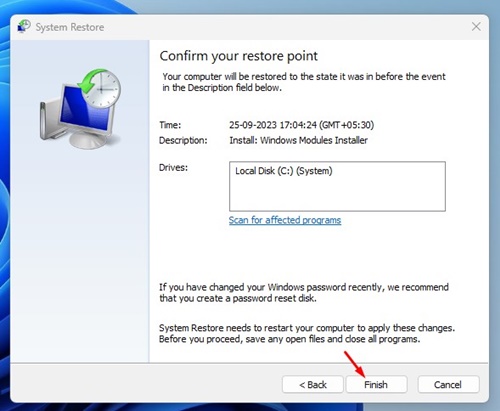
5. On the confirmation prompt, click Finish.
8. Rule out the SMPS Issues
SMPS or PSU issues are often known for triggering such problems. If you suspect that your PSU is making noise or has lots of dust, you can get it checked by a technician.
An SMPS issue can fail to provide a power supply to the Graphics Card or even your monitor, leading to frequent lags or the Screen going black for a second.
If nothing worked in your favor, you must rule out hardware issues. Pay special attention to the GPU, SMPS, and, of course, the monitor.
These are some of the best methods to fix the Screen Keeps Going Black for a second. If you’re still experiencing the problem, it’s recommended to contact Microsoft’s support team.
The post How to Fix Screen Goes Black For a Second on Windows appeared first on TechViral.
ethical hacking,hacking,bangla ethical hacking,bangla hacking tutorial,bangla tutorial,bangla hacking book,ethical hacking bangla,bangla,hacking apps,ethical hacking bangla tutorial,bangla hacking,bangla hacking pdf,bangla hacking video,bangla android hacking,bangla hacking tutorials,bangla fb hacking tutorial,bangla hacking book download,learn ethical hacking,hacking ebook,hacking tools,bangla ethical hacking course, tricks,hacking,ludo king tricks,whatsapp hacking trick 2019 tricks,wifi hacking tricks,hacking tricks: secret google tricks,simple hacking tricks,whatsapp hacking tricks,tips and tricks,wifi tricks,tech tricks,redmi tricks,hacking trick paytm cash,hacking trick helo app,hacking trick of helo app,paytm cash hacking trick,wifi password hacking,paytm cash hacking trick malayalam,hacker tricks, tips and tricks,pubg mobile tips and tricks,tricks,tips,tips and tricks for pubg mobile,100 tips and tricks,pubg tips and tricks,excel tips and tricks,google tips and tricks,kitchen tips and tricks,season 2 tips and tricks,android tips and tricks,fortnite tips and tricks,godnixon tips and tricks,free fire tips and tricks,advanced tips and tricks,whatsapp tips and tricks, facebook tricks,facebook,facebook hidden tricks,facebook tips and tricks,facebook latest tricks,facebook tips,facebook new tricks,facebook messenger tricks,facebook android app tricks,fb tricks,facebook app tricks,facebook tricks and tips,facebook tricks in hindi,tricks,facebook tutorial,new facebook tricks,cool facebook tricks,facebook tricks 2016,facebook tricks 2017,facebook secret tricks,facebook new tricks 2020,blogger blogspot seo tips and tricks,blogger tricks,blogger,blogger seo tips,blogger seo tips and tricks,seo for blogger,blogger seo in hindi,blogger seo best tips for increasing visitors,blogging tips and tricks,blogger blog seo,blogger seo in urdu,adsense approval trick,blogging tips and tricks for beginners,blogging tricks,blogger tutorial,blogger tricks 2016,blogger tricks 2017 bangla,tricks,bangla tutorial,bangla magic,bangla motivational video,bangla tricks,bangla tips,all bangla tips,magic tricks,akash bangla tricks,top 10 bangla tricks,tips and tricks,all bangla trick,bangla computer tricks,computer bangla tricks,bangla magic card tricks,ms word bangla tips and tricks,bangla computer tips,trick,psychology tricks,youtube bangla,magic tricks bangla,si trick Credit techviral


