
5 Best Ways to Fix Hard Drive Problems on Windows 11
It’s normal for Windows 11 users to encounter hard drive-related problems. However, provided the problem is not hardware-related, it can be fixed quickly by following these methods.
1. Run the Disk Error Checking Utility
The Disk error-checking utility checks the drive for file system errors. Here’s how you can run it.
1. Open File Explorer on your Windows 11 PC.
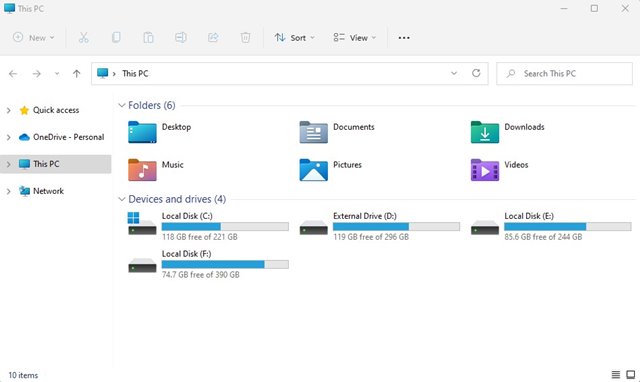
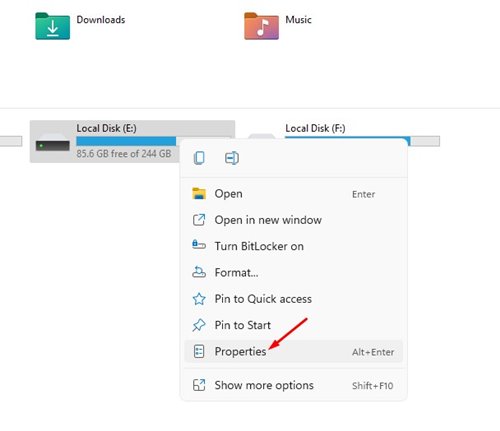
2. Right-click on the drive where you are experiencing a problem and select Properties.
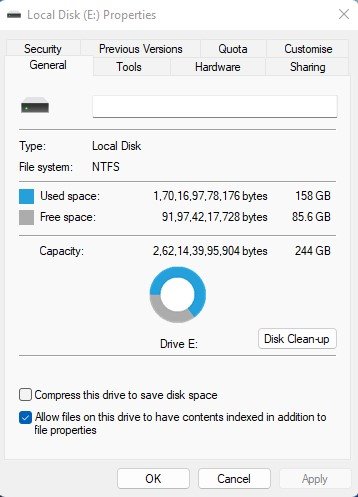
3. Switch to the Tools.
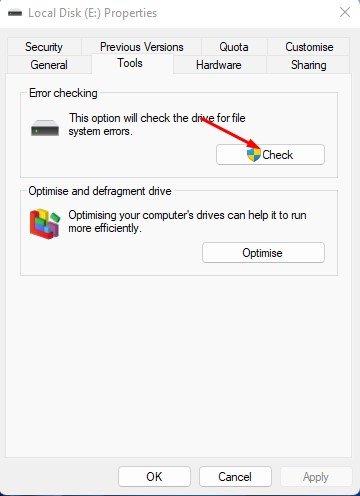
4. Click on the Check in the Error-checking section.
5. Click on the Scan drive.
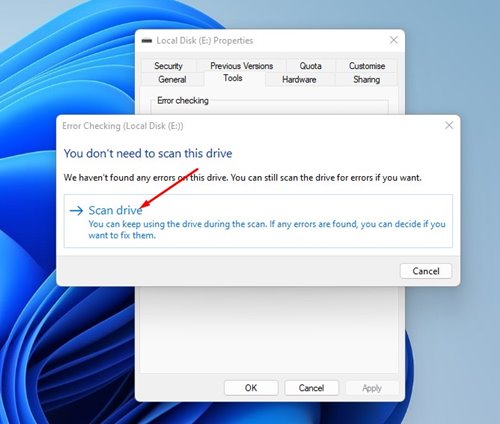
The disk checking utility of Windows 11 will run and check the drive for file system errors. If it finds any problem, it will resolve it automatically.
2. Run the Check Disk (chkdsk) utility via Command Prompt
We will run the Windows 11 Check Disk utility via Command Prompt to find and fix hard drive errors.
1. Click the Windows 11 search and type in Command Prompt. Right-click on the Command Prompt and select Run as Administrator.
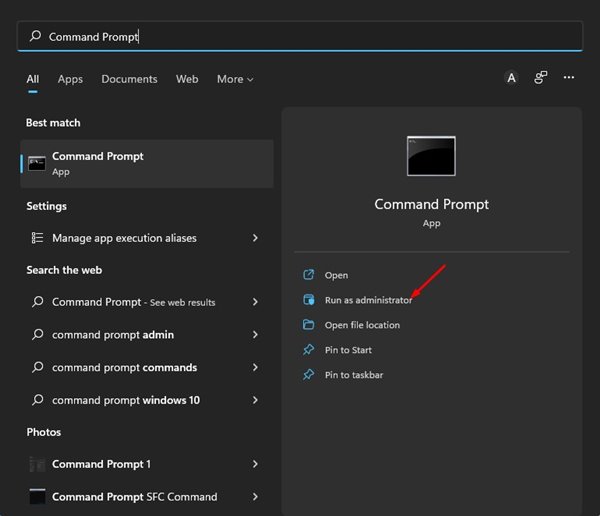
2. Execute the command:
chkdsk /f c:
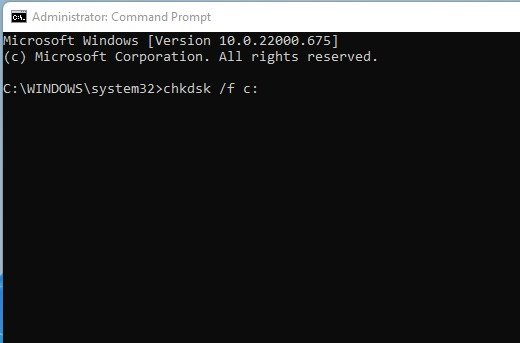
Important: replace c: with the drive letter you want to scan.
3. If you wish to fix bad sectors on the hard drive, you need to execute this command:
chkdsk /r c:
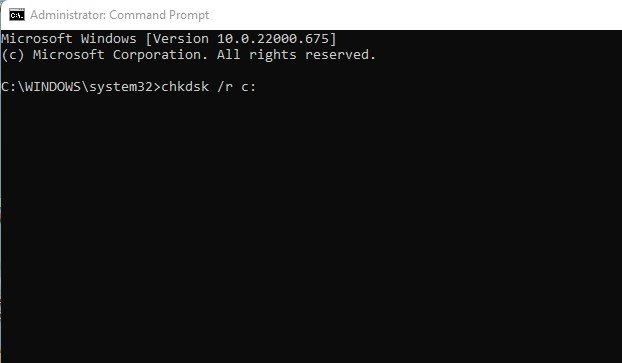
Make sure to replace c: with the drive letter you want to scan.
The command prompt will run the chkdsk scan to fix hard drive problems on your PC. If it finds any bad sectors, you might be prompted to schedule a scan during the next restart. Schedule the scan to resolve all sorts of hard drive problems on Windows 11.
3. Fix Hard Drive Errors on Windows 11 using PowerShell
PowerShell is another utility you can use to find and fix hard drive problems.
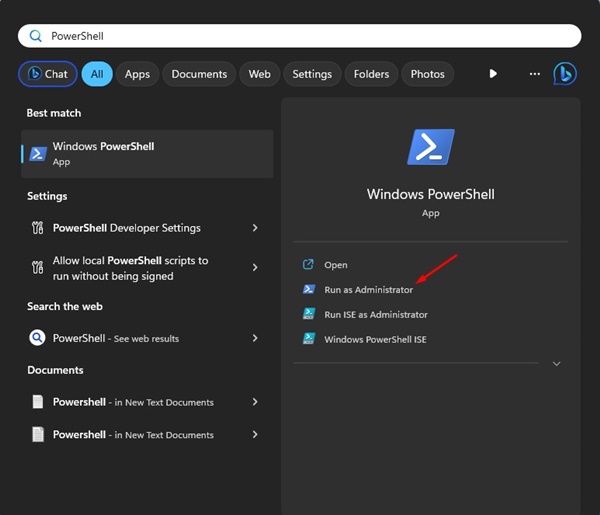
1. Click on the Windows 11 search and type in PowerShell. Right-click on the PowerShell and select Run as Administrator.
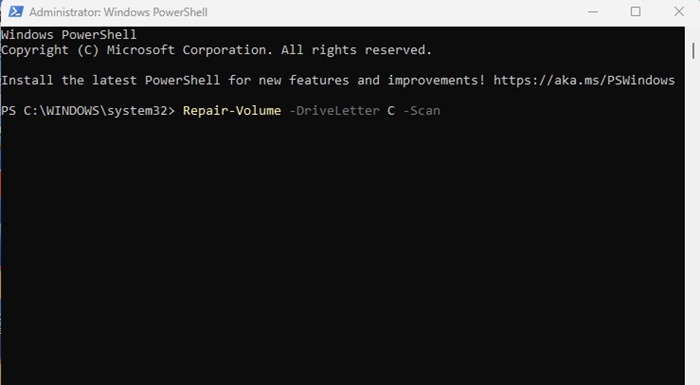
2. Type the command and press Enter.
Repair-Volume -DriveLetter C -Scan
Important: Replace ‘C’ with the letter of the drive you want to scan
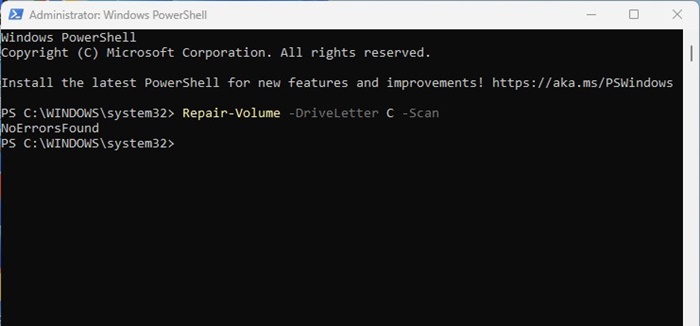
3. If the drive has no issues, you will see the NoErrorsFound message.
4. Type in this command and press Enter.
Repair-Volume -DriveLetter C -SpotFix
Important: Replace ‘C’ with the letter of the drive you want to scan
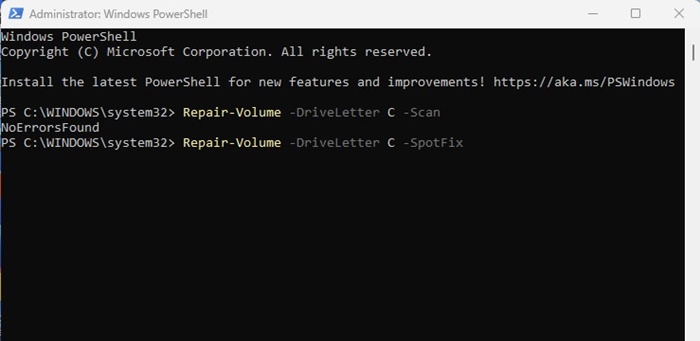
After executing the commands, close the PowerShell utility and restart your Windows 11 computer. This should fix hard drive issues.
4. Defragment the Hard Disk
The Optimize Drives tool defragments your hard disk drive and resolves various drive-related problems.
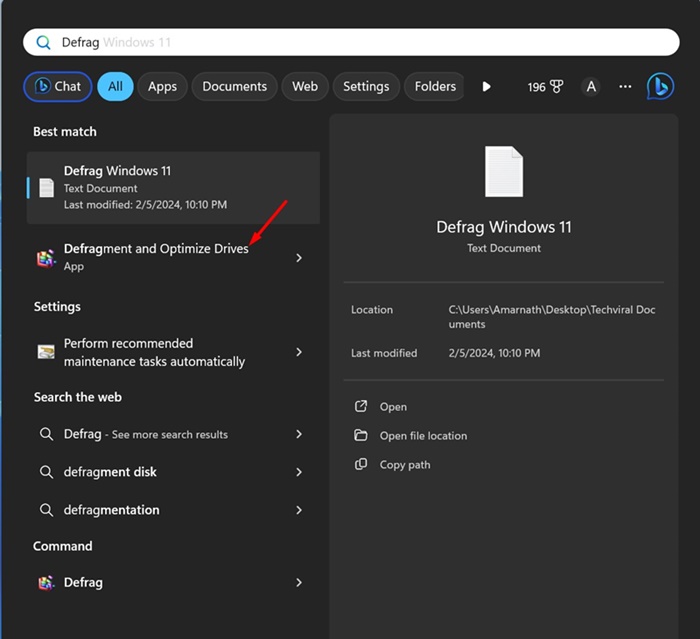
1. Type Defrag in the Windows 11 search. Next, open the Defragment and Optimize Drives app.
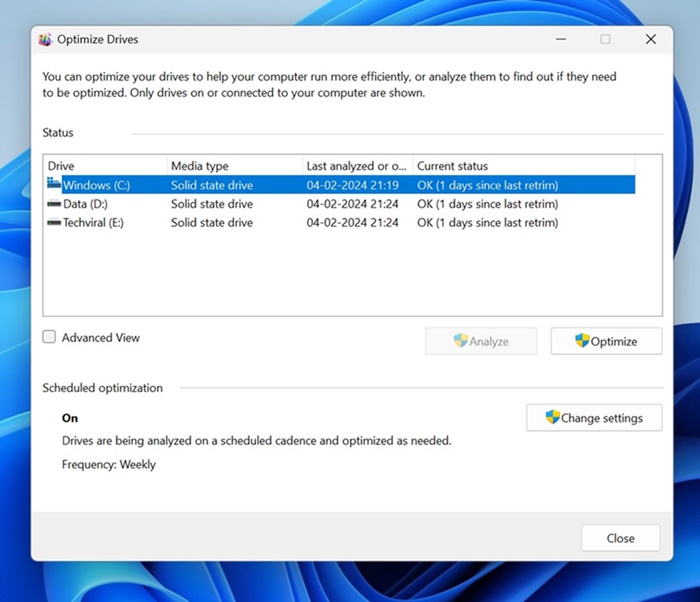
2. Select the hard disk drive you want to trim down.
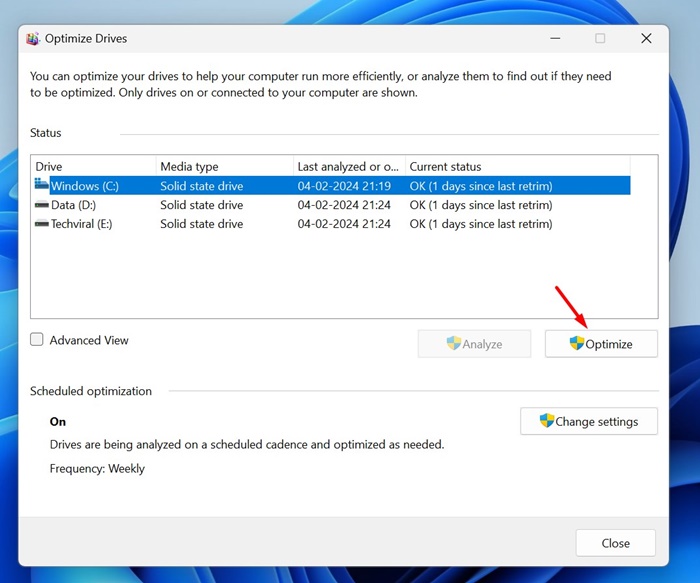
3. Click the Optimize button to defrag the drive.
5. Other ways to check & repair hard disk errors
If your Windows 11 hard disk still has problems, it’s best to use a third-party error-checking utility. Many third-party tools on the web utilize the Check Disk utility in Windows 11 to find and fix various hard drive-related problems.
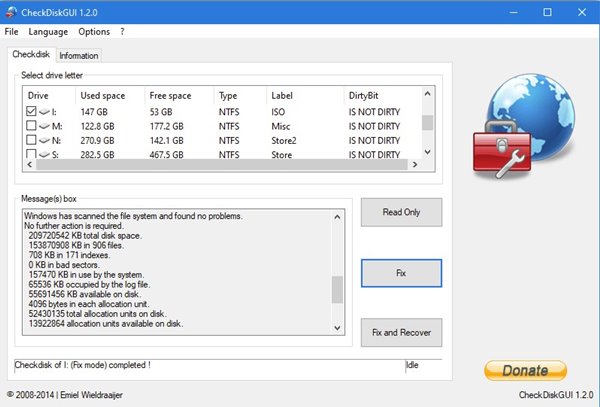
Hence, you can use tools to check & repair hard disk errors to get your hard drive problem fixed. However, download the tools from trusted sources and uncheck the bundled apps during installation.
These are the best ways to scan and fix hard drive problems in Windows 11. If your hard drive has a hardware problem, you might need it replaced. Or, if it’s in the warranty period, you will have to take it to the local service center to get it fixed or replaced.
The post 5 Best Ways to Fix Hard Drive Problems on Windows 11 appeared first on TechViral.
ethical hacking,hacking,bangla ethical hacking,bangla hacking tutorial,bangla tutorial,bangla hacking book,ethical hacking bangla,bangla,hacking apps,ethical hacking bangla tutorial,bangla hacking,bangla hacking pdf,bangla hacking video,bangla android hacking,bangla hacking tutorials,bangla fb hacking tutorial,bangla hacking book download,learn ethical hacking,hacking ebook,hacking tools,bangla ethical hacking course, tricks,hacking,ludo king tricks,whatsapp hacking trick 2019 tricks,wifi hacking tricks,hacking tricks: secret google tricks,simple hacking tricks,whatsapp hacking tricks,tips and tricks,wifi tricks,tech tricks,redmi tricks,hacking trick paytm cash,hacking trick helo app,hacking trick of helo app,paytm cash hacking trick,wifi password hacking,paytm cash hacking trick malayalam,hacker tricks, tips and tricks,pubg mobile tips and tricks,tricks,tips,tips and tricks for pubg mobile,100 tips and tricks,pubg tips and tricks,excel tips and tricks,google tips and tricks,kitchen tips and tricks,season 2 tips and tricks,android tips and tricks,fortnite tips and tricks,godnixon tips and tricks,free fire tips and tricks,advanced tips and tricks,whatsapp tips and tricks, facebook tricks,facebook,facebook hidden tricks,facebook tips and tricks,facebook latest tricks,facebook tips,facebook new tricks,facebook messenger tricks,facebook android app tricks,fb tricks,facebook app tricks,facebook tricks and tips,facebook tricks in hindi,tricks,facebook tutorial,new facebook tricks,cool facebook tricks,facebook tricks 2016,facebook tricks 2017,facebook secret tricks,facebook new tricks 2020,blogger blogspot seo tips and tricks,blogger tricks,blogger,blogger seo tips,blogger seo tips and tricks,seo for blogger,blogger seo in hindi,blogger seo best tips for increasing visitors,blogging tips and tricks,blogger blog seo,blogger seo in urdu,adsense approval trick,blogging tips and tricks for beginners,blogging tricks,blogger tutorial,blogger tricks 2016,blogger tricks 2017 bangla,tricks,bangla tutorial,bangla magic,bangla motivational video,bangla tricks,bangla tips,all bangla tips,magic tricks,akash bangla tricks,top 10 bangla tricks,tips and tricks,all bangla trick,bangla computer tricks,computer bangla tricks,bangla magic card tricks,ms word bangla tips and tricks,bangla computer tips,trick,psychology tricks,youtube bangla,magic tricks bangla,si trick Credit techviral


