
How to Run Apps as Administrator on Windows 11
Certain tasks or programs on Windows need to run as an administrator. For example, you can’t modify the system files without launching the Command Prompt in administrator mode. Here are various ways to run apps as administrator on Windows 11.
1. Launch an App As Administrator from the Desktop
Installing an app on Windows 11 automatically creates a desktop shortcut for quicker access.
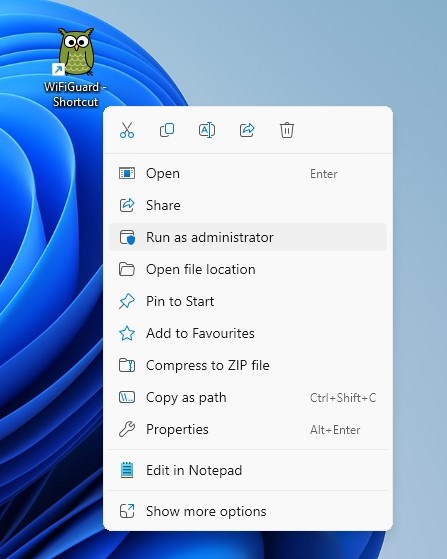
If the app’s shortcut is placed on your desktop, you can right-click it and select ‘Run as administrator’.
A User Account Control (UAC) prompt will appear; click Yes. This will immediately launch the app with admin rights.
2. Launch an App as Admin from Windows Search
You can easily access all programs installed on your PC via Windows Search and run them with admin rights directly from there.
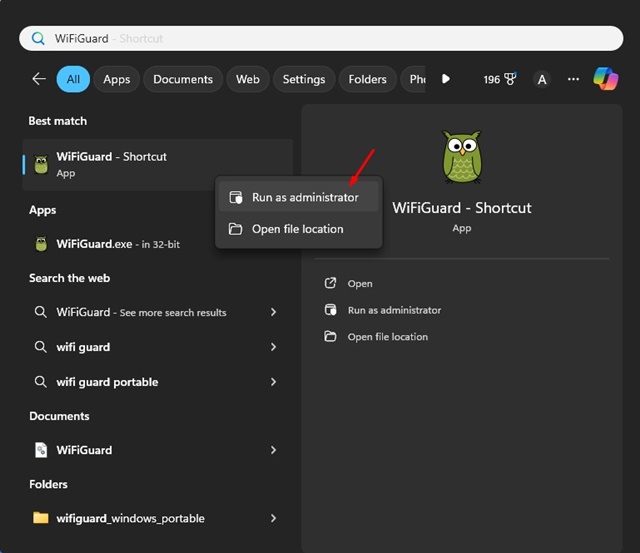
To run an app as an admin on Windows 11, open Windows Search and type the app’s name. When the app appears in the search results, right-click and select Run as administrator.
Similarly, if an app shortcut is placed on the Start Menu, you can right-click on the shortcut and select Run as administrator.
Selecting Run as administrator in Windows Search or the Start Menu opens the User Account Control (UAC) prompt; select Yes.
3. Run App As Admin from the Task Manager
On Windows 11, you can use Task Manager to run programs as an administrator.
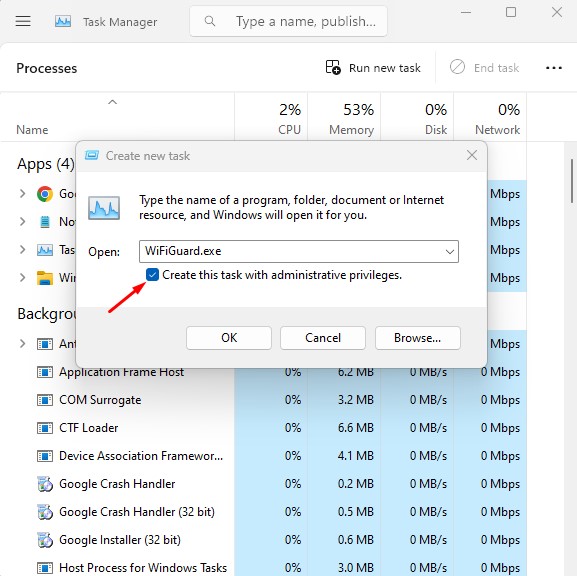
1. Open the Task Manager app.
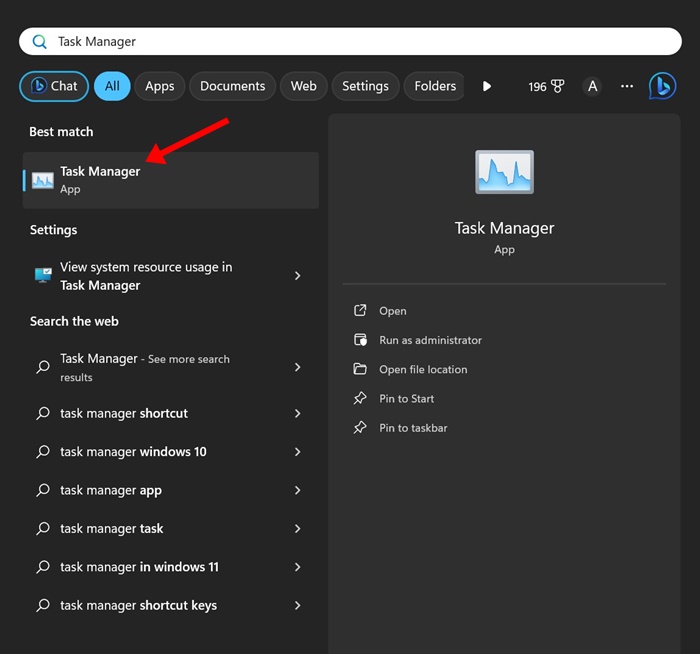
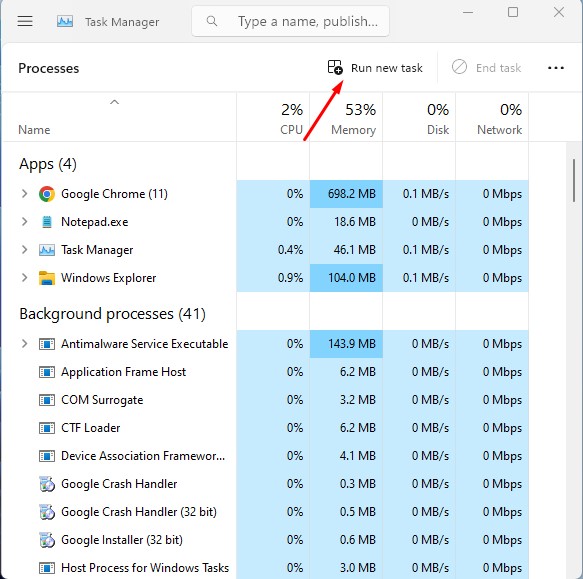
2. Click on Run new task.
3. On the Create New Task dialog box, enter the app’s executable name.
4. Check the ‘Create this task with administrative privileges’ option and click OK.
4. How to Always Run an app with administrator rights
You can force an app to always launch with admin rights. Here’s how to do it.
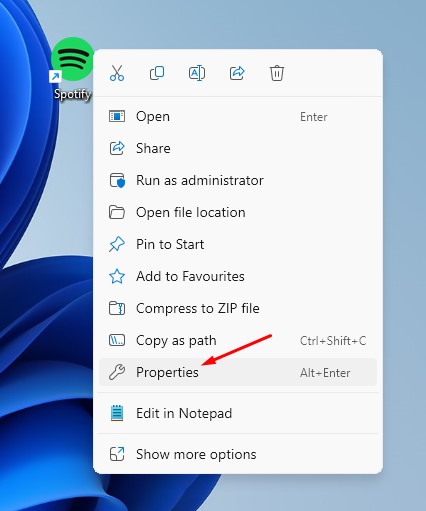
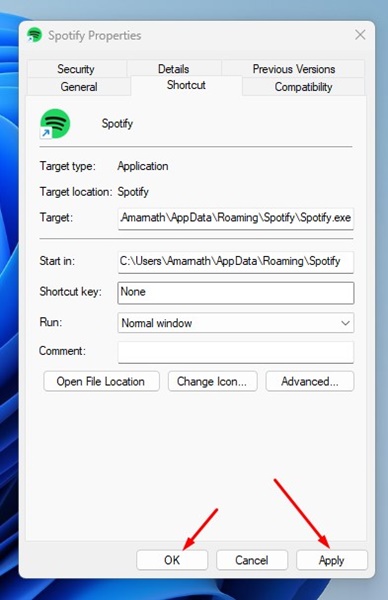
1. Right-click on the App Shortcut on your desktop and select Properties.
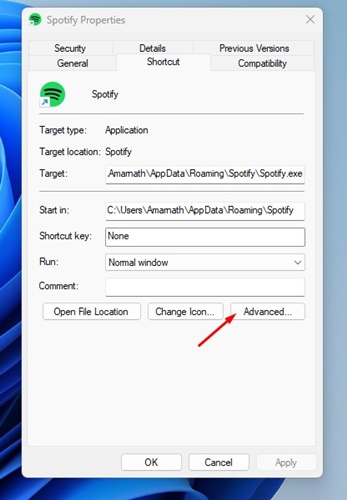
2. Switch to the Shortcut tab.
3. Click the Advanced button at the bottom right corner.
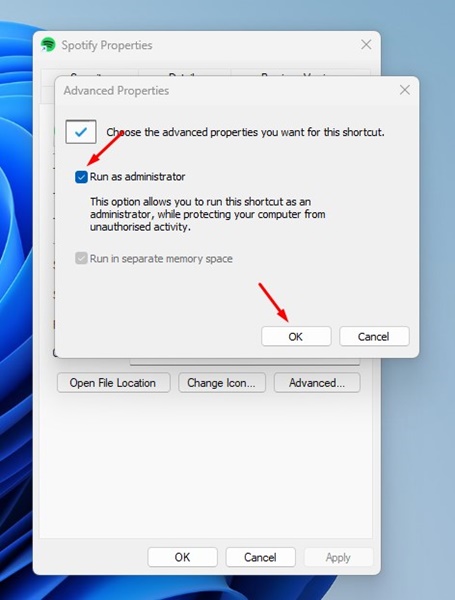
4. Check the Run as administrator and click OK.
5. Click on Apply, then OK.
How to Check If an App Is Running as an Administrator?
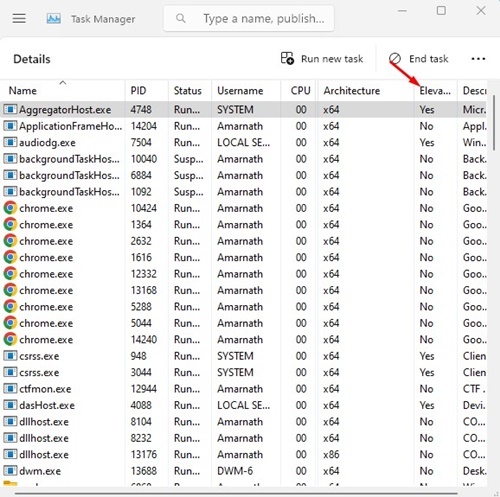
You can confirm whether an app runs as an administrator via Task Manager.
1. Open the Task Manager app.
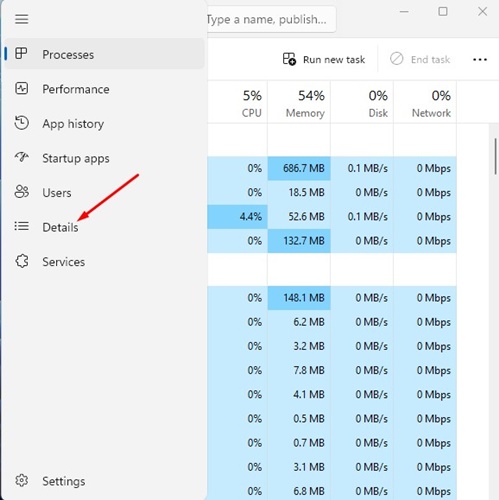
2. Switch to the Details.
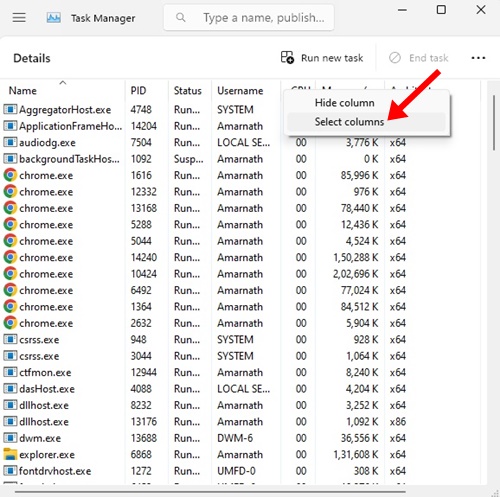
3. Right-click on any column and select Select Columns.
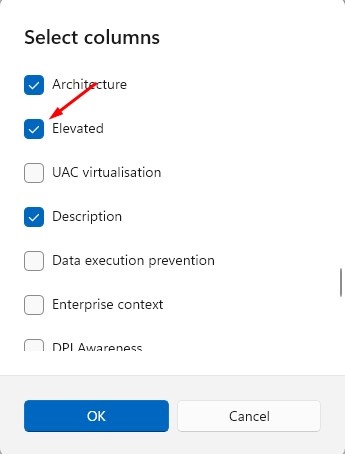
4. Check the Elevated and click OK.
5. On the Elevated Column, you can see which apps are running as an administrator.
This guide explains how to run an app as an administrator on Windows 11. If you need more help on this topic, please let us know in the comments.
The post How to Run Apps as Administrator on Windows 11 appeared first on TechViral.
ethical hacking,hacking,bangla ethical hacking,bangla hacking tutorial,bangla tutorial,bangla hacking book,ethical hacking bangla,bangla,hacking apps,ethical hacking bangla tutorial,bangla hacking,bangla hacking pdf,bangla hacking video,bangla android hacking,bangla hacking tutorials,bangla fb hacking tutorial,bangla hacking book download,learn ethical hacking,hacking ebook,hacking tools,bangla ethical hacking course, tricks,hacking,ludo king tricks,whatsapp hacking trick 2019 tricks,wifi hacking tricks,hacking tricks: secret google tricks,simple hacking tricks,whatsapp hacking tricks,tips and tricks,wifi tricks,tech tricks,redmi tricks,hacking trick paytm cash,hacking trick helo app,hacking trick of helo app,paytm cash hacking trick,wifi password hacking,paytm cash hacking trick malayalam,hacker tricks, tips and tricks,pubg mobile tips and tricks,tricks,tips,tips and tricks for pubg mobile,100 tips and tricks,pubg tips and tricks,excel tips and tricks,google tips and tricks,kitchen tips and tricks,season 2 tips and tricks,android tips and tricks,fortnite tips and tricks,godnixon tips and tricks,free fire tips and tricks,advanced tips and tricks,whatsapp tips and tricks, facebook tricks,facebook,facebook hidden tricks,facebook tips and tricks,facebook latest tricks,facebook tips,facebook new tricks,facebook messenger tricks,facebook android app tricks,fb tricks,facebook app tricks,facebook tricks and tips,facebook tricks in hindi,tricks,facebook tutorial,new facebook tricks,cool facebook tricks,facebook tricks 2016,facebook tricks 2017,facebook secret tricks,facebook new tricks 2020,blogger blogspot seo tips and tricks,blogger tricks,blogger,blogger seo tips,blogger seo tips and tricks,seo for blogger,blogger seo in hindi,blogger seo best tips for increasing visitors,blogging tips and tricks,blogger blog seo,blogger seo in urdu,adsense approval trick,blogging tips and tricks for beginners,blogging tricks,blogger tutorial,blogger tricks 2016,blogger tricks 2017 bangla,tricks,bangla tutorial,bangla magic,bangla motivational video,bangla tricks,bangla tips,all bangla tips,magic tricks,akash bangla tricks,top 10 bangla tricks,tips and tricks,all bangla trick,bangla computer tricks,computer bangla tricks,bangla magic card tricks,ms word bangla tips and tricks,bangla computer tips,trick,psychology tricks,youtube bangla,magic tricks bangla,si trick Credit techviral


