
How to Fix File Explorer NTDLL.dll crashing in Windows
The File Explorer NTDLL.dll crash in Windows appears due to various reasons, such as compatibility issues, bugs in the operating system, corrupted system files, etc. Whatever the reason is, here’s how you can fix the problem.
1. Restart your PC
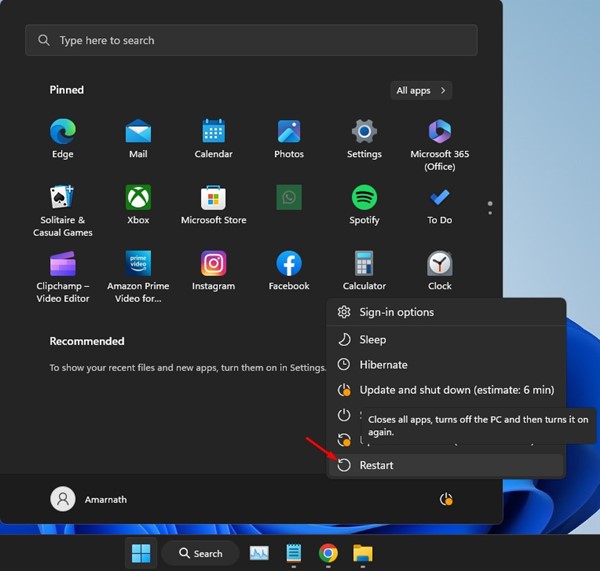
A simple restart will terminate all background apps, processes, and services, which may fix the problem. To restart your Windows PC, click the Windows Start button and then the Power options. Under Power Options, select ‘Restart.’
After the restart, start using your PC normally; you won’t encounter the File Explorer NTDLL.dll error if it appears due to background apps or processes.
2. Restart the Windows Explorer
Many Windows users on the Microsoft Forum claimed to resolve the File Explorer NTDLL.dll error message by restarting the Windows Explorer process from the Task Manager.
1. Type Task Manager in Windows Search and open it.
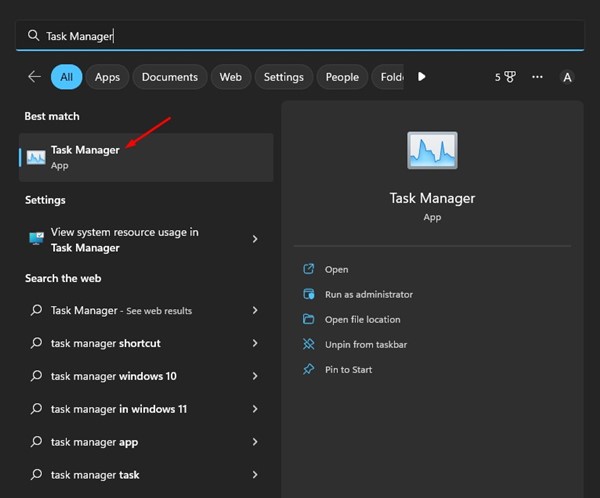
2. Switch to the Processes tab.
3. Find the Windows Explorer process, right-click on it, and select Restart. Or else, select Windows Explorer and Restart Task at the top-right corner.
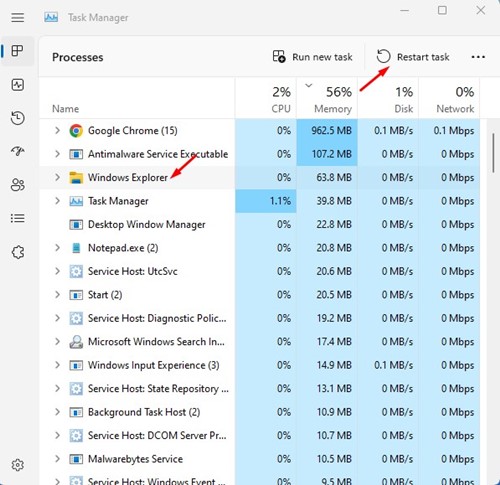
Your display will go black for a second. This confirms that File Explorer has been restarted on Windows.
3. Update Your Graphics Drivers
Outdated graphics drivers often cause File Explorer ntdll.dll crash errors. You can update your graphics drivers to resolve this issue.
1. Open Device Manager from the Windows Search.
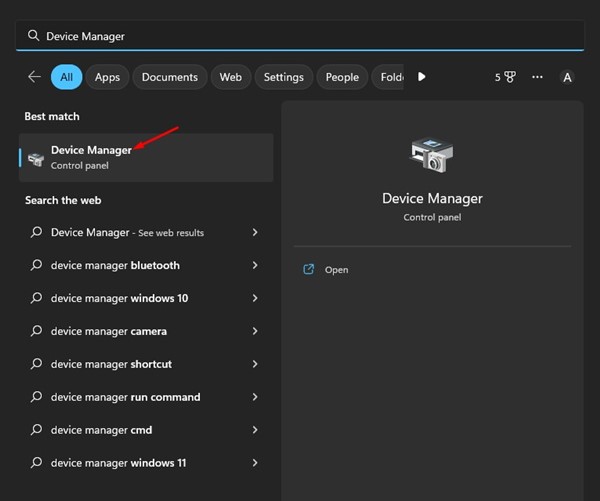
2. Expand Display Adapters.
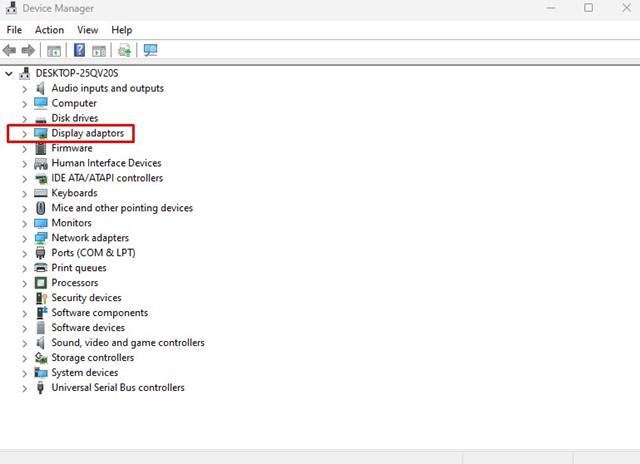
3. Right-click on your graphics adapter and select Update driver.
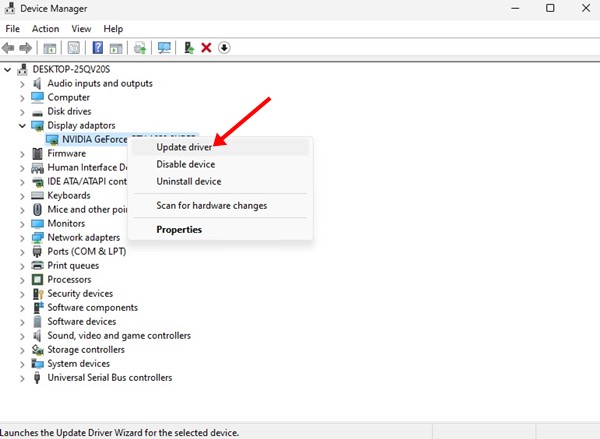
4. Select Search automatically for the drivers.
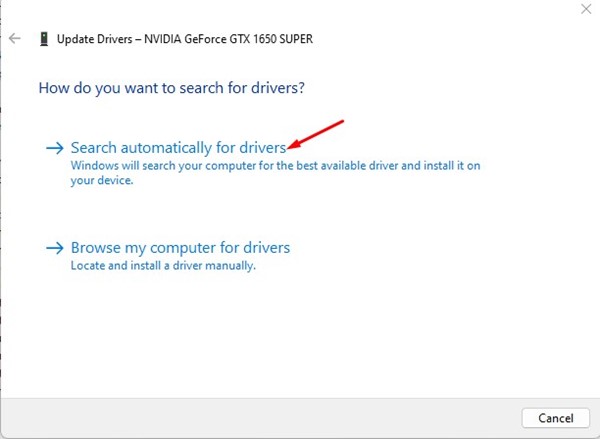
Follow the on-screen instructions to complete the driver update process.
4. Reinstall the Display Adapters
Reinstalling the display adapters has helped many Windows 11 users fix the ntdll.dll File Explorer crash. You can try doing it as well.
1. Open the Device Manager on your Windows 11 PC.
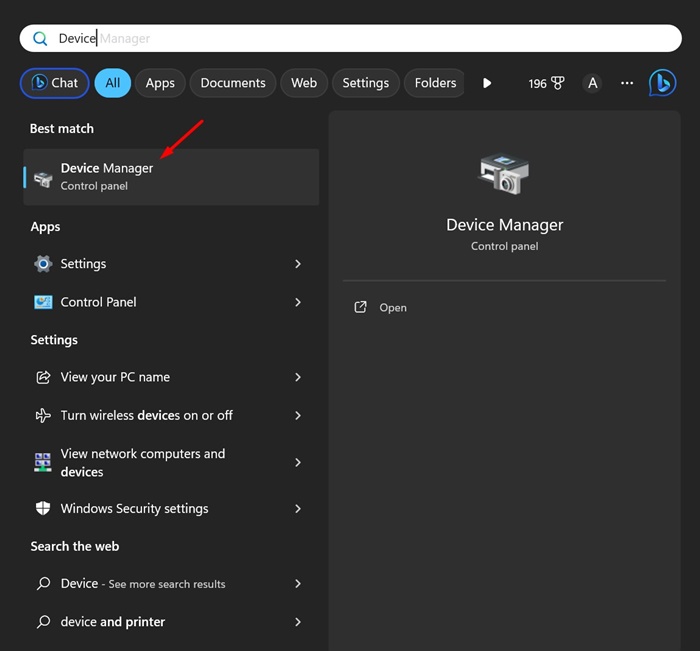
2. Expand the Display Adapters tree.
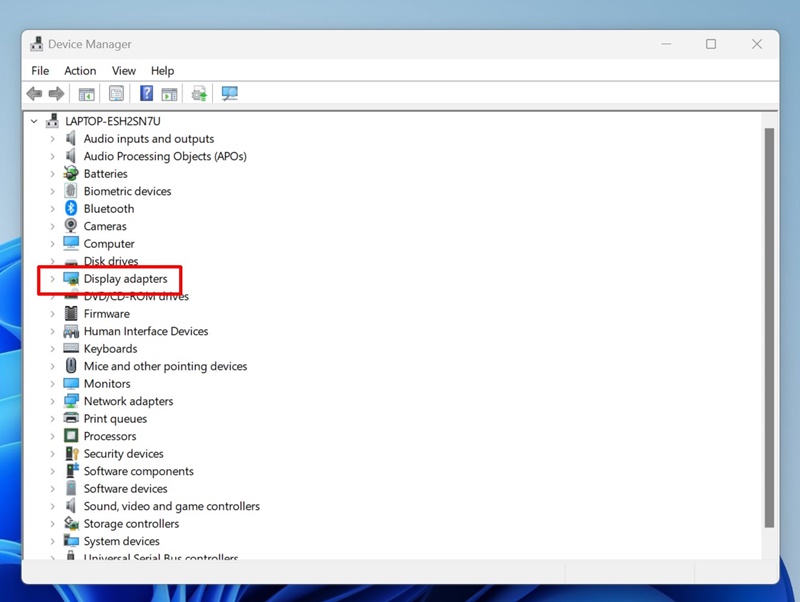
3. Right-click on your current display adapter and select Properties.
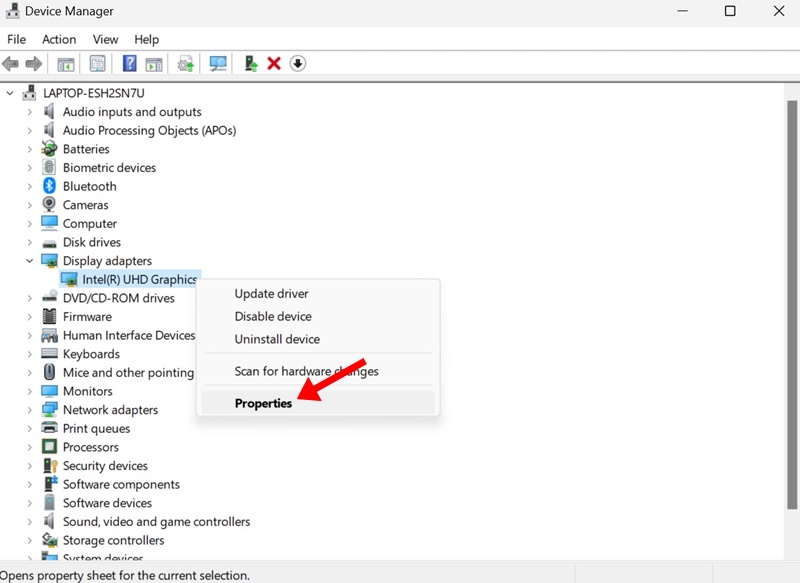
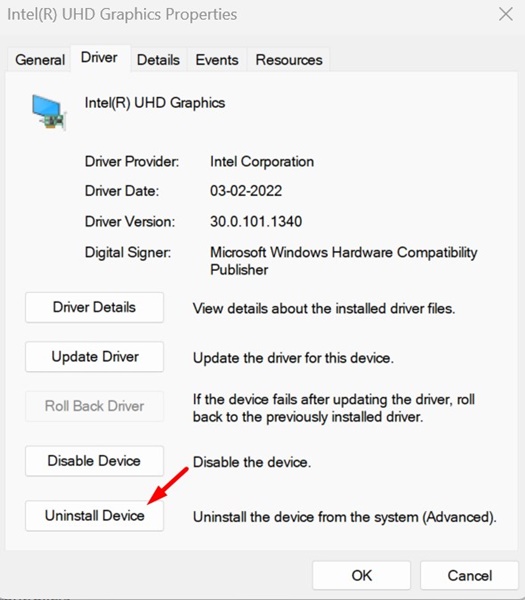
4. Select Uninstall device.
5. On the confirmation prompt, select Uninstall.
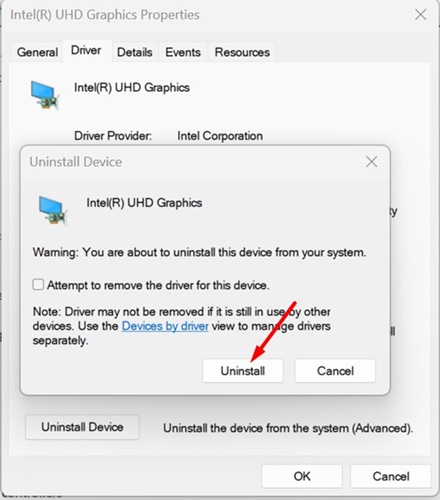
Make sure to restart your PC to reinstall the display driver.
5. Run the System Maintenance Troubleshooter
Next, you should run the System Maintenance troubleshooter.
1. Click on Windows Search and type in System Maintenance. Then, from the list of apps that appears, select Perform recommended maintenance automatically.
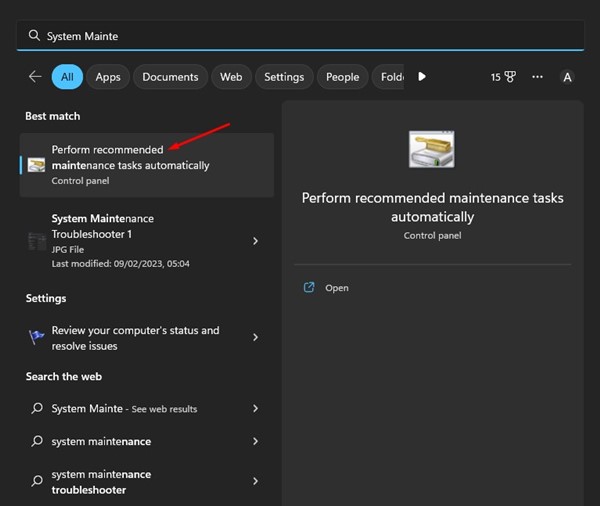
2. This will open the System Maintenance troubleshooter. Click Next.
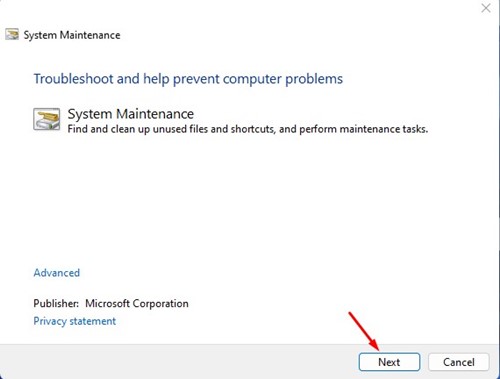
3. The System Maintenance troubleshooter will run and find the problem. You can also try running this troubleshooter as an administrator.
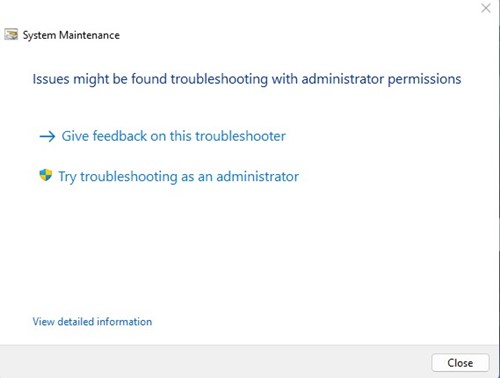
Follow the on-screen instructions to complete the system maintenance troubleshooting process. Once you have done so, restart your Windows PC.
6. Clear the File Explorer History
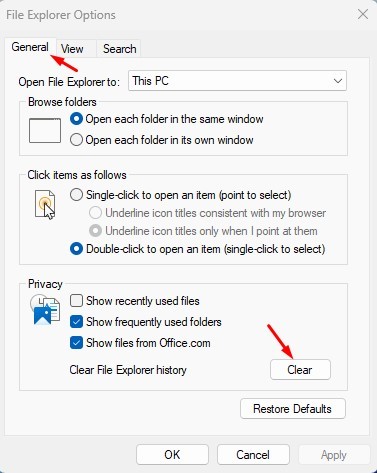
If the File Explorer history is corrupted, you will encounter the ntdll.dll error. To fix it, you will have to clear the File Explorer history.
1. Click on the Windows Search and type in File Explorer Options.
2. Open the File Explorer options from the list of matching results.
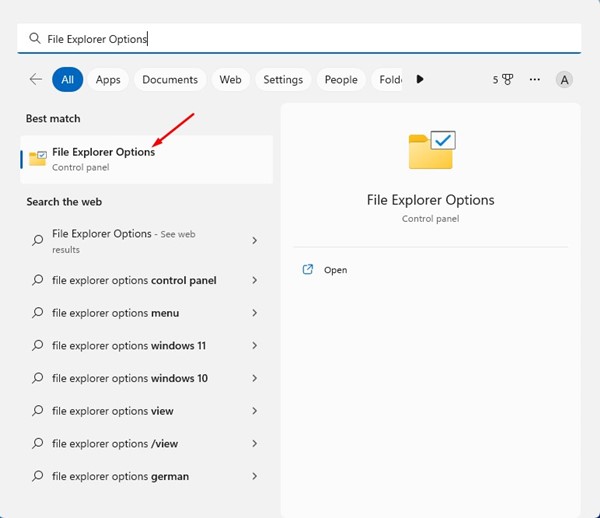
3. Switch to the General tab.
4. Tap on the Clear button. Click OK to close the File Explorer options.
7. Perform a Clean Boot
A clean boot means disabling all third-party software at startup. When your PC restarts, it will only run Microsoft’s services, which are important for its proper functioning.
1. Click on Windows Search and type in msconfig. Open the System Configuration app from the list.
2. In System Configuration, switch to Services.
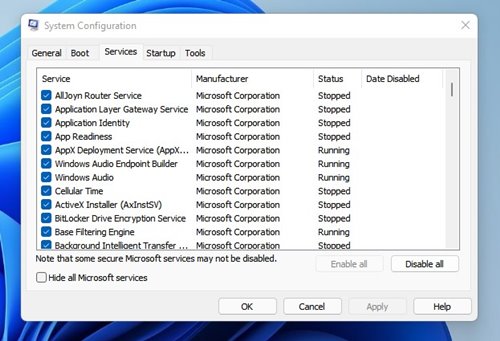
3. Check Hide all Microsoft services.
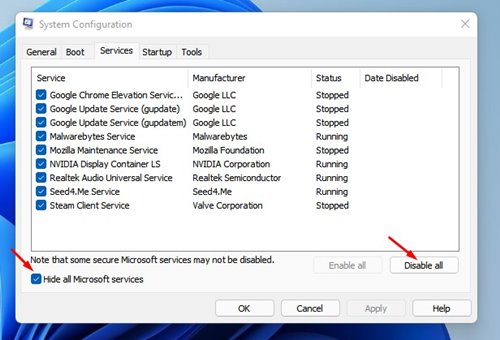
4. Once you’ve completed the steps, click the Disable All button at the bottom right corner. After applying the changes, close the System Configuration.
Restart your Windows computer. This should fix the File Explorer NTDll.dll crashing issue on Windows.
8. Run the SFC Command
You also need to rule out the possibility of system file corruption by running the SFC command.
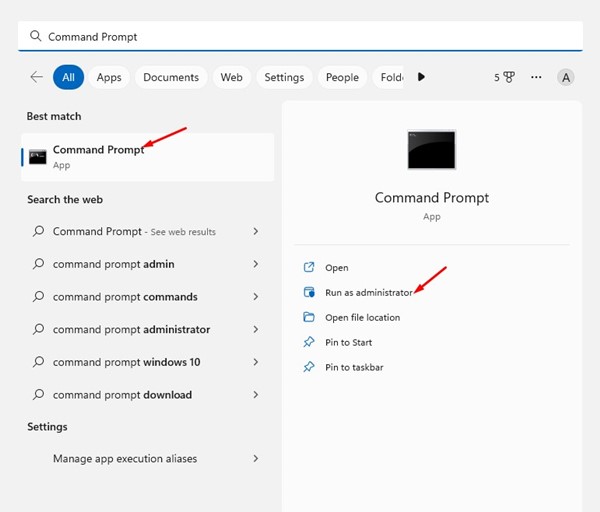
1. Open Command Prompt with admin rights.
2. Execute the given command:
sfc /scannow
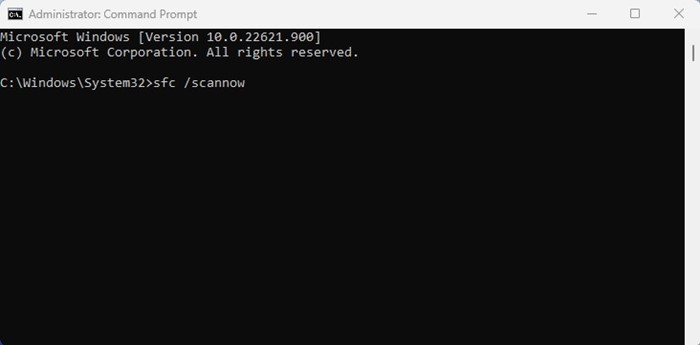
3. Wait patiently for the scan to complete. Once completed, restart your computer.
This should fix the File Explorer crashing on Windows problem.
9. Update your Windows Operating System
Updating the operating system is an effective way to fix various system-related problems. The File Explorer NTDll.dll crashing issue may be caused by a glitch or bug present only in the version of Windows you are using.
While you can’t do much here to confirm whether it’s a bug, glitch, or any other issue, the thing at hand is updating the operating system.
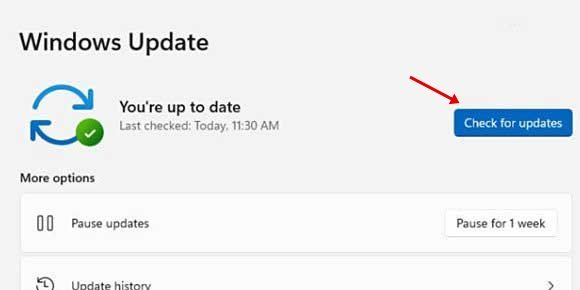
Having an updated operating system has many benefits. You can use new features, rule out the incompatibility issue, etc. Head to Settings > Windows Update > Check for updates to update the Windows operating system. This will automatically check and install the latest version of Windows on your PC.
These are the working methods for fixing the File Explorer NTDLL.dll crashing issue. In the comments, let us know if you need more help fixing this problem.
The post How to Fix File Explorer NTDLL.dll crashing in Windows appeared first on TechViral.
ethical hacking,hacking,bangla ethical hacking,bangla hacking tutorial,bangla tutorial,bangla hacking book,ethical hacking bangla,bangla,hacking apps,ethical hacking bangla tutorial,bangla hacking,bangla hacking pdf,bangla hacking video,bangla android hacking,bangla hacking tutorials,bangla fb hacking tutorial,bangla hacking book download,learn ethical hacking,hacking ebook,hacking tools,bangla ethical hacking course, tricks,hacking,ludo king tricks,whatsapp hacking trick 2019 tricks,wifi hacking tricks,hacking tricks: secret google tricks,simple hacking tricks,whatsapp hacking tricks,tips and tricks,wifi tricks,tech tricks,redmi tricks,hacking trick paytm cash,hacking trick helo app,hacking trick of helo app,paytm cash hacking trick,wifi password hacking,paytm cash hacking trick malayalam,hacker tricks, tips and tricks,pubg mobile tips and tricks,tricks,tips,tips and tricks for pubg mobile,100 tips and tricks,pubg tips and tricks,excel tips and tricks,google tips and tricks,kitchen tips and tricks,season 2 tips and tricks,android tips and tricks,fortnite tips and tricks,godnixon tips and tricks,free fire tips and tricks,advanced tips and tricks,whatsapp tips and tricks, facebook tricks,facebook,facebook hidden tricks,facebook tips and tricks,facebook latest tricks,facebook tips,facebook new tricks,facebook messenger tricks,facebook android app tricks,fb tricks,facebook app tricks,facebook tricks and tips,facebook tricks in hindi,tricks,facebook tutorial,new facebook tricks,cool facebook tricks,facebook tricks 2016,facebook tricks 2017,facebook secret tricks,facebook new tricks 2020,blogger blogspot seo tips and tricks,blogger tricks,blogger,blogger seo tips,blogger seo tips and tricks,seo for blogger,blogger seo in hindi,blogger seo best tips for increasing visitors,blogging tips and tricks,blogger blog seo,blogger seo in urdu,adsense approval trick,blogging tips and tricks for beginners,blogging tricks,blogger tutorial,blogger tricks 2016,blogger tricks 2017 bangla,tricks,bangla tutorial,bangla magic,bangla motivational video,bangla tricks,bangla tips,all bangla tips,magic tricks,akash bangla tricks,top 10 bangla tricks,tips and tricks,all bangla trick,bangla computer tricks,computer bangla tricks,bangla magic card tricks,ms word bangla tips and tricks,bangla computer tips,trick,psychology tricks,youtube bangla,magic tricks bangla,si trick Credit techviral


