
How to Manually Uninstall Windows 11 Updates
If you recently installed a problematic Windows 11 update, you should know how to uninstall it manually. There are several ways to uninstall Windows 11 Updates; here are some of them.
1. Uninstall Updates via Settings
You can quickly uninstall Windows Updates from Settings.
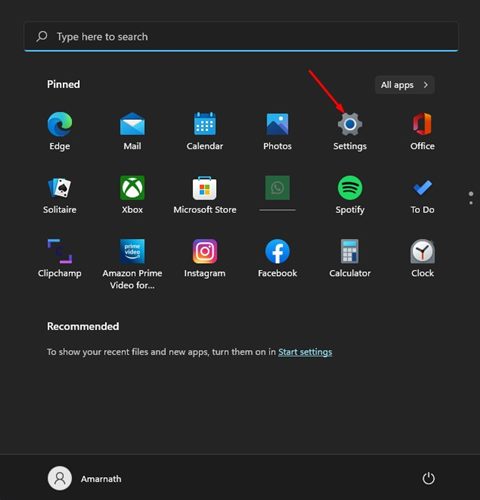
1. Click on the Windows 11 Start menu and select Settings.
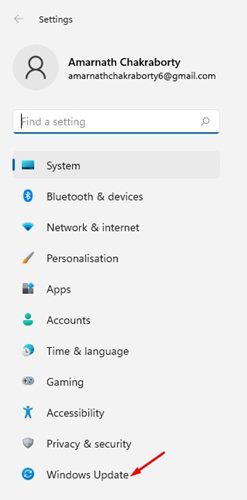
2. Click Windows Update.
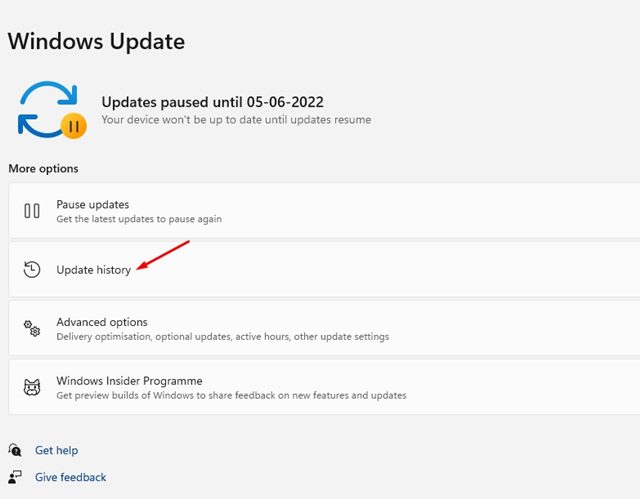
3. Click Update History.
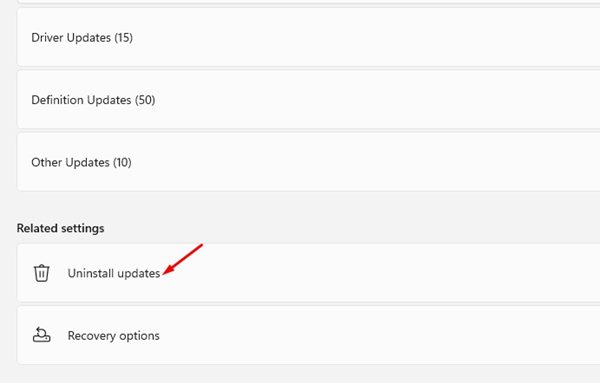
4. Scroll down to the Related Settings section and click Uninstall updates.
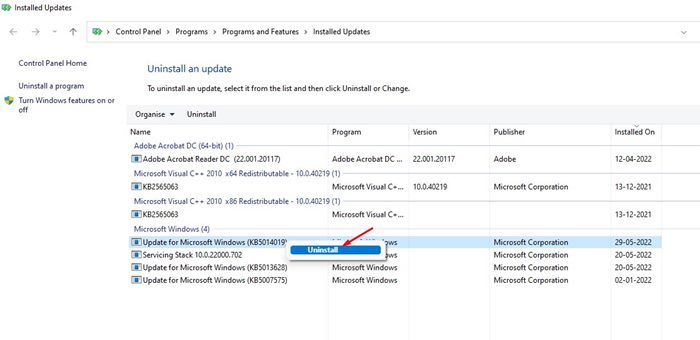
5. Right-click on the most recent update and select Uninstall.
2. Uninstall Windows 11 Updates via Control Panel
Another way to uninstall Windows 11 Update is by accessing the Control Panel.
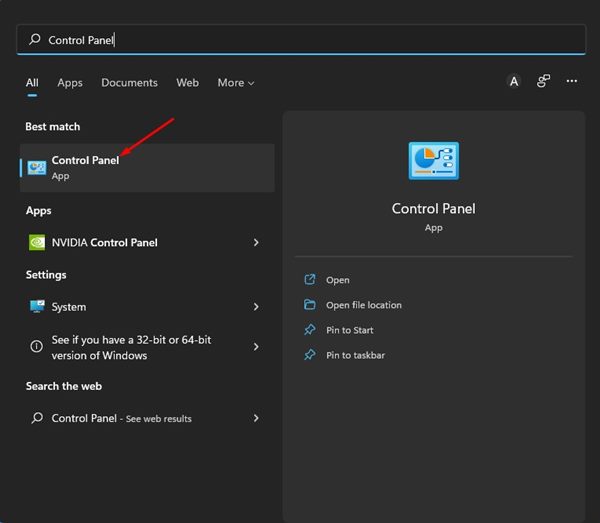
1. Open Control Panel from the Windows Search.
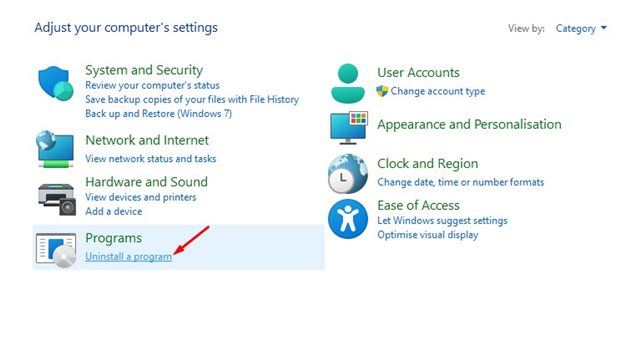
2. Click the Uninstall a Program link underneath Programs.
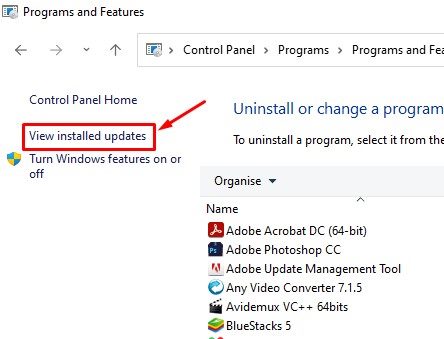
3. Click on View installed updates.
4. You will see all Windows 11 updates installed on your system. Right-click on the update you want to uninstall and select Uninstall.
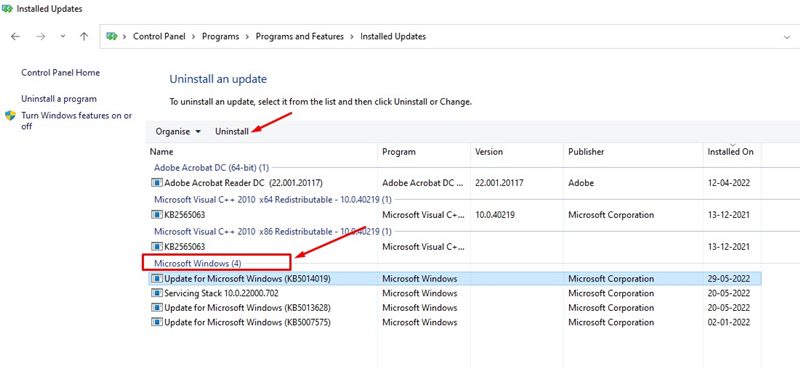
3. Uninstall Windows 11 Updates via PowerShell
The PowerShell utility can be used to uninstall the Windows 11 Update.
1. Launch Windows PowerShell with admin rights.
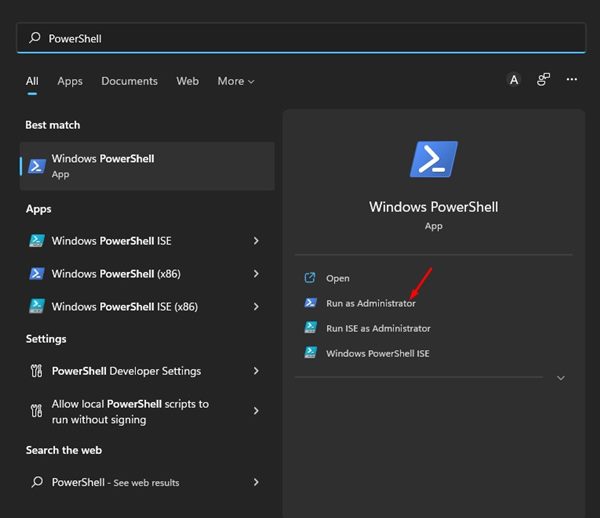
2. Enter the command:
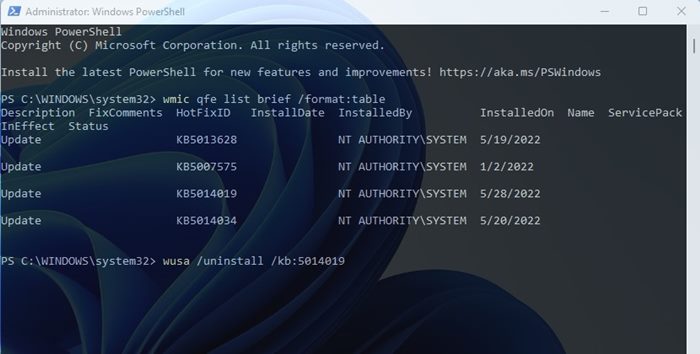
wmic qfe list brief /format:table
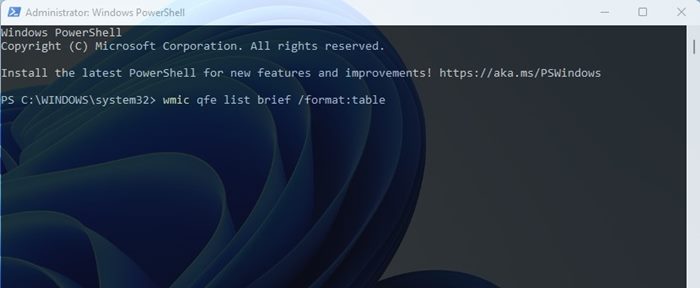
3. This command will list a table of all Windows 11 updates installed on your device. You need to note the HotfixID (the number after ‘KB’) of the update you want to install.
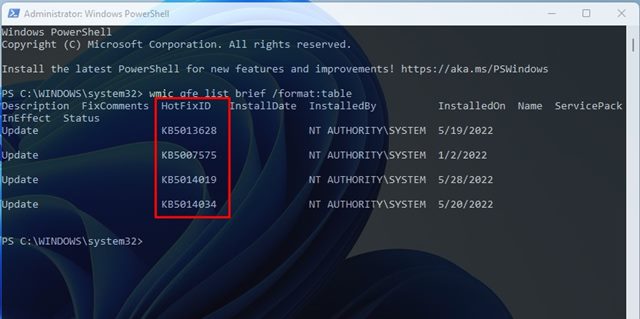
4. Enter the command:
wusa /uninstall /kb:HotFixID
Replace the HotFixID with the update’s identification number. For example, if you want to uninstall the update KB5014019, the command would look like
wusa /uninstall /kb:5014019
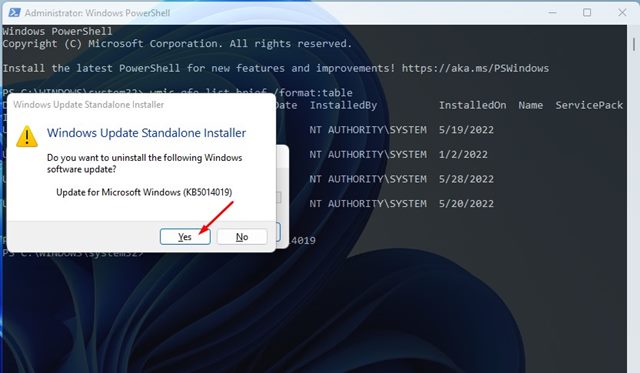
5. Once done, press the Enter button to execute the command. On the confirmation prompt, click Yes.
4. Uninstall Windows 11 Update from Command Prompt
Like PowerShell, you can use Command Prompt to uninstall Windows Updates.
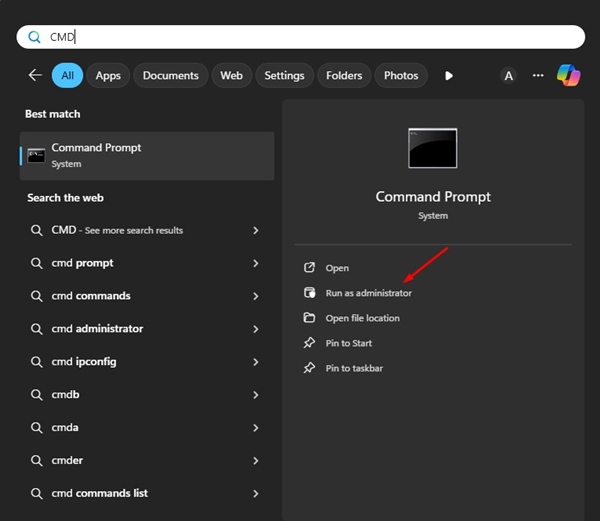
- Type CMD in Windows search. Right-click on it and select Run as administrator.
2. Copy & paste the given command and press Enter.
wmic qfe list brief /format:table

3. You will now see the Windows Update History. Identify the problematic update by its HotfixID and InstalledOn information.
4. To uninstall a specific update, execute this command:
wusa /uninstall /kb:KBNUMBER

Important: Replace KBNUMBER with the actual KB number of the update you want to uninstall.
Follow the on-screen instructions to complete the uninstallation process.
5. Uninstall Windows 11 Updates via Recovery Environment
If your PC doesn’t boot, you can use Windows RE to uninstall the problematic update. Here’s what you need to do in the Windows Recovery Environment.
1. Click on the Windows 11 Start menu and select Settings.
2. Click Windows Update.
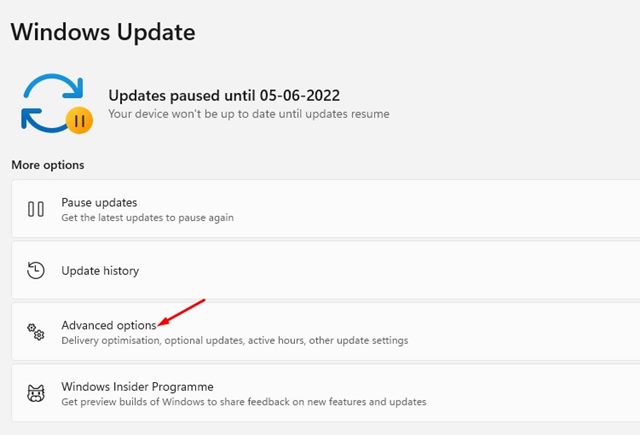
3. Click Advanced Options.
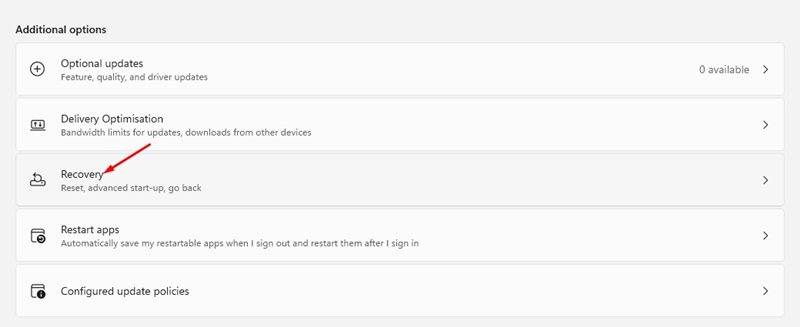
4. Scroll down and click Recovery.
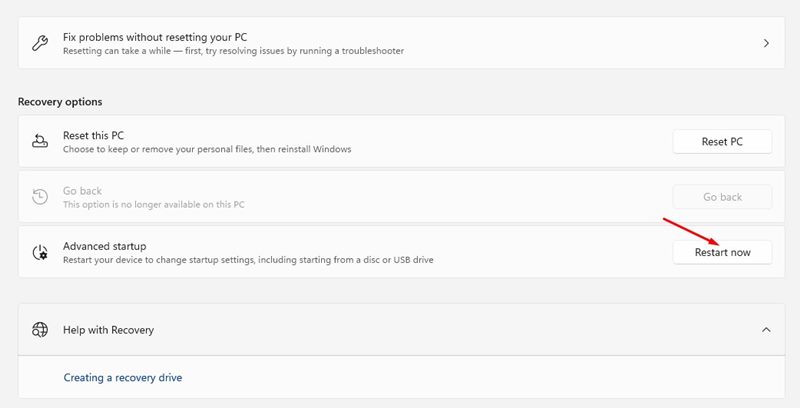
5. Click Restart Now.
6. Your computer will restart and enter Recovery mode. On the Windows RE, navigate to Troubleshoot > Advanced Options and click Uninstall updates.
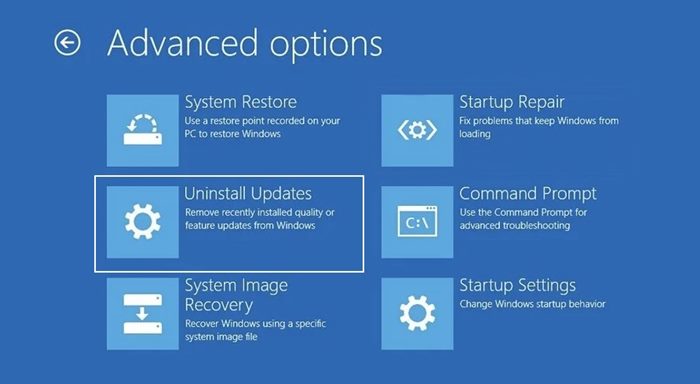
7. You can uninstall the latest Windows 11 Quality or Feature update. Uninstall it, and your PC is likely to boot now.
6. Uninstall Windows Update by creating a batch file
You can create a batch script in Windows containing the updates you want to uninstall. After creating the batch file, you can uninstall the updates by running it on your computer.
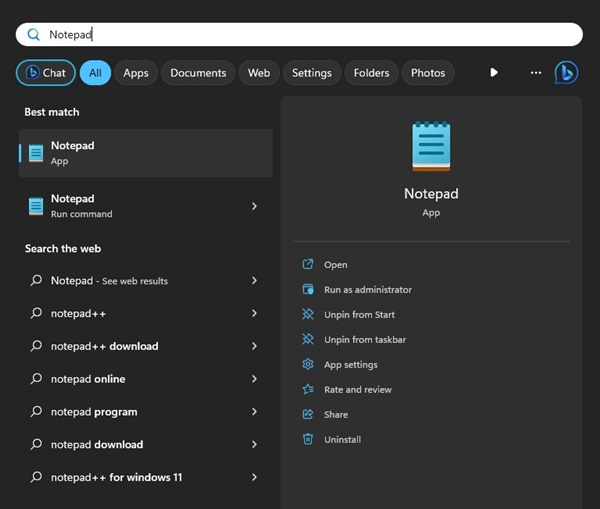
1. Open Notepad from the Windows Search.
2. Enter the following text.
@echo off

wusa /uninstall /kb:2565063 /quiet /norestart

wusa /uninstall /kb:5028851 /quiet /norestart

END
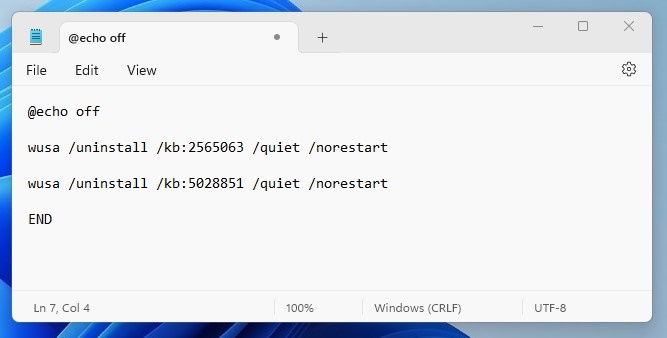
Important: You need to replace ‘2565063’ and ‘5028851’ with the identification number of the update you are uninstalling. And you can add more lines between @echo off and END.
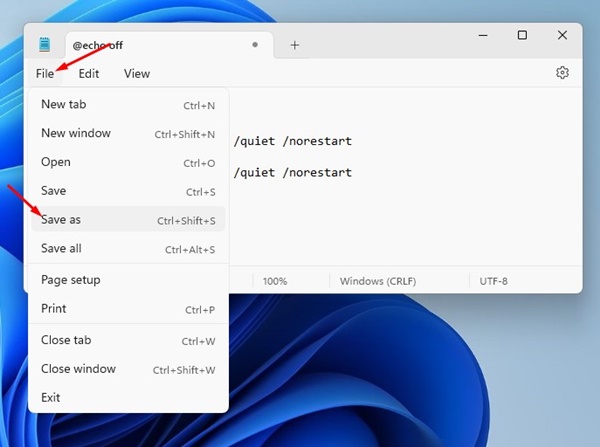
3. Click the File > Save As option to save the Notepad file.
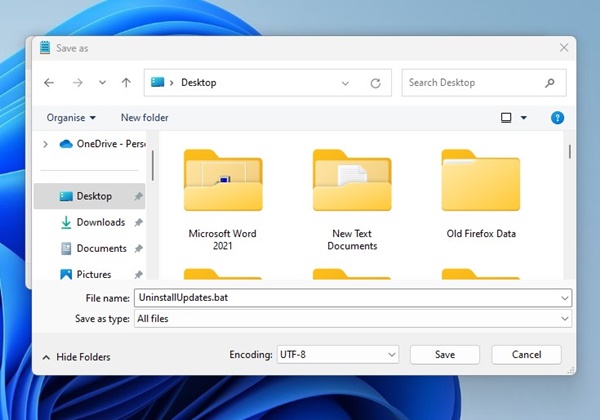
4. On the Save As Prompt, save the file with .bat as an extension.
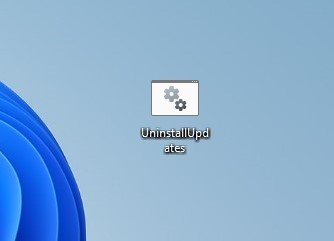
5. To uninstall the updates, double-click on the Batch file you’ve created.
These are just a few ways to uninstall Windows 11 updates manually. If you have set up an automatic system restore on Windows 11, you can even roll back your PC to a previous point to uninstall the updates.
The post How to Manually Uninstall Windows 11 Updates appeared first on TechViral.
ethical hacking,hacking,bangla ethical hacking,bangla hacking tutorial,bangla tutorial,bangla hacking book,ethical hacking bangla,bangla,hacking apps,ethical hacking bangla tutorial,bangla hacking,bangla hacking pdf,bangla hacking video,bangla android hacking,bangla hacking tutorials,bangla fb hacking tutorial,bangla hacking book download,learn ethical hacking,hacking ebook,hacking tools,bangla ethical hacking course, tricks,hacking,ludo king tricks,whatsapp hacking trick 2019 tricks,wifi hacking tricks,hacking tricks: secret google tricks,simple hacking tricks,whatsapp hacking tricks,tips and tricks,wifi tricks,tech tricks,redmi tricks,hacking trick paytm cash,hacking trick helo app,hacking trick of helo app,paytm cash hacking trick,wifi password hacking,paytm cash hacking trick malayalam,hacker tricks, tips and tricks,pubg mobile tips and tricks,tricks,tips,tips and tricks for pubg mobile,100 tips and tricks,pubg tips and tricks,excel tips and tricks,google tips and tricks,kitchen tips and tricks,season 2 tips and tricks,android tips and tricks,fortnite tips and tricks,godnixon tips and tricks,free fire tips and tricks,advanced tips and tricks,whatsapp tips and tricks, facebook tricks,facebook,facebook hidden tricks,facebook tips and tricks,facebook latest tricks,facebook tips,facebook new tricks,facebook messenger tricks,facebook android app tricks,fb tricks,facebook app tricks,facebook tricks and tips,facebook tricks in hindi,tricks,facebook tutorial,new facebook tricks,cool facebook tricks,facebook tricks 2016,facebook tricks 2017,facebook secret tricks,facebook new tricks 2020,blogger blogspot seo tips and tricks,blogger tricks,blogger,blogger seo tips,blogger seo tips and tricks,seo for blogger,blogger seo in hindi,blogger seo best tips for increasing visitors,blogging tips and tricks,blogger blog seo,blogger seo in urdu,adsense approval trick,blogging tips and tricks for beginners,blogging tricks,blogger tutorial,blogger tricks 2016,blogger tricks 2017 bangla,tricks,bangla tutorial,bangla magic,bangla motivational video,bangla tricks,bangla tips,all bangla tips,magic tricks,akash bangla tricks,top 10 bangla tricks,tips and tricks,all bangla trick,bangla computer tricks,computer bangla tricks,bangla magic card tricks,ms word bangla tips and tricks,bangla computer tips,trick,psychology tricks,youtube bangla,magic tricks bangla,si trick Credit techviral


