
How to Prevent Windows 11 from Installing your Device Drivers
By default, Windows 11 handles driver installation through Windows Update. However, many users want to prevent automatic driver installation to avoid stability and compatibility issues, as well as unwanted performance drops.
So, if you prefer manual driver installation, you should prevent Windows 11 from installing the driver automatically. There are several ways to stop Windows 11 from automatically installing or updating drivers. Here are all of them.
1. Change the Device Installation Settings
This is the first thing you should try if you want to prevent driver updates from being installed through Windows Update.
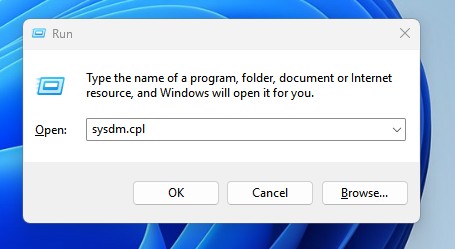
1. Press Windows Key + R. On the RUN dialog, type sysdm.cpl and press Enter.
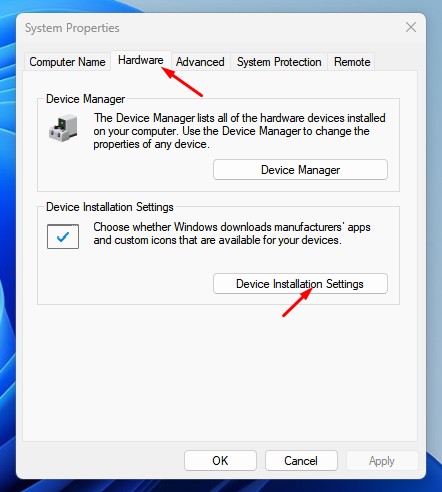
2. Switch to the Hardware tab and click Device Installation Settings.
3. Then select No (your device might not work as expected).
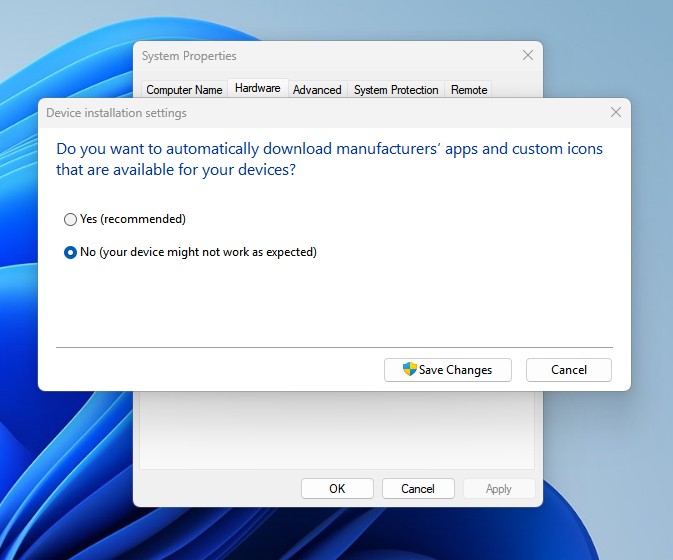
4. After making the changes, click Save Changes and restart your PC.
Note: To enable the driver updates, select ‘Yes’ on the Device Installation Settings.
2. Disable Driver Updates via Group Policy
You can make a few changes to the Group Policy to prevent driver updates.
1. Open Group Policy Editor from the Windows Search.
2. Next, navigate to the Computer Configuration > Administrative Templates > Windows Components > Windows Update > Manage Updates offered from Windows Update.
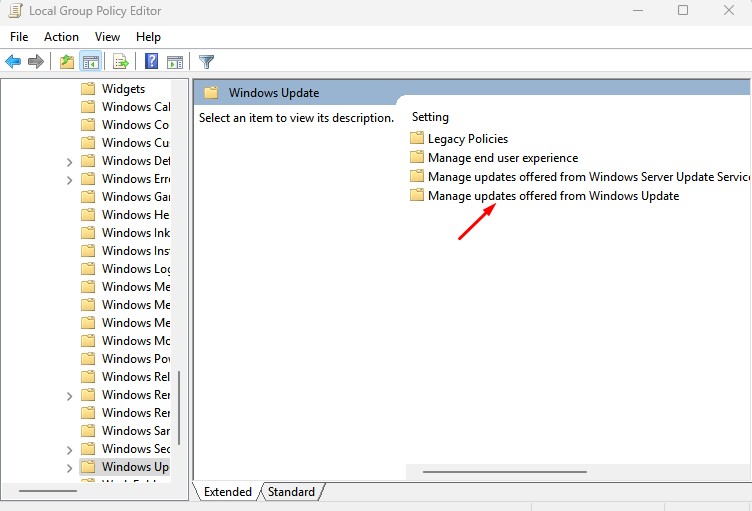
3. Double-click ‘Do not include drivers with Windows Updates’.
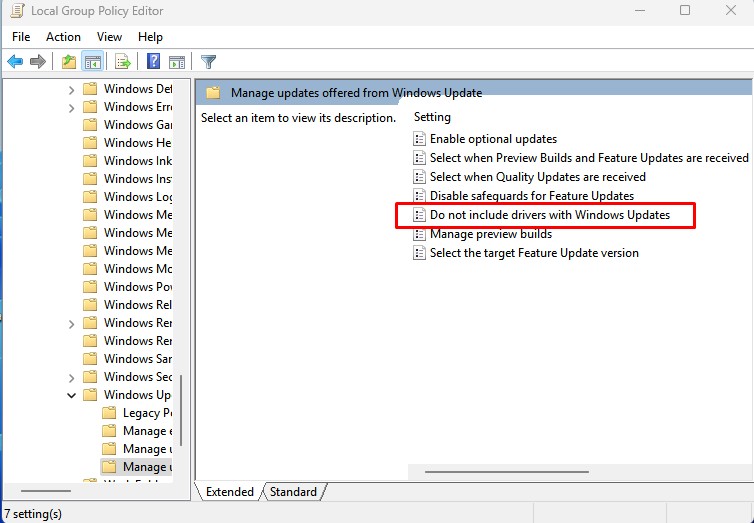
4. Select Enabled to disable the driver updates.
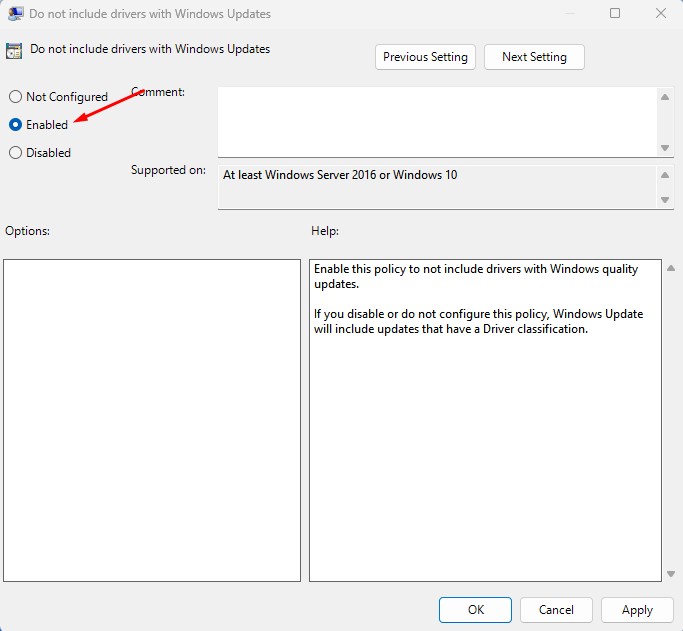
5. Then, click Apply and close the Group Policy Editor.
Note: If you want Windows 11 to include the driver updates, you should double click the ‘Do not include drivers with Windows Updates’ and then select either Disabled or Not Configured.
3. Disable Driver Updates by Modifying the Registry Editor
If you’re comfortable working with the Registry, you can make some changes to prevent automatic driver updates on Windows 11.
1. Open the Registry Editor from the Windows Search.
2. Then, navigate to this path:
HKEY_LOCAL_MACHINE\SOFTWARE\Policies\Microsoft\Windows\WindowsUpdate
3. If Windows Update is not available, create a new path for it. New > Key > WindowsUpdate.
3. Right click in the right pane and select New > DWORD (32-bit) Value.
4. Name the new value as ExcludeWUDriversInQualityUpdate
5. Double click on it and set its value to 1 to disable driver updates.
After making the change, make sure to restart your computer.
Note: If you want to restore driver updates, delete the ExcludeWUDriversInQualityUpdate you created, then restart your computer. Or else, select ‘0’ as the value for the ExcludeWUDriversInQualityUpdate key.
These are the three best ways to prevent Windows Updates from including drivers. If you want to get the driver updates, you need to revert the changes you’ve made. If you need more help with this topic, let us know in the comments.
The post How to Prevent Windows 11 from Installing your Device Drivers appeared first on TechViral.
ethical hacking,hacking,bangla ethical hacking,bangla hacking tutorial,bangla tutorial,bangla hacking book,ethical hacking bangla,bangla,hacking apps,ethical hacking bangla tutorial,bangla hacking,bangla hacking pdf,bangla hacking video,bangla android hacking,bangla hacking tutorials,bangla fb hacking tutorial,bangla hacking book download,learn ethical hacking,hacking ebook,hacking tools,bangla ethical hacking course, tricks,hacking,ludo king tricks,whatsapp hacking trick 2019 tricks,wifi hacking tricks,hacking tricks: secret google tricks,simple hacking tricks,whatsapp hacking tricks,tips and tricks,wifi tricks,tech tricks,redmi tricks,hacking trick paytm cash,hacking trick helo app,hacking trick of helo app,paytm cash hacking trick,wifi password hacking,paytm cash hacking trick malayalam,hacker tricks, tips and tricks,pubg mobile tips and tricks,tricks,tips,tips and tricks for pubg mobile,100 tips and tricks,pubg tips and tricks,excel tips and tricks,google tips and tricks,kitchen tips and tricks,season 2 tips and tricks,android tips and tricks,fortnite tips and tricks,godnixon tips and tricks,free fire tips and tricks,advanced tips and tricks,whatsapp tips and tricks, facebook tricks,facebook,facebook hidden tricks,facebook tips and tricks,facebook latest tricks,facebook tips,facebook new tricks,facebook messenger tricks,facebook android app tricks,fb tricks,facebook app tricks,facebook tricks and tips,facebook tricks in hindi,tricks,facebook tutorial,new facebook tricks,cool facebook tricks,facebook tricks 2016,facebook tricks 2017,facebook secret tricks,facebook new tricks 2020,blogger blogspot seo tips and tricks,blogger tricks,blogger,blogger seo tips,blogger seo tips and tricks,seo for blogger,blogger seo in hindi,blogger seo best tips for increasing visitors,blogging tips and tricks,blogger blog seo,blogger seo in urdu,adsense approval trick,blogging tips and tricks for beginners,blogging tricks,blogger tutorial,blogger tricks 2016,blogger tricks 2017 bangla,tricks,bangla tutorial,bangla magic,bangla motivational video,bangla tricks,bangla tips,all bangla tips,magic tricks,akash bangla tricks,top 10 bangla tricks,tips and tricks,all bangla trick,bangla computer tricks,computer bangla tricks,bangla magic card tricks,ms word bangla tips and tricks,bangla computer tips,trick,psychology tricks,youtube bangla,magic tricks bangla,si trick Credit techviral


