
How to Backup Windows 11 to an External Drive
Both Windows 10 and Windows 11 ship with a feature called ‘Backup and Restore (Windows 7)’ that allows you to create a complete system backup. The backup & restore utility in Windows uses the ‘Shadow copy’ feature to create a system image that provides an identical copy of the installed apps, files, and settings. You can use the same tool to back up your Windows 11 data to an external drive.
This article will show you how to create a full backup of Windows 11 to an external drive.
1. Create System Image Backup via Backup and Restore
We will be using the Backup and Restore feature to back up Windows 11 to an External drive.
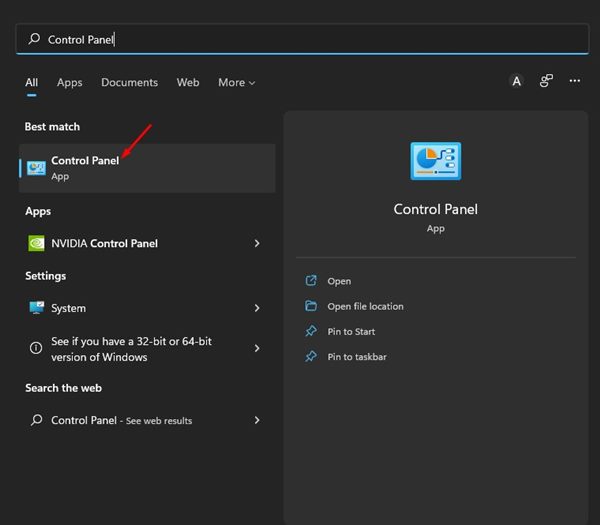
1. Click on the Windows 11 search and type in Control Panel. Next, open the Control Panel app from the list.
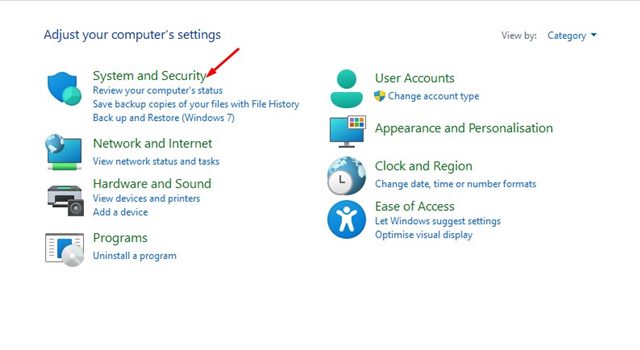
2. Click on System and Security.
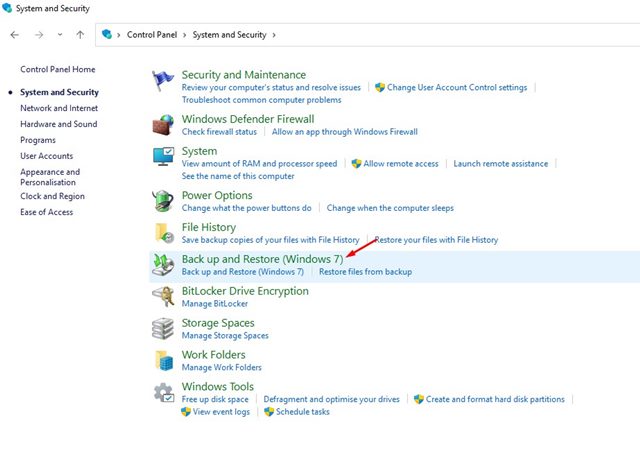
3. Scroll down and click on Backup and Restore (Windows 7).
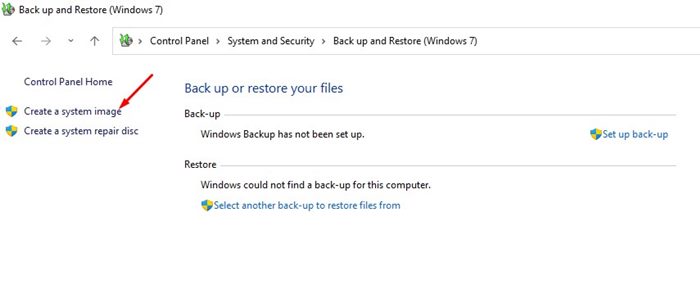
4. Click on the Create a system image link.
5. On the Where you want to save the backup page, select the ‘On a hard disk’ option and click on the drop-down menu. On the drop-down menu, select your external drive.
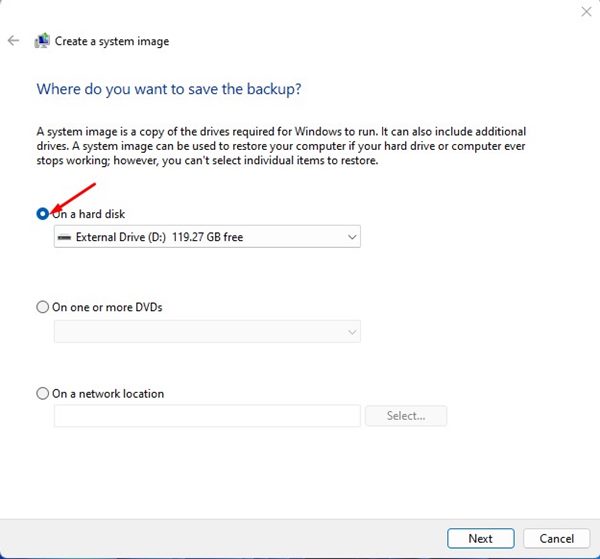
Important: The external drive should have enough storage and use the NTFS file system.
6. Select your external drive on the drop-down and click Next.
7. Select the drives you want to include in the backup. Once done, click Next.
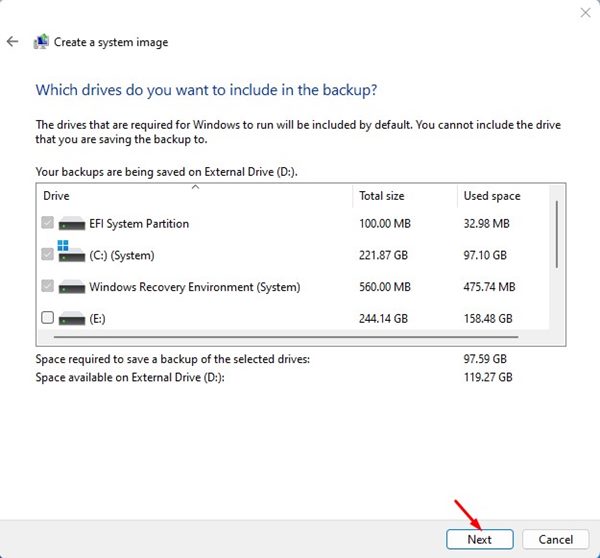
8. Click Start backup.
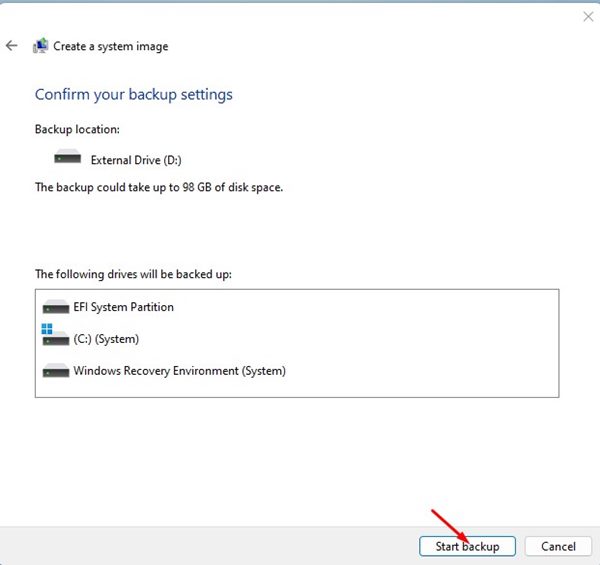
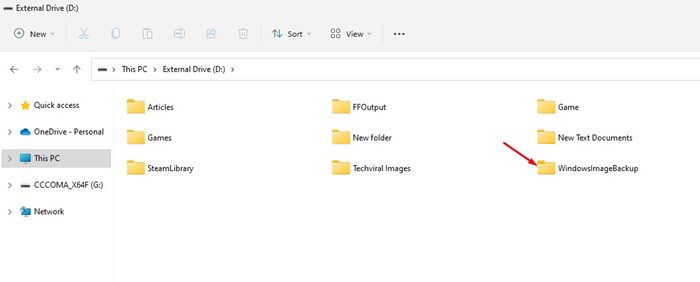
9. Wait for a few minutes until the tool creates the system image backup. Once created, open your external drive; you will find a new folder, ‘WindowsImageBackup’. This is the folder where the backup image is stored.
2. Back up Windows 11 to an External Drive via File History
Unlike the Backup & Restore, which creates and saves a full system image, the File history will only backup a few essential folders such as documents, music, pictures, videos, and desktop folders.
1. Click on the Windows 11 Search and type in Control Panel. Next, open the Control Panel app from the list.
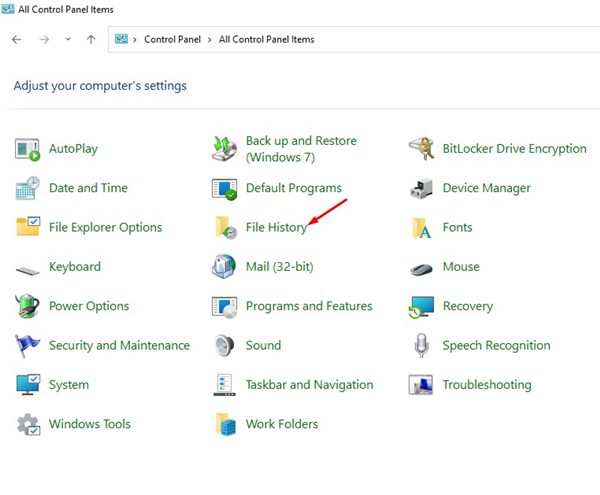
2. In Control Panel, click on File History.
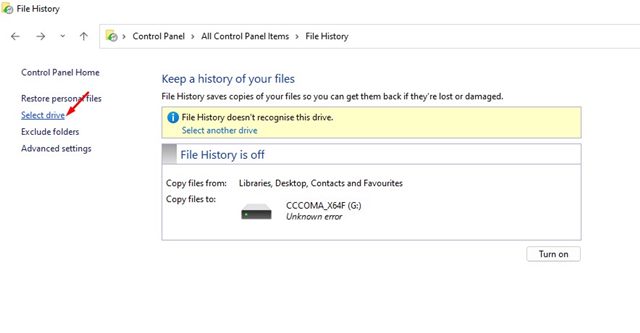
3. On the left sidebar, select the Select Drive link.
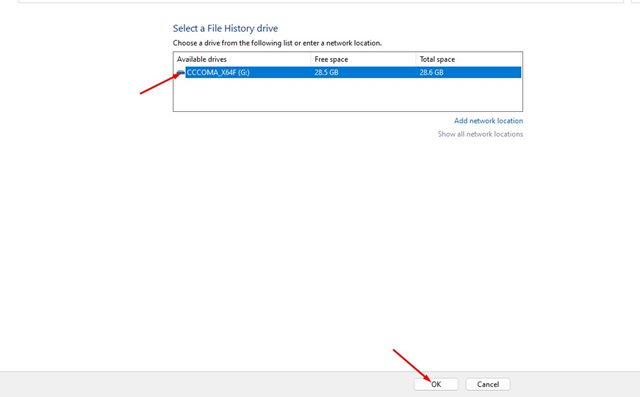
4. Select your external drive where you want to back up Windows 11 files & folders on the next screen. Once done, click on the Ok button.
5. Now go back to the previous page and click on Turn on.
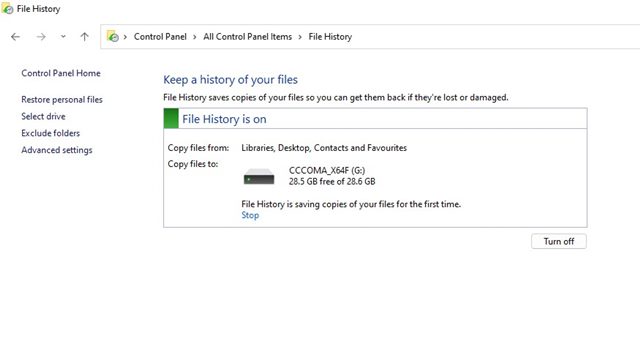
The File History tool will save copies of your files for the first time on your external drive. Open the External drive and select the File History folder to access the backup files. You will find your libraries, desktop, contacts, and favorites folders there.
That’s all about how to back up Windows 11 to an external drive without using any third-party tool. If you are looking for more ways to back up & restore Windows 11, you need to start using third-party backup & restore tools for Windows.
The post How to Backup Windows 11 to an External Drive appeared first on TechViral.
ethical hacking,hacking,bangla ethical hacking,bangla hacking tutorial,bangla tutorial,bangla hacking book,ethical hacking bangla,bangla,hacking apps,ethical hacking bangla tutorial,bangla hacking,bangla hacking pdf,bangla hacking video,bangla android hacking,bangla hacking tutorials,bangla fb hacking tutorial,bangla hacking book download,learn ethical hacking,hacking ebook,hacking tools,bangla ethical hacking course, tricks,hacking,ludo king tricks,whatsapp hacking trick 2019 tricks,wifi hacking tricks,hacking tricks: secret google tricks,simple hacking tricks,whatsapp hacking tricks,tips and tricks,wifi tricks,tech tricks,redmi tricks,hacking trick paytm cash,hacking trick helo app,hacking trick of helo app,paytm cash hacking trick,wifi password hacking,paytm cash hacking trick malayalam,hacker tricks, tips and tricks,pubg mobile tips and tricks,tricks,tips,tips and tricks for pubg mobile,100 tips and tricks,pubg tips and tricks,excel tips and tricks,google tips and tricks,kitchen tips and tricks,season 2 tips and tricks,android tips and tricks,fortnite tips and tricks,godnixon tips and tricks,free fire tips and tricks,advanced tips and tricks,whatsapp tips and tricks, facebook tricks,facebook,facebook hidden tricks,facebook tips and tricks,facebook latest tricks,facebook tips,facebook new tricks,facebook messenger tricks,facebook android app tricks,fb tricks,facebook app tricks,facebook tricks and tips,facebook tricks in hindi,tricks,facebook tutorial,new facebook tricks,cool facebook tricks,facebook tricks 2016,facebook tricks 2017,facebook secret tricks,facebook new tricks 2020,blogger blogspot seo tips and tricks,blogger tricks,blogger,blogger seo tips,blogger seo tips and tricks,seo for blogger,blogger seo in hindi,blogger seo best tips for increasing visitors,blogging tips and tricks,blogger blog seo,blogger seo in urdu,adsense approval trick,blogging tips and tricks for beginners,blogging tricks,blogger tutorial,blogger tricks 2016,blogger tricks 2017 bangla,tricks,bangla tutorial,bangla magic,bangla motivational video,bangla tricks,bangla tips,all bangla tips,magic tricks,akash bangla tricks,top 10 bangla tricks,tips and tricks,all bangla trick,bangla computer tricks,computer bangla tricks,bangla magic card tricks,ms word bangla tips and tricks,bangla computer tips,trick,psychology tricks,youtube bangla,magic tricks bangla,si trick Credit techviral


