
Windows 11 WiFi Disconnects Frequently? 6 Ways to Fix it
Using Windows 11 and facing problems with your Wi-Fi? It’s a very common issue. Lately, many Windows users have contacted us asking how to fix Wi-Fi disconnecting automatically on Windows 11.
Basically, your Windows 11 PC stays connected to a Wi-Fi network, but suddenly, sometimes after 10–15 minutes, it loses internet access and shows ‘No internet’. If you’ve been facing a similar problem, here’s what you should do.
1. Restart your PC
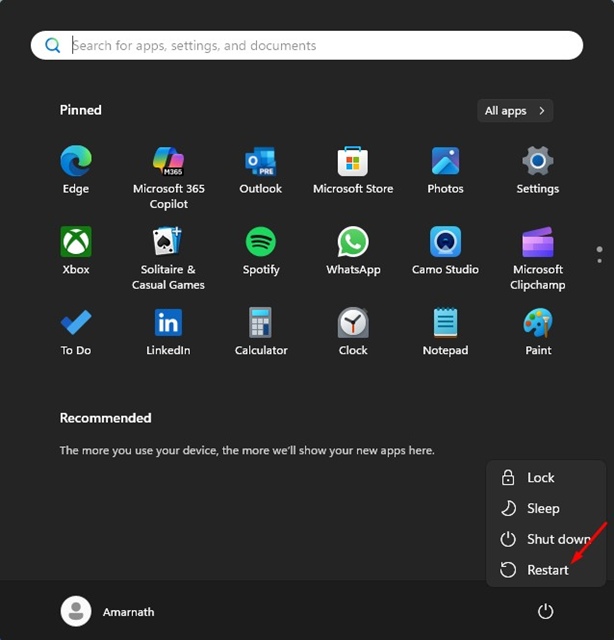
The very first thing you should do is restart your PC. Sometimes, bugs and glitches in the operating system can prevent the WiFi adapter from functioning properly, leading to connection drop issues.
So, before doing anything else, you should restart your PC. Open the Windows Start menu and click on the Power button. Next, select Restart.
2. Update the WiFi Driver
Outdated WiFi drivers can sometimes trigger such issues. So, you should update the WiFi drivers from the Device Manager.
1. Open Device Manager on Windows 11.
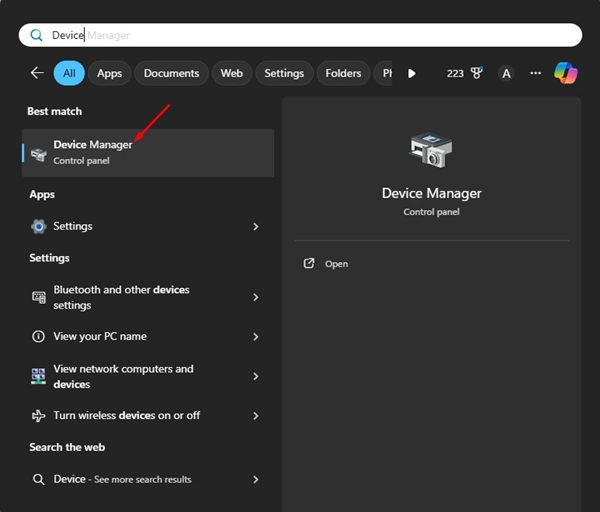
2. Expand Network Adapters.
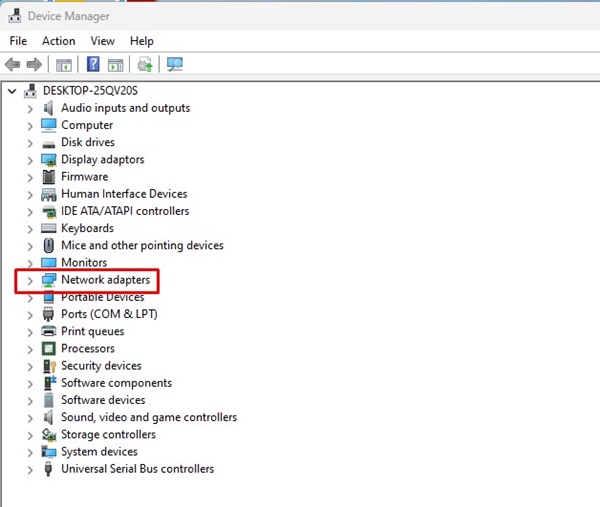
3. Right-click on your WiFi card and select Update Driver.
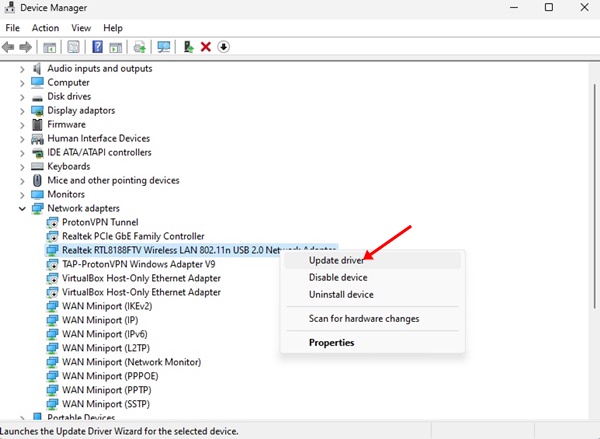
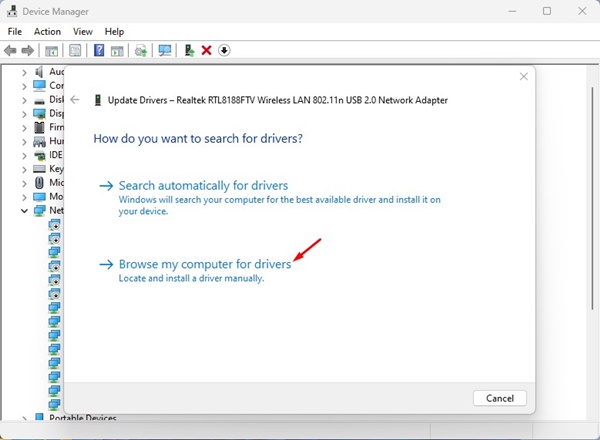
4. Next, select the Browse my computer for drivers option.
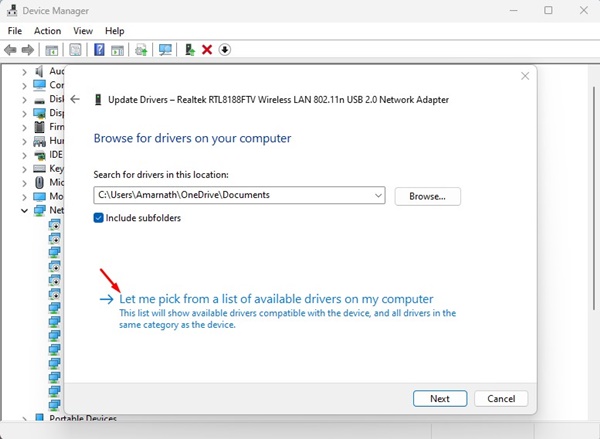
5. Click on ‘Let me pick from a list of available drivers on my computer’.
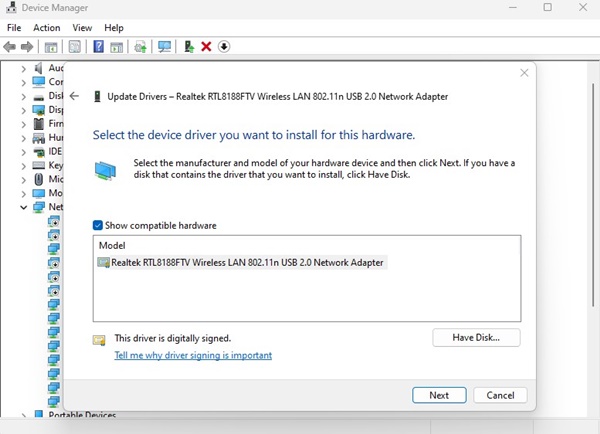
6. Check the Show compatible hardware and select the most relevant WiFi driver.
3. Modify the WiFi Power Management Settings
Windows 11 has a feature that turns off the connected devices to preserve power. If your WiFi keeps disconnecting now and then, chances are that Windows 11 is disabling it to preserve power. Hence, you need to make some changes to the WiFi power management settings to avoid this.
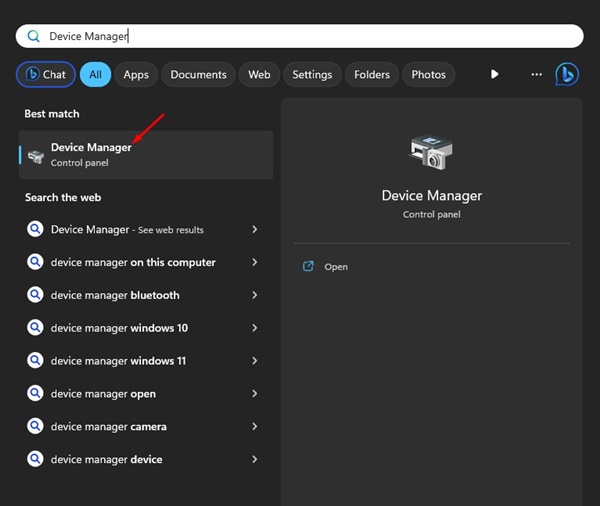
1. Open Device Manager from the Windows Search.
2. Expand the Network Adapters.
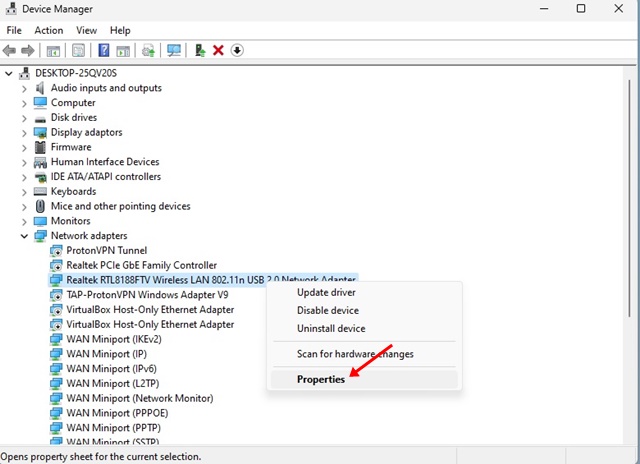
3. Right-click on the WiFi adapter and select Properties.
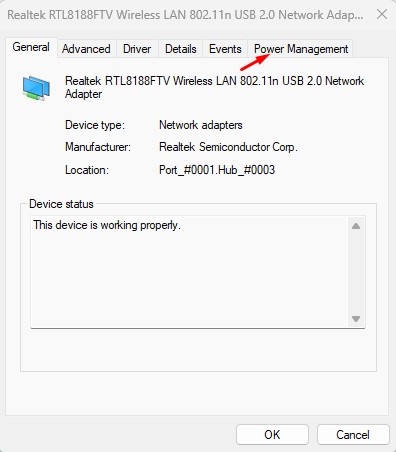
4. Switch to the Power Management tab.
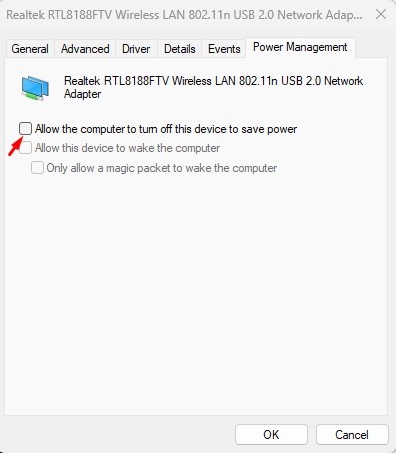
5. Uncheck the ‘Allow the computer to turn off this device to save power’ option.
4. Change the Windows Power Plan
Like the WiFi Power Management, you need to make some changes to the Windows Power Plan as well.
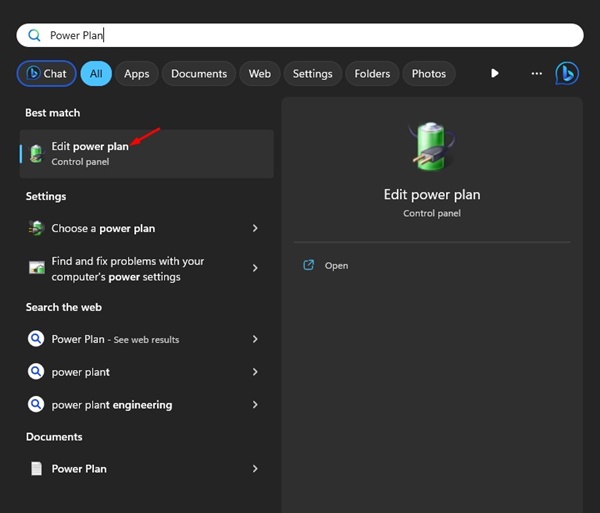
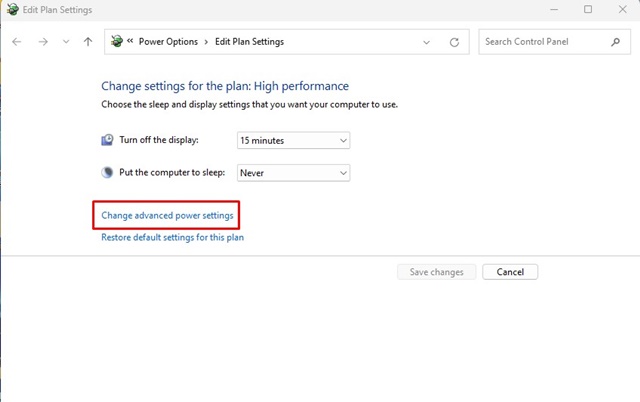
1. Type Power Plan in Windows 11 Search. Open Edit Power Plan.
2. Click on Change Advanced Power Settings.
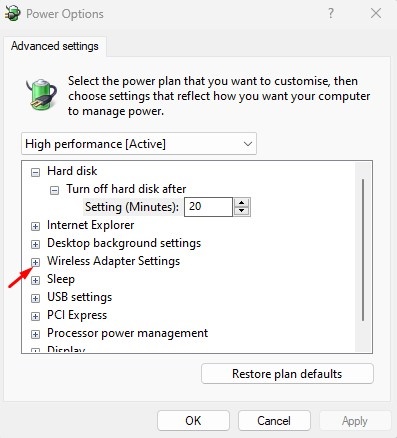
3. Expand the Wireless Adapter Settings.
4. Set Maximum Performance for the Power Saving Mode settings.
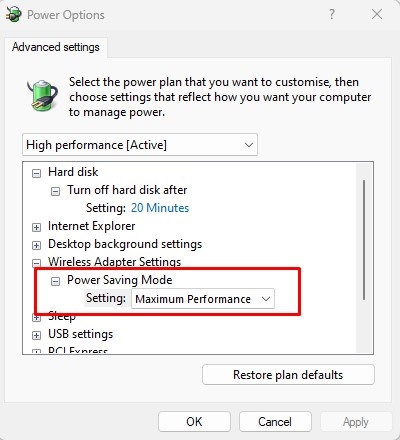
5. Click Apply and then OK.
5. Restart your Router
Restarting the router can help resolve many Wi-Fi-related issues on Windows 11. It’s possible that your router is experiencing temporary glitches leading to WiFi connection drops, WiFi not available, etc.
To do this, turn off your router and unplug it from the power source. Wait for about 1 minute, plug it back in, and turn it on.
6. Reset Network Settings
If restarting the router didn’t help, you can try resetting the network settings on Windows 11. This will rule out problems linked to incorrect network configurations.
1. Open the Settings app on Windows 11.
2. Navigate to the Network & Internet > Advanced Network Settings.
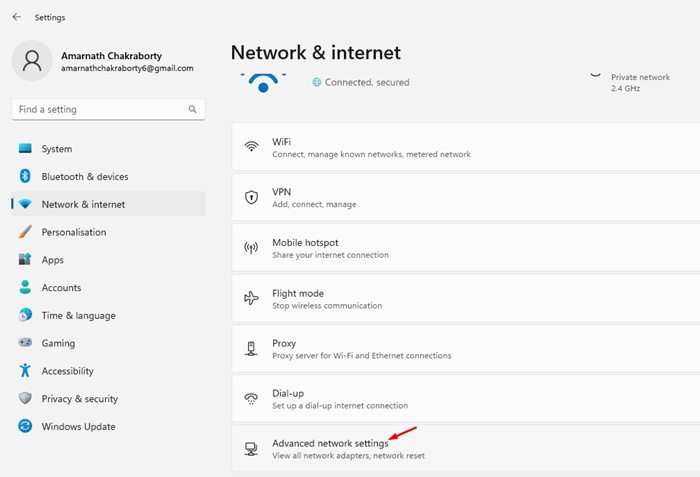
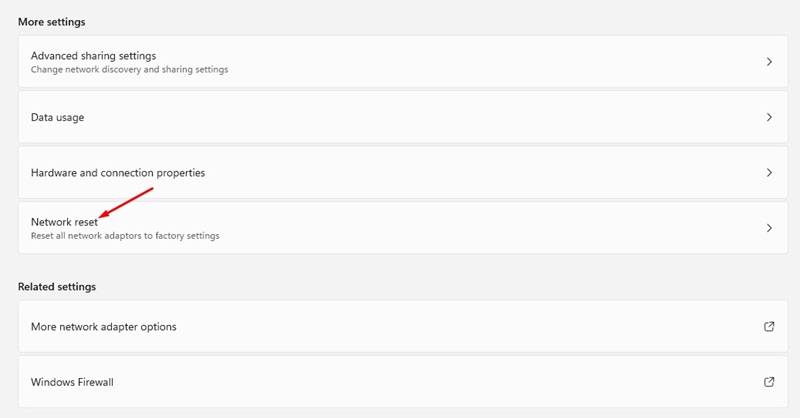
3. Click on Network Reset.
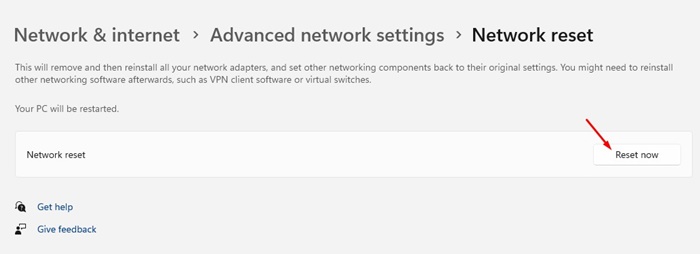
4. Click the Reset Now button.
These are a few of the best ways to fix WiFi disconnecting automatically on Windows 11. If you need more help with this, let us know in the comments.
The post Windows 11 WiFi Disconnects Frequently? 6 Ways to Fix it appeared first on TechViral.
ethical hacking,hacking,bangla ethical hacking,bangla hacking tutorial,bangla tutorial,bangla hacking book,ethical hacking bangla,bangla,hacking apps,ethical hacking bangla tutorial,bangla hacking,bangla hacking pdf,bangla hacking video,bangla android hacking,bangla hacking tutorials,bangla fb hacking tutorial,bangla hacking book download,learn ethical hacking,hacking ebook,hacking tools,bangla ethical hacking course, tricks,hacking,ludo king tricks,whatsapp hacking trick 2019 tricks,wifi hacking tricks,hacking tricks: secret google tricks,simple hacking tricks,whatsapp hacking tricks,tips and tricks,wifi tricks,tech tricks,redmi tricks,hacking trick paytm cash,hacking trick helo app,hacking trick of helo app,paytm cash hacking trick,wifi password hacking,paytm cash hacking trick malayalam,hacker tricks, tips and tricks,pubg mobile tips and tricks,tricks,tips,tips and tricks for pubg mobile,100 tips and tricks,pubg tips and tricks,excel tips and tricks,google tips and tricks,kitchen tips and tricks,season 2 tips and tricks,android tips and tricks,fortnite tips and tricks,godnixon tips and tricks,free fire tips and tricks,advanced tips and tricks,whatsapp tips and tricks, facebook tricks,facebook,facebook hidden tricks,facebook tips and tricks,facebook latest tricks,facebook tips,facebook new tricks,facebook messenger tricks,facebook android app tricks,fb tricks,facebook app tricks,facebook tricks and tips,facebook tricks in hindi,tricks,facebook tutorial,new facebook tricks,cool facebook tricks,facebook tricks 2016,facebook tricks 2017,facebook secret tricks,facebook new tricks 2020,blogger blogspot seo tips and tricks,blogger tricks,blogger,blogger seo tips,blogger seo tips and tricks,seo for blogger,blogger seo in hindi,blogger seo best tips for increasing visitors,blogging tips and tricks,blogger blog seo,blogger seo in urdu,adsense approval trick,blogging tips and tricks for beginners,blogging tricks,blogger tutorial,blogger tricks 2016,blogger tricks 2017 bangla,tricks,bangla tutorial,bangla magic,bangla motivational video,bangla tricks,bangla tips,all bangla tips,magic tricks,akash bangla tricks,top 10 bangla tricks,tips and tricks,all bangla trick,bangla computer tricks,computer bangla tricks,bangla magic card tricks,ms word bangla tips and tricks,bangla computer tips,trick,psychology tricks,youtube bangla,magic tricks bangla,si trick Credit techviral


