
How to Enable Administrator Account on Windows 11 (3 Methods)
If you have used Windows 10, you might know that the operating system includes an Administrator account that was kept hidden from the users. Windows 11 also includes a built-in Administrator account that can be turned on or off manually.
Sometimes while using Windows, we want to run programs as an administrator. To do so, we just have to right-click on the app and select the Run as Administrator option. Although the process is easy, what if you want to run all programs with administrative rights on Windows 11?
In that case, you can enable the Administrator account on Windows 11 that was kept hidden from you. The administrator account comes with elevated rights out of the box, allowing you to make changes to your PC without getting bothered by the UAC.
What is an Administrator Account in Windows 11?
If you have been using Windows 11 for a while, you might know that the operating system restricts certain apps, files & commands behind administrative privileges. This is the only reason Windows shows you prompts (UAC) each time you attempt to do something that requires administrative privileges.
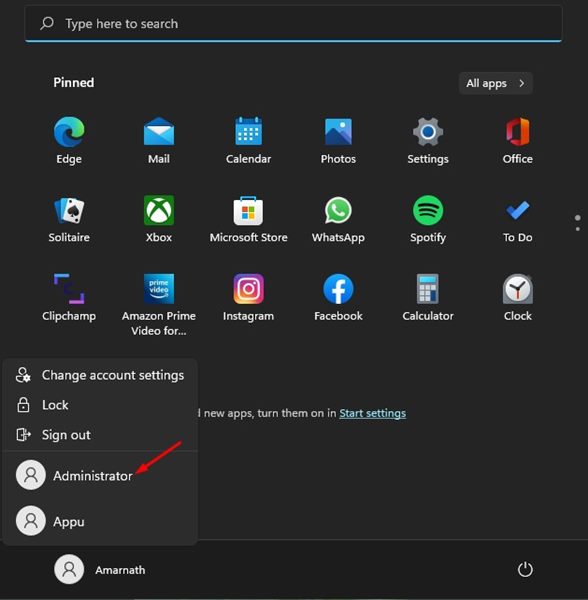
You can easily bypass those annoying prompts by activating the administrator account on your Windows 11 computer. However, since the Administrator account comes with elevated rights for everything, they can pose a security risk. So, it’s recommended to disable the administrator account once you are done using it.
3 Methods to Enable the Administrator Account on Windows 11
So, in this article, we will share a step-by-step guide on how to enable the administrator account in Windows 11. Let’s check out.
1) Enable Administrator Account in Local User and Groups
In this method, we will use the Local User and Groups to enable the Built-in Administrator account in Windows 11. Here are some of the simple steps you need to follow.
1. First of all, press the Windows Key + R button on your keyboard. This will open the RUN dialog box.
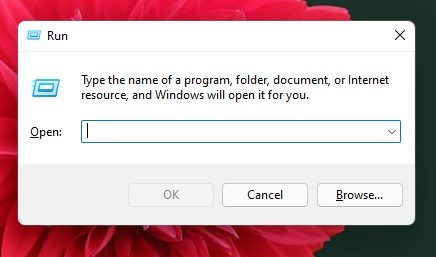
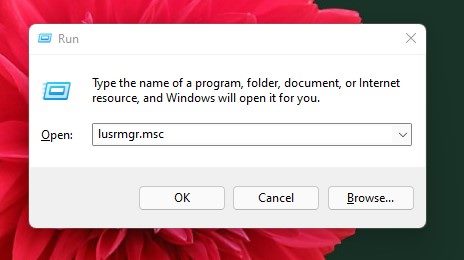
2. On the RUN dialog box, type in lusrmgr.msc and hit the Enter button.
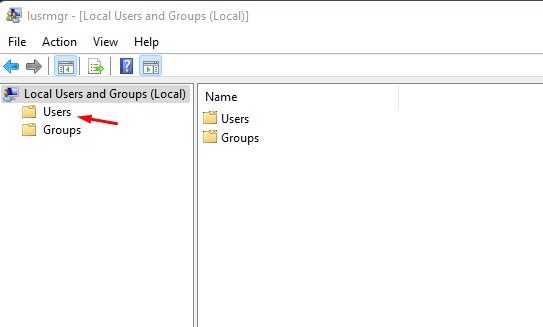
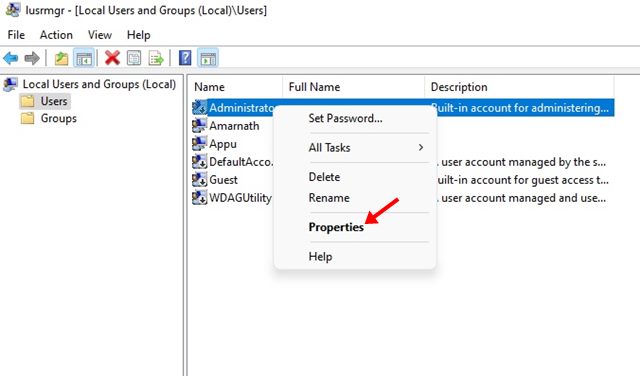
3. This will open the Local Users and Groups panel. Here you need to click on the Users folder on the left pane.
4. On the right pane, right-click on the Administrator account and select Properties.
5. On the Administrator Properties, uncheck the Account is disabled option. Once done, click on the Apply button.
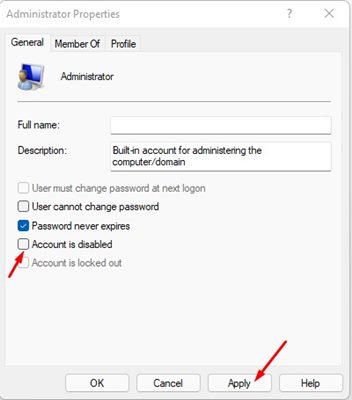
That’s it! You are done. This is how you can enable an Administrator account in Windows 11.
2) Enable Administrator Account via Command Prompt
In this method, we will use the Command Prompt utility to enable or disable the Administrator account. Here are some of the simple steps you need to follow.
1. First of all, open the Windows 11 search and type in Command Prompt. Right-click on the Command Prompt and select Run as administrator.
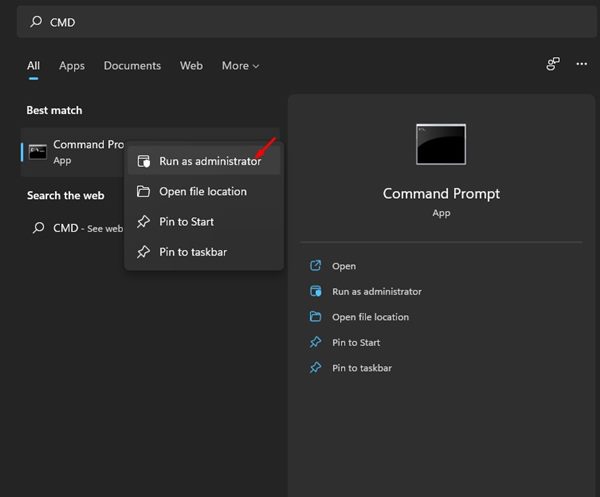
2. On the Command prompt, execute the command:
net user administrator /active:yes
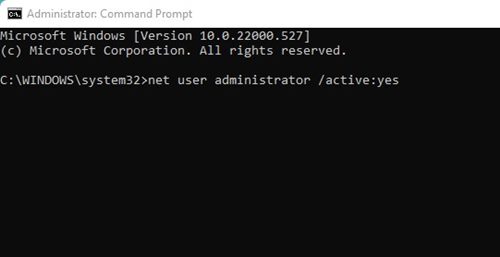
3. This will activate the Administrator account, and you will see a command completed successfully message.
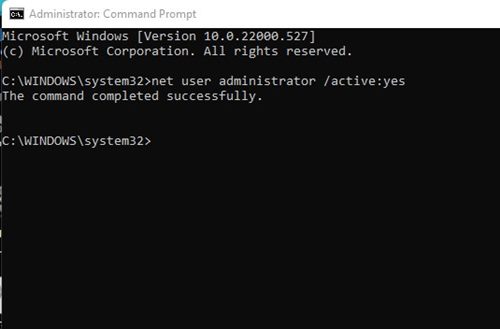
4. To disable the administrator account, enter the command:
net user administrator /active:no
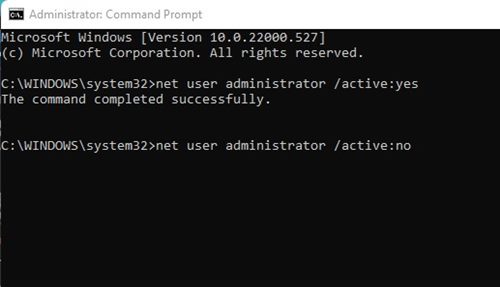
That’s it! This is how you can enable or disable an Administrator account on Windows 11 via Command Prompt.
3) Enable Administrator Account via Windows 11 Powershell
In this method, we will use the PowerShell utility to enable or disable the Administrator account. Here are some of the simple steps you need to follow.
1. First of all, open the Windows 11 search and type in PowerShell. Right-click on PowerShell and select Run as administrator.
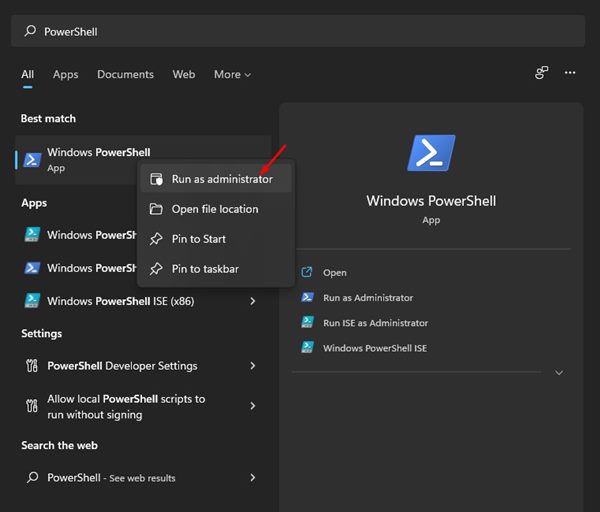
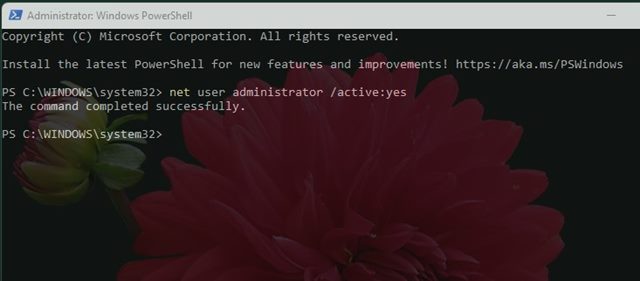
2. On the PowerShell, execute the command:
net user administrator /active:yes
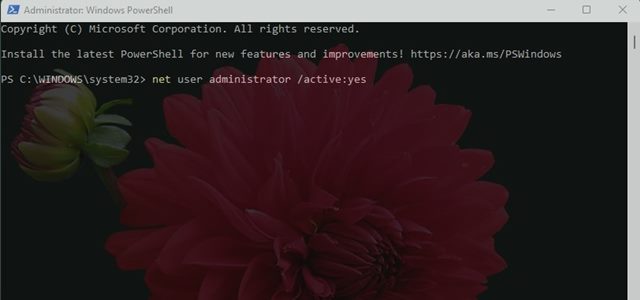
3. This will activate the Administrator account, and you will see a command completed successfully message.
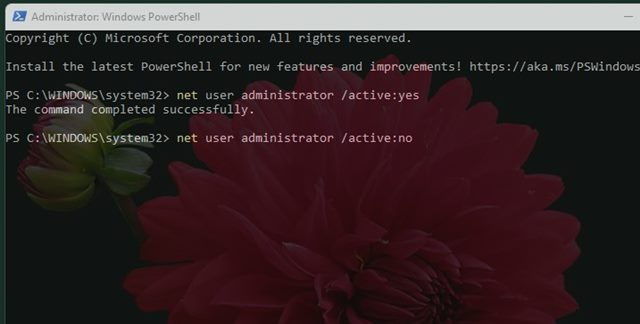
4. To disable the administrator account, enter the command:
net user administrator /active:no
That’s it! This is how you can enable or disable an Administrator account on Windows 11 via PowerShell.
It’s pretty easy to enable or disable the Administrator account on Windows 11. You can use any of the three methods to enable or disable the hidden account. I hope this article helped you! Please share it with your friends also. If you have any doubts related to this, let us know in the comment box below.
The post How to Enable Administrator Account on Windows 11 (3 Methods) appeared first on TechViral.
ethical hacking,hacking,bangla ethical hacking,bangla hacking tutorial,bangla tutorial,bangla hacking book,ethical hacking bangla,bangla,hacking apps,ethical hacking bangla tutorial,bangla hacking,bangla hacking pdf,bangla hacking video,bangla android hacking,bangla hacking tutorials,bangla fb hacking tutorial,bangla hacking book download,learn ethical hacking,hacking ebook,hacking tools,bangla ethical hacking course, tricks,hacking,ludo king tricks,whatsapp hacking trick 2019 tricks,wifi hacking tricks,hacking tricks: secret google tricks,simple hacking tricks,whatsapp hacking tricks,tips and tricks,wifi tricks,tech tricks,redmi tricks,hacking trick paytm cash,hacking trick helo app,hacking trick of helo app,paytm cash hacking trick,wifi password hacking,paytm cash hacking trick malayalam,hacker tricks, tips and tricks,pubg mobile tips and tricks,tricks,tips,tips and tricks for pubg mobile,100 tips and tricks,pubg tips and tricks,excel tips and tricks,google tips and tricks,kitchen tips and tricks,season 2 tips and tricks,android tips and tricks,fortnite tips and tricks,godnixon tips and tricks,free fire tips and tricks,advanced tips and tricks,whatsapp tips and tricks, facebook tricks,facebook,facebook hidden tricks,facebook tips and tricks,facebook latest tricks,facebook tips,facebook new tricks,facebook messenger tricks,facebook android app tricks,fb tricks,facebook app tricks,facebook tricks and tips,facebook tricks in hindi,tricks,facebook tutorial,new facebook tricks,cool facebook tricks,facebook tricks 2016,facebook tricks 2017,facebook secret tricks,facebook new tricks 2020,blogger blogspot seo tips and tricks,blogger tricks,blogger,blogger seo tips,blogger seo tips and tricks,seo for blogger,blogger seo in hindi,blogger seo best tips for increasing visitors,blogging tips and tricks,blogger blog seo,blogger seo in urdu,adsense approval trick,blogging tips and tricks for beginners,blogging tricks,blogger tutorial,blogger tricks 2016,blogger tricks 2017 bangla,tricks,bangla tutorial,bangla magic,bangla motivational video,bangla tricks,bangla tips,all bangla tips,magic tricks,akash bangla tricks,top 10 bangla tricks,tips and tricks,all bangla trick,bangla computer tricks,computer bangla tricks,bangla magic card tricks,ms word bangla tips and tricks,bangla computer tips,trick,psychology tricks,youtube bangla,magic tricks bangla,si trick Credit techviral


