
10 Best Ways to Fix CTRL + F Not Working on Windows
While the keyboard shortcut is useful, many Windows users face problems using it. According to Windows 10/11 users, pressing the CTRL+F button does nothing.
The search panel doesn’t appear even after pressing the CTRL+F button multiple times. So, if you are a Windows user and the CTRL+F function is not working, continue reading the article.
The CTRL+F function not working on Windows may indicate a keyboard problem, outdated driver, system file corruption, or other issues. It can be fixed easily; here are the best ways to fix the problem.
1. Restart your Computer
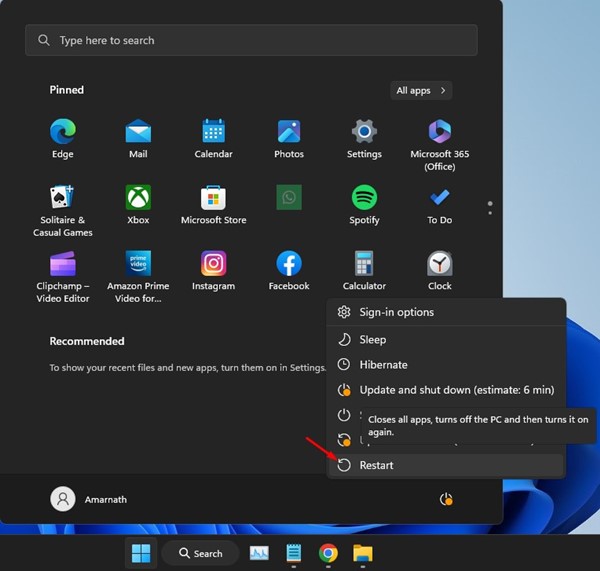
Before you follow the next methods, it’s important to restart your Windows computer. It’s a good idea to restart your Windows computer at regular intervals for proper functioning & stability.
So, if you haven’t restarted your Windows computer for a while, do so now. Open the Windows Start Menu and click on Power Options.
In Power Options, select Restart. This will restart your Windows 11 computer and fix the CTRL+F not working issue.
2. Perform a hardware check
Dirt and debris from your fingers can easily get into the keyboard as you use it regularly. When this dirt builds up, it clogs the keys, resulting in certain keys not working.
So, before you try software-based troubleshooting, it’s important to perform a basic hardware check of your keyboard. If dirt and debris are the issue, use a cotton swab to clean it.
You can also use a handheld blower or vacuum cleaner to remove excessive dust from the keyboard.
3. Enable the Sticky Keys Feature
Sticky Keys is basically a feature that allows you to use the keyboard shortcut more easily. If you have a problem holding one key before pressing another, it’s best to enable & use the Sticky Keys feature.
With Sticky Keys turned on, you won’t have to hold the CTRL key before pressing the F button. Just enable Sticky Keys, press the CTRL key, and release it. Once released, press the F key to perform the Find function.
So, with this feature, you won’t have to keep holding the CTRL key before pressing F. Here’s how to enable the Sticky Keys feature.
1. Press the Windows Key + I to open the Settings app on Windows 11.
2. When the Settings app opens, switch to the Accessibility tab.

3. On the right side, click on Keyboard.

4. On the Keyboard, enable the toggle for Sticky Keys.

Now press the Shift key seven times to turn Sticky Keys on or off.
4. Run the Keyboard Troubleshooter
The latest version of the Windows operating system has a built-in troubleshooter for fixing problems related to the keyboard. The keyboard troubleshooter can easily diagnose and fix keyboard-related problems. Here’s what you need to do.
1. Open the Windows Search and type Keyboard Troubleshooter.
2. Click the Find and fix keyboard problems option from the list of best-match results.

3. On the Keyboard Troubleshooter, click the Next button.

5. Re-register the DLL Files
The Active Accessibility Core Component (Oleacc.dll) is a very important DLL file that records inputs from a keyboard or mouse. So, if the CTRL+F function is not working or showing, you can try re-registering the oleacc.dll file. Here’s what you need to do.
1. Type Command Prompt in Windows Search. Right-click on Command Prompt and select Run as administrator.
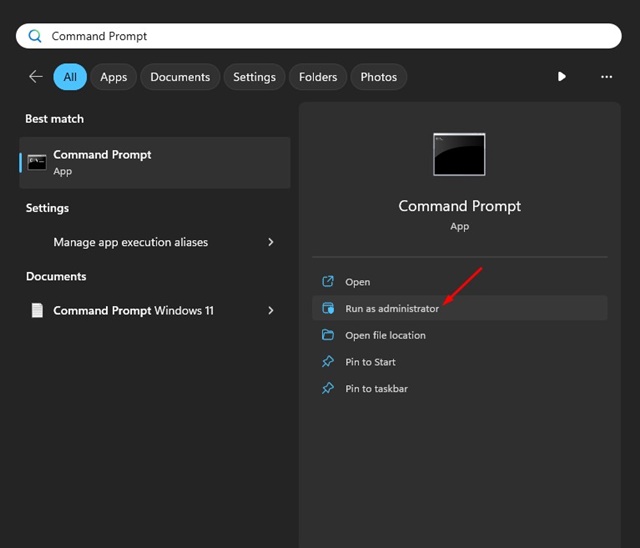
2. When the Command Prompt opens, execute the command:
regsvr32 oleacc.dll

After executing the command, restart your computer. This should fix the corrupted DLL files, and the CTRL+F function should work now.
6. Run the SFC/DISM Command
System file corruption is another prominent reason for CTRL + F not working on Windows. If the important system files are corrupted, you will also face issues while using other operating system features.
1. Type Command Prompt in the Windows search. Right-click on Command Prompt and select Run as administrator.
2. When the Command Prompt opens, execute this command:
SFC /scannow
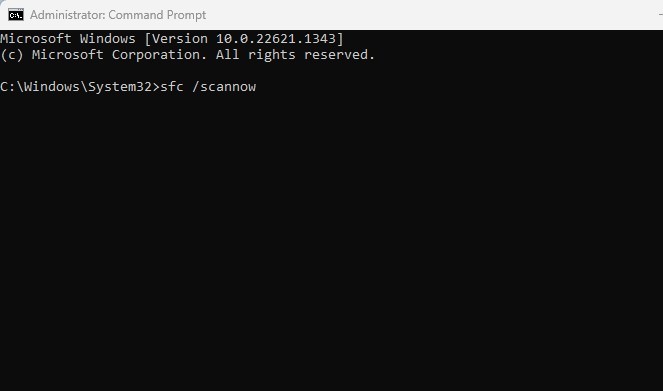
3. If the command returns an error, execute this command:
Dism /Online /Cleanup-Image /RestoreHealth
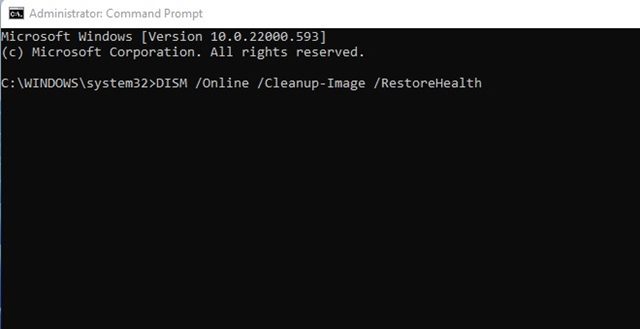
After executing both commands, restart your Windows PC. This should fix the CTRL + F not working issue on your computer.
7. Make Changes to the Local Group Policy
If the Windows Key Hotkeys Settings are turned off, no key combination will work. You can edit the Local Group Policy Editor to ensure the hotkey feature is turned on. Here’s what you need to do.
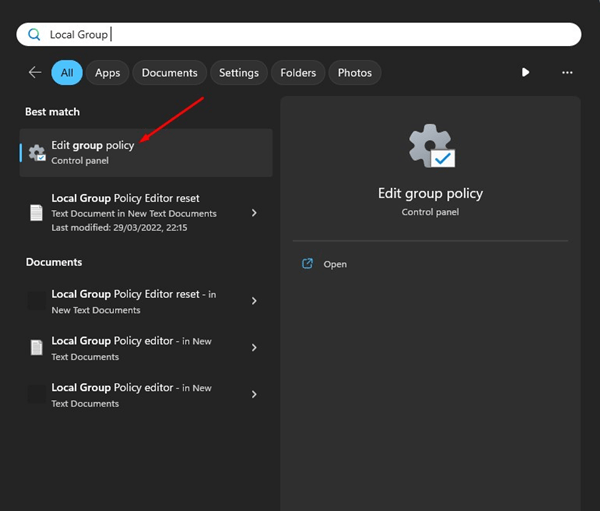
1. Type Local Group Policy in Windows Search. Next, open Edit Group Policy from the list.
2. When the Local Group Policy Editor opens, navigate to this path:
User Configuration > Administrative Templates > Windows Components > File Explorer

3. On the right side, find & double click on the Turn off Windows Key hotkeys.

4. In Turn off Windows Key hotkeys, select either Not Configured or Disabled.

5. After making the changes, click on the Apply button, then on OK.

After making the changes, restart your Windows PC.
8. Reinstall the Keyboard Drivers
Outdated or corrupted keyboard drivers can also be a reason for CTRL + F not working or showing issues. If the keyboard driver is corrupted, certain keys or key shortcuts won’t work. So, you can try reinstalling the keyboard driver and see if it fixes the problem.
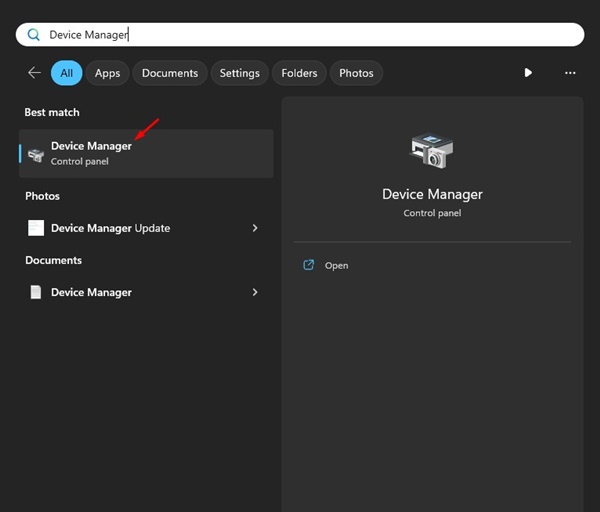
1. Type Device Manager in the Windows search. Next, open the Device Manager app from the list.
2. When Device Manager opens, expand the Keyboard.

3. Right-click on the active keyboard and select Uninstall Device.

4. On the Uninstall Device confirmation prompt, click the Uninstall button again.

After the uninstallation, restart your Windows PC. This will install a fresh copy of the driver and fix issues triggered by corrupted keyboard drivers.
9. Install Windows Updates
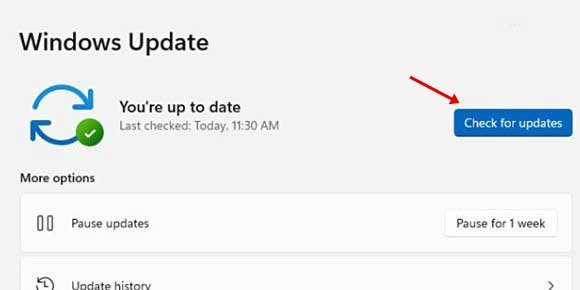
Certain versions of Windows 11 have bugs and glitches that have triggered problems with the keyboard’s functionality in the past. One such problem is keyboard shortcuts not working, and the best way to eliminate such bugs is to update the operating system to the latest version.
To update your Windows 11 computer, open Settings > Windows Update. On Windows Update, click the Check for Updates button. This will automatically download and install all pending Windows updates.
10. Factory Reset your PC
If nothing has worked in your favor, even when the Keyboard is fully functional, the only remaining option is to reset your Windows PC. Before resetting your PC, back up your important files & folders. Here’s how you can factory reset Windows.
1. Open Windows Settings and switch to the Windows Update tab.
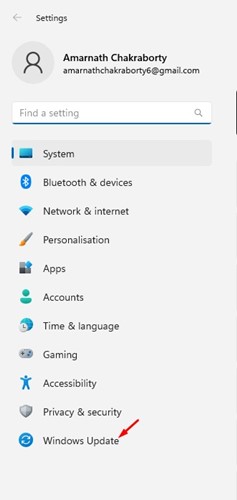
2. On the right side, click on Advanced options.
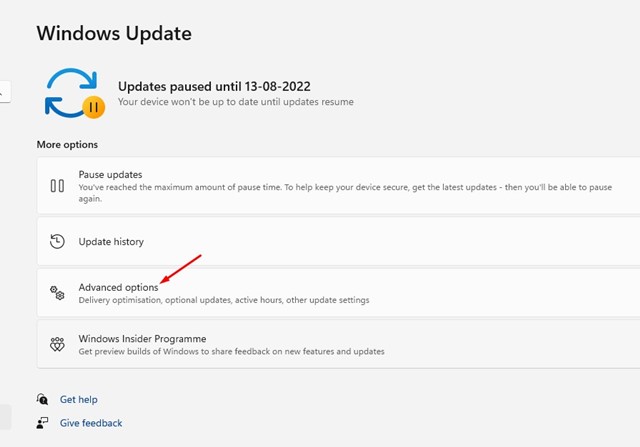
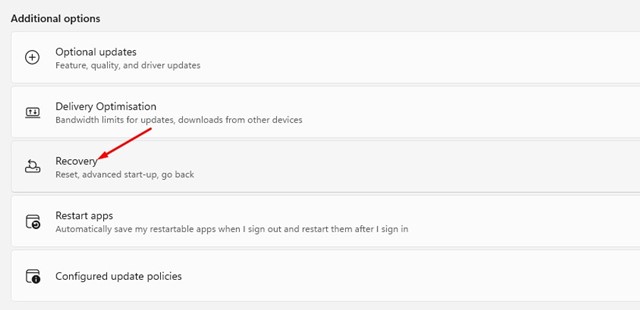
3. Now scroll down to the Additional Options section. Click on Recovery.
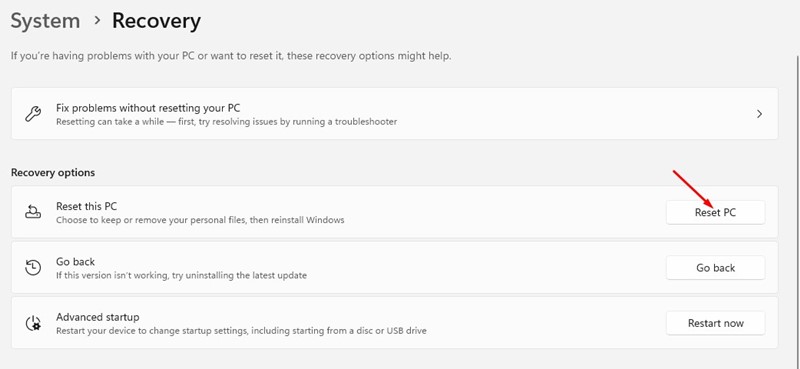
4. Click on the Reset PC button beside Reset this PC.
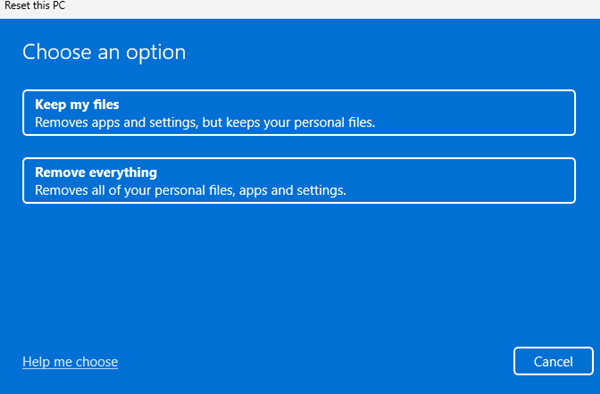
5. On the Choose an option screen, select Keep my files.
6. On the next screen, select Cloud Download.
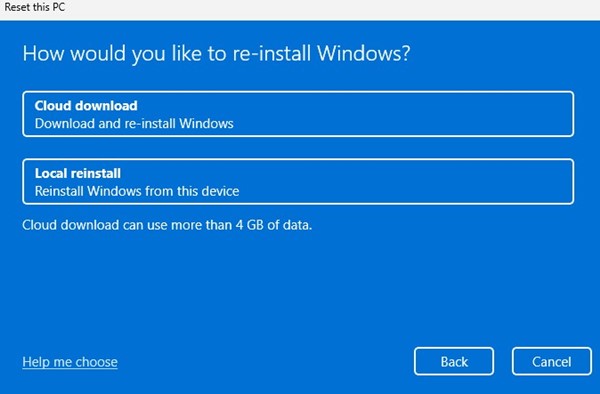
7. Finally, click the Reset button to start the reset process.
Now, wait patiently until the Reset Process is complete. After the reset, you can use CTRL + F again.
CTRL + F is a convenient keyboard shortcut for accessing the app’s find dialog box. If this function does not work on your computer, follow these methods to resolve the problem. Let us know if you need more help fixing CTRL + F not working on a Windows PC.
The post 10 Best Ways to Fix CTRL + F Not Working on Windows appeared first on TechViral.
ethical hacking,hacking,bangla ethical hacking,bangla hacking tutorial,bangla tutorial,bangla hacking book,ethical hacking bangla,bangla,hacking apps,ethical hacking bangla tutorial,bangla hacking,bangla hacking pdf,bangla hacking video,bangla android hacking,bangla hacking tutorials,bangla fb hacking tutorial,bangla hacking book download,learn ethical hacking,hacking ebook,hacking tools,bangla ethical hacking course, tricks,hacking,ludo king tricks,whatsapp hacking trick 2019 tricks,wifi hacking tricks,hacking tricks: secret google tricks,simple hacking tricks,whatsapp hacking tricks,tips and tricks,wifi tricks,tech tricks,redmi tricks,hacking trick paytm cash,hacking trick helo app,hacking trick of helo app,paytm cash hacking trick,wifi password hacking,paytm cash hacking trick malayalam,hacker tricks, tips and tricks,pubg mobile tips and tricks,tricks,tips,tips and tricks for pubg mobile,100 tips and tricks,pubg tips and tricks,excel tips and tricks,google tips and tricks,kitchen tips and tricks,season 2 tips and tricks,android tips and tricks,fortnite tips and tricks,godnixon tips and tricks,free fire tips and tricks,advanced tips and tricks,whatsapp tips and tricks, facebook tricks,facebook,facebook hidden tricks,facebook tips and tricks,facebook latest tricks,facebook tips,facebook new tricks,facebook messenger tricks,facebook android app tricks,fb tricks,facebook app tricks,facebook tricks and tips,facebook tricks in hindi,tricks,facebook tutorial,new facebook tricks,cool facebook tricks,facebook tricks 2016,facebook tricks 2017,facebook secret tricks,facebook new tricks 2020,blogger blogspot seo tips and tricks,blogger tricks,blogger,blogger seo tips,blogger seo tips and tricks,seo for blogger,blogger seo in hindi,blogger seo best tips for increasing visitors,blogging tips and tricks,blogger blog seo,blogger seo in urdu,adsense approval trick,blogging tips and tricks for beginners,blogging tricks,blogger tutorial,blogger tricks 2016,blogger tricks 2017 bangla,tricks,bangla tutorial,bangla magic,bangla motivational video,bangla tricks,bangla tips,all bangla tips,magic tricks,akash bangla tricks,top 10 bangla tricks,tips and tricks,all bangla trick,bangla computer tricks,computer bangla tricks,bangla magic card tricks,ms word bangla tips and tricks,bangla computer tips,trick,psychology tricks,youtube bangla,magic tricks bangla,si trick Credit techviral


