
How to Fix Adaptive Brightness Not Working on Android
Your Android phone’s ambient light sensor measures the light around it and adjusts the screen brightness to match. It’s a brilliant feature, but sometimes it doesn’t work as expected. So, if your Android phone’s Adaptive brightness feature isn’t working, here’s what you should do.
1. Restart Your Phone
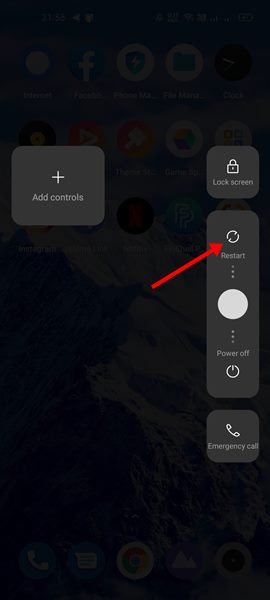
A simple restart will terminate all background processes that might prevent the adaptive brightness feature from working properly.
After spotting the adaptive brightness problem, you should restart your Android device. If you still face problems related to auto-brightness even after the restart, follow the next method.
2. Turn On/Off the Adaptive Brightness
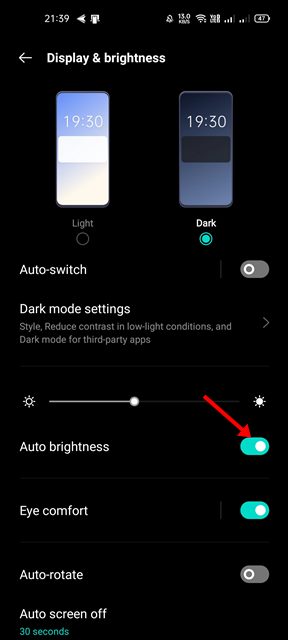
Even if you’ve tried this before, try it again after restarting your phone. After the reboot, turn on/off your smartphone’s Adaptive brightness feature.
Open the Settings app and select the Display & Brightness option to toggle adaptive brightness. Under the Display & Brightness, turn on and off the Auto Brightness option.
3. Reset the Adaptive Brightness Feature
If the adaptive brightness still does not work correctly, you might need to reset it. However, resetting Adaptive Brightness is not available on every Android smartphone. If you are using a Pixel device, follow these steps.
1. Open Settings.
2. Open the Apps and Notifications.
3. Tap the See All Apps option.
4. Find the Device Health Services app.
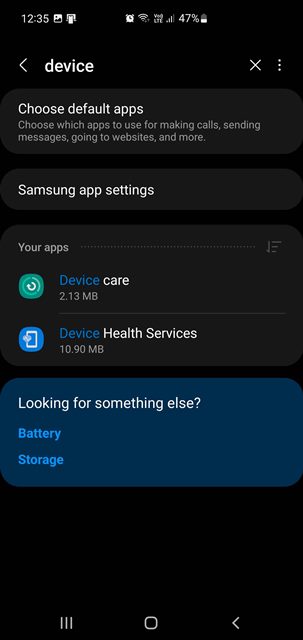
5. Tap the Storage and Cache.
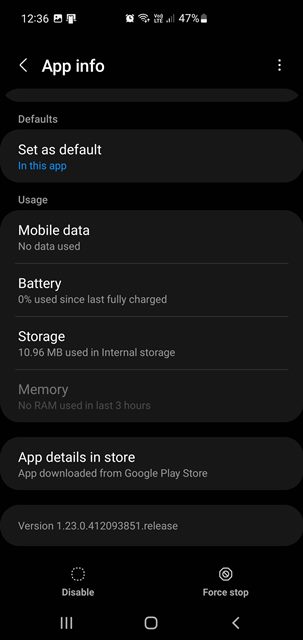
6. Tap on the Clear storage option.
7. Tap the Reset Adaptive brightness button.
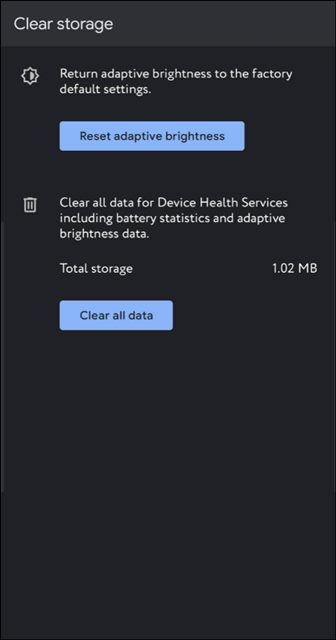
This will reset the Adaptive brightness on your Android smartphone. The steps might vary from device to device.
4. Reset the App Preferneces
A few users have claimed to have fixed the Android Adaptive brightness issue by resetting the App preferences. Hence, you must try this method if the Adaptive brightness is not yet fixed.
1. Open the Settings app.
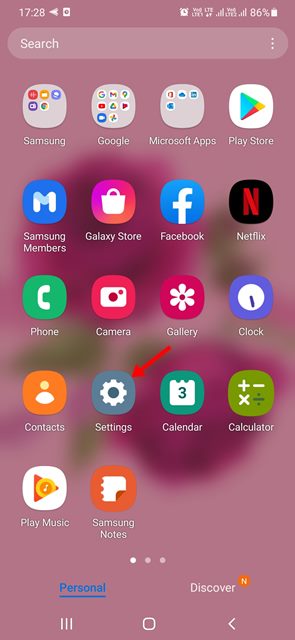
2. Tap on the Apps option.
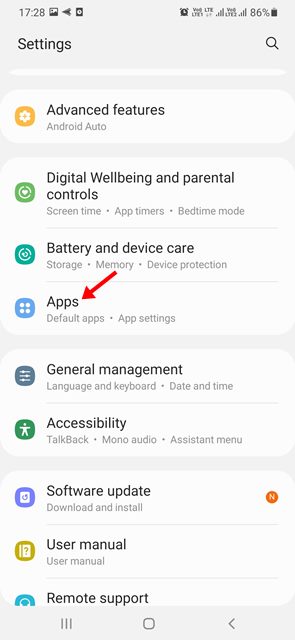
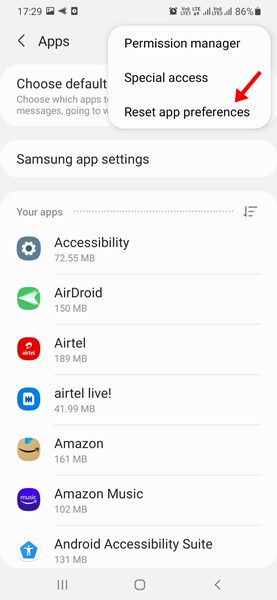
3. Tap on the three dots.
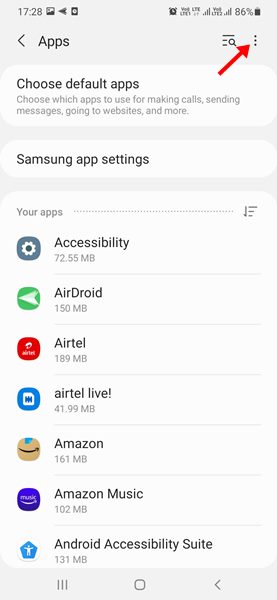
4. Tap the Reset app preferences option.
5. You will see a confirmation prompt; tap the Reset button to reset the app preferences.
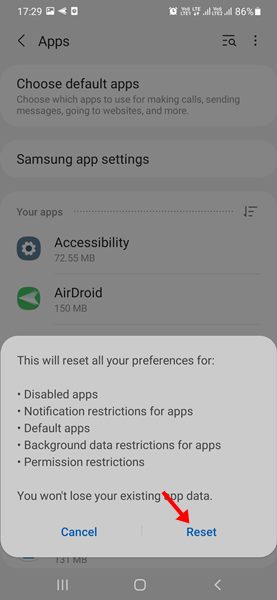
After resetting the app preferences, restart your Android device and check whether the Adaptive brightness problem has been fixed.
5. Check Adaptive brightness in the Safe Mode
When you boot into Safe mode, Android turns off all third-party applications you have installed. If any third-party app or game interferes with the Adaptive brightness feature, the problem won’t appear in Safe mode.
To boot your Android in safe mode, press & hold the physical power button.
Long-press the Restart button. You will see a prompt asking you to enter safe mode. On the prompt, tap on the OK button. Your phone will not boot into Safe mode. Now, use your phone to check if the Adaptive brightness works. If it does, exit Safe mode and review your third-party apps.
6. Check the Sensors
If Adaptive brightness is still not working, your phone might have a hardware-related issue. Adaptive brightness depends on the light sensor, so if the sensor malfunctions, Adaptive brightness won’t work.
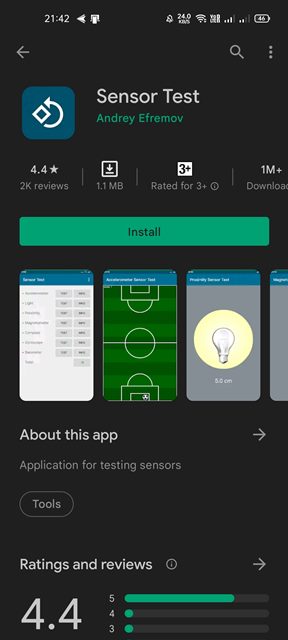
You can use third-party apps like the Sensor test to verify whether the sensor works. The app will tell you if the Adaptive brightness sensor is functioning correctly or not. If the app doesn’t help or shows a negative report, you must take your phone to a service center to have the problem fixed.
7. Use the Velis Auto Brightness App
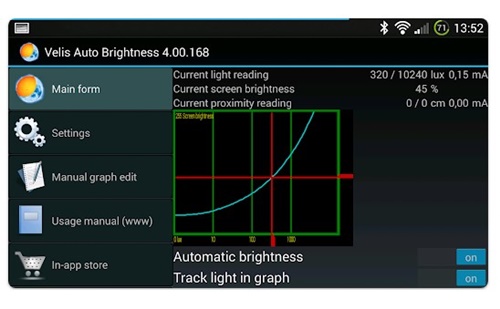
Velis Auto Brightness is a third-party app available on the Google Play Store. It aims to provide you with the best possible brightness experience by using your phone’s sensors.
The app allows you to control how much brightness is applied for any given light condition. You can also choose between a brightness sensor and a proximity sensor to measure the light level and adjust brightness accordingly.
Other apps for the same purpose are available on the Google Play Store, but Velis Auto Brightness is the best one and works on the latest version of Android.
8. Update Your Android Software
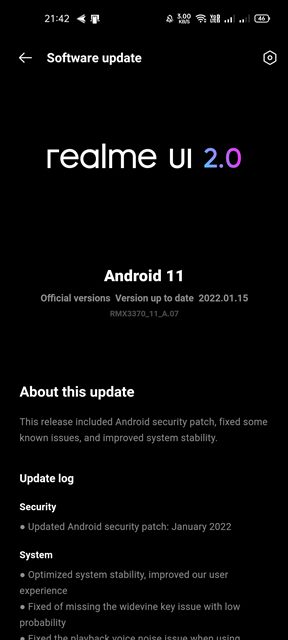
Android updates often contain bug fixes and security patches crucial for any device. So, update the Android software to ensure stability & new features.
Open the Settings > System > System Update to update your Android smartphone. On the System update, download & install any pending updates.
Why is my adaptive brightness not working Samsung?
If you have a Samsung phone, fixing the adaptive brightness issue is fairly easy. Here’s how to do it.
- Turn off the adaptive brightness feature.
- Head to the Settings > Apps > Device Health Services.
- Select Storage > Manage Storage > Clear all data.
- Restart your Samsung phone and turn on the adaptive brightness.
These steps will reset the adaptive brightness settings back to default on your Samsung phone. The adaptive brightness feature should start working now.
We are sure that these workarounds will help you fix Adaptive brightness issues on your Android device.
The post How to Fix Adaptive Brightness Not Working on Android appeared first on TechViral.
ethical hacking,hacking,bangla ethical hacking,bangla hacking tutorial,bangla tutorial,bangla hacking book,ethical hacking bangla,bangla,hacking apps,ethical hacking bangla tutorial,bangla hacking,bangla hacking pdf,bangla hacking video,bangla android hacking,bangla hacking tutorials,bangla fb hacking tutorial,bangla hacking book download,learn ethical hacking,hacking ebook,hacking tools,bangla ethical hacking course, tricks,hacking,ludo king tricks,whatsapp hacking trick 2019 tricks,wifi hacking tricks,hacking tricks: secret google tricks,simple hacking tricks,whatsapp hacking tricks,tips and tricks,wifi tricks,tech tricks,redmi tricks,hacking trick paytm cash,hacking trick helo app,hacking trick of helo app,paytm cash hacking trick,wifi password hacking,paytm cash hacking trick malayalam,hacker tricks, tips and tricks,pubg mobile tips and tricks,tricks,tips,tips and tricks for pubg mobile,100 tips and tricks,pubg tips and tricks,excel tips and tricks,google tips and tricks,kitchen tips and tricks,season 2 tips and tricks,android tips and tricks,fortnite tips and tricks,godnixon tips and tricks,free fire tips and tricks,advanced tips and tricks,whatsapp tips and tricks, facebook tricks,facebook,facebook hidden tricks,facebook tips and tricks,facebook latest tricks,facebook tips,facebook new tricks,facebook messenger tricks,facebook android app tricks,fb tricks,facebook app tricks,facebook tricks and tips,facebook tricks in hindi,tricks,facebook tutorial,new facebook tricks,cool facebook tricks,facebook tricks 2016,facebook tricks 2017,facebook secret tricks,facebook new tricks 2020,blogger blogspot seo tips and tricks,blogger tricks,blogger,blogger seo tips,blogger seo tips and tricks,seo for blogger,blogger seo in hindi,blogger seo best tips for increasing visitors,blogging tips and tricks,blogger blog seo,blogger seo in urdu,adsense approval trick,blogging tips and tricks for beginners,blogging tricks,blogger tutorial,blogger tricks 2016,blogger tricks 2017 bangla,tricks,bangla tutorial,bangla magic,bangla motivational video,bangla tricks,bangla tips,all bangla tips,magic tricks,akash bangla tricks,top 10 bangla tricks,tips and tricks,all bangla trick,bangla computer tricks,computer bangla tricks,bangla magic card tricks,ms word bangla tips and tricks,bangla computer tips,trick,psychology tricks,youtube bangla,magic tricks bangla,si trick Credit techviral


