
How to Wipe a Drive on Windows
If you use a Hard drive, you might know that deleted data can be recovered using a third-party app. This is possible even when users delete items from the Recycle Bin. This happens because the deleted files are Marked as deleted on an additional magnet drive, making data recovery easy.
However, this doesn’t happen with modern solid-state drives, which use TRIM by default. This ensures that deleted files are deleted immediately. External storage devices, such as USB flash drives, also don’t support TRIM, which means deleted files can be recovered. To prevent file recovery, you must wipe a drive; a simple format will not work. Here’s how you can wipe a drive.
1. Using the Format option
To wipe an entire drive, you must perform a full format instead of a Quick format. Here’s what you need to do.
1. Open File Explorer and right-click on the Drive you want to wipe.
2. Select Format
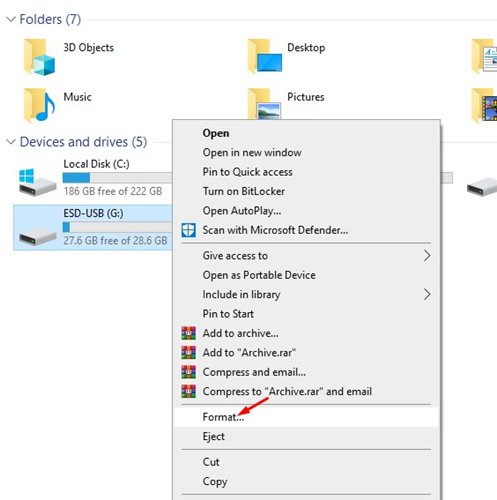
3. Uncheck the ‘Quick Format’ option and click Start.
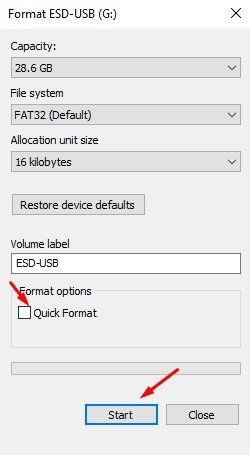
This will take a bit of time to complete. Once completed, the Drive will be wiped.
2. How to Wipe only Free Space
If you don’t want to remove the content, you can wipe only free space. This will the wipe only the free space, overwriting it with zeros.
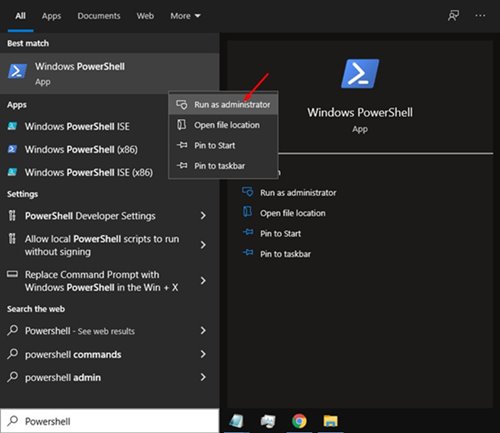
1. Open Windows search and type in Powershell.
2. Right-click PowerShell and select Run as administrator.
3. Execute the given command. Replace the X with the drive letter you want to wipe.
cipher /w:X:\
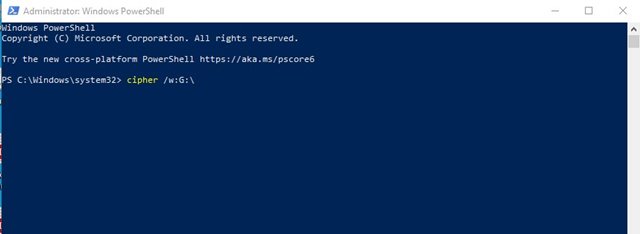
For example: cipher /w:G:\
3. Wipe Your System Drive
You can use the built-in Reset this PC option to wipe your Windows system drive. Here’s how.
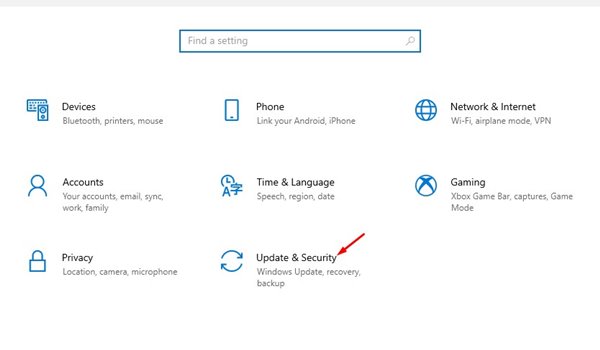
1. Open Windows settings and click the ‘Update & Security’ option.
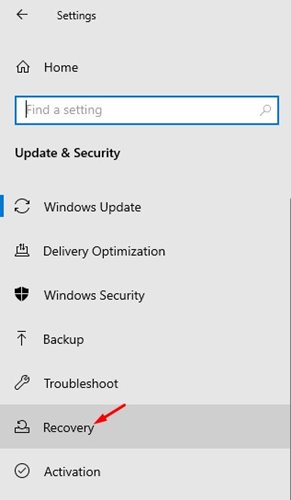
2. Click on the Recovery option.
3. Click the Get Started button behind Reset this PC.

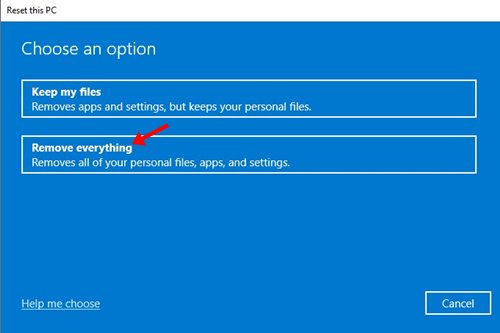
4. On the Reset this PC dialog box, select ‘Remove Everything’
5. Follow the on-screen instructions to complete the reset process.
This will remove everything stored on your System Drive. So, ensure a proper backup file is ready before performing the System reset.
4. Wipe a drive on Windows via Command Prompt
You can even use the Command Prompt utility to clean a hard drive on the Windows operating system.
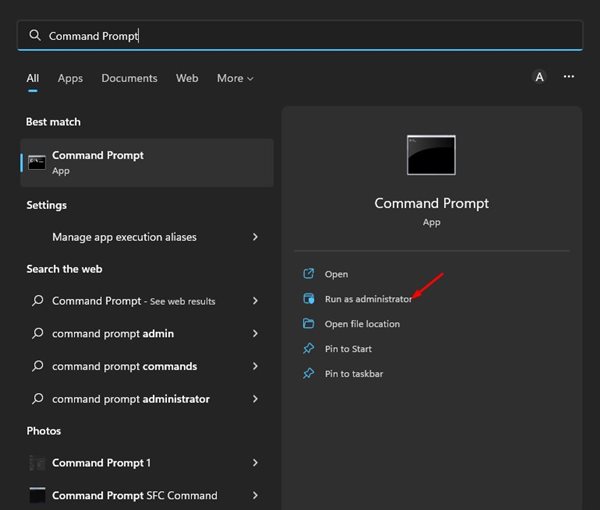
1. Type the command prompt on the Windows 11 Seainh. Right-click on the CMD and select Run as administrator.
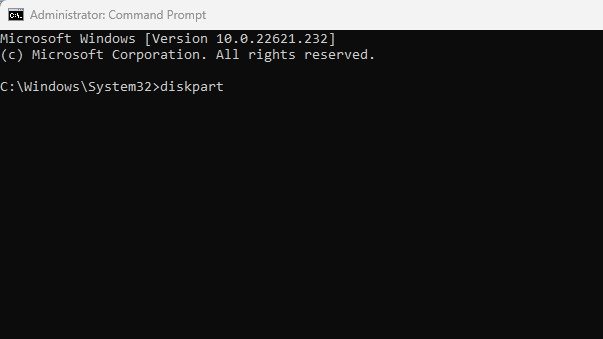
2. Execute the command: diskpart
3. Execute the command: list disk
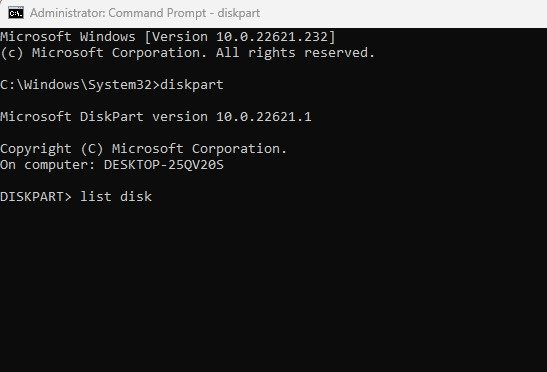
4. This will list all drives you have. Note down the Disk number.
5. Select the disk drive you want to wipe. For the selection, execute this command: select disk X
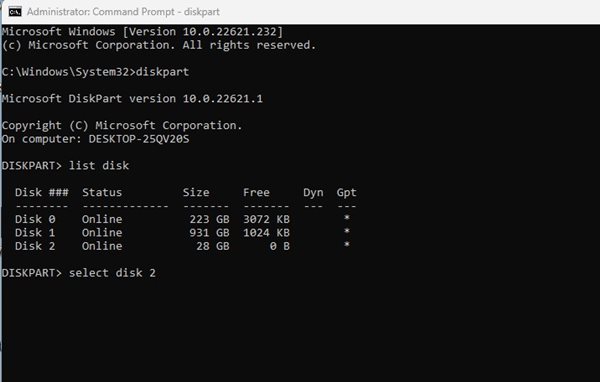
Note: Replace X with the disk number you want to wipe. For example, select disk 2.
6. Type clean and press Enter.
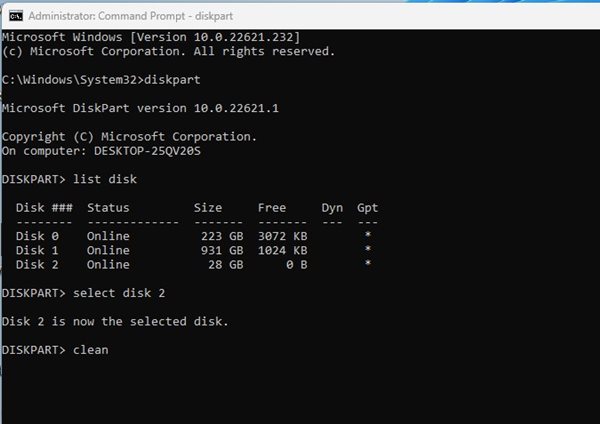
7. This will format your disk. Now you need to format the disk in NTFS file format & assign it a drive letter to make it usable. For that, execute these commands one by one:
create partition primary

select partition 2

active

format FS=NTFS quick

assign letter=X

exit
Important: In the 5th command, replace the X with the drive letter you want to assign to your drive.
The above methods will wipe a drive on Windows. Wiping a drive is very different from formatting it. If you have any doubts, let us know in the comment box below.
The post How to Wipe a Drive on Windows appeared first on TechViral.
ethical hacking,hacking,bangla ethical hacking,bangla hacking tutorial,bangla tutorial,bangla hacking book,ethical hacking bangla,bangla,hacking apps,ethical hacking bangla tutorial,bangla hacking,bangla hacking pdf,bangla hacking video,bangla android hacking,bangla hacking tutorials,bangla fb hacking tutorial,bangla hacking book download,learn ethical hacking,hacking ebook,hacking tools,bangla ethical hacking course, tricks,hacking,ludo king tricks,whatsapp hacking trick 2019 tricks,wifi hacking tricks,hacking tricks: secret google tricks,simple hacking tricks,whatsapp hacking tricks,tips and tricks,wifi tricks,tech tricks,redmi tricks,hacking trick paytm cash,hacking trick helo app,hacking trick of helo app,paytm cash hacking trick,wifi password hacking,paytm cash hacking trick malayalam,hacker tricks, tips and tricks,pubg mobile tips and tricks,tricks,tips,tips and tricks for pubg mobile,100 tips and tricks,pubg tips and tricks,excel tips and tricks,google tips and tricks,kitchen tips and tricks,season 2 tips and tricks,android tips and tricks,fortnite tips and tricks,godnixon tips and tricks,free fire tips and tricks,advanced tips and tricks,whatsapp tips and tricks, facebook tricks,facebook,facebook hidden tricks,facebook tips and tricks,facebook latest tricks,facebook tips,facebook new tricks,facebook messenger tricks,facebook android app tricks,fb tricks,facebook app tricks,facebook tricks and tips,facebook tricks in hindi,tricks,facebook tutorial,new facebook tricks,cool facebook tricks,facebook tricks 2016,facebook tricks 2017,facebook secret tricks,facebook new tricks 2020,blogger blogspot seo tips and tricks,blogger tricks,blogger,blogger seo tips,blogger seo tips and tricks,seo for blogger,blogger seo in hindi,blogger seo best tips for increasing visitors,blogging tips and tricks,blogger blog seo,blogger seo in urdu,adsense approval trick,blogging tips and tricks for beginners,blogging tricks,blogger tutorial,blogger tricks 2016,blogger tricks 2017 bangla,tricks,bangla tutorial,bangla magic,bangla motivational video,bangla tricks,bangla tips,all bangla tips,magic tricks,akash bangla tricks,top 10 bangla tricks,tips and tricks,all bangla trick,bangla computer tricks,computer bangla tricks,bangla magic card tricks,ms word bangla tips and tricks,bangla computer tips,trick,psychology tricks,youtube bangla,magic tricks bangla,si trick Credit techviral


